Turn a Photo into PDF: A Step-by-Step Guide for Professionals
Learn how to turn a photo into PDF with built-in tools or dedicated apps. This guide covers quality, page size, single and multi-page PDFs, and accessibility considerations for professional workflows.


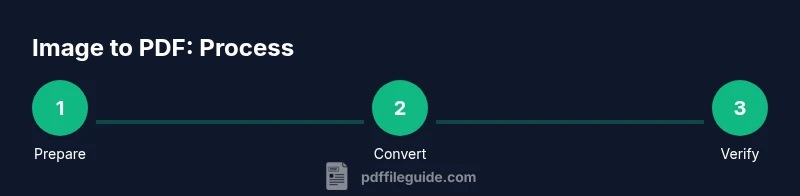
Turn a photo into PDF using a simple, repeatable workflow. You’ll start with a high-resolution image, pick a suitable PDF tool (built-in print-to-PDF, Preview, or a dedicated converter), and save or export as a PDF. If you need more pages, add additional photos to create a multi-page document. This approach preserves image quality while remaining portable for sharing.
How image-to-PDF works
Converting a photo to PDF is essentially placing a raster image on a PDF page and exporting that page as a document. The key levers are the image’s resolution (DPI), color profile, and how the PDF encodes the image or applies compression. For professional results, you generally want to preserve color accuracy, avoid over-compression, and pick a page size that matches how the image will be viewed or printed. PDF files created from photos are ideal for sharing, archiving, or sending to print services because they are universally readable and portable across devices. The PDF File Guide team recommends checking the image’s native resolution before conversion to determine whether upscaling may degrade quality. Online services can be convenient, but for sensitive work, offline tools provide more control over compression and embedding settings.
Choosing the right tool for turning photos into PDFs
Your choice of tool depends on your workflow, device, and privacy needs. Desktop software (like a built-in PDF printer) is fast and reliable for single photos, and it often offers basic compression controls. Preview on macOS and Print to PDF on Windows are convenient for quick tasks. For batch operations or advanced options (color profiles, security, OCR), third-party apps or professional PDF editors are worth the investment. On mobile, many apps can export directly to PDF from your photo gallery. PDF File Guide notes that consistency across devices is important, so pick a tool you can use with the same results every time. If privacy is a concern, avoid uploading sensitive images to cloud-based converters and prefer offline tools.
Step-by-step workflow for a single photo
- Open the photo in your chosen tool and verify orientation. Rotate or crop as needed to fit the intended page size.
- Choose a page size that matches your viewing or printing needs (A4 or Letter are common defaults). Align the image to use the printable area without borders if desired.
- Export or print to PDF, selecting the highest acceptable quality. If your tool offers DPI controls, set 300 DPI for print-quality outputs and 150-200 DPI for on-screen viewing.
- Save the file with a descriptive name and a logical folder location. If you anticipate sharing, consider embedding the image compression setting that preserves quality while reducing file size.
- Open the PDF in a reader to confirm fidelity, color, and orientation. If issues arise, re-export with adjusted settings.
Formatting choices: resolution, color, and page size
Resolution (DPI) governs print clarity; aim for 300 DPI for print, 150-200 DPI for on-screen sharing to balance quality and file size. Color management matters: sRGB is a safe default for most displays. Page size should reflect the intended final use; if the photo will be printed, align to the printer’s supported sizes. If the image contains important text or fine details, avoid aggressive compression or downsampling that blur those elements. When you scale an image to fit a page, preserve the aspect ratio to prevent stretching or black bars.
Working with batches: multi-page PDFs
To include several photos in a single PDF, add each image to the same document in the desired order. Check page order by previewing the document before saving. For consistency, apply the same DPI, color profile, and page size across all images. Some tools let you arrange pages by drag-and-drop; use this to place cover photos first, followed by supporting shots or detail photos. If you need a clean portfolio or client presentation, consider adding a title page and page numbers for navigation.
Troubleshooting common issues
If an image looks blurry after export, re-export at a higher DPI or use lossless compression settings. If colors appear off, confirm the color profile (sRGB is standard for screens; CMYK is used for print, if your workflow demands it). For orientation mistakes, double-check the source image orientation and the page layout before exporting. Large PDFs can be hard to share; try reducing image downsampling or compressing selectively. Always verify that there are no unintended blank margins or clipping on the page. If your result should be accessible, ensure screen-reader-friendly text alternatives exist for any non-text elements.
Accessibility and security considerations
Accessible PDFs benefit from including descriptive alt text for images and, when possible, running OCR to make text within images searchable. If the photo is part of a document intended for distribution, consider password-protecting the PDF or applying encryption for sensitive content. Avoid embedding fonts unnecessarily to minimize file size, but ensure legibility if the image contains embedded text. When distribution includes multiple recipients, confirm that the file size remains reasonable for email or cloud sharing.
Practical tips for efficient batch conversion
- Use a single, consistent DPI and page size across all images in a batch to maintain uniform appearance.
- For photos intended for printing, keep original resolution and avoid aggressive downsampling.
- When possible, convert from a lossless format to preserve clarity, then apply controlled compression on export.
- If you need accessibility, enable OCR on scanned images and add alt text descriptions.
- Always test the final PDF on multiple devices to ensure fidelity across screens and prints.
Authority sources and further reading
For standard practices and best practices in PDF creation and image handling, consult credible resources from ISO and PDF-related authorities.
- Authority sources: https://www.pdfa.org/
- Technical standards: https://www.iso.org/iso-32000-pdf.html
- Accessibility and web standards: https://www.w3.org/WAI/
These sources help practitioners align with industry standards when turning photos into PDFs.
Authority Sources (expanded)
- PDF/A Association (pdfa.org) — standards and best practices for long-term, accessible PDF preservation.
- ISO 32000 (iso.org) — official specifications for the PDF file format, including image handling and compression.
- W3C Web Accessibility Initiative (w3.org/WAI) — guidelines for making PDFs accessible across assistive technologies.
Tools & Materials
- Photo file (JPG, PNG, TIFF, or RAW processed to a standard format)(Use a high-resolution image; avoid heavily compressed formats if possible)
- Device with PDF capabilities (computer, tablet, or smartphone)(Any device that can run a PDF tool or has a built-in print-to-PDF function)
- PDF conversion tool (desktop app, mobile app, or web service)(Examples: built-in print-to-PDF, Preview (macOS), or third-party editors)
- Internet connection (optional for online tools)(Needed only if you choose a web-based converter)
- Optional: password protection or encryption features(Use if you need to restrict access to the PDF)
Steps
Estimated time: 15-25 minutes
- 1
Prepare the photo
Open the image and check orientation. Rotate if needed, crop margins, and confirm the resolution is adequate for your final use. Save a copy to preserve the original.
Tip: Aim for at least 300 DPI for print-friendly results; for on-screen viewing, 150-200 DPI is often sufficient. - 2
Choose your tool
Decide whether to use a built-in printer/Export-to-PDF option or a dedicated PDF app. Consider privacy needs and whether you require batch processing or advanced compression.
Tip: If you need batch processing, pick a tool that supports multi-image workflows and consistent settings. - 3
Set page size and orientation
Select a page size that matches your intended output (A4 or Letter are common). Align the image without distortion and pick orientation that matches the photo’s layout.
Tip: Lock aspect ratio to avoid stretched images; center or edge-align as per your design preference. - 4
Export or print to PDF
Export or print to PDF, choosing the highest acceptable quality. If available, adjust DPI and compression to balance fidelity and file size.
Tip: Prefer lossless or moderate compression for best results; avoid aggressive downsampling on detailed photos. - 5
Save with a clear name
Name the file descriptively and save it to a logical folder. If you anticipate sharing, consider adding a version or date in the filename.
Tip: Use a consistent naming scheme across projects for easier retrieval. - 6
Verify the result
Open the PDF to inspect color, fidelity, and layout. Confirm that the image is readable and properly oriented.
Tip: Test the file on different devices or PDF readers to ensure consistent rendering. - 7
Extend to multiple photos
If you need more pages, repeat the process for additional photos and paste them into the same document in the desired order.
Tip: Arrange pages logically; add a cover or title page if appropriate.
Questions & Answers
What is the best way to turn a photo into PDF?
For speed, use your device's built-in print-to-PDF or export-to-PDF option. For more control, a dedicated PDF editor offers compression, color management, and security settings.
Use the built-in PDF option for quick tasks, or a dedicated editor for more control.
Can I turn multiple photos into one PDF?
Yes. Most tools support adding several images to a single document and exporting a multi-page PDF in the desired order.
Yes—many tools let you combine images into one PDF.
What resolution should I use when turning photos into PDFs?
Use 300 DPI for print-quality PDFs. For on-screen viewing, 150-200 DPI is usually sufficient and keeps file sizes reasonable.
For printing, aim for 300 DPI; for screens, 150-200 DPI works well.
Are image PDFs accessible to screen readers?
If accessibility is required, add descriptive alt text for images and consider OCR to make text within images searchable.
Add alt text and use OCR if the image contains searchable text.
Is it safe to use online converters for photos?
Online converters can expose private images. Use reputable services or offline tools for sensitive content to protect privacy.
Be careful with sensitive photos; prefer offline tools when possible.
Can I password-protect a PDF created from a photo?
Yes. Many tools offer password protection or encryption for PDFs, useful for distributing sensitive photo documents.
You can password-protect the PDF using tool options.
Watch Video
Key Takeaways
- Choose a consistent tool for predictable results
- Match DPI and page size to your final use
- Use multi-page PDFs for photo sets
- Check accessibility and privacy considerations