Turn PDF to Text: A Comprehensive How-To for 2026
Learn reliable methods to turn PDF to text, with native text extraction, OCR options, and best practices for accuracy, formatting, and accessibility in 2026.


Goal: turn pdf to text by extracting the actual text or applying OCR to images. Start with native text extraction when the PDF already contains selectable text; use OCR for scanned or image-based pages. This guide covers reliable methods, essential tools, and quality checks to produce accurate, searchable text.
Why turning PDF into text matters for editors and researchers
Text extraction from PDFs unlocks searchable archives, editable content, and data reuse across workflows. For professionals who edit, convert, and optimize PDFs, having clean text speeds up auditing, summarization, and data mining. When you turn pdf to text you enable precise edits, powerful search, and accessible documents for screen readers. PDF File Guide notes that reliable extraction reduces manual retyping and preserves intellectual work, especially in legal, academic, and archival contexts. The right approach balances accuracy, structure, and privacy, ensuring you can reuse information without losing formatting or meaning.
Native text extraction: when PDFs already have text
Many PDFs contain actual text embedded in the document. In these cases, you can copy-paste or export text directly from most PDF editors or readers. Native extraction preserves characters, fonts, and line breaks better than OCR, especially for equations, bullet lists, or tables. When you turn pdf to text this way, you often retain smaller file sizes and preserve bookmarks and metadata. Always verify that the extracted text matches the source by spot-checking headings, captions, and footnotes, because minor spacing can still occur during export.
OCR: turning scanned PDFs into editable text
OCR converts images of text into machine-readable characters. This is essential for scanned documents, invoices, or forms where the original text isn’t selectable. Modern OCR engines analyze layout, detect language, and apply page orientation corrections. Expect occasional misreads with similar-looking characters (e.g., 0 vs O, l vs1). To reduce errors, train OCR with language packs, enable page layout analysis, and perform post-processing corrections after extraction. PDF File Guide recommends testing OCR on representative pages to calibrate accuracy before processing large batches.
Choosing the right tool: desktop, online, or open-source options
Your choice depends on cost, privacy, accuracy, and volume. Desktop tools (paid or free) offer offline processing and tighter data control, which is important for confidential PDFs. Online services can be faster for small jobs but require uploading documents, raising privacy concerns. Open-source options like Tesseract provide customizable OCR engines and scripting possibilities, ideal for developers. When you turn pdf to text, consider the document type, required accuracy, and whether you need batch processing, language support, or layout-aware extraction.
Step-by-step workflows overview
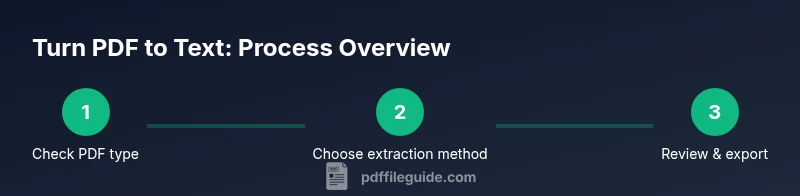
A typical workflow starts by identifying whether the PDF contains selectable text. If yes, use a native extractor to pull text and then clean it in a text editor. If no, apply OCR, then review results for spacing, hyphenation, and line breaks. Advanced users can combine multiple tools to handle complex layouts, such as multi-column text or embedded images. Always save a backup of the original before starting extraction and maintain a log of settings used for reproducibility.
Handling formatting during extraction: keeping structure intact
Preserving headings, lists, captions, and tables is often the hardest part of turning PDF to text. Some tools export structural hints (like headings or table cells) while others produce flat text. After extraction, apply formatting corrections in a text editor or word processor. You may need to split or merge lines, reassemble multi-column text, and reconstruct table layouts. When you turn pdf to text, plan a post-processing phase that reconstitutes the document’s logical structure for readability and downstream use.
Quality checks and validation: ensuring accuracy
Quality checks should verify spelling, punctuation, and numeric data against the source. Use spell checkers, grammar tools, and domain-specific glossaries to catch OCR mistakes. For repetitive documents, run spot checks on a sample of pages across sections. Validate that accented characters map correctly and that any special symbols render properly. PDF File Guide emphasizes documenting any anomalies encountered to inform future extractions and tool tuning.
Accessibility and searchability considerations
Extracted text should be accessible to screen readers and search engines. Maintain semantic structure by preserving headings and document order, and provide alternative text for images where applicable. When you turn pdf to text, include metadata like language, font information, and encoding to improve accessibility. If you publish extracted text, consider providing a plain-text version and a structured HTML or XML version to maximize reach.
Practical examples and scenarios
In an academic paper, native text extraction can quickly yield the body, references, and footnotes, while OCR may be needed for scanned figures and diagrams. For an invoice, OCR plus intelligent form-field detection helps extract line items and totals. A corporate report with multi-column layouts may require layout-aware tools to preserve sections and subsections. Across these cases, combining methods and validating results yields the most reliable text output.
Common pitfalls and troubleshooting checklist
Expect occasional misreads for numbers, symbols, or non-Latin languages. When you turn pdf to text, always verify language settings and character encodings. If layout is lost, try a different OCR engine or adjust deskew and page segmentation modes. Protect sensitive documents by using offline tools or trusted providers, and maintain privacy logs for compliance.
Tools & Materials
- Computer or laptop(Up-to-date OS (Windows/macOS/Linux))
- PDF source file(The file you want to convert)
- PDF viewer/editor(e.g., Adobe Acrobat Pro, Foxit, or browser-based viewer)
- OCR software (if needed)(e.g., ABBYY FineReader, Tesseract, or built-in OCR in Acrobat)
- Text editor or word processor(For cleaning and formatting extracted text)
- Optional scripting environment (advanced)(Python + PyPDF2, pdfminer.six for custom workflows)
- Spell checker or proofreading tools(To catch OCR errors)
Steps
Estimated time: 45-60 minutes
- 1
Prepare your files and workflow
Gather the PDF you will convert and decide whether to use native text extraction or OCR. Plan whether you’ll process a single file or a batch, and set your target output (plain text, Word, or HTML).
Tip: Create a dedicated folder for originals and outputs to keep versions organized. - 2
Check if text is selectable in the PDF
Open the file and try selecting some text. If you can highlight and copy, you can usually export or copy text directly from the editor without OCR.
Tip: If copy-paste loses formatting, export to Word or HTML and clean there. - 3
Extract text from native PDFs
Use the PDF editor's export feature or a dedicated extractor to pull text. Review for line breaks and headings, then paste into a text editor for cleanup.
Tip: Export as plain text first to see raw structure before applying formatting. - 4
Apply OCR to image-based PDFs
Run OCR with language packs, page layout analysis, and deskew options. Start with a smaller batch to calibrate accuracy before scaling up.
Tip: Choose a layout-aware mode to preserve columns and headers. - 5
Review and correct extracted text
Proofread for misreads, punctuation, and encoding issues. Fix hyphenation, remove stray line breaks, and reassemble multi-line fragments into coherent paragraphs.
Tip: Use a glossary or domain-specific terms to standardize terminology. - 6
Export and save final text
Save in the desired format (TXT, DOCX, or HTML). Keep a versioned backup of the original and the extracted text for auditability.
Tip: If distributing text publicly, consider providing both plain text and structured HTML versions.
Questions & Answers
What is the difference between text extraction and OCR?
Text extraction pulls already present text from a PDF; OCR converts images or scanned content into editable text. OCR is needed when text isn’t selectable. The quality depends on layout, language, and the OCR engine used.
Text extraction uses existing text; OCR creates text from images. If you see selectable text, skip OCR to preserve accuracy.
Can I turn scanned PDFs into text for free?
There are free OCR tools and open-source engines, but free options may have lower accuracy or watermarks. For large or sensitive documents, consider reputable paid tools or offline open-source solutions.
Yes, but quality and privacy vary—check tool limits and privacy terms.
How accurate is OCR and how can I improve it?
OCR accuracy improves with high-quality scans, language packs, and layout analysis. Post-processing corrections and using a layout-aware mode help preserve structure.
Accuracy depends on image quality and language settings; post-processing is often necessary.
How do I preserve formatting like headings and tables?
Use tools that support layout detection and export to formats that retain structure (HTML or Word). Post-process to rebalance line breaks and table cells.
Choose layout-aware options and clean the output afterward.
Is the extracted text searchable and copyable?
Yes, once text is extracted or OCRed, it is typically searchable and copyable. Ensure encoding is correct and the final file uses a standard text format.
Extracted text can be searched; verify encoding and line breaks.
What languages are supported by OCR tools?
Most OCR tools support a wide range of languages. Install language packs for the target text to improve accuracy, especially for non-Latin scripts.
Most tools support many languages—add the packs for better results.
Watch Video
Key Takeaways
- Extract text only after confirming the PDF type.
- Native text is cleaner than OCR, when available.
- OCR requires post-processing to fix layout and accuracy.
- Choose tools based on privacy, speed, and batch needs.
- Validate output with proofreading and accessibility in mind.