Add a Digital Signature to PDF: A Practical How-To
Learn how to add a digital signature to PDF documents securely, verify authenticity, and share signed files with confidence. This step-by-step approach covers certificates, tools, and best practices for professional use.


This guide demonstrates how to add a digital signature to a PDF using a trusted certificate and common software. You’ll learn how signatures work, how to prepare a certificate, and how to verify signatures after signing. You’ll also discover best practices to keep signed PDFs secure and legally valid.
Why sign PDFs? Benefits and scope
In the digital age, signing PDFs provides authenticity and integrity, ensuring that a document came from the stated author and hasn't been altered since signing. A digital signature binds the signer's identity to the document using a cryptographic certificate. For professionals, this is essential for contracts, proposals, and regulatory forms. It also helps recipients verify origin without contacting the author. The PDF File Guide team notes that digital signatures support non-repudiation and streamline workflows, reducing the need for sending physical copies. Key benefits include tamper-evidence, automated timestamping, and easier compliance with industry standards. Remember that signatures can be persistent across platforms; however, interoperability depends on certificate trust, software support, and correct embedding of signature data. In this guide, we cover how to obtain a certificate, apply the signature, and verify it across common PDF readers.
Understanding digital signatures vs. visible signatures
A visible signature is a graphic stamp placed on a page, often showing the signer’s name and timestamp. A digital signature, by contrast, is cryptographic: it uses a certificate to bind identity to the document and creates a tamper-evident seal. Visible signatures are helpful for human recognition, while digital signatures provide machine verification and integrity checks. For most professional workflows, digital signatures fulfill legal and regulatory requirements as long as the certificate is trusted and the signing process preserves the document’s hash. The distinction matters when you need automated verification across platforms and long-term validity.
How digital signatures work in PDFs
A PDF digital signature relies on public-key cryptography. When you sign, your software creates a hash of the document, then encrypts that hash with your private key using your certificate. The result is a signature block attached to the PDF. Recipients can verify the signature with your public key, ensuring the document hasn’t changed since signing. Most PDFs also support timestamping, which anchors the signature to a trusted time source, helping prove when signing occurred. Compliance standards like PAdES provide guidelines for long-term validation and interoperability.
Choosing a signing method: software, hardware, or cloud
You can sign PDFs using software-based wallets, hardware security modules (HSMs), or cloud-based signing services. Software-based signing is common and convenient, but requires careful certificate protection. Hardware tokens and smart cards offer stronger physical security, while cloud services simplify management and allow signing from multiple devices. Regardless of approach, ensure your certificate is issued by a trusted Certificate Authority (CA) and that your signing process supports timestamping for better long-term validity.
Step-by-step workflow: prepare, sign, verify, and distribute
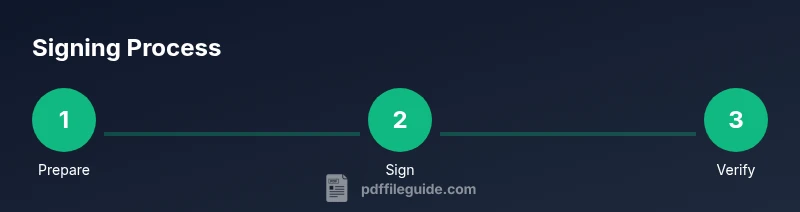
A signing workflow typically follows these stages: prepare your certificate and audience, open the PDF, sign with your certificate, optionally apply a visible signature and timestamp, verify the signature, save the signed document, and distribute with a record of the signing event. Each stage has checks to prevent errors, such as confirming the certificate chain is trusted and ensuring the signature data remains embedded in the file. PDF readers should show a green check or equivalent indicator when verification succeeds.
Common pitfalls and how to avoid them
Common mistakes include using an untrusted certificate, losing the private key, forgetting to timestamp, or signing a PDF that will be altered afterward. Avoid these by keeping certificates organized, enabling timestamping, and finalizing the document before sharing. Also test verification on multiple readers (desktop and mobile) to ensure cross-client compatibility. Always back up the original unsigned file and the signed version with clear versioning.
Security best practices for digital signatures
Adopt a security-first approach: store private keys in secure wallets, require multi-factor authentication for signing, and maintain an auditable signing log. Use long, certificate-based identities and keep software up to date to mitigate vulnerabilities. If you work with sensitive information, consider hardware-backed keys and trusted timestamp authorities to strengthen long-term validity and trust.
Practical examples and real-world scenarios
Contracts, NDAs, and procurement documents often benefit from digital signatures to accelerate approval cycles. Government forms and regulatory filings may require signatures to be legally binding and easily verifiable. In educational or internal processes, signatures simplify archiving and compliance without mailing physical copies. In all cases, ensure the recipient’s PDF viewer can verify the signature and that the certificate chain is trusted.
Final checks before sending a signed document
Before distribution, re-verify that the signature remains valid after a save, confirm the timestamp is present if required, and ensure the recipient can access the signing certificate chain. Include a short note or signature metadata in the email to explain how to verify the signature and any required viewers or plugins.
Tools & Materials
- PDF editor with signing feature(Must support PKCS#12 certificates and optional timestamping.)
- Digital signing certificate (PKCS#12/.pfx)(Stored securely; password protected.)
- Private key access (password or hardware token)(Keep private keys secure; never share.)
- Timestamping service access (TSA)(Optional but recommended for long-term validity.)
- Backup signer wallet or recovery method(Plan for key loss or certificate expiry.)
- Trusted root certificates(Ensure recipients can validate the chain.)
Steps
Estimated time: 25-40 minutes
- 1
Prepare your signing materials
Collect your signing certificate, ensure you have password access, and verify the signing software supports PKCS#12 and timestamping. This upfront preparation reduces interruptions later.
Tip: Store the certificate in a secure vault and test opening it in the signing app before proceeding. - 2
Open the PDF in a signing-capable editor
Launch your PDF editor and open the document you intend to sign. If the file contains multiple sections, make sure the area where you plan to place the signature is clear.
Tip: If your editor supports signature fields, place one in a stable position on the document. - 3
Choose the signing certificate
Select the correct certificate from your wallet. Confirm that the certificate chain is trusted and that the private key is accessible for signing.
Tip: Avoid using expired or untrusted certificates; verify the issuer and validity window. - 4
Apply the digital signature
Sign the document by hashing the content and encrypting the hash with your private key. Optionally attach a visible signature panel with your name and timestamp.
Tip: If you enable a visible signature, ensure it does not obscure critical content. - 5
Apply timestamp (if available)
Add a timestamp from a trusted TSA to anchor the signature to a specific time, improving long-term validation.
Tip: Timestamping is highly recommended for regulatory or archival use. - 6
Save and verify the signature
Save the signed document and run a verification check to confirm the signature remains valid and the document has not been altered since signing.
Tip: Check across multiple PDF readers to ensure cross-compatibility. - 7
Distribute the signed PDF
Share the signed PDF with recipients and include instructions for verification if needed. Maintain a copy of the unsigned version for reference.
Tip: Provide contact details for verification in case recipients have questions. - 8
Archive and monitor
Archive the signed document with metadata (signer, timestamp, certificate issuer) for future audits. Monitor certificate validity and re-sign when necessary.
Tip: Set reminder for certificate renewal well before expiry.
Questions & Answers
What is a digital signature in PDF?
A digital signature is a cryptographic seal that binds the signer's identity to a PDF and detects any subsequent changes. It relies on a certificate and a private key to create a hash that can be verified by others using the corresponding public key.
A digital signature binds identity to a document using cryptography and a certificate, allowing others to verify authenticity and detect changes.
Do I need a certificate from a trusted CA?
Using a certificate issued by a trusted Certificate Authority improves cross-compatibility and trust. Self-signed certificates may work for internal use but can trigger warnings or be rejected by some recipients.
A trusted CA certificate is recommended for broad verification; self-signed certificates may work locally but can cause trust warnings.
Can I sign a PDF without internet access?
Yes, you can sign offline if your certificate is stored locally and your signing software does not require real-time validation. Be aware that verifying the signature later may require internet access to access the certificate chain.
You can sign offline if you have the certificate locally, but verification might need internet access to confirm the certificate chain.
What if the recipient cannot verify my signature?
If verification fails, check that the recipient uses a compatible reader, that the certificate chain is trusted, and that the signature data is embedded correctly. Providing the certificate issuer details can help troubleshoot.
If verification fails, ensure the recipient has a compatible viewer and trust chain; share issuer details to help troubleshoot.
Are self-signed certificates valid for signatures?
Self-signed certificates can sign PDFs, but they may not be trusted by recipients or automated systems. For formal documents, use certificates issued by a trusted CA and publish the certificate chain.
Self-signed certificates may sign PDFs, but trusted CA certificates are preferred for broad trust.
How does a timestamp affect long-term validity?
A trusted timestamp anchors the signature to a specific moment, helping verify the document even if the signer’s certificate expires later. It supports long-term validation and archival.
Timestamping helps prove when signing occurred and supports long-term validity.
What are common mistakes when signing PDFs?
Common mistakes include using an expired certificate, failing to timestamp, signing the wrong document version, and not verifying the signature after signing. Always perform a final verification step.
Watch for expired certificates and always verify signatures after signing.
Is timestamping mandatory for legal documents?
Timestamping is often strongly recommended for legal or archival documents but is not universally mandatory. Check your jurisdiction and organizational policies.
Timestamping is strongly recommended for legal use, but not always mandatory; check local rules.
Watch Video
Key Takeaways
- Sign with a trusted certificate to establish authenticity.
- Verify signatures after signing to ensure integrity.
- Use timestamping for long-term validation and compliance.
- Keep keys and certificates secure and up to date.