E-Signature for PDFs: A Practical Signing Guide
Learn how to apply electronic signatures to PDF documents, compare methods, ensure security and compliance, and sign files efficiently with practical, step-by-step instructions.


You can sign PDFs electronically by applying e signatures to documents securely, without ink. This guide covers methods, tools, and best practices to ensure validity and compliance. According to PDF File Guide, choose PKI-backed digital IDs for stronger authentication and tamper resistance when signing PDFs. You’ll learn how to sign, verify, and preserve signatures across devices and platforms.
What is e-signature for PDF?
Electronic signatures on PDF files allow signers to authenticate a document without ink, often using a digital certificate or identity verification. There are two broad categories: electronic signatures (signer intent) and digital signatures (certificate-based, cryptographically secure). For PDFs, a signature can be embedded, verified, and locked to prevent tampering. The practice is widely supported by major PDF viewers and cloud services. According to PDF File Guide, a well-implemented e-signature relies on identity verification, tamper-evidence, and a clear audit trail.
Legal and security basics
The legal status of e-signatures varies by jurisdiction, but in many places electronic signatures have the same enforceability as handwritten ones when proper controls are in place. Key considerations include identity verification, tamper-evident seals, and an auditable signing log. For PDFs, these elements help establish consent, authenticity, and non-repudiation. Security best practices involve using trusted signing tools, keeping private keys private, and ensuring that signee identity is bound to the document at signing time. This foundation supports safe, compliant signing workflows.
How e-signatures work in PDFs
In a typical PDF signing flow, a signer provides an identity credential, the signer’s signature is cryptographically bound to the document, and a hash is created to detect any modifications after signing. A digital signature embeds a certificate and a signed digest that is verifiable with a public key. Verification checks that the certificate is valid, the signature matches the document, and the document has not been altered since signing. This process produces tamper-evidence that survives basic file transfers and archiving.
Choosing a method: digital vs electronic signatures
Electronic signatures cover simple sign-ins like typing a name, drawing a signature, or clicking an approval. Digital signatures are a subset that use PKI certificates to provide cryptographic proof of origin and integrity. For professional or regulated environments, digital signatures with trusted certificates offer stronger authentication and long-term validity. Consider your use case, industry rules, recipient capabilities, and whether you need an auditable certificate chain when selecting a method.
Real-world signing workflow: high-level overview
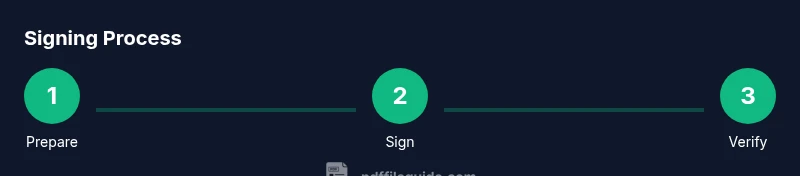
Organizations often follow a practical signing workflow that starts with document preparation, proceeds to identity verification, and ends with signature embedding and final validation. In practice, you upload or open the PDF in a signing tool, select your signing option, apply the signature, and save a tamper-evident copy. Your goal is to produce a signed file that remains readable, searchable, and legally robust across devices. This section offers a high-level map of the steps without the strict sequence of the step-by-step guide.
Common pitfalls and how to avoid them
Too often signers forget to embed the signature or fail to set the correct signing permissions, leaving the document susceptible to modification. Another risk is using signatures without identity verification, which weakens trust. Ensure you always use a trusted certificate or identity service, verify the recipient’s platform compatibility, and test the signed file on multiple devices. Finally, maintain a clear audit trail and avoid altering the document after signing.
Tools and formats: software options
There are many ways to sign PDFs, including desktop software (like widely used editors), cloud signing services, and mobile apps. Desktop tools are ideal for offline signing and batch processing, while cloud services simplify sharing and verification. When choosing tools, prioritize features such as identity verification, certificate management, tamper detection, and compatibility with common PDF viewers. Also consider whether you need form-field signatures or certificate-based signatures for long-term validity.
Compliance and accessibility considerations
Signature workflows must align with applicable laws and standards, including recordkeeping and retention rules. For accessibility, ensure that signed PDFs retain text readability and that signature appearance does not obscure content. Some tools provide alternative text for signatures and support screen readers. Plan governance around key management, certificate renewal, revocation checks, and documented approval processes so signatures remain trustworthy over time.
Best practices for organizations
Adopt a formal signing policy that defines who may sign, which tools are approved, and how signatures are validated. Use centralized certificate authorities and revoke compromised credentials promptly. Maintain an immutable audit log, and train teams to verify signatures before sharing documents. The PDF File Guide team emphasizes consistent workflows, ongoing evaluation of signing tools, and clear documentation to ensure compliance and user confidence.
Tools & Materials
- Device capable of running signing software(PC, Mac, or mobile with internet access)
- PDF signing tool or editor(Examples include desktop editors, cloud signing services)
- Digital certificate or trusted identity(PKI certificate in PFX/P12 or a managed identity)
- Stable internet connection(Needed for cloud-based signatures or certificate validation)
- Backup copy of the original PDF(Store securely before signing)
- Private key security solution(Use a password manager and hardware token if available)
Steps
Estimated time: 30-60 minutes
- 1
Gather prerequisites
Identify the PDF to sign, verify your signing credentials, and prepare a backup copy. Confirm you have access to a signing certificate or trusted identity. This setup reduces errors later in the process.
Tip: Store credentials in a secure password manager and label the target document clearly. - 2
Choose signing method
Decide between a basic electronic signature and a certificate-based digital signature. Consider legal requirements, recipient capabilities, and whether you need long-term validity.
Tip: If in doubt, choose a certificate-based signature for higher assurance. - 3
Open the PDF in your signing tool
Launch your signing application and open the target PDF. Ensure the document is not restricted and that you have permission to sign. This step creates the signing context.
Tip: Use a verified tool from a trusted source to avoid tampering. - 4
Create or upload your signature
Provide your signature by drawing, typing, or uploading a certificate. For digital signatures, bind your certificate to the signature block.
Tip: If drawing, keep the signature consistent across documents. - 5
Place and apply the signature
Position the signature field where required and apply the signature. The document should now be tamper-evident and locked against post-signing edits.
Tip: Lock the signature field to prevent modification of signed content. - 6
Save, verify, and share
Save the signed PDF and run a signature verification check. Share or distribute the file only after confirming the signature is valid.
Tip: Keep a local verification copy for audit purposes. - 7
Recipient verification
Encourage recipients to verify the signature using their PDF viewer. A valid signature should show a trusted status and certificate details.
Tip: Provide instructions or a quick guide for recipients. - 8
Manage certificates and revocation
Monitor the validity of certificates and check revocation status when needed. Renew or replace certificates before they expire to prevent invalid signatures.
Tip: Set renewal reminders in a secure calendar or asset tracker. - 9
Archive and monitor signatures
Archive signed PDFs with their signatures intact and maintain an audit trail. Regularly review signing policies and tool compatibility.
Tip: Archive both the signed document and metadata in a compliant repository.
Questions & Answers
What is the difference between an e-signature and a digital signature?
An electronic signature captures intent to agree, while a digital signature uses a cryptographic certificate to prove origin and integrity. Digital signatures are a subset of e-signatures with added cryptographic safeguards.
An electronic signature shows intent to sign, and a digital signature adds cryptographic proof of origin and document integrity.
Are e-signatures legally binding?
In many jurisdictions, properly implemented e-signatures have the same enforceability as traditional signatures, provided identity verification and tamper-evidence are maintained.
Yes, when identity verification and tamper-evidence are properly applied, e-signatures are legally binding in many places.
Do I need a certificate to sign PDFs digitally?
For digital signatures, a trusted certificate is typically required. Electronic signatures can be implemented without a certificate but may offer weaker guarantees of authenticity.
Usually, digital signatures require a certificate; electronic signatures may not.
How can I verify a signature in a PDF?
Use a PDF viewer that shows signature status, certificate details, and trust level. Look for a trusted status and any revocation information.
Open the signed PDF in a viewer; check the signature status and certificate details.
Can I sign PDFs on mobile devices?
Yes, many signing apps support signing PDFs on mobile, including cloud-based services. Ensure the app provides identity verification and tamper protection.
Absolutely—mobile signing is widely supported with proper security measures.
What should I do if a signature is not verifiable?
Check certificate validity, ensure the document has not been altered, and verify revocation status. If issues persist, re-sign with a fresh certificate.
If a signature isn’t verifiable, check the certificate and document integrity first, then consider re-signing.
Watch Video
Key Takeaways
- Choose the right signing method for legal needs
- Embed signatures to achieve tamper-evidence
- Verify signatures across devices and viewers
- Maintain certificate management and revocation awareness
- Governance improves consistency and compliance