How to Digitally Sign a PDF Already Signed: Step-by-Step
Learn how to add a second digital signature to a PDF that already has one. This guide covers prerequisites, incremental signing, verification, security, and best practices for 2026.


Steps to digitally sign a PDF that already has a signature involve using a signing tool that supports incremental signing to append a new signature without invalidating the original. You’ll need a valid digital certificate, a signing-enabled PDF editor, and a clear understanding of incremental signing. This guide shows how to do it safely and legally.
Understanding the scenario
If you’re trying to answer how to digitally sign a pdf already signed, you’re dealing with two key ideas: preserve the existing signature and legally append a new one. According to PDF File Guide, modern PDF signing supports multiple signatures by using incremental updates rather than rewriting the entire document. That means you can add a second signature while keeping the first one intact, provided the document’s permissions allow additional signatures and the signing tool supports incremental signing. In practice, this requires a certificate you trust, the right signing workflow, and a signing environment that records each signature as a separate revision. For professionals, the ability to attach a second signature without invalidating the earlier authorizations is critical for collaboration, governance, and audit trails. When you’re starting, locate the original file you received, confirm that you have the authority to sign again, and prepare your signing materials. This guide walks you through the steps, with an emphasis on clarity, security, and compliance.
Prerequisites and considerations
Before you attempt another signature, confirm several prerequisites. You need a valid digital certificate (or a secure signing token) that’s trusted for the document’s intended audience. You must also check the document’s security settings and permissions to ensure additional signatures are allowed; some PDFs restrict changes that would invalidate existing signatures. Timestamps can improve long-term validity, so consider connecting to a timestamp authority if your workflow requires a verifiable audit trail. Understanding compliance requirements (e.g., industry regulations, company policy) helps you choose the right method and tool. Finally, ensure you’re working on a copy rather than the original file to avoid accidental data loss. If the document is part of a broader signing ceremony, coordinate with other signers to determine the order of signatures and the expected signing window. The goal is to create a transparent, auditable record that preserves prior signatures while adding your own.
Choosing the right tool and setting up
Selecting the right tool is as important as the signing action itself. Most modern PDF editors that support signatures can perform incremental signing, but not all do so by default. Look for features labeled 'incremental update', 'append-only signing', or 'multi-signature support' in the tool’s documentation. Make sure your environment has a valid certificate installed and that you know the password or PIN required to use it. Prepare the signing environment by opening the document in a trusted editor, configuring the signing preferences, and ensuring the document is saved in a format that preserves signatures (PDF/A or standard PDF with signing capabilities). If your workflow requires a time stamp, verify that the tool can contact a trusted timestamping authority. By planning setup, you avoid surprises during the actual signing step and keep the process efficient and auditable.
Why incremental signing matters and what to expect
Incremental signing is the cornerstone of adding a new signature to a signed PDF. It appends a new signature revision to the file, rather than rewriting the entire document, so older signatures remain verifiable. Expect your editor to prompt you to save using an incremental update or a similar option; if you don’t see it, check whether the document’s security policy prohibits additional signatures. In some cases, the tool will create a new signature field automatically, while in others you must designate where the new signature will appear. After signing, you’ll generally receive a signature validation report indicating which signatures are valid, which are pending, and whether the timestamp is present. If the document is intended for long-term validation (LTV), ensure the timestamping result is embedded in the document. The upshot: incremental signing lets you preserve an audit trail while expanding the document’s legitimacy with new approvals.
Verifying signatures and timestamping
Verification after signing is not optional. Open the file in a viewer that supports signature validation and review each signer’s identity, certificate chain, and validity period. Check that the new signature appears in the signature panel and that previous signatures still show as valid. If you enabled a timestamp, confirm that the timestamp authority’s seal is present and that it covers all signatures in the chain. For enterprise workflows, enable long-term validation (LTV) so future readers can verify signatures even if signers’ certificates expire. If a problem is detected—such as a signature appearing as untrusted—investigate the certificate trust chain, revocation lists, and the possible need for re-signing under a trusted policy. Documentation and proper recordkeeping are essential for audits and legal defensibility.
Troubleshooting common issues
Even with care, issues can arise when signing a PDF that already has signatures. If you receive a warning that the document is locked or immutable, double-check permissions and try signing with a different tool or in a separate signer role. If the new signature doesn’t appear in the signer panel, confirm you used the correct certificate and that you saved with an incremental update. If the previous signatures show as invalid after you sign, stop and revert to the last verified version, then reattempt with the correct settings. Some tools require you to disable certain security options or to enable 'append-only' mode; consult documentation for your specific product. Finally, ensure you’re working with the latest version of your signing software to minimize compatibility issues with new PDF specifications in 2026.
Best practices for compliance and security
Adopt a disciplined approach to signing. Use only trusted certificates issued by a recognized authority, and never export private keys to insecure locations. When possible, enable timestamping to anchor signatures in time. Document signing events with clear metadata, including date, signer identity, and reason for signing. Keep audit trails intact by using incremental saves and avoiding repeated full-document rewrites. Coordinate with your organization’s governance policy to align your signing workflow with internal controls, risk management, and regulatory expectations. Finally, verify results in a test environment before applying them to production documents.
Case studies and examples
To illustrate, imagine a contract that already has a digital signature from a vendor. You receive an updated draft and need to add your signature without breaking the vendor’s seal. Using a signing tool with incremental signing, you attach your signature in a separate revision, timestamp it, and verify the entire chain. Another example involves a compliance report that must go through multiple approvers; incremental signing allows each approver to sign without invalidating earlier approvals. While processes vary, the common thread is preserving trust and transparency by keeping an auditable trail of who signed when and under what authority.
Tools & Materials
- Digital signing certificate (PKI) or smart card(Contains your private key; ensure it’s trusted by the document’s policy)
- Signing-enabled PDF editor(Examples include Adobe Acrobat Pro, Foxit, Nitro)
- Original signed PDF file(Keep the initial version to verify signatures later)
- Secure workstation and up-to-date OS patches(Reduces risk of credential theft)
- Timestamping service access(Optional but recommended for long-term validity)
- Backup of signing keys(Store offline in a secure vault)
Steps
Estimated time: 15-25 minutes
- 1
Prepare signing credentials and document
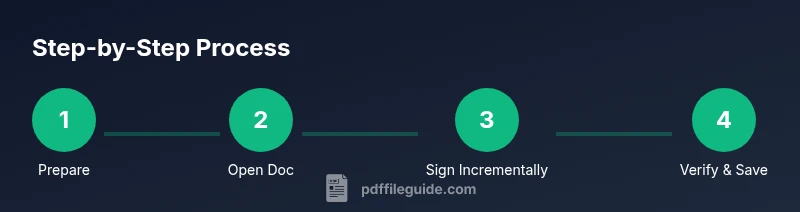
Gather your digital signing certificate and private key, ensuring you have access to the necessary password or PIN. Open the original signed PDF on a secure workstation and confirm you have the authority to add another signature. Create a test copy to practice the signing workflow before touching the official file.
Tip: Use a dedicated signing test file first to avoid risking the live document. - 2
Open the PDF in a signing-enabled editor
Launch your chosen PDF signing tool and load the document. Verify that the file is recognized as signed and that the tool presents a signing option suitable for incremental updates. If you don’t see an incremental signing option, consult the tool’s help resources or choose a different product.
Tip: Ensure the software is updated to a version that supports multi-signature workflows. - 3
Choose an existing signature field or prepare a new one
If the document exposes a signature field, select it for your new signature. If not, designate where a new signature will appear and ensure the field is compatible with your certificate. This keeps the layout organized and keeps the prior signature visible.
Tip: Prefer placing your new signature in a dedicated field to avoid overlapping visuals. - 4
Select the certificate and configure signing properties
Pick the appropriate certificate and set properties like reason, location, and contact information. Confirm that the signing mode is incremental and that the tool will append the new signature rather than rewrite the document.
Tip: Double-check the certificate chain to ensure trust for all recipients. - 5
Sign incrementally to append a new signature
Initiate the signing action and complete the certificate authentication. Save using the incremental update option to preserve the previous signatures. The document should now contain a second signature revision.
Tip: If prompted for a timestamp, enable it to boost long-term validity. - 6
Save the document using incremental updates
Choose a save method that preserves prior revisions. Avoid a full rewrite unless the tool explicitly guarantees compatibility with your existing signatures. Save with a new filename if you’re uncertain about the current version.
Tip: Maintain a version history to track changes over time. - 7
Verify the signature chain and timestamp
Open the signed file in a viewer that shows signature status. Check each signature’s validity, confirm certificate trust, and ensure any timestamp is present. If you use Long-Term Validation, confirm the embedded data is complete.
Tip: Run a quick validation on a duplicate copy before sharing. - 8
Share and document the signing event
Distribute the signed PDF and communicate the signing order and purpose. Include metadata such as signer identity, date, and reason to support audits. Keep accessibility considerations in mind when delivering the document.
Tip: Provide recipients with guidance on how to verify signatures in their viewer.
Questions & Answers
Can you sign a PDF that has multiple signatures?
Yes, if the tool supports incremental signing and the document policy allows additional signatures. Some PDFs restrict changes that would invalidate existing signatures, so always verify permissions first.
Yes, you can, if the tool supports incremental signing and the document allows more signatures.
Will signing after an existing signature invalidate previous ones?
Not typically when using incremental signing. If a full rewrite occurs, prior signatures may be affected. Always use a tool that supports incremental updates and verify the signature chain afterward.
Not usually, as long as you use incremental signing and don’t rewrite the whole document.
Is timestamping required when signing after an existing signature?
Timestamping is not mandatory for signing, but it strengthens long-term validity and auditability. If your policy demands it, enable a trusted timestamping service during signing.
Not required, but it's highly recommended for long-term validity.
Which tools support signing a PDF that’s already signed?
Most professional editors like Adobe Acrobat Pro, Foxit, Nitro, and similar tools support incremental signing. Always confirm that the specific version you use offers multi-signature compatibility and incremental saving.
Most major PDF editors support it, but check your version for incremental signing.
What should I do if a previous signature becomes invalid after signing?
Stop, revert to the last verified version, and re-sign using the correct incremental settings. Review the certificate path and ensure you use a trusted signing identity and compliant workflow.
If a prior signature fails, revert and retry with the correct incremental settings.
Watch Video
Key Takeaways
- Use incremental signing to preserve existing signatures.
- Verify the certificate chain for trust before signing.
- Enable timestamping for long-term validity when possible.
- Test signing on a duplicate file first to minimize risk.
- Document signing events for auditability and compliance.