How to Edit a Signed PDF: Step-by-Step Guide
Learn safe, compliant methods to edit a PDF that’s already signed. This guide covers incremental updates, amendments, and re-signing to preserve document integrity for professionals who edit, convert, and optimize PDFs.


You typically cannot edit a previously signed PDF without invalidating the signature. To update content, create a new version or add an amendment, then obtain a new signature. If the signer granted incremental updates, edits may be possible without breaking the chain, but verify permissions and maintain an audit trail.
Why signed PDFs are tricky to edit
Digital signatures attach to the content of a PDF, and many signatures lock those elements to protect integrity. In practice, editing a signed file can break the signature or render the document invalid unless the signer permitted changes or an incremental update is used. This section explains why edits are problematic and what factors influence whether you can proceed without invalidating the signature. According to PDF File Guide, the main challenge is maintaining an auditable trail when content changes after signing, which is essential for legal and regulatory contexts. If you must modify a signed PDF, you should be prepared to document the change, preserve the original, and obtain a new signature on a revised version. The safest approach is to avoid altering the original content and instead create an amendment or a new version that references the signed record.
Because most PDFs rely on a static byte stream for the signature, any direct changes to the core content will trigger signature failure in standard viewers. Some workflows use incremental updates where only appended content modifies the document while preserving the original signature. However, not all signatures allow incremental changes, and many signing workflows explicitly disallow content edits unless the original signer authorizes them. This means for many business, legal, and archival use cases, edits must be channeled through a controlled process that produces a traceable amendment.
Understanding signatures and permissions
A digital signature binds to the content of a PDF, and many signatures lock those elements to protect integrity. In practice, editing a signed file can break the signature or render the document invalid unless the signer permitted changes or an incremental update is used. This section explains why edits are problematic and what factors influence whether you can proceed without invalidating the signature. According to PDF File Guide, the main challenge is maintaining an auditable trail when content changes after signing, which is essential for legal and regulatory contexts. If you must modify a signed PDF, you should be prepared to document the change, preserve the original, and obtain a new signature on a revised version. The safest approach is to avoid altering the original content and instead create an amendment or a new version that references the signed record.
Editing options: incremental updates, amendments, and new versions
There are three primary pathways to update content in a signed PDF: incremental updates, amendments, and creating a new version. Incremental updates add content to the end of the document without altering existing content, which can preserve the original signature if permitted. Amendments provide a formal, separate document describing the changes and are then attached or linked to the signed file with a new signature. A new version is the clearest option when the changes are extensive or when the signer’s authorization is uncertain; it preserves both the historical record and a clean chain of custody. Each option has trade-offs in terms of legal enforceability, auditability, and compatibility with different PDF viewers. When in doubt, prefer amendments or a new version to maintain an auditable trail and avoid signature disputes.
Practical workflow with tools
Choosing the right tools is essential. Use a PDF editor with robust signing capabilities, such as a professional-grade editor that supports adding a new signature and maintaining a clear audit trail. Prepare a backup copy of the original signed document, verify the signer’s authority, and outline the changes in a draft amendment before applying any edits. If you need to annotate content rather than alter the core text, prefer annotations that can be removed without impacting the underlying signed data. After edits, re-sign the updated document with a trusted certificate and verify the signature chain.
Creating an auditable amendment
An amendment page is a formal, signed document that lists the changes made and the rationale behind them. Attach the amendment to the revised PDF and ensure it references the original signed file (including dates, signer details, and version numbers). The amendment should be signed by the appropriate parties and timestamped to create a complete, auditable record. This approach preserves the integrity of the original document while providing a clear, legally defensible account of edits.
Test and verify the signed record
Verify the entire signing chain after applying edits. Check signature validity in the viewer, confirm that the new signature is trusted, and ensure timestamps align with the amendment. Perform a comparison between the original and revised versions to document exactly what changed. If any warning indicators appear, resolve them before distribution and archival.
Real-world scenarios and templates
Contracts, compliance forms, and official records often require amendments rather than direct edits. A typical template includes: (1) Reference to the original document, (2) Description of changes, (3) Effective date, (4) Signer identities, (5) Signature blocks for all parties. Use these templates to ensure consistency and reduce ambiguity when dealing with legally binding documents.
Tools & Materials
- PDF editor with signing and annotation features(Examples: Adobe Acrobat Pro, Foxit PhantomPDF, Nitro Pro.)
- Digital signing certificate / private key(Needed to apply a new signature on the revised document.)
- Backup copy of the original signed document(Keep the original immutable for reference.)
- Amendment template or addendum document(Useful for formal documentation of changes.)
- Audit-friendly workflow software(Maintain version history and timestamps.)
- Signer contact information(Helpful if authorization is required.)
Steps
Estimated time: 60-180 minutes
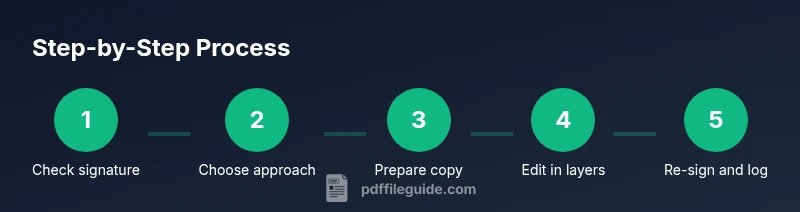
- 1
Check signature and permissions
Open the signed PDF in a capable editor and review the signature panel to determine whether edits are allowed. Identify the exact permissions granted by the signer or the document’s certification status. This step prevents accidental invalidation and helps you plan the right path (incremental updates, amendment, or new version).
Tip: Document the current signature state with screenshots for auditability. - 2
Decide editing approach
Choose among incremental updates, an amendment, or a brand-new version. Incremental updates may preserve the existing signature if allowed, while amendments create a clear change log. A new version keeps the original intact and is often the simplest way to maintain compliance.
Tip: If in doubt, opt for an amendment or new version to preserve the audit trail. - 3
Create a safe working copy
Save a separate copy of the document for edits (e.g., Document_v2_signed.pdf). Do not alter the original signed file. This practice protects the original record and ensures you can compare changes later.
Tip: Label versions clearly (e.g., v1_signed, v2_amendment). - 4
Make changes in a dedicated layer or appended content
Edit content in a way that does not modify the signed regions, whenever possible. Use layers, annotations, or an appended amendment page to record changes without altering the underlying signed content.
Tip: Prefer adding content as an amendment page or appended notes rather than editing core sections. - 5
Re-sign the updated document
If edits are permitted, apply a new digital signature to the updated version, with a clear timestamp and signer identity. Ensure the new signature chain is auditable and trusted by recipients.
Tip: Use a trusted certificate and verify the full chain after signing. - 6
Document the change with an amendment
Include a signed amendment page that lists exact edits, rationale, and effective date. This creates a formal, legally defensible record of change.
Tip: Attach the amendment to the revised document and keep both versions secure. - 7
Distribute and archive
Share the revised document with stakeholders and store both the original and amended versions in a compliant archive. Ensure recipients know which version is current, and maintain the signature history.
Tip: Maintain an accessible audit trail for future reviews.
Questions & Answers
Can you edit a digitally signed PDF without breaking the signature?
Generally, direct edits to the signed content will break the signature. To make changes, use an amendment or create a new version and obtain a new signature. If incremental updates are allowed by the signer, edits may be possible without invalidating the signature.
Generally, you can’t edit a signed PDF without breaking the signature. Use an amendment or a new signed version instead.
What is an incremental update in PDF signing?
An incremental update adds content to the end of the document without altering existing content, which can preserve the original signature if permitted. Not all signatures permit this, so verify permissions first.
An incremental update adds data to the end while keeping the original signature if allowed.
Is it legal to edit signed PDFs?
Legality depends on jurisdiction and contract terms. Generally, a signed document should remain unaltered; changes should be recorded via an amendment and re-signed to maintain legal enforceability and auditability.
Legality depends on local rules; use amendments and re-sign when required.
Which tools support editing a signed PDF?
Many professional tools offer signing and amendment features, such as Adobe Acrobat Pro and similar editors. Always ensure the tool preserves audit trails and supports re-signing on updated versions.
Professional editors like Acrobat Pro handle signing and amendments with audit trails.
How do you create an amendment to a signed PDF?
Add an amendment page that lists exact edits, dates, and rationale, then re-sign the updated document. Keep the original signed file intact for reference.
Add a signed amendment page and re-sign the updated document.
What content should appear in an amendment?
Describe the changes clearly, reference the original document, cite the signing date, and indicate the new effective date. Attach supporting documents if needed.
Explain exactly what changed and when, with references to the original file.
Watch Video
Key Takeaways
- Verify signature permissions before editing
- Prefer new version or amendment rather than changing signed content
- Maintain an auditable trail with timestamps
- Re-sign the updated document using a trusted certificate
- Preserve original signed file alongside the new version