How to Install PDF: A Complete Step-by-Step Guide
Learn how to install a PDF viewer on Windows, macOS, iOS, and Android with safe sources, clear steps, and practical tips from PDF File Guide.


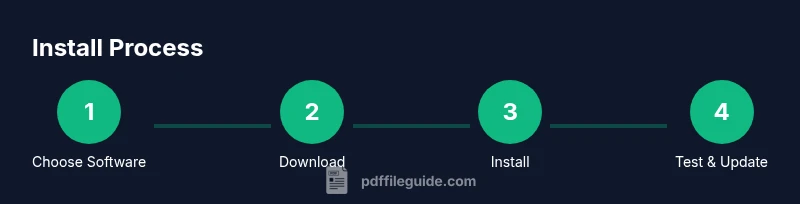
This guide shows how to install pdf viewers and editors across Windows, macOS, iOS, and Android. You’ll learn how to choose the right software, download from official sources, run the installer, and set your default viewer. By following safe practices and enabling automatic updates, you’ll be ready to open, annotate, and manage PDFs smoothly across your devices.
What is a PDF viewer and why install one?
A PDF viewer is the software that opens and renders PDF documents. Whether you read contracts, ebooks, manuals, or forms, a solid PDF viewer makes navigation, searching, and annotation smooth. If you’re asking how to install pdf, you’re about to unlock a reliable, cross‑platform workflow. According to PDF File Guide, most users benefit from starting with a trusted, widely supported viewer rather than trying to edit PDFs in a web browser alone. Installing a dedicated app gives you faster load times, richer tools, and consistent rendering across devices. Before you begin, check that your device meets the minimum requirements and that you’re downloading from the official source. In this guide you’ll find platform‑specific steps, safety tips, and practical checks to verify the installation works as intended on Windows, macOS, iOS, Android, or Linux. The goal is a straightforward setup that you can maintain through updates without surprises.
Choosing the right PDF software: features to look for
When selecting software to install, focus on features that match your workflow: viewing speed, annotation tools, form filling, OCR, and multi‑document support. For editors, check the ability to export or convert PDFs into other formats, batch processing, and redaction. For readers, consider a clean interface, search accuracy, and accessibility options like screen reader compatibility. The PDF File Guide team notes that compatibility across Windows, macOS, iOS, and Android reduces the need to juggle different tools as devices change. Also verify ongoing updates and security patches, since PDFs can contain embedded scripts or forms. A good installer should present a minimal install option and offer optional extras you can enable later. Keep in mind licensing terms and whether a single plan covers all your devices.
Determine your device and OS: Windows, macOS, Linux, iOS, Android
Your path depends on whether you’re using Windows, macOS, Linux, iOS, or Android. Windows and macOS installers come as executable files or app bundles; Linux users may install via package managers or snap/flatpak. Mobile users install from the official app store. In all cases, start at the publisher’s official site or store, confirm the app name, and review what permissions it requests before you proceed. Checking compatibility with your OS version ensures the installer will run without errors. If you work across devices, choose software providers that offer cloud syncing so your settings and annotations carry over. PDF File Guide emphasizes verifying system requirements before download to prevent post‑install issues.
Safe download sources and verification
Never skip source verification. Always download from the publisher’s official website, official store, or trusted distributors. Inspect the file size and version, and beware of third‑party mirrors that bundle adware. After downloading, compare the checksum or digital signature if the vendor provides it. This reduces the risk of installing counterfeit software. If you’re on a corporate network, verify with your IT department that the installer is approved. PDF File Guide analysis shows safer outcomes when users rely on official channels rather than unverified links. If you’ve ever had a malware scare, this is where you want to double‑check the legitimacy of the source.
Step-by-step: Windows installation guide
To install a PDF viewer on Windows, begin by downloading the official installer from the publisher’s site. Run the installer and follow the on‑screen prompts to accept the license, select components, and choose an installation location. After the setup finishes, launch the program and go to Settings to set it as the default PDF handler. Create a quick test by opening a sample PDF. If prompts ask to enable browser integration, decide whether to opt in based on your workflow. Finally, enable automatic updates to keep the software current.
Step-by-step: macOS installation guide
On macOS, download the official .dmg or use the Mac App Store. Open the disk image, drag the app to the Applications folder, and launch it. The first run may require accessibility permissions or system prompts—grant them as needed. In the app’s Preferences, set it as the default PDF viewer, then test with a sample file. If prompted, enable automatic updates and security features. Regularly check for updates to ensure compatibility with the latest macOS versions.
Step-by-step: iOS and Android installation guide
iOS users should open the App Store, search for the official PDF viewer, tap Install, and open the app once the download completes. Android users should visit Google Play, locate the official app, tap Install, and then open it. After installation, review app permissions and enable features such as dark mode or text reflow if supported. For multi‑device consistency, sign in with the same account if the provider supports cloud syncing.
Troubleshooting common installation issues
If the installer won’t start, verify system compatibility and that security software isn’t blocking the executable. Ensure you downloaded the correct version for your OS (32‑bit vs 64‑bit, ARM vs x86). If you encounter a missing DLL or library error on Windows, run Windows Update or install the latest Visual C++ redistributables. On macOS, permissions prompts can stall the process; re‑open the installer with full disk access. For mobile installs, ensure enough storage space and a stable internet connection. If problems persist, consult the vendor’s support page or PDF File Guide’s troubleshooting section for platform‑specific steps.
Setting the default PDF viewer and quick configurations
After installation, set your chosen viewer as the system default for PDFs. On Windows, use Settings > Apps > Default apps; on macOS, use Finder > Get Info or the app’s preferences; on iOS and Android, manage default apps in the system settings. Consider enabling keyboard shortcuts, adjusting reading modes, and turning on accessibility features like text‑to‑speech. If you frequently work with forms, configure the app to auto‑fill and save history securely. This ensures a smoother daily workflow and less friction when opening PDFs.
Tools & Materials
- Device with internet access(Needed to download installers or apps from official sources.)
- Official PDF software installer/app(From the publisher’s site or official store.)
- Admin rights for desktop installations(Required to run installers on Windows/macOS.)
- Backup of important PDFs(Optional safety net before changes.)
- Sufficient storage space(Typically 1–2 GB free is enough for most viewers.)
- Updated operating system (optional)(Helps ensure compatibility with new apps.)
Steps
Estimated time: 20-40 minutes
- 1
Choose your PDF viewer
Identify whether you need only viewing or also editing and conversion capabilities. Compare features, platform support, and pricing. This step ensures you pick software that fits your workflow and devices.
Tip: Prioritize official sources to avoid bundled software or malware. - 2
Download the official installer
Navigate to the publisher’s official site or official store page for the app. Confirm the exact app name and version before downloading to prevent mixups with counterfeit products.
Tip: Verify the download source and check for a digital signature or checksum. - 3
Run the installer
Open the downloaded file and follow the on screen prompts. Accept license terms, choose install type, and select components you actually need. Avoid installing extra toolbars or unnecessary add ons.
Tip: Choose a simple install unless you know you need advanced features. - 4
Complete setup and launch
Finish the wizard, then launch the application. If asked, grant necessary permissions such as file access or accessibility features. Create a test PDF to confirm normal operation.
Tip: Run the first time with a sample file to verify rendering and search. - 5
Set as default PDF viewer
Configure the OS to use your new viewer as the default for PDF files. This ensures double‑clicking a PDF opens your preferred program automatically.
Tip: On Windows, check Settings > Apps > Default apps; on macOS, adjust via file info or app preferences. - 6
Enable updates
Turn on automatic updates so you receive security patches and feature enhancements without manual checks. This reduces exposure to known vulnerabilities in PDFs.
Tip: Enable only reputable update channels and avoid beta channels unless you’re testing. - 7
Test cross‑device syncing (optional)
If your viewer supports cloud syncing, sign in with the same account on other devices to maintain preferences and annotations.
Tip: Use a single provider account to keep annotations consistent. - 8
Review accessibility and security settings
Check reader modes, high contrast options, and privacy settings. Disable features you don’t need and enable only safe permissions.
Tip: Run a quick accessibility check to ensure content is readable with assistive tech.
Questions & Answers
Do I need admin rights to install PDF software on a desktop?
Yes for Windows and macOS desktop installations, as you typically run an installer. Mobile devices do not require admin rights. If you don’t have admin access, ask your IT department or use a portable version if offered by the publisher.
For desktops you usually need admin rights to install. On phones you don’t. If you can’t install, contact IT for an approved method.
Can I install more than one PDF viewer on my device?
You can, but it’s best to keep one default viewer to avoid conflicts. You can install a second option for testing, but avoid enabling multiple defaults for different file types.
You can have more than one viewer, but set a primary one to avoid confusion.
What if the installer won’t start or crashes during setup?
Check system compatibility, ensure you downloaded the correct version, and temporarily disable security software if it blocks the installer. Look for a log file or support page for error codes and follow vendor guidance.
If it crashes, verify version compatibility and try re-downloading from the official source.
Which PDF viewers are best for editing vs just viewing?
Editors typically offer annotations, form filling, and export options. Viewers emphasize fast loading and readability. Choose based on whether you need editing features or simple viewing.
For editing, pick a tool with form and export features; for viewing, a fast reader is enough.
How do I set the default PDF viewer on Windows?
Go to Settings, choose Apps, then Default apps, and select the PDF viewer for .pdf files. You can also adjust per file via Get Info in Finder on macOS.
Open Settings > Apps > Default apps, and set your PDF viewer as the default for PDFs.
Is it safe to enable cloud syncing for PDFs?
Cloud syncing can be safe if you use a reputable provider and enable two factor authentication. Review permission scopes and ensure sensitive documents are protected.
Cloud syncing is usually safe with a trusted provider and extra security like 2FA.
Watch Video
Key Takeaways
- Install from official sources to reduce risk.
- Set a single default viewer for predictable results.
- Enable automatic updates to stay secure.
- Test with a sample PDF after install.