How to Save 1 Page in PDF: A Practical Guide
Learn how to save a single page as a PDF across Windows, macOS, and mobile. Explore print-to-PDF, export options, and page-range techniques to keep files lean and accurate.


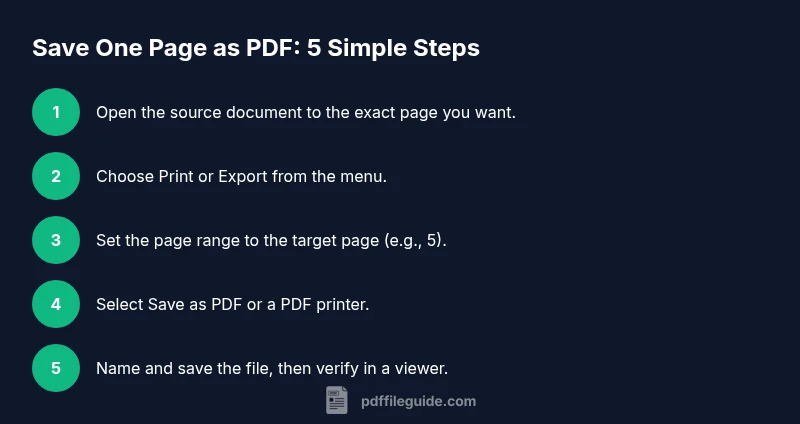
You can save a single page as a PDF by exporting or printing with a specific page range. Open your document, select Print or Export, set the page range to the exact page you want (for example 5), choose Save as PDF, and confirm. This approach works consistently across Windows, macOS, and mobile apps.
Why saving a single page matters
According to PDF File Guide, saving just one page as PDF can streamline sharing, protect sensitive content, and help teammates review precisely the information that matters. When you limit a PDF to a single page, you reduce file size, improve load times, and simplify distribution—especially useful in emails, client portals, or collaborative platforms. The keyword here is precision: the more targeted the page you export, the higher the likelihood your reader will focus on the intended content without distraction. For professionals who edit, convert, and optimize PDFs, mastering this simple technique saves time and reduces friction in day-to-day workflows.
As you perform this task, remember that the underlying concept is universal: PDF viewers and editors typically offer a print-to-PDF or export-to-PDF option. By choosing a specific page range, you tell the software exactly which portion of the document to render into the new file. This approach is compatible with most common file types and across major operating systems, making it a reliable skill for anyone dealing with PDFs regularly.
noteOnlyForNonfictionContentCountDialogBumpSkippedContentInsetOverride
wordLimitNoteFollowUp
Tools & Materials
- Computer or mobile device with PDF-capable software(Windows, macOS, iOS, or Android; ensure you have access to Print/Export options)
- Source document or file you want to extract a page from(Digital file (Word, Google Docs, PowerPoint, PDF) or any app that can display the page you intend to save)
- Print-to-PDF or Save-as-PDF capability(Built-in OS feature or a third-party PDF printer/driver)
- Optional PDF editor for verification/editing(Examples: Adobe Acrobat, PDF Expert, Foxit)
Steps
Estimated time: 5-10 minutes
- 1
Open the source document
Launch the file that contains the page you want to save. Navigate to the page you plan to export so you can verify its appearance before saving.
Tip: Use the zoom and layout tools to confirm the page renders exactly as you expect. - 2
Access the print or export option
Choose Print or Export from the app’s menu. This is usually found under File or the share/print icon.
Tip: If you don’t see Print, look for an Export or Save As option; some apps place it under a secondary menu. - 3
Set the page range to the target page
In the page range field, enter the exact page number you want to save (e.g., 7 or 5-5 for a single page). Ensure the preview shows only that page.
Tip: Double-check page numbering in the preview to avoid exporting the wrong page. - 4
Choose Save as PDF or Print to PDF
Select the option to save as PDF. If using Print, pick the printer named ‘Save as PDF’ or a similar PDF printer.
Tip: On some systems, selecting the PDF printer is what creates the new file. - 5
Name and save the output file
Choose a meaningful filename and location. Include the page number in the name for easy retrieval later.
Tip: Adopt a consistent naming pattern like DocumentName_PageX.pdf. - 6
Open the saved file to verify
Open the new PDF and confirm it contains only the intended page, with correct formatting and no truncation.
Tip: Check margins, fonts, and images for fidelity to the original page.
Questions & Answers
Can I save multiple pages as a single-page PDF?
Yes. To create a single-page PDF from multiple pages, you must select only that single page during the export or print step, or copy the page into a new document and export that as a PDF. This keeps the file focused and lightweight.
Yes. You can export just that one page, or copy it to a new document and export that as a PDF.
What should I do if the app doesn’t show a Save as PDF option?
Use the Print command and select a PDF printer or Save as PDF from the print dialog. If that’s unavailable, install a PDF printer driver or use a dedicated PDF editor that offers export options.
Try Print and pick a PDF printer; if that fails, install a PDF printer or use a PDF editor.
Is there a difference between Windows and macOS in page-range exports?
The general workflow—Print or Export with a page range—is similar on both platforms, though the exact menu labels may differ. Windows often uses Microsoft Print to PDF, while macOS uses Save as PDF in the print dialog.
The method is similar on both, just watch for different menu names.
Can I automate saving a specific page via keyboard shortcuts or scripts?
Automation is possible with built-in system shortcuts or scripting tools, depending on your OS and apps. Create a macro that opens the document, selects the page, and saves as PDF, then bind it to a shortcut.
You can automate it with macros or scripts on some apps and OSes.
Does saving a single page preserve annotations and comments?
If you export as PDF from a tool that includes annotations, those notes should be preserved. Verify after saving, as some apps flatten or omit comments during export.
Annotations can be preserved if the tool supports it; always verify.
Watch Video
Key Takeaways
- Plan the page range before saving
- Use Save as PDF when available for compatibility
- Always verify the resulting page after saving
- Name files clearly for future retrieval
- Leverage editors for advanced page selection and editing