How to Stop PDFs from Opening After Download
Learn practical, step-by-step methods to stop PDFs from opening automatically after download across browsers, OSs, and devices. Includes quick fixes, testing tips, and security considerations from PDF File Guide.


By adjusting your browser and OS settings, you can stop PDFs from opening automatically after download. Start by saving files rather than opening them, disable any browser option that auto-opens PDFs, and review your PDF viewer defaults. This prevents unexpected launches and reduces security risk, especially when downloading from untrusted sites. PDF File Guide recommends verifying changes across devices to keep behavior consistent.
Why PDFs Open Automatically After Download
PDFs sometimes open immediately after download due to a browser's handling of file types or the system's default PDF viewer. This behavior can disrupt workflows that require archiving or manual review, and it may pose a security risk if a downloaded file is malicious. Understanding the root cause helps you apply precise changes without breaking access to legitimate documents. According to PDF File Guide, the most reliable fix is to adjust download and file-handling settings on each device you use—desktop or mobile—so PDFs save first and open only when you choose. By decoupling download from immediate viewing, you gain predictable control over how documents enter your workspace and reduce accidental exposure to untrusted content.
Quick planning: map your devices and workflows
Before changing settings, inventory the devices you commonly use for PDF work. List browsers (Chrome, Firefox, Edge, Safari), OS (Windows, macOS, iOS, Android), and the PDF viewer apps installed. This helps you apply consistent rules across environments. PDF File Guide highlights the importance of cross-device parity: if one device still opens PDFs automatically, it can undermine the entire workflow. Create a simple table that notes the current default action for PDFs on each device and what you want it to be (save-first, prompt, or open-on-click). A clear plan prevents missed steps later and reduces frustration when updating software or performing device swaps.
Check browser settings: where to look and what to change
The most common cause of auto-opening is browser behavior. Start with the download or content settings in each browser you use. Look for options related to automatic opening of downloaded files, and disable them for PDFs. If you see a prompt like 'Always open files of this type,' choose a manual option instead. When in doubt, set the browser to always save files to disk unless you explicitly choose to open them. These changes are often reversible, so you can experiment and confirm which combination delivers the most reliable control without breaking access to legitimate PDFs. PDF File Guide recommends testing after each change to verify results.
Modify browser-specific settings: Chrome, Firefox, Edge, Safari
- Chrome: Open Settings, then Downloads. Disable any toggle that says PDF files will open automatically after download. If you see a per-file type rule, turn off the option for PDFs. Also ensure the setting to 'Ask where to save each file before downloading' is enabled if you prefer to review each download before saving.
- Firefox: Preferences > General > Files and Applications. For PDF, choose 'Save File' or ensure it does not set 'Always ask' to open after downloading. The goal is to prevent automatic launch.
- Edge: Settings > Downloads. Turn off any 'Always open PDFs after downloading' option. You want the save-and-manage flow to be in your control rather than the browser.
- Safari: Preferences > General. If there is an option to automatically open downloaded files, disable it for PDFs. Note that macOS apps may still influence behavior via system settings.
OS-level and PDF viewer defaults: Windows and macOS
Beyond the browser, the operating system and your PDF viewer can re-trigger a launch after download. On Windows, set the default PDF viewer to a program that you deliberately open rather than automatically launching on download. On macOS, open the PDF viewer’s preferences and disable any option like 'Open PDFs automatically' after download. The objective is to ensure that the file is saved to disk first, and that you explicitly open it later from the file manager or the viewer.
Cross-device testing: confirm the change works for you
After updating browser and OS settings, perform a test on each device you use daily. Download a known PDF from a trusted site and verify that the file is saved to disk and does not auto-open. If it still opens, revisit the relevant settings and re-check for browser extensions or security policies that could override your preferences. PDF File Guide emphasizes documenting successful configurations so you can replicate them later.
Mobile considerations: keep control on iOS and Android
Mobile devices often rely on a built-in file viewer or a download manager. In iOS, check the default apps for PDF handling and adjust app-specific settings to avoid automatic opening after download. On Android, review the system 'Open by default' settings for PDFs and any browser-specific download rules. If a download consistently opens, consider disabling the browser's 'Open files after download' setting and using a dedicated file manager to handle saves.
Security awareness: why this matters
Auto-opening PDFs can expose you to risky content from malicious sources if the download is not properly validated. By saving first and opening later, you create a deliberate gate between download and view, reducing attack surfaces. The PDF File Guide analysis shows that consistent, explicit control across devices improves security hygiene and reduces the chance of execution of harmful PDFs. Keep your security software up to date and periodically re-test your settings after OS or browser updates.
Troubleshooting and maintenance: what to do if things break
If PDFs still open automatically on any device, check for conflicting settings in security software, device management policies, or browser extensions. Some extensions override default download behavior or re-enable auto-open on updates. Revisit each step, clear browser caches if necessary, and ensure you are editing the correct profile (work vs personal). Maintaining a simple checklist helps prevent regressions after updates.
Final checks: keep settings consistent across devices
Create a short maintenance routine: after major browser or OS updates, re-confirm download behavior, and re-verify on all devices. This ensures that PDF opening habits remain under your control and consistent across environments. The PDF File Guide team recommends documenting any deviations and reapplying the standard settings promptly to preserve a predictable workflow.
Tools & Materials
- A computer or mobile device with internet access(Cross-device testing is essential)
- Supported web browser(s) (Chrome, Firefox, Edge, Safari)(Keep updated to the latest version)
- Default PDF viewer or editor(Ensure it doesn’t auto-open on launch)
- Notepad or notes app(For recording changes)
- Backup of your browser and OS settings(Prevent loss from reset)
- Mobile device (optional)(Test on iOS and Android if applicable)
- Security software or system policies(Could influence file handling)
Steps
Estimated time: 25-40 minutes
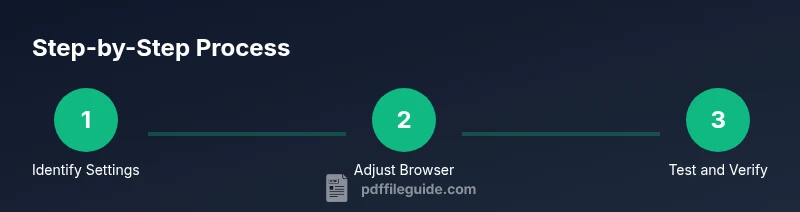
- 1
Open browser download settings
Access the browser's settings area and locate the downloads section where file handling preferences are managed. This is your first stop to disable any automatic opening behavior for PDFs.
Tip: If you can't find a dedicated 'downloads' page, use the browser's search bar to locate 'download' or 'PDF' settings. - 2
Set downloads to save by default
Configure the browser to Save files to disk rather than opening them automatically after download. This ensures you review and move files at your pace.
Tip: Prefer a setting like 'Ask where to save each file before downloading' for extra control. - 3
Disable automatic PDF opening in the browser
Turn off any toggle or rule that says PDFs should open automatically after downloading. If you see per-file-type rules, disable for PDFs specifically.
Tip: Look for phrases like 'Open PDFs' or 'Always open files of this type' and disable them. - 4
Check OS-level defaults
Review the operating system’s default app settings for PDFs and align them with a manual opening workflow. This reduces cross-app interference.
Tip: On Windows, set the default PDF viewer to a program you manually start. On macOS, adjust Finder or Preview preferences as needed. - 5
Review the PDF viewer/app settings
Open your PDF viewer’s preferences and disable any option to automatically open PDFs after downloads or on startup.
Tip: If the viewer offers a 'remember last session' feature, disable it to avoid automatic launches. - 6
Test a download
Download a sample PDF from a trusted site and verify that it saves first and does not auto-open. If it opens, revisit the relevant settings.
Tip: Use a clean test file from a known source to avoid confusion with legitimate content. - 7
Test on mobile devices
Repeat the checks on iOS and Android. Mobile browsers and file managers can handle downloads differently from desktop.
Tip: Document any difference between devices to maintain consistency. - 8
Consider extensions cautiously
Some extensions can override default download behavior. If you use extensions, test after enabling or disabling them.
Tip: Disable or restrict extensions that affect download handling if you see unexpected behavior. - 9
Document and maintain changes
Keep a simple log of the exact settings you changed and where they live (browser, OS, viewer). Revisit after updates.
Tip: Re-run the quick test after major updates to ensure consistency.
Questions & Answers
Why do PDFs open automatically after download?
Some browsers are configured to open PDFs automatically after download, or macOS/Windows defaults may trigger a viewer launch immediately. Adjusting browser and OS settings stops this behavior.
Some browsers and operating systems try to open PDFs automatically after download. You can stop this by adjusting the browser settings and the OS defaults.
Will disabling auto-run affect other file types?
Disabling auto-open for PDFs typically does not affect other file types, but review each file type's handling in your browser and viewer settings to be sure.
This change usually affects only PDFs unless you adjust other file-type rules as well.
Is this process different on mobile devices?
Yes. iOS and Android handle downloads with different apps and file managers. Test on both platforms and adjust app-specific settings to prevent auto-opening.
Mobile devices may require separate tweaks in the browser and file manager settings to prevent auto-opening PDFs.
What should I do if I can't find the setting?
Use a browser-wide search in the settings or consult the help documentation for your specific version. If needed, reset the browser to default settings and reconfigure from scratch.
If you can't locate the option, search the help docs or reset settings and start over.
Is there a security risk in auto-opening PDFs?
Auto-opening PDFs can expose you to malicious content from untrusted sources. Saving first and opening deliberately helps reduce this risk.
There is a security risk with auto-opening; saving and opening PDFs manually is safer.
Can I enforce these settings across multiple devices?
Yes, by applying the same steps on each device and documenting the configuration, you can achieve consistent behavior across environments.
You can enforce consistency by applying the same changes on all devices and keeping a shared checklist.
Watch Video
Key Takeaways
- Disable auto-opening across browsers to regain control.
- Test changes on all devices for consistency.
- Document steps to simplify maintenance after updates.
- Prioritize saving PDFs before opening to improve security hygiene.