Is PDF and Adobe Acrobat the Same? A Practical, Analytical Comparison
Explore whether PDF and Adobe Acrobat are the same, with an analytical breakdown of format vs software, capabilities, licensing, and practical usage for editors and professionals.


Both terms refer to different things: PDF is a standardized file format, while Adobe Acrobat is a software suite for creating, viewing, editing, and organizing those files. For most users, PDFs can be opened with various apps, but Acrobat offers advanced editing, forms, and security features. In short, PDF ≠ Adobe Acrobat, though Acrobat heavily leverages the PDF standard.
Defining PDF and Adobe Acrobat
According to PDF File Guide, understanding the distinction starts with the basics: PDF stands for Portable Document Format, an open-standard file type designed to preserve fonts, images, and layout across devices. Adobe Acrobat, by contrast, is a proprietary software product from Adobe that lets you create, edit, annotate, and secure PDF documents. The difference matters because choosing the wrong tool can limit what you can do with a document or require workarounds. Within the broader ecosystem, many apps can view PDFs, but only some provide editing, OCR, or form-creation capabilities. The PDF standard defines file structure and rules; software like Acrobat implements those rules and adds features on top. For professionals who edit or convert PDFs, recognizing this distinction prevents confusion about what is possible for free versus what requires a licensed product. In practice, you might receive a PDF from a colleague who used Acrobat Pro to add fields or redaction marks; you can still open and read that file with free viewers, but you’ll lose advanced interactivity unless you have the right software. And when people ask about the scope of these tools, the answer hinges on needs, not just popularity.
Core Differences at a Glance
Is pdf and adobe acrobat the same? The quick answer is no. PDFs are a universal format defined by a specification, while Adobe Acrobat is a commercial application that implements that specification and adds extra capabilities. This distinction affects what you can do without paying, what you can do with licensing, and how certain features are accessed across platforms. In practice, many organizations rely on Acrobat Pro for complex workflows, but a wide range of free viewers and basic editors handle everyday viewing and minor edits. The key takeaway is that the format remains constant, but the tool you use to work with it determines your scope of action and your licensing costs. PDF File Guide analysis shows that the ecosystem supports both lightweight, cross-platform viewing and heavy-duty editing when the right software is involved. When evaluating options, map your tasks (viewing, annotation, form creation, OCR, and security) to the appropriate toolset and budget.
Adobe Acrobat Fits Into the PDF Ecosystem
Adobe Acrobat sits at the center of many PDF workflows because it combines standard-compliant rendering with a broad feature set. While PDFs are created by many tools, Acrobat Pro and Acrobat DC provide advanced capabilities such as high-accuracy OCR, form design with JavaScript actions, redaction, and enterprise-grade security. The ecosystem includes free readers, other editors, and conversion tools, but Acrobat remains the primary pro-grade solution for users who need end-to-end control over the document’s lifecycle. The PDF File Guide team notes that Acrobat’s strength is not merely opening files—it’s managing, validating, and securing them while supporting collaborative processes across teams and cloud services.
Common Misconceptions About Is PDF and Adobe Acrobat the Same
A frequent misunderstanding is assuming that a document edited in Acrobat changes the underlying PDF standard. In reality, Acrobat writes within the PDF framework, and the resulting file adheres to the same universal format that other compliant viewers can render. Some readers may render features differently, especially interactive forms or dynamic JavaScript, which can lead to inconsistent results across environments. Based on PDF File Guide research, relying on a single tool to handle all PDF tasks can be risky; instead, recognize what is strictly a property of the format and which tasks require specific software capabilities.
Capabilities Across Products: Viewing, Creating, Editing, and Security
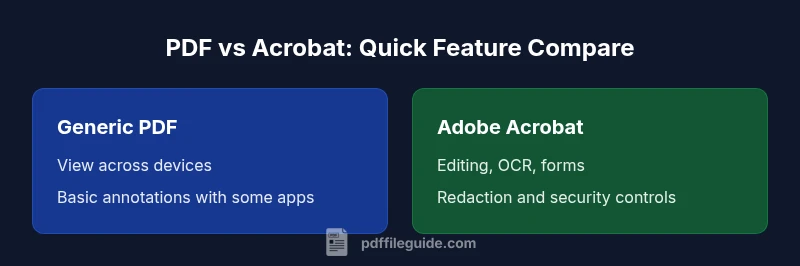
Viewing a PDF is widely supported; editing, form creation, and security controls vary by tool. Generic PDFs can be viewed in most environments, but editing often requires dedicated software like Acrobat Pro. Creation and conversion are also tool-dependent: while many programs can print to PDF or export from other formats, Acrobat Pro offers robust batch processing, PDF/A compliance checks, and advanced optimization options. Security features—password protection, permissions, redaction, and certificate-based signing—are robust in Acrobat, whereas free tools may offer only basic protections. The upshot is that a PDF is a PDF, but the depth of manipulation depends on the software behind it.
Practical Scenarios: When to Use Generic PDF Tools vs Acrobat
For simple tasks such as viewing, basic annotations, or sharing a document, generic PDFs and free viewers are enough. When your work demands heavy editing, form design, automated workflows, or regulated security, Acrobat Pro provides the necessary capabilities. In enterprise environments, licensing decisions often hinge on whether you need OCR for scanned documents, batch processing, and robust redaction workflows. The PDF File Guide team observes that most teams benefit from a mixed approach: use lightweight tools for day-to-day tasks and reserve Acrobat Pro for complex, governed workflows.
Compatibility and Platform Availability Across Platforms
PDFs are inherently cross-platform, supported by nearly every operating system, device, and browser. Acrobat, however, has broader feature parity across platforms in its Pro versions, with desktop and mobile subscriptions enabling synchronized work. When choosing tools, consider where you work most often (Windows, macOS, iOS, Android) and whether you need cloud integration, offline access, or collaboration features. The landscape favors flexibility: basic viewing remains evergreen, while advanced tasks require a tool like Acrobat that can bridge desktop, mobile, and cloud environments.
Licensing, Subscriptions, and Alternatives
Licensing is a major factor. Free readers are widely available, and many organizations rely on open workflows that don’t require a license. Acrobat Pro, however, comes with subscription-based pricing and a suite of professional features that justify the cost for teams that need form creation, OCR, and enterprise-grade security. Alternatives include other PDF editors, open-source viewers with limited editing, and toolchains that import/export PDFs from other formats. When evaluating options, weigh total cost of ownership, feature requirements, and ease of integration with existing systems. The choice should reflect both current tasks and anticipated needs over the next 12–24 months.
Security, Accessibility, and Compliance Considerations
Security features in PDFs and Acrobat are central to professional workflows. Password protection, access controls, and digital signatures help safeguard documents in transit and at rest. For accessibility, screen reader compatibility and tagged PDFs are essential considerations; Acrobat and other tools can generate tagged structures to aid assistive technologies. Compliance requirements may demand redaction capabilities, audit trails, and certification paths. Understanding what you need from a PDF—not just how it looks—helps ensure you choose tools that align with governance and compliance objectives.
How to Choose the Right Tool for Your Needs
Start with a task inventory: do you mostly view PDFs, or do you edit, redact, and create forms? If the former, a lightweight viewer or browser-based PDF is often sufficient. If the latter, evaluate Acrobat Pro against your workflow: OCR quality, form-building features, automation options, and security controls. Consider licensing costs, team size, and integration with other tools (cloud storage, file-sharing, and collaboration). The decision should prioritize your most frequent tasks while remaining flexible for future needs.
Comparison
| Feature | Generic PDF (standardized format) | Adobe Acrobat (proprietary software) |
|---|---|---|
| What it is | Open standard file format used for documents | Proprietary software with a broad feature set for working with PDFs |
| Editing capability | Often read-only with free viewers; editing may require other tools | Full editing, including text, images, forms, and redaction (Acrobat Pro) |
| Creating PDFs | Printers/drivers and multiple tools; many free options exist | Direct creation, export, and batch creation from diverse sources |
| Forms and interactivity | Basic form filling in many readers; advanced forms require Pro | Advanced forms, JavaScript actions, and dynamic fields (Acrobat Pro) |
| OCR capability | OCR availability varies; some free tools include OCR with limited accuracy | High-accuracy OCR included and enhanced in Acrobat Pro |
| Security features | Standard PDF security via permissions and password protection | Advanced security features, redaction, trusted certificates, and signatures |
| Cost model | Generally free to view; no license required for basic tasks | Paid license or subscription for Pro features |
| Platform support | Cross-platform and OS-wide viewing support | Broad platform support (Windows, macOS, iOS, Android) with cloud integration |
| Best for | Sharing, archiving, and cross-platform compatibility | Power editing, forms, OCR, and enterprise workflows |
Strengths
- PDFs are a universal format that preserves layout across devices
- Adobe Acrobat Pro unlocks editing, forms, OCR, and security features
- Free PDF readers enable quick viewing without cost
- Multiple tools support PDF creation from various sources
Disadvantages
- Free readers have limited editing and form capabilities
- Acrobat Pro requires a paid license or subscription
- Advanced features can present a learning curve
- Workflow fragmentation can occur when mixing tools
Adobe Acrobat Pro is the stronger option for advanced editing and enterprise workflows; for simple viewing and sharing, generic PDFs and free readers are often enough.
Choose Acrobat Pro when you need robust editing, OCR, and security features. If your daily tasks involve viewing and light annotation, a free PDF reader or basic tools will usually meet your needs without the cost of a full Pro license.
Questions & Answers
Is PDF the same as Adobe Acrobat, or are they different?
PDF is a file format defined by the standard; Adobe Acrobat is software that creates, views, edits, and manages PDFs. They are not the same, but Acrobat relies on the PDF standard to function. Understanding this helps you choose the right tool for your tasks.
PDF is a file format, Acrobat is a software tool. They’re related, but not the same.
Do I need Acrobat to view PDFs?
No. Most devices include built-in PDF viewers, and many browsers can render PDFs without any extra software. Acrobat becomes important when you need editing, forms, or advanced security features.
No—viewing is usually possible with free tools; Acrobat adds editing features.
What can Acrobat Pro do that free PDFs can’t?
Acrobat Pro offers robust editing, OCR for scanned documents, form design with scripting, redaction, and advanced security options. Free tools typically cover viewing and basic annotation only. This makes Acrobat Pro essential for complex workflows and compliance tasks.
Pro handles OCR, forms, redaction, and advanced security.
Are there free alternatives to Acrobat for editing PDFs?
Yes—there are free editors and online tools with varying capabilities. They may handle basic edits and annotations but often lack robust OCR, forms, or enterprise security features. For heavy editing, a paid tool or Acrobat Pro is usually necessary.
There are free tools, but they often lack Acrobat Pro’s advanced features.
Can I create fillable forms in Acrobat?
Yes. Acrobat Pro provides form design tools to create interactive fields, calculations, and scripting. These forms are portable across any compliant PDF viewer. This capability is a common reason teams invest in Acrobat Pro.
Yes—Acrobat Pro can design and publish fillable forms.
How can I tell if a PDF was created with Acrobat?
There isn’t a universal visual indicator, but metadata, fonts, and form features can hint at Acrobat usage. Some PDFs explicitly reference Acrobat in the document properties. If you rely on precise provenance, check the document properties or ask the sender.
Metadata or form features may indicate Acrobat usage.
Key Takeaways
- Assess whether you need editing or just viewing for PDFs
- PDF is a format; Adobe Acrobat is a tool with extra features
- Acrobat Pro adds OCR, forms, and security capabilities
- Free readers are adequate for basic tasks; Pro is for advanced workflows
- Licensing and cloud integration affect total cost and usability