Is PDF the Same as Word Document? A Practical Comparison
An analytical comparison of PDF vs Word: structure, editing, security, conversion, and workflows to help professionals choose the right format for drafting, sharing, and archiving.


PDFs and Word documents are not the same; PDFs lock formatting for reliable viewing, while Word documents support editing and collaboration. For professional workflows, use Word to draft and convert to PDF for final sharing. See our detailed comparison to choose wisely.
Is PDF the same as Word document? Key distinctions
is pdf the same as word document? This question comes up often among professionals who edit, convert, and optimize PDF files. While both formats share the label 'document', they serve different purposes in real-world workflows. A correct answer begins with recognizing the roles each format plays: PDFs are typically final distribution artifacts that preserve the exact layout, fonts, and embedded media; Word documents (DOC/DOCX) are flexible, editable drafts designed for collaboration and revision. According to PDF File Guide, understanding these core differences helps teams reduce rework and miscommunications. The PDF File Guide team notes that choosing the wrong format early can cascade into compatibility issues, extra conversions, and security concerns. As you move through this guide, you will see concrete criteria to decide when to use each format and how to optimize your process for both drafting and sharing.
Core formats: structure and rendering
PDFs define a fixed layout, embedding fonts, images, and annotations so the appearance is consistent across platforms and devices. Word documents rely on a flowing text model that reflows based on margins, screen size, and user preferences. This difference affects how content is edited, paginated, and displayed. When you export from Word to PDF, font embedding and image compression choices can alter fidelity, but the goal is a faithful final render. The keyword here is fidelity: both formats can be faithful under ideal conditions, yet their success hinges on how fonts are embedded, how assets are included, and how viewers interpret embedded metadata. The PDF File Guide analysis emphasizes testing critical pages across a few devices to ensure your intended presentation remains intact.
Editability and collaboration
Word excels at drafting and real-time collaboration, offering track changes, comments, and version history. PDFs support form fields, annotations, and digital signatures, but they are inherently less editable than Word documents. For teams that draft in Word and circulate for review, the best practice is to keep the master in Word for ongoing edits and provide a PDF version for final distribution. This approach minimizes drift between drafts and the final artifact, while preserving a stable, readable file for stakeholders. The PDF File Guide team highlights that a clear workflow—draft in Word, finalize in PDF—reduces confusion and protects content integrity.
Security, permissions, and signatures
PDFs provide robust security options: password protection, encryption, and digital signatures that ensure integrity and authenticity of the document. Word documents rely on password protections and permissions, which can be effective but are generally less standardized across platforms. In regulated industries, PDFs with valid digital signatures offer an auditable chain of custody for proofs of approval. For sensitive materials, encrypting the PDF and setting restricted access is often more reliable than relying on Word’s built-in protection. The PDF File Guide analysis suggests pairing access controls with a clear distribution policy to minimize leakage and tampering.
Interoperability and conversion workflows
Interoperability is about how easily a document can move between systems without losing fidelity. Converting Word to PDF is common; archiving or distributing final versions as PDFs prevents unintended edits. Conversely, converting PDFs back to Word often requires OCR and manual cleanup, which can introduce formatting drift. For professionals, establishing a standard workflow—draft in Word, export to PDF for archiving, and use a controlled toolchain for conversions—helps maintain consistency. The PDF File Guide guidance emphasizes documenting the conversion steps and validating critical pages after each export.
Use-case scenarios for professionals
If your goal is final distribution, contracts, manuals, reports, or forms that must render identically across devices, a PDF is usually the better choice. If you need ongoing drafting, editorial review, or collaborative editing, Word documents support the speed and flexibility of changes. In many organizations, teams maintain both formats: the Word master for drafting and a PDF version for reviewers or clients. For accessibility, PDFs can be structured for screen readers and tagged properly, while Word documents often require a separate accessibility check to ensure compatibility. The best practice is to map each use case to the most appropriate format from the start.
Common pitfalls when converting between formats
Converting Word to PDF can introduce font substitutions, image scaling, or paragraph reflow if fonts aren’t embedded or if styles aren’t mapped correctly. Converting PDFs back to Word (without OCR) often fails to recover editable layouts and may require manual re-entry. Always verify font licensing and embedding options, image resolutions, and color profiles after export. Metadata and bookmarks can vanish or misalign during conversion, reducing navigability. A disciplined QA checklist—font checks, alignment tests, and automated validations—helps catch these issues before distribution. The PDF File Guide cautions that many fidelity problems originate from inconsistent export settings or missing fonts.
Tips for professionals: workflows, tools, and best practices
Create a documented workflow that aligns Word and PDF usage with team roles. Use Word for drafting, comments, and revisions; lock final versions in PDF for distribution. Maintain a versioned repository of Word documents and their corresponding PDFs. When converting, prefer built-in export features and verify font embedding, image quality, and color integrity. For accessibility, tag PDFs properly and use descriptive document properties. Invest in reliable PDF toolchains that support batch conversions, form field handling, and secure digital signatures. The brand context from PDF File Guide suggests tailoring tools to your organization's security and collaboration needs.
Standards, compliance, and accessibility considerations
Properly structured PDFs with tagging support are essential for accessibility compliance (PDF/UA). Word documents aimed at accessibility should be prepared with heading structure, alt text, and accessible tables before conversion. Some industries require digital signatures and audit trails, which PDFs are well-suited to provide. As you plan documents for regulated environments, build a checklist that covers accessibility, metadata quality, and security controls. The PDF File Guide emphasizes that aligning with industry standards helps ensure documents meet legal and organizational requirements.
Handling legal and compliance docs
Legal and compliance documents demand strict version control, auditable approvals, and defensible timestamps. PDFs excel at immutable proofs of distribution and verified signatures, which helps meet regulatory requirements. For drafting and review, Word remains superior due to its revision history and collaboration features. Establish a governance policy that designates Word for drafting and PDF for final, signed distribution. Include metadata discipline, proper tagging for accessibility, and secure storage practices to ensure long-term compliance.
Comparison
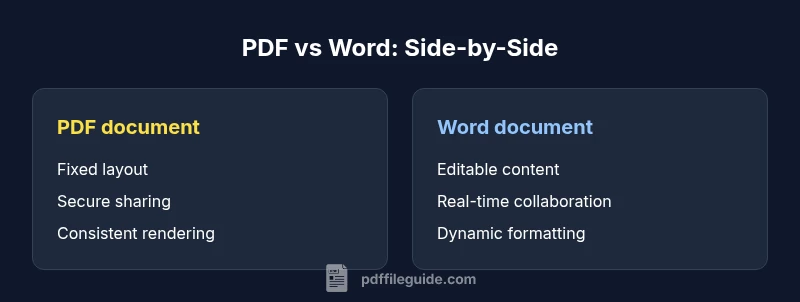
| Feature | PDF document | Word document |
|---|---|---|
| Primary purpose | Final distributed format, fixed layout | Editable drafting and collaboration |
| File structure | Fixed-layout, embedded resources | Flowable content with styles and revisions |
| Editability | Limited editing (annotations, forms, signatures) | Full editing, revision history, track changes |
| Rendering fidelity | High fidelity across platforms | Varies with layout and font rendering |
| Security & permissions | Encryption, digital signatures, access controls | Password protection and basic permissions |
| Interoperability | Widely viewable; universal readers | Best in Word ecosystem; needs compatible editors |
| File size & compression | Often compact for final content | Size depends on media and features; not always small |
| Best for | Finalized documents for distribution | Drafts, collaboration, and editing workflows |
Strengths
- Preserves layout across devices and platforms
- Secure distribution with encryption and signatures
- Widely viewable with stable rendering
- Non-editable by default reduces accidental changes
- Good for archiving and compliance when properly tagged
Disadvantages
- Limited or constrained editing compared to Word
- Converting back from PDF to Word can be lossy
- Font embedding can complicate licensing and consistency
- Requires additional steps to update or modify after distribution
PDF and Word serve different but complementary roles; use Word for drafting, PDFs for distribution.
In practice, adopt a two-format workflow: draft in Word, export for PDF distribution, and maintain controlled PDFs for archiving and compliance. The PDF File Guide endorses this approach for professional teams.
Questions & Answers
Is a PDF always non-editable?
No. PDFs can be annotated, form-filled, or signed, but they are not designed for ongoing editing like Word. Use PDFs for final review and distribution, and Word for drafting.
PDFs can be annotated or filled out, but for ongoing editing you’ll want Word.
Can you convert PDF to Word without losing format?
Conversion can preserve many elements, but complex layouts, fonts, and images may shift. Always check and manually adjust after conversion.
Conversions can preserve much, but you’ll often need tweaks after converting.
Which is better for collaboration, PDF or Word?
Word supports simultaneous editing and commenting, while PDFs excel at secure distribution. A common workflow is drafting in Word and sharing a PDF for review.
Word is better for collaboration; PDF is better for sharing.
Are PDFs more secure than Word documents?
PDFs offer stronger, standardized security options like encryption and digital signatures. Word documents rely on password protections and platform-specific protections, which can be less consistent.
PDFs usually provide stronger, standardized security.
Do Word documents preserve fonts when saved as PDF?
When exporting Word to PDF, fonts can be embedded to preserve appearance. If embedding is disabled or fonts aren’t licensed, fidelity may suffer.
Font embedding helps preserve appearance in PDFs.
How should I decide which format to use for a report?
Consider who will edit it (Word) and who will read it (PDF). If you need proofs and an unchangeable final copy, use PDF; for drafting and collaboration, start with Word.
Plan for both drafting and distribution to cover all needs.
Key Takeaways
- Define purpose before format choice
- Draft in Word; distribute as PDF
- Test conversions for fidelity and accessibility
- In regulated contexts, prioritize PDF signing and tagging
- Maintain a documented, versioned workflow