PDFs for Mac: The Complete macOS Guide
Learn to view, edit, convert, secure, and optimize PDFs on macOS. This educational how-to covers Preview, native workflows, and third-party tools for pdf for mac.


You will learn to manage PDFs on macOS using Preview and built-in workflows, plus when to use third-party apps. Key requirements: macOS 11+ and a file to work on. This guide covers viewing, annotating, editing, converting, securing, and optimizing PDFs on Mac. It also highlights common pitfalls and best practices.
Overview of PDF Handling on macOS
macOS provides a robust baseline for PDF work right out of the box. The built-in Preview app handles viewing, annotating, signing, filling forms, and basic editing without installing extra software. Finder makes quick PDF actions possible, such as creating a PDF from multiple files or exporting documents via the Print dialog. According to PDF File Guide, macOS users benefit from an integrated, low-friction workflow that covers most daily needs, and saves time by avoiding unnecessary downloads. For most professionals, Preview plus macOS Quick Actions meet the majority of editing and annotation tasks. If a task requires advanced editing, you can turn to lightweight third-party editors without leaving your Mac ecosystem. When working with sensitive documents, always verify that encryption and password protection are properly configured before sharing.
Built-in Tools: Preview, Markup, and Quick Actions
Preview is more than a viewer: it includes Markup tools for highlights, strikethroughs, shapes, and handwritten notes. Access Markup from the toolbar or the menu: View > Show Markup Toolbar. You can also use the sidebar to rearrange pages, export to other formats, and combine PDFs from multiple files. Quick Actions in Finder streamline common tasks such as duplicating pages, extracting sections, and saving a new PDF copy. These capabilities are designed to be accessible without extra apps, supporting a fast, native workflow for pdf for mac. Remember to keep Preview updated via macOS updates to access the latest features.
Annotating and Editing PDFs on Mac
Annotating in macOS is straightforward: open the PDF in Preview, enable Markup, and apply highlights, notes, or drawings. For forms, use the Type tool to fill fields if the PDF is interactive; otherwise, you can type text overlays and save a copy. If you need to edit existing text or restructure content, Preview has limited editing capabilities, so you may rely on third-party editors when necessary. Always save versions before making large changes to preserve a clean rollback path. If form accessibility is a concern, ensure fields have proper labeling and that the document remains navigable with a screen reader where applicable.
Converting and Exporting PDFs on Mac
Exporting and converting files is a core strength of macOS. Use File > Export as PDF to create a new PDF from any printable document, or use Print to PDF for quick captures. In Preview you can export to image formats or re-save as a new PDF with different image quality settings. When converting from other formats (Word, images, or web pages), export from the origin application or use macOS’s built-in Print-to-PDF workflow. If you regularly convert large batches, consider Automator workflows to batch-process multiple files without manual intervention.
Security, Accessibility, and Form Handling on macOS
Protecting PDFs on macOS is feasible without third-party tools. You can password-protect PDFs during export or via the Encrypt option in certain export dialogs. For accessibility, ensure that PDFs have readable text (not just images) and consider tagging structure when creating PDFs from source documents. If you work with sensitive information, verify permission settings and implement secure sharing practices. For forms, check that fields are properly labeled and that assistive technologies can read them. If you encounter issues, testing across Reader and Preview helps identify accessibility gaps.
Optimization and Troubleshooting Common Issues
To reduce file size, use Preview’s Reduce File Size option or re-export with lower image quality settings. If pages seem blurry, adjust the export resolution or re-scan documents at a higher DPI. When features like annotations or signatures don’t display correctly on other devices, verify compatibility by exporting a simplified version or using PDF/A when archival stability matters. If Preview crashes or behaves oddly, reset the app, restart macOS, or try a lightweight third-party editor for specific tasks. Keeping macOS and applications updated minimizes compatibility problems and improves reliability for pdf for mac.
Authoritative Sources and Next Steps
For deeper guidance, consult authoritative sources to verify best practices: Apple Support provides official instructions for Preview and PDF handling on macOS. The W3C Accessibility guidelines offer foundational principles for accessible PDFs, ensuring your documents are usable with assistive technologies. PDF-related standards from NIST provide security and interoperability context. Integrating these sources into your workflow helps ensure that your pdf for mac processes are robust and future-proof.
Tools & Materials
- Mac with macOS 11+ (Big Sur or later)(Keep the system updated to access new features in Preview and security options)
- Preview app(Built-in macOS tool for viewing, annotating, and basic editing)
- Internet access(Optional for downloading third-party editors or updates)
- External PDF editor (optional)(For advanced editing beyond Preview’s capabilities (e.g., Acrobat Pro, PDF Expert))
- Printer or Save as PDF capability(Use Print or Export to create or re-save PDFs)
Steps
Estimated time: 40-60 minutes
- 1
Open the PDF in Preview
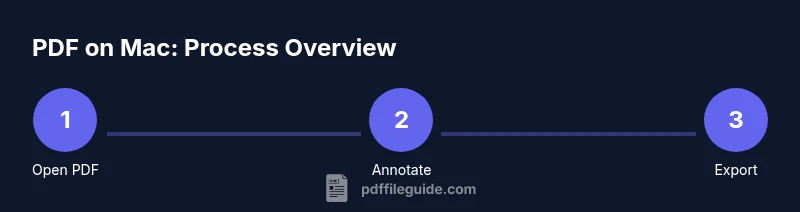
Right-click the file and choose Open With > Preview, or drag the PDF onto the Preview icon. Ensure you’re viewing in the Markup toolbar to access annotation features. Opening in Preview gives you immediate access to the core tools for pdf for mac.
Tip: Tip: Use Command+O to quickly open a file in Preview. - 2
Annotate with Markup tools
Click the Markup toolbar and apply highlights, notes, shapes, or signatures. For professors or reviewers, use sticky notes to leave comments without altering the original text. Save a copy after annotating to preserve the original version.
Tip: Pro tip: Use different colors for different reviewer roles to keep feedback organized. - 3
Fill forms and add text overlays
If the PDF contains interactive fields, click into them to enter data. For non-interactive forms, add a text overlay using the Text tool so you can insert answers while maintaining the document layout.
Tip: Pro tip: Turn on the Zoom tool to position overlays precisely. - 4
Export or Save as PDF
Use File > Export as PDF to create a new copy with your changes. For quick captures of a document, use Print > Save as PDF. This preserves your edits and ensures compatibility across devices.
Tip: Pro tip: When exporting, select Encrypt to password-protect when needed. - 5
Rearrange pages if needed
Enable the Thumbnail sidebar and drag pages to reorder or delete them. This is useful when compiling reports or consolidating multiple documents into a single PDF.
Tip: Pro tip: Use the two-up view to compare page order before finalizing. - 6
Use Print to create alternative formats
If you need a different layout or to generate a PDF from a webpage or document, use the macOS Print dialog and select 'Save as PDF' as the destination. This also helps when exporting from non-PDF sources.
Tip: Pro tip: Choose a higher resolution when printing to ensure image clarity in the final PDF. - 7
Consider third-party editors for advanced edits
If you must adjust text blocks, fonts, or images embedded in the PDF, a dedicated editor can provide more control. Use Preview for quick tasks and reserve third-party tools for deeper edits.
Tip: Pro tip: Test edited files in multiple apps to confirm layout fidelity.
Questions & Answers
Can I edit the text in a PDF using macOS built-in tools?
Preview allows annotations and form filling, but full text editing is limited. For substantial text edits, use a dedicated PDF editor and then re-save as PDF.
Preview lets you annotate and fill forms, but for heavy text edits you’ll want a dedicated editor and then save as PDF.
Is Preview enough for everyday PDF tasks on Mac?
For most people, Preview covers viewing, annotating, signing, and basic form filling. Save advanced edits for a dedicated editor if needed.
Yes, for most tasks Preview is enough, but for complex edits you may need additional software.
How do I password-protect a PDF on Mac?
Use the Export as PDF or the Encrypt option in the export dialog to require a password for viewing. Store passwords securely and share encryption only with authorized recipients.
Export a PDF and choose Encrypt to set a password, then keep the password safe.
Can I convert a Word document to PDF on Mac?
Yes. Use the Word app’s Save as PDF, or use Print to PDF from any application on macOS to create a PDF file.
You can save Word documents as PDF directly, or print-to-PDF from any app on your Mac.
What’s the best way to reduce PDF file size on Mac?
Use Preview’s Reduce File Size option when exporting, or re-save with lower image resolution to shrink the file while preserving essential content.
Export with reduced image quality to minimize file size.
Do these macOS methods work with accessibility tools?
Yes, ensure PDFs have selectable text and proper tagging. Use screen readers to verify content readability and navigation.
PDFs with proper text and tags work better with screen readers on Mac.
Watch Video
Key Takeaways
- Leverage Preview for most macOS PDF tasks
- Annotate, fill forms, and rearrange pages quickly
- Use export/print-to-PDF for output formats
- Consider third-party editors for complex edits
- Prioritize security and accessibility in PDFs