PDF Sign: A Practical Guide to Signing PDFs
Learn how to sign PDFs with digital signatures, certificates, and trusted workflows. This guide covers desktop and mobile signing, verification steps, and best practices for secure, legally valid results.


By the end of this guide you will know exactly how to sign PDFs securely and legally, using digital signatures, certificates, and trusted signing workflows. We'll cover desktop and mobile options, how to prepare signing materials, and how to verify signatures for recipients. This content follows PDF File Guide's standards for safe, compliant PDF signing in professional environments.
What is PDF signing and why it matters
PDF signing is the process of applying a digital signature to a document to confirm authorship, ensure integrity, and establish non-repudiation. In professional settings, pdf sign workflows create tamper-evident records that recipients can verify using a trusted certificate chain. According to PDF File Guide, adopting proper signing practices protects both the signer and the recipient, reduces dispute risk, and supports regulatory compliance. When you sign a PDF, you’re not just placing an image; you’re binding identity and data integrity to a verifiable credential that travels with the document. This makes the signed file trustworthy across platforms and devices, from desktop workstations to mobile reading apps.
In many industries, signatures are required for contracts, approvals, and financial documents. A properly signed PDF can carry a timestamp and a signer's identity, enabling auditors to trace the document’s journey. While the mechanics vary by tool, the core ideas remain the same: authenticity, integrity, and non-repudiation.
Legal and security basics
If you work with PDFs in a professional context, you must understand the basics of legality and security. A digital signature typically relies on cryptographic keys and a trusted certificate. The signature validates that the document has not been altered since signing, and it confirms who signed it. Jurisdictions differ on precision and long-term validity, but most recognize certificates issued by a trusted Certificate Authority (CA) as legally binding for business documents. From a security standpoint, always protect your private signing key, enable timestamping when possible, and ensure that signers’ identities are verifiable. PDF File Guide emphasizes that secure signing is not a one-time action; it’s part of a documented workflow that supports audits and compliance.
Key concepts: signatures, certificates, and trust chains
A digital signature rests on a public-private key pair and a certificate that links the signer’s identity to the key. The trust chain starts with the signer’s private key used to sign, and ends with the recipient’s validation against a trusted CA hierarchy. Two common forms are basic electronic signatures (image-based) and certificate-based signatures (cryptographic). For high-assurance scenarios, adopt PAdES or equivalent standards to preserve long-term validity. When a signer’s certificate is revoked or expired, the signature’s validity can fail checks, so certificate lifecycle management is critical. In short, the strength of a pdf sign depends on the integrity of the cert and the robustness of the signing process.
Methods to sign a PDF
There isn’t a single “one-size-fits-all” method for signing PDFs. You can opt for certificate-based signatures, image-based signatures, or a hybrid approach depending on the document’s purpose and audience. Certificate-based signing provides cryptographic proof of origin and integrity, while an image-based signature can be visually authentic but relies on separate verification. Consider your recipients’ software compatibility, regulatory requirements, and the need for long-term validity when selecting a method. PDF File Guide recommends prioritizing certificate-based methods for formal documents and using visible signature appearances to aid quick recognition by recipients.
Choosing a signing workflow for individuals and teams
Individual signers usually manage a personal digital certificate and a single signing workflow, while teams may require a centralized PKI (Public Key Infrastructure) and policy controls. For teams, implement role-based access to signing keys, enforce strong authentication, and audit signing events. When distributing signed PDFs, include a signature appearance that clearly indicates signer identity and signing time. For organizations, consider a documented signing policy that covers certificate renewal, revocation checks, and archiving of signed copies. The goal is repeatability, verifiability, and compliance across all documents.
How to sign a PDF across devices: desktop and mobile
Signing on desktop often provides richer tools and controls, including certificate management and detailed signature appearances. On mobile, signing solutions tend to prioritize ease of use, with streamlined workflows and built-in certificate support via apps. Regardless of device, ensure your certificate is valid, the document is the intended version, and the recipient can verify the signature. If you sign on multiple devices, synchronize your certificate securely and avoid exporting private keys to untrusted apps. Regularly update your signing software to mitigate known vulnerabilities.
Best practices for verification and maintenance
After signing, verify the signature in the same or another trusted viewer to confirm validity. Maintain a record of the signing certificate, serial number, and trust chain, and preserve a copy of the unsigned original for auditability. When distributing, provide recipients with instructions to verify the signature, including how to view certificate details and trust status. Periodically review certificate lifecycles and update signing workflows to reflect evolving security standards. Consistent verification procedures help protect the document’s integrity over time.
Tools & Materials
- Digital certificate (private key) issued by a trusted authority(Identity-verified cert used for signing)
- Signing software or platform with PDF signing support(Ensure it supports certificate-based signing (e.g., PAdES))
- A device with a compatible OS (desktop, laptop, or mobile)(Keep OS and software up to date)
- USB security token or hardware crypto module (optional)(Optional for hardware-backed keys)
- Unsigned PDF document(The file to sign)
- Identity verification details (signer name, role, email)(Used to populate signature appearance)
Steps
Estimated time: 15-25 minutes
- 1
Prepare signing materials
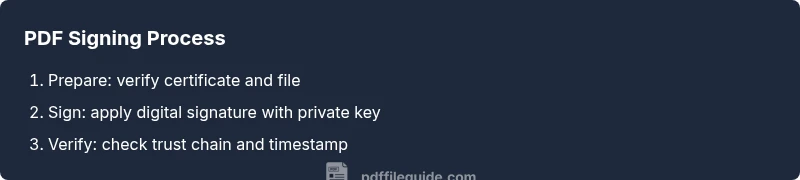
Gather your digital certificate, private key, and the unsigned PDF. Verify the certificate is valid and not expired. Confirm signer identity and intended recipients.
Tip: Keep private keys secure; use a password manager and avoid sharing keys. - 2
Open the PDF in signing tool
Launch your signing software and load the unsigned PDF. Confirm you are working with the final version to prevent signing an outdated draft.
Tip: If your tool supports multiple signers, tag the document accordingly. - 3
Choose signing method
Select certificate-based signing for legal compliance or an image-based signature for quick approvals. For long-term validity, prefer certificate-based methods.
Tip: Where possible, use a certificate-based workflow (e.g., PAdES). - 4
Place and customize signature appearance
Position the signature field where it is visible but does not obscure content. Add a clear appearance with signer name, date, and role if applicable.
Tip: Keep the appearance consistent across documents to avoid confusion. - 5
Apply the signature and save
Apply the signature and save the signed PDF under a new version. Do not overwrite the unsigned copy. Enable timestamping if supported.
Tip: Create a separate archival copy with a verifiable timestamp. - 6
Verify and distribute
Check the signature status in multiple viewers and share verification instructions with recipients. Record certificate details for audits.
Tip: Provide recipients with explicit steps to validate the signature.
Questions & Answers
Is an electronically signed PDF legally binding?
Electronic signatures are legally recognized in many jurisdictions when properly implemented with a verifiable certificate and an auditable signing process. Always check local regulations and use certificate-based signing for formal documents.
Yes, electronic signatures can be legally binding when properly implemented with verifiable certificates and an auditable signing process.
Do I need a digital certificate to sign a PDF?
For formal, legally defensible signatures, a digital certificate tied to a private key is typically required. You can sign with certificates from trusted authorities or organizational PKIs.
Yes, a digital certificate is generally needed for formal, defensible signatures.
Can I sign a PDF on mobile devices?
Yes, many signing apps support mobile signing with certificate-based workflows. Ensure the app securely stores the certificate and provides a verifiable signature.
You can sign on mobile with the right app and secure certificate handling.
How can I verify a signed PDF's authenticity?
Open the signed PDF in a trusted viewer and check the signature status, signer identity, and certificate trust chain. Look for a valid timestamp and intact document integrity.
Open the file and review the signature details and trust chain.
What happens if the PDF is edited after signing?
Any modification after signing typically invalidates the signature. Recipients may see a warning, and re-signing with updated content is usually required.
If edited after signing, the signature becomes invalid and should be re-applied after updates.
What are common issues when signatures fail?
Issues include expired certificates, revoked trust chains, or incompatible viewers. Regularly update signing certificates and verify compatibility with recipient software.
Common problems include expired certs and revoked trust chains; keep certificates current.
Watch Video
Key Takeaways
- Choose signing method to meet legal and security needs.
- Verify the signature's validity before distribution.
- Use hardware-backed keys whenever possible.
- Preserve timestamps and certificate details for audits.
- Archive unsigned originals for reference and rollback.