Sign a PDF File: A Practical Step-by-Step Guide for Beginners
Learn how to sign a PDF file securely and legally using digital signatures, certificate-based signing, and simple image signatures. This educational how-to covers methods, tools, step-by-step instructions, tips, FAQs, and best practices for professionals.


You can sign a PDF file by applying a digital signature or a visible signature image using your PDF editor, a dedicated signing tool, or an online service. Choose a method based on your need for legality, auditability, and convenience. Then place the signature, review the signature properties, and save a certified copy if required.
What signing a PDF means
A signature on a PDF creates a trusted record that the document originated from a verified signer and that it remains unaltered after signing. In practice, you attach either a digital certificate (for cryptographic signing) or a visible signature image to the document. Digital signatures leverage public-key cryptography to bind your identity to the file and provide integrity checks that others can verify. Image-based signatures are decorative marks that indicate approval but do not provide cryptographic proof. For professional workflows, digital signatures are typically preferred due to their verifiability and non-repudiation. According to PDF File Guide, signing a PDF securely involves selecting a signing method that aligns with your workflow, ensuring the signer’s identity is legitimate, and using a trusted tool capable of generating a verifiable signature. Always consider the document’s purpose, the recipient’s expectations, and any applicable legal requirements when choosing your signing approach.
Signing methods: digital certificates vs image signatures
There are two broad approaches to signing PDFs. Digital certificate-based signing uses a cryptographic key pair and a trusted certificate to prove who signed the document and to seal its integrity. This method supports validation by anyone who trusts the certificate authority that issued the certificate. Image-based signatures render a signature mark on the page and are simpler to apply, but they lack cryptographic proof of origin and can be modified more easily. In many professional contexts, a hybrid approach is used: a cryptographic signature for official copies and an image signature for internal drafts. When choosing a method, consider the document’s sensitivity, the required level of trust, and the signing tools available in your organization. PDF File Guide emphasizes that the strongest practice combines verifiable identity with an auditable signing trail.
Preparing signer identity and certificates
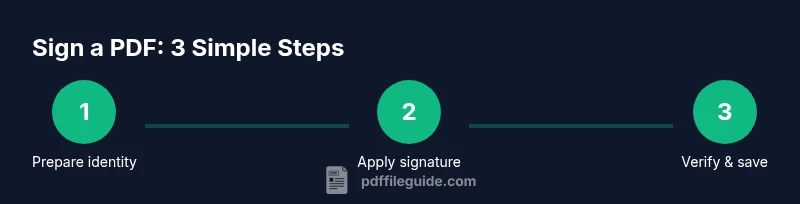
Before you sign, confirm you have a valid signer identity. If you’re using digital certificates, ensure they are issued by a trusted certificate authority and are not expired. You may need to install a certificate onto your device or connect a hardware security module (HSM) or smart card. If you’re signing with an image, prepare a high-quality signature image (PNG or SVG) with a transparent background for clean placement. Organize your files so the original, unsigned PDF is preserved, and consider creating a signed copy separately to avoid accidental overwrites. Also decide whether you want an irreversible “certified” signature that restricts edits thereafter, or a standard signature that allows subsequent modifications with re-signing.
Step-by-step: Using Adobe Acrobat DC (desktop)
Adobe Acrobat DC provides a comprehensive signing workflow. Open the PDF, choose Sign from the Tools pane, and select Add Signature. Decide whether to use a drawn, typed, or image signature, or to apply a digital certificate. Place the signature in the desired location, resize if needed, and configure signing options (such as allowing or preventing edits after signing). Save the signed document with a new filename to preserve the original unsigned version. If you’re applying a certificate-based signature, ensure your certificate is selected and that the signing process completes without errors. Finally, verify the signature status in Acrobat’s Signature panel and attach any required supporting metadata.
Step-by-step: Using Windows built-in tools (Fill & Sign)
Windows provides a built-in signing workflow via PDF viewers that support Fill & Sign. Open the PDF in a compatible app (such as Microsoft Edge or a bundled viewer), choose Sign, and select your signature type (handwritten image or typed). Place the signature on the document, adjust its size and position, and save a new copy. If you intend to certify the document, ensure you enable the certification option before finalizing. Use the file’s Properties or the signature panel to confirm signature validity. For sensitive documents, consider using a trusted signing certificate rather than a basic image.
Step-by-step: Using macOS Preview (Signature tool)
macOS Preview includes a straightforward signature feature. Open the PDF, click the Markup tool, and choose Signature > Create Signature or Add Signature. You can sign on a trackpad or insert an image of your signature. Drag the signature onto the page and adjust its placement, size, and appearance. Save the document as a new copy to maintain the original file. Preview will not create a cryptographic signature by default, so for formal legal use you may need a third-party certificate-based solution.
Step-by-step: Online signing services (cloud-based signing)
Online services offer quick, cross-platform signing. Upload the PDF, choose to sign with a certificate or an image, and place the signature where desired. These tools usually provide audit trails and sometimes certificate-based signing but require careful scrutiny of privacy and security terms. When using online services, verify the provider’s data-handling practices and ensure you’re signing only documents that you’re authorized to sign. After signing, download the signed PDF and share securely with recipients.
Signature appearance and layout best practices
A professional signature should be legible and appropriately sized. For digital signatures, include the signer’s name, title, date, and a verification seal or certificate indicator if applicable. For image signatures, keep the mark distinct from the document’s content and avoid covering critical text. Consistency across multiple signed documents helps recipients recognize your identity and trust your signatures more quickly. Consider a standard signature block that you reuse across filings to maintain familiarity and reduce errors.
Security and legal considerations
Digital signatures rely on trusted certificates and secure key storage to maintain integrity. Keep private keys secure and back them up in a protected location. Refrain from sharing private signing credentials and use hardware tokens when possible. Depending on jurisdiction, signature validity may require compliance with e-signature laws and standards (for example, recognizing that some regions require specific certificate types for legal enforceability). Always verify that the receiving party will accept the signing method you’ve chosen and document the signing process for audit purposes. The PDF File Guide analysis shows that certificate-based signatures are increasingly relied upon in professional workflows for their verifiability and compliance.
Troubleshooting common signing issues
If a signature is missing or shows as invalid, check that you used a valid certificate and that the document has not been altered after signing. Ensure the PDF viewer you’re using supports the signature format and that the signer’s certificate chain is trusted by the recipient’s system. If you cannot place a signature, verify that the PDF isn’t locked or protected by security settings that prevent signing. In some cases, signing a protected PDF requires removing restrictions from the document or obtaining permission from the author. Always work from an unsigned copy when encountering issues, and test the signature on a separate device or viewer.
Real-world use cases and tips
Signatures are common in contracts, consent forms, and official approvals. For high-stakes documents, use a certificate-based signature to provide strong evidence of origin and integrity. In teams, maintain a signing log to track who signed what and when. When distributing signed PDFs, ensure the recipients know how to verify signatures and where to obtain the signer’s credentials if needed. The key is to choose a signing method that aligns with the document’s purpose, the recipient’s requirements, and your organization’s policies.
Tools & Materials
- PDF signing software or editor(Examples include Adobe Acrobat Pro DC or reputable alternatives)
- Digital certificate or signer identity(Issued by a trusted certificate authority; store securely)
- Signature image (optional)(High-quality PNG/SVG with transparent background)
- Hardware security module or smart card (optional)(For secure storage of signing keys)
- Original unsigned PDF(Keep a pristine copy in case you need to revert)
- Backup copies(Save signed copies in a secure location)
Steps
Estimated time: 25-40 minutes
- 1
Choose signing method
Decide between a cryptographic digital signature and an image-based signature. Pick based on the document’s sensitivity, legal needs, and the recipient's expectations. Ensure you have the signer identity ready before proceeding.
Tip: Have your certificate or signature image prepared in advance to avoid delays. - 2
Open the PDF in the signing tool
Launch your chosen tool and open the unsigned PDF. Verify you have permissions to sign and that the file is the latest version. If you’re using a certificate, ensure the correct certificate is available in the tool.
Tip: Work from a copy to preserve the original unsigned version. - 3
Place the signature on the document
Click the area where you want the signature to appear. For cryptographic signatures, select the certificate and review the signing options. For image signatures, insert the signature image and adjust its size and position.
Tip: Keep signature placement away from text that could be obscured during printing. - 4
Configure signing options
Choose whether to lock the document after signing, add visible metadata, and set signing visibility. This is where you decide if edits are allowed post-signature or if a certified signature is required.
Tip: If compliance requires, enable verification and tamper-evidence features. - 5
Apply the signature
Complete the signing action. The tool will cryptographically bind your identity (for digital signatures) or attach the image signature to the document. The operation may take a moment on larger PDFs.
Tip: Ensure the signing process succeeds before closing the project. - 6
Save as a new signed copy
Save the signed document under a new filename to preserve the unsigned version. This creates an auditable trail and prevents accidental overwrites.
Tip: Use a consistent naming convention like filename_signed_date.pdf. - 7
Verify the signature
Open the signed PDF and check the Signature/Certificates panel to confirm trust status. Ensure the signer’s identity and certificate chain are valid and visible.
Tip: If the status shows as untrusted, investigate certificate trust settings on the recipient side. - 8
Distribute the signed document
Share the signed PDF through secure channels. If using online agreements, confirm recipients can verify the signature with their viewer.
Tip: Provide instructions for verification alongside the document when sending to others. - 9
Maintain an audit trail
Keep records of signing events, including who signed and when. Add notes about the signing method used and any relevant policy references.
Tip: Store reports or logs separately from the signed file for future audits.
Questions & Answers
What is the difference between a digital signature and an image signature on a PDF?
A digital signature uses cryptographic keys and a certificate to verify the signer’s identity and document integrity. An image signature is a graphical mark that indicates approval but does not provide cryptographic proof.
A digital signature proves who signed the document and that it hasn’t changed, while an image signature is simply a visible mark of approval.
Do I always need a certificate to sign a PDF?
Not always. You can sign with an image signature, but for legal or formal business documents, a digital certificate from a trusted authority is recommended for verifiability.
A certificate is often preferred for official work, but you can use an image if legal requirements allow.
Can I sign a PDF on a mobile device?
Yes. Many apps offer signing capabilities on mobile devices, including certificate-based signing and image signatures. Verify that the app supports the required signature type for your use case.
You can sign on your phone with a suitable app, but check if it’s certificate-based for official documents.
Is a signed PDF legally binding?
Legal binding depends on jurisdiction and the signing method. Certificate-based signatures with a trusted certificate authority are commonly recognized as legally binding in many contexts.
It depends on your location and the signing method; certificate-based signatures are usually strongest.
What should I do if a signed PDF won’t verify?
Check certificate validity, trust settings, and whether the document was altered after signing. If the issue persists, re-sign or obtain a fresh certificate.
If verification fails, confirm the cert is valid and that the document hasn’t been tampered with.
How do I verify a signature in a PDF viewer?
Open the PDF in a viewer that supports signatures and view the Signature or Certificates panel. Look for status indicators like valid, trusted, or not trusted.
Open the signature panel to confirm the signer and integrity status.
Watch Video
Key Takeaways
- Signatures attach identity and integrity to PDFs.
- Choose cryptographic signing for legal documents and image signing for quick approvals.
- Preserve the original unsigned file and create a signed copy for records.
- Always verify signature status after signing and keep an audit trail.