Can You PDF an Email on iPhone? A Step-by-Step Guide
Learn how to convert iPhone emails to PDF using built‑in iOS tools. This guide explains two reliable native methods, tips for preserving formatting, and privacy considerations. PDF File Guide analysis confirms native workflows are fast and secure.


Yes. You can PDF an email on iPhone using built‑in tools like the Share sheet or the Print/Save as PDF option, without third‑party apps. This quick guide shows two reliable methods: saving a single email as a PDF from Mail or sharing via the Print option to generate a PDF, then saving or exporting it.
Overview: Why you might PDF an email on iPhone
In mobile workflows, converting an email to PDF is a common need for archiving, sharing, or ensuring consistent formatting across devices. On iPhone, native tools make this possible without installing extra software. The PDF File Guide team notes that using built‑in features such as the Share sheet and Print-to-PDF flow typically provides fast, private, and reliable results. This section lays the foundation: why you’d want to save an email as a PDF, what you’ll gain from native options, and how to choose the route that fits your situation.
Built‑in pathways: Share Sheet and Print-to-PDF
Apple’s ecosystem makes exporting an email to PDF straightforward. The Share sheet lets you push an email to a PDF via a compatible app or drive, while the Print option in the Mail app (or any print-enabled app) can generate a PDF through a simple pinch‑out gesture. These approaches keep your data on device or with your chosen cloud provider, which can improve privacy and control. PDF File Guide emphasizes that these native tools are generally the fastest route for most users and avoid third‑party risks.
Method A: Save a single email as PDF from Mail
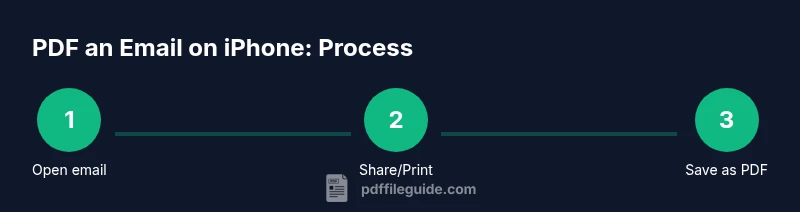
Start with the Mail app, open the specific email you want to archive, and access the Share icon. Choose Print, then pinch to zoom the preview until you see a PDF appear. Tap the Share icon again from the PDF preview to save to Files or export to another app. This method preserves the body text and formatting if viewed in a PDF reader. PDF File Guide highlights that naming the file clearly at this stage saves time later.
Method B: Export via Print to PDF from other apps
Some third‑party email clients offer direct export to PDF via a Print or Share action. The Print-to-PDF workflow is consistent across apps that support printing. In practice, you open the message, select Print, then use the pinch gesture to reveal the PDF, and finally save it or share. This path is especially useful when you’re managing emails outside the default Mail app. PDF File Guide recommends testing both paths to see which preserves layout best for your needs.
Managing attachments and metadata in the PDF
Note that when you export an email to PDF, the main content (subject, sender, body) is captured, while attachments may appear as separate items or require manual inclusion. If preserving attachments in the same file is essential, consider bundling related messages into a single PDF after export, or save attachments separately alongside the PDF in your Files or cloud storage. PDFs are great for archiving conversations, but plan ahead for large attachments or multiple messages.
Quality and formatting considerations on iPhone
Mobile PDFs can vary in readability depending on font size, margins, and orientation. If the email uses embedded images, verify that they render clearly in the PDF preview. On iPhone, you can rotate the page, adjust the print scale, and select portrait or landscape to optimize legibility. The goal is a clean, portable document that preserves the key information without excessive page breaks. PDF File Guide advises testing the export on both small and large screens to ensure consistent results.
Alternatives: Native vs. third‑party apps
Native iOS tools are usually sufficient for most email-to-PDF needs, with fewer privacy concerns and fewer permissions. Third‑party apps may offer advanced features like batch conversion or annotations, but they can introduce data handling risks. If you rely on sensitive information, start with the built‑in method, then evaluate whether a trusted app adds meaningful value. PDF File Guide stresses choosing sources you trust and keeping your device updated for security.
Troubleshooting common issues
If the export fails, verify that you’re using a compatible iOS version and that the email renders in a standard layout (complex HTML emails can occasionally misalign in PDF). Restart the Mail app, re‑open the message, and try again. If the resulting PDF looks cropped, try adjusting the print scale or switching to a different page size within the Print dialogue. Data migration or cloud syncing glitches can also affect saving locations; double‑check the destination folder.
Tips for organizing and sharing PDFs
Rename PDFs with descriptive titles, store them in clearly labeled folders, and use consistent naming conventions across projects. When sharing, consider enabling password protection for sensitive documents or using a cloud service with robust permission controls. If you frequently archive emails, create a standard template for file names and destinations, reducing friction in future exports. The goal is fast, repeatable workflows that keep you organized.
Security and privacy considerations
Be mindful of sensitive content in emails. Native export keeps data on your device, but attachments or embedded links can pose risks if shared widely. If possible, use on‑device editing or password protection for PDFs containing confidential information. Regularly review app permissions and storage locations to minimize exposure. PDF File Guide recommends balancing convenience with caution when handling sensitive messages on mobile devices.
Accessibility tips when reading PDFs on iPhone
Ensure your PDFs are readable by screen readers and can be zoomed without losing meaning. Keep text contrast high, headings clear, and alt text for any images. iOS readers often support text reflow, which helps when using smaller screens. If you distribute PDFs to a broader audience, test accessibility settings and adjust fonts and sizes accordingly.
Quick-reference workflow checklist
- Open the email to convert. 2) Tap Share or Print. 3) Use the Pan/Zoom to reveal the PDF. 4) Save to Files or export. 5) Rename and organize the file. 6) Share or password‑protect if needed. 7) Verify the PDF opens correctly on another device. 8) Document your preferred path for future use.
Authority sources
For further details on iPhone mail handling and PDF export, consult these sources:
- https://support.apple.com/guide/iphone-mail/welcome
- https://www.howtogeek.com
- https://www.cnet.com/how-to/
Tools & Materials
- iPhone with the latest iOS(Ensure you’ve updated to iOS 13+ for Print to PDF features.)
- Mail app (default on iPhone)(Open the email you want to export.)
- Files app or iCloud Drive(Choose a save location for the PDF.)
- Printer or PDF viewer app (optional)(Useful for additional editing or organization.)
- Stable internet connection (optional)(Needed if saving to cloud or sharing online.)
Steps
Estimated time: 10-15 minutes
- 1
Open the target email
Launch the Mail app and select the specific message you want to convert. Confirm that the content you need appears correctly in the preview, including any attachments you plan to reference in the PDF.
Tip: If the email is long, consider viewing the full message before exporting to avoid missing content. - 2
Access the export option
Tap the Share icon or use the app’s menu to locate Print or Save as PDF. Some apps show a dedicated Export option; choose Print if Save as PDF isn’t directly offered.
Tip: If you don’t see Print, try the Share sheet and then choose Print from the list. - 3
Generate the PDF via Print
On the Print screen, perform a pinch‑out gesture on the preview to reveal the PDF view. This converts the email into a PDF document ready for saving.
Tip: Use landscape orientation if the email contains wide tables or images. - 4
Save the PDF to Files or export
From the PDF preview, tap the Share icon again and choose a save location (Files or cloud storage) or select an app to export to.
Tip: Create or choose a descriptive folder name to simplify retrieval later. - 5
Rename and organize the file
Navigate to the saved location and rename the PDF with a clear, consistent title. Consider including the date and sender for quick identification.
Tip: Stick to your naming convention across projects for easy retrieval. - 6
Verify the PDF opens correctly
Open the saved PDF in a reader to confirm text, images, and formatting preserved. Check that any important charts or screenshots render clearly.
Tip: If something looks wrong, repeat the export with adjusted print settings. - 7
Share or secure the PDF
Share the PDF with colleagues or clients, or apply password protection if the content is sensitive. Use your preferred sharing method or a secure drive.
Tip: Password protection can add a layer of security for confidential information. - 8
Document your workflow
Record the method you used and the save location for future references. Having a standard approach saves time on future emails.
Tip: Consistency reduces friction in busy workdays.
Questions & Answers
Can I save every email as a PDF on iPhone?
Most emails can be saved as a PDF using the Share or Print path, though complex layouts may vary. Attachments may appear separately. If needed, repeat for consistency and adjust settings.
Most emails can be saved as a PDF with the built‑in tools; some layouts may look different depending on the message.
Will attachments be included in the PDF?
The PDF typically captures the email body rather than embedding every attachment. You may need to save large attachments separately if they’re required with the document.
The PDF usually includes the email content, but attachments might be separate files.
Does the PDF preserve the original formatting?
In most cases, the body text and basic formatting are preserved, but some advanced HTML layouts or images may shift slightly. Preview the PDF and adjust print options if necessary.
Most formatting stays the same, but check the PDF preview for any tweaks needed.
Can I export multiple emails into one PDF?
Native tools export one email at a time. For multiple messages, save each as a separate PDF and combine them later using a PDF editor or a cloud service.
You’ll usually get one PDF per email; you can merge them later if needed.
Is it possible to password‑protect the exported PDF?
Yes. You can password‑protect PDFs after exporting by using a PDF editor or built‑in security options provided by some apps. This adds a layer of protection for sensitive content.
You can add a password after exporting to keep the file secure.
What iOS versions support this feature?
Print-to-PDF and Share-based exports have been available on many recent iOS versions. If you don’t see the option, update your device to the latest iOS and retry.
Most recent iOS versions support this, but updating helps ensure access to the feature.
Watch Video
Key Takeaways
- Export emails as PDFs using native iOS tools.
- Choose Share or Print based on layout fidelity.
- Organize and rename PDFs for easy retrieval.