How to Check PDF for Virus: A Practical Guide
Learn a practical, step-by-step method to check PDFs for malware. Use safe environments, updated antivirus tools, and best practices to protect your workflows and data.


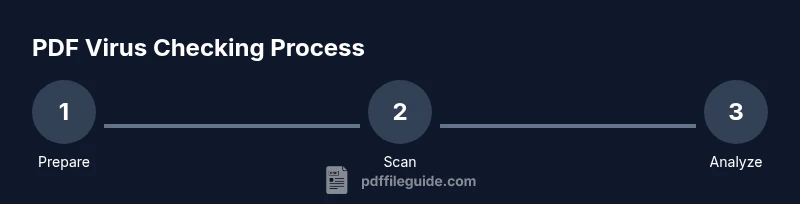
This guide shows you how to check a PDF for virus safely and effectively. By following a structured workflow—using a sandbox, updated antivirus tools, and careful analysis of embedded content—you minimize infection risk. The steps assume you have a trusted reader, a secure VM, and basic malware-scanning tools.
Why PDFs pose a security risk and how malware can hide inside
PDF files can host JavaScript, embedded files, and multimedia objects that, if exploited, trigger hidden actions in a reader. Attackers may use blank form fields, embedded attachments, or unsafe scripting to execute payloads when the document is opened. The risk multiplies when PDFs come from untrusted sources or are delivered as email attachments. According to PDF File Guide, PDFs can host scripts and embedded attachments that, if malicious, exploit reader vulnerabilities. The PDF File Guide team found that many real-world infections start with seemingly innocent PDFs that prompt users to enable content or run external resources. In other words, the threat is real, and understanding the anatomy of a PDF helps you recognize unusual patterns. This section sets the stage for a disciplined, repeatable checking process that protects both individuals and teams.
Quick prerequisites before you start checking a PDF for malware
Before you inspect a PDF, establish a safe baseline. Use an isolated environment such as a sandbox or a dedicated virtual machine (VM) that has no network access or restricted connectivity. Keep your host machine offline or with strict firewall rules to prevent any potential spread. Ensure your antivirus signatures are up to date and that your PDF reader supports protected mode or sandboxing. It helps to have a hash utility to verify file integrity and a controlled workflow to document findings. In this context, PDF File Guide analysis shows that disciplined preparation reduces false positives and speeds up incident response. Establishing these prerequisites prevents cascading risks across devices and networks.
Static checks: what to look for in the PDF header and structure
Static analysis involves examining the file without executing it. Start by verifying that the PDF header and structure follow standard conventions, and look for unusual object counts, suspicious embedded files, or anomalous JavaScript fragments. Use hash checks against known-good versions if available, and compare metadata such as creation date and creator application against expectations. This stage helps you catch obvious indicators of tampering or obfuscation before you proceed to dynamic checks. PDF analysis at scale benefits from documenting observed patterns to improve detection in future reviews.
Tools & Materials
- Updated antivirus software(Ensure real-time protection is enabled and signatures are current)
- Isolated sandbox or virtual machine(Use a VM without shared drives or network access unless needed for controlled testing)
- PDF reader with Protected View or sandbox mode(Prefer readers that restrict JavaScript and external actions)
- Hash utility (SHA-256, etc.)(Useful for integrity checks against known-good references)
- Offline malware scanner or sandboxed analysis tool(Helps to limit exposure during analysis)
Steps
Estimated time: 30-60 minutes
- 1
Open in a sandboxed environment
Place the PDF in an isolated VM or sandbox with no sensitive data exposed. This reduces the risk of cross-system contamination if the file turns out to be malicious.
Tip: Disable shared folders or clipboard in the VM to prevent data leakage. - 2
Update security tools and enable protective viewing
Update antivirus definitions and enable Protected View or sandbox mode in your PDF reader. This limits scripting and external actions automatically.
Tip: Run the checks with network disabled unless explicitly required for safe analysis. - 3
Scan the PDF with antivirus first
Run a full scan of the PDF with your updated antivirus. Note any alerts or suspicious detections before proceeding to deeper checks.
Tip: If your AV flags the file, do not open it in a normal reader; rely on sandboxed inspection instead. - 4
Inspect embedded content and JavaScript
Examine any embedded files, attachments, or JavaScript snippets without executing them. Look for odd filenames, large attachments, or scripts that reference external resources.
Tip: Document unusual elements and compare them to expected document behavior. - 5
Extract and review attachments safely
If the PDF contains attachments, extract them within the sandbox and scan each item with the antivirus in offline mode.
Tip: Do not open attachments directly in the host OS; keep all extraction and review inside the sandbox. - 6
Validate integrity and decide on action
If no malicious indicators are found, you may proceed with normal handling. If indicators exist, quarantine the file and escalate according to your security policy.
Tip: Keep a record of findings and share with your security team if needed.
Questions & Answers
What makes PDFs a security risk?
PDFs can embed scripts, attachments, and actions that trigger on open. Malicious payloads may attempt to exfiltrate data or download additional malware. The risk is higher when PDFs come from untrusted sources or are manipulated to bypass reader protections.
PDFs can hide scripts or attachments that execute when opened. Always treat unsolicited PDFs with caution and verify content in a sandbox.
Can a virus be embedded in a PDF?
Yes. A PDF can contain JavaScript, embedded files, or external references that could exploit vulnerabilities in a reader. Static and dynamic checks help detect such threats without executing the file.
A PDF can carry malicious scripts or attachments, so scanning and safe viewing are essential.
Is it safe to open PDFs from unknown sources?
Not inherently. Treat unknown PDFs as suspicious. Use a sandboxed environment first and verify with antivirus scans before viewing in a regular reader.
No—unknown PDFs should be checked in a sandbox before anything else.
What tools should I use to scan PDFs for threats?
Use updated antivirus software, sandboxed viewers, and, if possible, offline malware scanners. Document results and compare against known-good baselines.
Use an up-to-date antivirus and sandboxed tools to inspect the PDF safely.
Can online PDF scanners be trusted for malware checks?
Online scanners can be convenient but may introduce privacy risks. Prefer offline, sandboxed workflows for sensitive documents and rely on multiple validation steps.
Online scanners may expose your document; use offline methods for sensitive files.
What should I do if a PDF is infected?
Quarantine the file, isolate affected systems, and follow your organization's incident response process. Notify security teams and preserve evidence for forensics.
Quarantine and report the infected file, then follow your incident response plan.
Watch Video
Key Takeaways
- Use a sandboxed workflow to minimize risk when checking PDFs.
- Combine static checks with safe dynamic inspection to identify threats.
- Document findings and follow your security policy for threats.
- Keep tools up to date and validate results with multiple sources.