How to Know if a PDF File Is Infected: Quick Troubleshooting Guide
Urgent guide to spotting infected PDFs: identify signs, perform safe testing in a sandbox, and prevent future infections. Learn isolation, scanning, and verification techniques from PDF File Guide.


The most common sign a PDF is infected is unexpected prompts, abnormal script actions, or antivirus warnings when you open it. Start by opening the file in a sandbox or isolated VM, run a full malware scan on the file, and disable JavaScript in your PDF viewer. If evidence of infection exists or the source is untrusted, discard the file and verify with a trusted source.
Why PDFs Are Targeted by Malware
If you’re trying to learn how to know if a pdf file is infected, understand that PDFs can hide malicious scripts, embedded files, and exploit techniques inside seemingly harmless documents. According to PDF File Guide, attackers often use JavaScript in PDFs, embedded payloads, or subtle actions that trigger when the document is opened or navigated. The PDF File Guide team found that even reputable- looking attachments can carry harmful payloads when delivered via phishing emails or compromised websites. This section explains why PDFs remain attractive to criminals: they blend with ordinary workflows, require minimal user interaction, and can leverage widely installed readers. The infection risk isn’t tied to file size or appearance; it’s about what’s inside and how the document interacts with your viewer. By understanding the risk factors and common infection vectors, you’ll be better prepared to assess PDFs safely and reduce the chance of accidental exposure.
Common Signs a PDF Might Be Malicious
Not every suspicious PDF is infected, but certain indicators raise red flags. Look for prompts or warnings unusual for your reader, such as requests to enable JavaScript, auto-launch actions, or hidden panels that open new windows. Expect unpredictable file sizes after archiving or packaging; an ordinary report becoming unexpectedly large can indicate additional payloads. Hidden JavaScript or embedded files (.exe, .js, or .json disguised as attachments) in the document are classic signs. In some cases, content appears scrambled or refuses to render in standard viewers. In PDF File Guide analysis, these signs rarely appear in clean, legitimate documents from trusted sources, especially when the sender is unsolicited or the subject line is urgent. If you notice any of these symptoms, treat the file with suspicion and proceed with safe testing in a controlled environment.
Safety-First: How to Handle Suspect PDFs
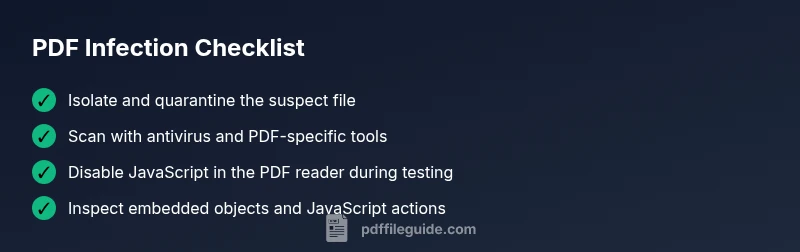
Never open infected-looking PDFs on a production machine or network. Start by moving the file offline and isolating the system from sensitive data and networks. Use a clean, up-to-date antivirus and a sandbox or virtual machine to examine the PDF without risking other devices. Disable JavaScript in your PDF reader, disable multimedia playback, and avoid enabling any prompts that request to run code. The PDF File Guide recommends running the file through a dedicated malware scanner and using hash-based checks against known clean versions. If you must share the file for analysis, use a secure, restricted channel and scrub any metadata that might reveal user information. These steps reduce exposure risk while you determine the document’s legitimacy.
Step-by-Step Local Checks You Can Run
Perform these checks in a safe, ordered sequence to minimize risk. 1) Confirm the source and delivery method; verify the sender and channel. 2) Inspect the PDF without fully opening it: use tools that reveal embedded objects, JavaScript actions, and streams. 3) Run scans with updated antivirus software and, if possible, a PDF-focused malware scanner. 4) Compare the file hash with a known-good copy if available. 5) Open the file in a viewer with JavaScript disabled and no network access to observe prompts. 6) If results are inconclusive, delete the file, document your findings, and escalate to IT security.
In-Depth Analysis: What Malware in PDFs Looks Like
Malware in PDFs often exploits JavaScript actions, embedded files, or dynamic content. Look for /OpenAction, /JS entries, or /Launch actions that trigger automatically. Some infections rely on external payloads loaded when the document renders; others create hidden forms or invisible files within the PDF structure. The PDF File Guide analysis shows that many infections are designed to evade basic antivirus scans by obfuscating code or distributing payloads as disguised attachments. Understanding these indicators helps you assess risk and decide on safe handling.
Prevention: Best Practices to Reduce PDF Risk
To minimize risk, adopt a layered approach:
- Keep PDF software and security patches up to date.
- Disable JavaScript by default in readers and never enable it from unknown sources.
- Open PDFs only from trusted senders and verified channels.
- Use sandbox testing for suspicious documents and avoid real-time execution of embedded payloads.
- Limit user privileges and avoid rendering sensitive content from dubious sources.
When to Seek Professional Help
If you cannot determine whether a PDF is infected or if it contains sensitive data, involve your IT security team. For regulated environments or complex incidents, contact security specialists who can perform forensic analysis, preserve evidence, and report the incident as required. The PDF File Guide team recommends erring on the side of caution and treating any suspicious file as potentially dangerous until proven safe.
Steps
Estimated time: 45-75 minutes
- 1
Isolate the suspect PDF
Quarantine the file in a controlled, offline folder and ensure testing occurs in a disposable environment. Do not run the file on production machines or shared networks. Take a clean snapshot of the sandbox to revert any changes after testing.
Tip: Always work from a clean, disposable VM or container. - 2
Open in a sandbox/VM
Launch the PDF in a sandbox with no network access and with a snapshot available to revert. Avoid copying the file to other systems during testing and disable any external peripherals that could be influenced by the file.
Tip: Use a read-only session if possible. - 3
Run scans with multiple tools
Run a full scan with up-to-date antivirus software and, if available, a PDF-specific malware scanner that can parse embedded objects. Record any detections and note the context of alerts.
Tip: Cross-check results across at least two tools for confidence. - 4
Inspect the PDF structure
Use tools to inspect PDF objects, including /OpenAction, /JS, and embedded file streams. Look for unusual or hidden payloads, obfuscated code, or references to external resources.
Tip: Do not execute any detected payloads—only examine structure. - 5
Test with JavaScript disabled
Open the document in a viewer with JavaScript disabled and without network access to see if any prompts or actions trigger. This helps determine if the risk relies on active scripting.
Tip: Disable all optional features in the viewer during testing. - 6
Decide the next steps
If infection is confirmed or uncertain, delete the file, document findings, and report to IT security. Preserve evidence for any forensic investigation and ensure backups are clean.
Tip: Keep a record of hashes, tests performed, and viewing conditions.
Diagnosis: PDF opens and triggers warnings or unusual behavior in a non-expected way
Possible Causes
- highEmbedded JavaScript or Launch actions within the PDF
- mediumMalicious embedded payloads or attachments disguised as resources
- lowExploitable vulnerability in the PDF viewer or plug-ins
Fixes
- easyDisable JavaScript in the PDF viewer and test after isolating the file
- easyScan the file with updated antivirus and PDF-focused malware tools in a sandbox
- mediumCompare file hash against a known-clean copy or trusted source
- hardConsult IT security for advanced forensics if still unsure
Questions & Answers
Can a PDF be infected even if I know the sender?
Yes. PDFs can be infected even when coming from trusted sources if the file was compromised or spoofed. Always verify the link, re-check attachments with scanning tools, and test suspicious files in a sandbox before opening.
Yes. Even trusted sources can send infected PDFs if the file was compromised; always verify and test safely.
What immediate steps should I take if I suspect a PDF is infected?
Quarantine the file, run antivirus checks in a sandbox, disable JavaScript, and avoid executing any content. If in doubt, consult IT security to perform deeper analysis.
Quarantine the file, scan in a sandbox, disable JavaScript, and consult IT if unsure.
Will antivirus alone catch all PDF malware?
Antivirus helps, but PDF malware can evade basic checks. Use PDF-specific scanners and manual inspection of the PDF structure for best results.
Antivirus helps but may miss some PDFs; use PDF-focused scanners and manual inspection.
Is it safe to open PDFs from known sources after scanning?
If scans show no threats and you trust the source, it’s generally safer, but maintain caution and keep your viewer updated. Re-scan if you notice unusual behavior later.
Safe if scans are clean and you trust the source, but stay vigilant.
How can I remove malware from a PDF?
Direct removal isn’t reliable; safer options are to regenerate from a clean source or strip embedded objects using trusted tools, then re-scan. If needed, consult security experts.
Removing malware from a PDF isn’t straightforward—use clean sources or trusted tools and re-scan.
What tools help analyze PDFs safely?
Use sandboxed viewers, PDF object explorers, and malware-analysis suites designed for portable document formats. Keep tools updated and follow safe testing practices.
Use sandboxed viewers and PDF analysis tools, kept up to date, and test safely.
Watch Video
Key Takeaways
- Verify PDF source before opening
- Disable JavaScript and test in sandbox
- Use antivirus and PDF-specific scanners
- Inspect PDF structure for suspicious actions
- Escalate to IT/security if unsure