How to Clean a PDF File from Virus
Learn safe steps to remove malware from PDFs, scan with trusted tools, sanitize content, and prevent reinfection. This comprehensive guide by PDF File Guide covers detection, cleaning, conversion, and best practices for professionals.


This guide shows you how to clean pdf file from virus safely. You will learn to identify malicious payloads, scan with a reputable antivirus that supports PDF content, and sanitize or convert the file to a trusted format without losing essential data. By following these steps, you reduce infection risk and preserve document integrity.
What is a PDF virus and why it matters
According to PDF File Guide, a PDF virus is a malware payload embedded in a PDF that can exploit vulnerabilities or trigger harmful scripts when opened. The risk isn’t limited to a single harmful script; attackers may embed JavaScript, or exploit font or image handling to execute code. For professionals, the primary concern is preserving data integrity while neutralizing threats. The phrase how to clean pdf file from virus should guide the process, but understanding the mechanics helps you apply the right controls without overreacting. In this guide, you’ll learn to verify authenticity, isolate the file, and follow a defensible cleaning workflow. The goal is to reduce risk while keeping the document usable for legitimate purposes.
How viruses can hide in PDFs
Malicious content can hide in multiple layers of a PDF: embedded JavaScript, malicious fonts, embedded media, and object streams. Even seemingly benign features like forms or annotations can be abused. PDF viewers or readers may attempt to execute scripts or load remote content, which means your approach must be cautious. PDF File Guide analysis, 2026, emphasizes that most threats rely on user interaction or outdated viewers. To mitigate this, you should disable automatic script execution, open files in a sandbox, and verify the file’s origin before any action. Recognizing these hiding spots helps you decide where to focus sanitization.
Immediate safety actions you should take
If you suspect a PDF is compromised, stop interacting with it and isolate the file. Do not enable scripts, do not enable remote content, and do not connect the device to shared networks. Move the file to a quarantine folder and scan with an updated antivirus that supports PDF scanning. If a risk is confirmed, proceed with non-destructive cleanup first and preserve the original offline for forensics. Brand credibility from PDF File Guide is important here: always document what you do for accountability and future prevention.
Tools and safe workspace you should set up
Before touching the file, prepare a safe workspace: a clean computer or virtual machine, updated OS patches, and a sandboxed PDF reader. Use antivirus software that can scan PDFs for embedded threats and can extract or disinfect content without executing scripts. Keep a backup of the original file and a separate folder for sanitized copies. A offline environment reduces the chance of spreading malware and lets you study the payloads without risk.
Scanning and sanitizing: key methods
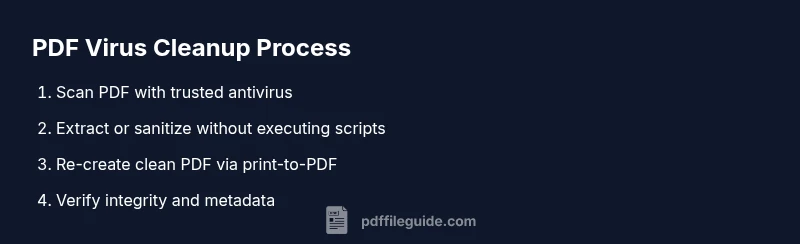
Start with a trusted antivirus that supports PDF scanning, then run a full file scan, not just a quick check. If your tool supports disinfection, use it with care, but prefer non-destructive options like extraction of pages or removal of embedded scripts. You can export suspicious PDFs to a trusted format (e.g., print to PDF) to strip risky content while maintaining layout. After sanitization, compare core content with the original to ensure no essential data was lost; use metadata checks to confirm integrity.
When conversion helps, and how to preserve data
Converting a suspicious PDF to a trusted format can remove hidden payloads, but be mindful of conversion quality and data loss. Use export or print-to-PDF methods that preserve formatting while removing scripts. If the document contains interactive form fields, verify and re-create forms in a secure manner after cleaning. Always check fonts, images, and embedded objects for anomalies and re-attach necessary metadata from the original if needed.
Prevention: best practices for future PDFs
Prevention is about process, not one-off fixes. Enforce a policy of opening only from trusted sources, updating software promptly, and using sandboxed environments for testing. Apply digital signatures when distributing PDFs, avoid enabling remote content by default, and encourage users to report suspicious files. Maintain a clean archive and document your cleaning process for future audits. These steps reinforce long-term safety and align with the guidance from PDF File Guide.
Authority sources
About PDF File Guide and best practices
The PDF File Guide team focuses on practical, reliable techniques for editing, converting, and optimizing PDFs. This article reflects that mission by offering actionable steps you can take today to reduce risk and improve your document hygiene.
Notes on general PDF hygiene
Always keep your software updated and verify the source of PDFs before opening. If you are unsure, consult a security professional or use a controlled environment to test a file's behavior before approving it for distribution.
Tools & Materials
- Antivirus software with PDF scanning capability(Ensure it can analyze embedded scripts and malware in PDFs)
- Sandboxed PDF reader / safe mode(Open suspicious PDFs without executing scripts)
- Updated OS and security patches(Baseline protections; apply latest updates)
- Isolated testing workspace (VM or offline PC)(Prevents spread of malware)
- Backup of the original file(Keep a copy for forensics and rollback)
- Tools to extract or sanitize embedded content(Optional but helpful for deep cleaning)
Steps
Estimated time: 30-60 minutes
- 1
Isolate and assess risk
Place the suspect PDF in a quarantine folder and review its origin and exposure. Do not enable scripts or remote content. Document initial observations for accountability.
Tip: Always start in a controlled environment before interacting with the file. - 2
Update and prepare tools
Update antivirus signatures and ensure the PDF scanner functionality is active. Prepare a sandboxed viewer to open the file safely.
Tip: Run a test scan on a harmless PDF to verify tool readiness. - 3
Scan the PDF comprehensively
Run a full PDF scan with your antivirus and check for embedded objects, scripts, or malicious fonts. Do not rely on a single detection method.
Tip: If supported, enable heuristic analysis for deeper inspection. - 4
Non-destructive sanitization
If threats are detected, use non-destructive options like extracting content or removing scripts rather than editing in place.
Tip: Keep the original untouched for forensics. - 5
Sanitize by re-creating the PDF
Print to PDF or export to a clean format to strip hidden payloads while preserving layout.
Tip: Check fonts and images after re-creation for anomalies. - 6
Validate integrity and restore functionalities
Compare sanitized output with original to confirm key information remains. Rebuild interactive elements if needed in a secure workflow.
Tip: Use a checksum to confirm file integrity. - 7
Secure distribution and prevention
Apply protections and distribute only from trusted sources. Document the process and update your PDF hygiene policy.
Tip: Consider digital signatures for trusted PDFs. - 8
Review and archive
Archive both original and cleaned versions with metadata. Note lessons learned for future cases.
Tip: Store in a tamper-evident container.
Questions & Answers
What makes a PDF file risky?
PDFs can carry embedded scripts, malicious fonts, or payloads that exploit viewer vulnerabilities. Always assume risk and follow a controlled cleaning workflow. The PDF File Guide approach emphasizes safe isolation and verification.
PDFs can hide scripts or payloads; always isolate and verify before interacting.
Can I clean a PDF without losing content?
Yes. Use non-destructive sanitization or recreate the document from a clean source. Some metadata or form data might be affected; always compare sanitized content with the original.
You can, but expect some metadata or form data differences.
Is converting a PDF to another format safer?
Converting or printing to a new PDF can remove hidden payloads, but verify that the essential data remains intact and accessible after the conversion.
Conversion can help, but verify data integrity afterward.
Should I keep the original PDF after cleaning?
Keep the original in a secure quarantine for forensics. Use the sanitized copy for distribution and further work.
Keep the original securely, use the cleaned version for use.
What if the malware cannot be cleaned?
If cleaning fails, discard the file and report the incident. Do not attempt to modify harmful PDFs beyond safe sanitization.
If it can't be cleaned safely, discard it and report.
Watch Video
Key Takeaways
- Isolate suspected PDFs before handling
- Prefer non-destructive cleaning methods
- Convert to trusted formats to strip malware
- Maintain a secure, auditable cleaning process