How to Fit a PDF to Page for Printing
Learn how to fit a PDF to page for printing with practical, platform-agnostic steps. Includes scaling, paper size, margins, previews, and troubleshooting for Windows, macOS, and browsers.


This guide teaches you how to fit a PDF to page for printing across common platforms. You’ll learn how to set page scaling, choose paper size, adjust margins, and preview before printing—covering Windows, macOS, and popular PDF readers. Follow these steps to ensure clean, professional prints every time.
Why fitting PDF to page matters
According to PDF File Guide, printing a document that is not sized to the page can waste paper and cause cropped content. When you fit a PDF to the page, you ensure that the content scales to the selected paper size without clipping. This discipline matters for resumes, forms, or presentation handouts, where margins and alignment impact readability. As you prepare to print, consider not just the page size but the printer's own capabilities, such as borderless printing and printable area. By understanding how scaling interacts with fonts and images, you reduce surprises at the printer. The PDF File Guide team notes that the most common issues stem from mismatches between document size, printer paper stock, and the selected orientation. Taking a moment to set the right options upfront saves reprints and materials. In professional settings, consistent printouts reflect attention to detail and can affect how clients perceive your work. The guidance here applies across Office suites, PDF readers, and web browsers.
Understanding page sizes, margins, and scaling
PDFs are created for a target page size like Letter, A4, or Legal. When you print, the viewer or printer needs to know which page size to emulate. If the document's native size doesn't match your paper, you have two main levers: margins and scaling. Margins define printable area, while scaling adjusts how content fits within that area. Commonly used terms include 'Actual Size,' 'Fit to Page,' and 'Shrink to Printable Area.' The goal is to preserve readability while avoiding clipped text. For best results, pick a paper size that matches the PDF's intended output and set orientation (portrait or landscape) accordingly. If you see unexpected white borders, double-check that the printer's margins are not larger than the document's margins, or switch to a borderless or edge-to-edge mode if your hardware supports it. Remember that some graphics or fonts may scale non-linearly, so always preview before printing to verify sharpness and alignment.
Methods across platforms and viewers
Different apps expose scaling options in slightly different places. In most PDF viewers, you can choose among common settings like Actual Size, Fit, and Shrink to Fit. On Windows, the Print dialog often presents a 'Size' or 'Page Scaling' dropdown; select 'Fit' to fill the paper, or 'Actual Size' to keep exact dimensions. On macOS, Preview provides similar controls within the Print dialog, sometimes labeled 'Scale' with a percentage. In browsers, printing a PDF from Chrome or Firefox typically surfaces a 'Pages per Sheet' or 'Page Scaling' option; use 'Fit to Page' where available. When printing from a dedicated PDF editor like Acrobat, you may also access custom page size handling and resolution controls. If you must adjust individual pages, explore per-page scaling or a 'Set Page Size' feature. Always run a print preview and, if possible, print a test page to check for legibility, margins, and image quality.
Practical workflow and edge cases
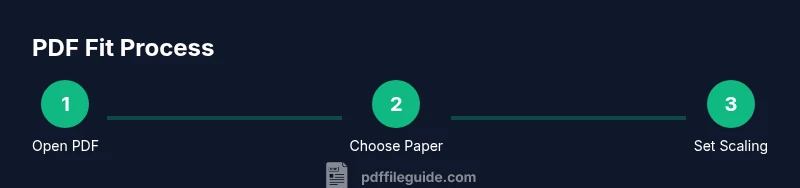
Start by opening the target PDF in your preferred viewer. Confirm the document size aligns with your intended paper. Choose the right paper size in the print dialog and select the correct orientation. Then decide on the scaling option: Fit for most cases, Actual Size when you must preserve 1:1 content, or Shrink to Fit if margins are limited. If you must print to a nonstandard sheet, choose 'Custom Scale' to dial in a percentage. For color documents, ensure color management is set correctly to avoid dull greens or washed-out blues. When printing multiple pages, consider whether you want to print as a booklet or with duplex printing enabled. Finally, save or print to a new file if you want to preserve the original settings for future jobs. If you encounter persistent misalignment, check printer drivers and update firmware, and consult the printer manual for borderless printing capabilities.
Authority sources and further reading
For further guidance on printing PDFs accurately, you can consult official help resources and standards that discuss print scaling and page fitting. These sources provide deeper explanations of how scaling interacts with fonts, images, and color spaces across common platforms.
Preview and verify before committing
Before you print, always use the viewer's Print Preview to verify margins and content fit. If anything looks off, go back to adjust scaling or margins, then preview again. This final check helps avoid wasting paper and ink on misaligned pages.
Tools & Materials
- Computer (Windows or macOS)( ensures access to printing settings)
- PDF viewer/editor (Adobe Reader, Preview, or browser)( needed to adjust scaling options)
- Printer with compatible driver( ensure up-to-date firmware)
- Printable paper (the target size, e.g., Letter or A4)( aligns with page size chosen)
- Optional: Borderless printer mode if available( helps maximize use of page area)
- Calibrated monitor (for color/web PDFs)( helps preview color accuracy)
- Print test page sheet( verify margins and content)
- Updated printer drivers( avoid driver-related scaling issues)
Steps
Estimated time: 15-25 minutes
- 1
Open the PDF in a viewer
Launch the PDF in your preferred viewer and confirm you have the latest version installed. Verify you are using the correct file and that it is not corrupted.
Tip: Always use a trusted viewer to ensure accurate scaling. - 2
Check document size vs paper size
Review the document's intended size and compare it to your target paper size (e.g., Letter, A4). If mismatched, prepare to adjust in the Print dialog.
Tip: If unsure about the size, use a print preview to confirm. - 3
Open the Print dialog
Access the print settings from the viewer or browser. Locate the page scaling or size options and the paper size dropdown.
Tip: If you can't find it, check the menu under File > Print or use a right-click context menu. - 4
Choose the scaling option
Select Fit, or Shrink to Fit, depending on whether you want to fill the page or preserve margins. For exact content, use Actual Size cautiously.
Tip: When in doubt, start with Fit and adjust after a quick preview. - 5
Set paper size and orientation
Ensure the paper size matches your document and choose Portrait or Landscape as required.
Tip: Inconsistent orientation can crop important details. - 6
Preview the print job
Use Print Preview to inspect margins, alignment, and legibility. Look for any unexpected clipping.
Tip: Zoom in on headers and footers to verify they aren’t cut off. - 7
Print a test page
If possible, print a single test page to confirm results before printing multiple copies.
Tip: Use the test page to adjust color and density if needed. - 8
Save settings for future use
If you frequently print the same PDF type, save the print preset or export settings to reuse later.
Tip: Name presets clearly (e.g., Letter_Fit_Portrait).
Questions & Answers
What is the best scaling option to use when printing a PDF?
For most documents, 'Fit' fills the page without cropping. Use 'Actual Size' only when you need 1:1 content and margins are already correct. Always preview first.
Use Fit in most cases, preview to confirm, and switch to Actual Size only if you must keep exact dimensions.
How do I avoid cropping content when the PDF has margins?
Ensure the print margins match or exceed the PDF margins, or choose Shrink to Fit if your printer cannot print to the edge. Preview and adjust as needed.
Make sure the printable area is large enough or shrink to fit; preview to verify.
Does printing from a browser differ from printing from a PDF viewer?
Yes. Browsers often have different scaling controls than dedicated PDF viewers. Always use the viewer’s print preview when possible to avoid surprises.
Browsers may handle scaling differently; preview with the PDF app for consistency.
Will fonts look different when I scale PDFs?
Scaling can slightly affect font rendering, especially with bitmap fonts. Use vector fonts when possible and preview at 100% zoom.
Scaling can change how fonts appear; check sharpness in Preview before printing.
What should I do if the printouts are blurry or pixelated?
Check the PDF's image resolution and printer DPI. Use higher quality settings and avoid excessive upscaling. Print a test page to confirm improvements.
Blurry prints may mean resolution or DPI issues; adjust settings and test again.
Can I set default print settings for all PDFs?
Yes. Most viewers and OS print dialogs let you save presets. Create a standard preset (paper size, scaling, orientation) for recurring tasks.
You can save a default preset so every PDF uses the same print settings.
Watch Video
Key Takeaways
- Choose the right paper size first.
- Use Fit or Shrink to Fit for clean margins.
- Preview before printing to avoid waste.
- Save print presets for repeatable results.