How to Print a Long PDF on Multiple Pages
Learn how to print a long PDF on multiple pages using tile printing, with step-by-step Windows and macOS workflows, tips for readability, and common pitfalls to avoid.


To print a long PDF on multiple pages, use tile/poster printing or precise scale-to-fit options, then preview thoroughly before printing. This guide covers Windows and macOS workflows, common PDF readers, and standard printers, with practical tips to preserve legibility, manage margins, and minimize waste.
Why tile printing is ideal for long PDFs
According to PDF File Guide, tile printing is an effective method to print long PDFs that exceed a single-page size. By dividing a document into multiple adjacent pages, you preserve original vector quality and legibility while avoiding aggressive scaling. This approach is particularly useful for posters, plans, manuals, and design proofs where precise detail matters. When you tile, you can choose between uniform tile sizes or a fixed grid, balancing page count with readability. For example, a 36-page document with a 6x6 tile grid becomes a straightforward, wall-ready poster once assembled. The benefit goes beyond size: tiling lets you maintain margins, keep readable font sizes, and reduce the risk of distortion that sometimes accompanies large-scale printing. In this guide, we’ll contrast tiling with fit-to-page and show you step-by-step how to prepare files, select the right tile scale, and preview results before printing.
Choosing the right print method for long PDFs
There are three common approaches to printing long PDFs: fit-to-page, uniform scaling across pages, and true tiling. Fit-to-page scales the content to a single page, which can blur fine details if the source content is dense. Uniform scaling keeps a constant percentage across all pages but often requires manual cropping when the paper size differs from the document. True tiling splits content into a grid of pages (for example 2x3, 3x4, or larger grids), preserving font size and sharpness while yielding a poster-like result. Your choice depends on the document’s purpose, the available paper size, and how you’ll assemble the printout. If your goal is readability on a wall, tiling with crop marks and clear alignment guides is usually best. For technical schematics, make sure to select tile sizes that maintain a comfortable reading distance and keep rulers or scales on the margins to verify accuracy.
Preparing your PDF and printer for multi-page printing
Before you print, verify the PDF’s page orientation and the printer’s supported paper size (Letter or A4 are common). If the document uses a portrait orientation with dense content, tiling at a moderate tile size helps maintain readability. Check that your PDF viewer’s print dialog exposes the tile or poster option; some readers label it as “Poster,” “Tile,” or “Print Poster.” Also, note the printer’s margins—many devices require a minimal margin around each tile. Finally, collect the appropriate paper stock and confirm you have enough sheets for the chosen grid. A quick pre-check saves wasted sheets and reprints later.
Windows printing: using Adobe Reader and built-in print dialogs
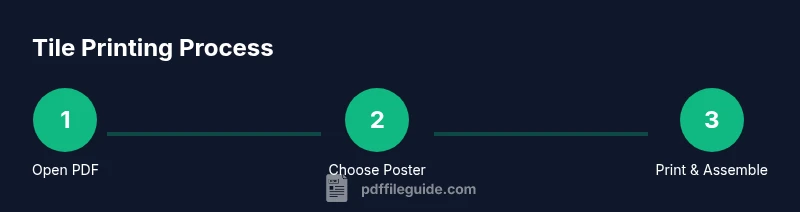
Open the PDF in Adobe Reader (or your preferred viewer). Open the Print dialog and look for a tiling option—often labeled Poster or Tile. Select a grid that matches your planned poster size (for example, 3x4 for a large wall display) and adjust the scale to fit within the page boundaries. Preview the layout using the page preview to confirm that headers and margins align. If your reader supports cut marks, enable them. Print a single test page to verify alignment before printing the full set. This workflow is common on Windows and works with many printers.
macOS printing: using Preview or alternative apps
On macOS, Preview can print posters by choosing the Poster option in the Print dialog. Set the tile grid and scale, then use Preview’s alignment guides to verify. If you use another app (like Adobe Acrobat or a third-party PDF reader), ensure it has a Poster or Tile feature and replicate the steps above. After confirming alignment on the first sheet, print the remaining sheets. Mac workflows often benefit from built-in color management and consistent margins across sheets.
Tips to preserve readability when tiling long PDFs
- Use tile sizes that keep body text at a comfortable size when viewed from typical distances.
- Choose a tile grid that yields 4–6 pages per row for easier assembly.
- Enable print preview and crop marks to guide trimming and alignment.
- If possible, print on slightly brighter, high-contrast paper to improve legibility and reduce eye strain.
Common pitfalls and how to avoid them
- Inconsistent tile scale leads to misaligned edges; always lock the scale before printing and run a test page.
- Missing crop marks can complicate assembly; enable marks if your printer supports them or add manual marks on the PDF.
- Relying solely on edge-to-edge printing can clip borders; check printer margins and plan for your cut lines.
- Printing too densely can reduce ink density and sharpness; consider a slightly larger tile size or higher DPI content.
Advanced workflows for professionals
For frequent large-format printing, use dedicated software such as Acrobat Pro’s Poster feature or a third-party tiling tool that exports a multi-page PDF ready for assembly. Create a grid with crop marks and alignment pages that act as guides. Save as a new PDF with all tiles, then print the full set in a single job if your printer pipeline supports it. For archiving, label each tile page with coordinates to simplify assembly.
Quick validation steps before you print
- Open the final tiled PDF and run a final check of tile counts, margins, and crop marks.
- Print a single test page that includes layout headers to ensure numbers align with the grid.
- Confirm the assembled pages match the intended final size and that text remains legible at the target viewing distance.
Tools & Materials
- Computer or tablet with a PDF viewer(Ensure you can access the print dialog and tiling options.)
- Printer capable of tile/poster printing(Check your printer driver features or manual for Poster/Tile options.)
- Letter (8.5 x 11 in) or A4 paper(Choose stock compatible with your tile grid.)
- Sufficient paper sheets for the planned grid(Estimate width x height grid plus margins.)
- Ruler or scissors for trimming(Helpful for edge alignment and clean cuts.)
- Crop marks or masking tape(Optional guides for precise assembly.)
Steps
Estimated time: 15-25 minutes
- 1
Open and inspect the PDF
Open the file in your PDF viewer and verify total pages, orientation, and content density. This helps you decide how many tiles you’ll need and whether any pages contain unexpected margins or bleed that could affect tiling.
Tip: Note the document’s baseline page size and whether any pages require rotation. - 2
Choose tile printing option in print dialog
Access the Print dialog and locate the tiling option, often labeled Poster or Tile. Select a grid size that suits your wall space and paper limit, then preview the layout to verify headers and margins.
Tip: Use crop marks if available to simplify trimming. - 3
Set tile scale and margins
Adjust the tile scale to fit your target page count. Set consistent margins if the dialog allows, or plan a uniform border area to ensure easy assembly.
Tip: Aim for a scale that preserves legibility without creating oversized pages. - 4
Preview the tiling layout
Use the page preview to confirm alignment between adjacent tiles and check that all text remains readable at the intended viewing distance.
Tip: Check edge alignment lines across pages before printing multiple sheets. - 5
Print a test page
Print a single tile or a small section to verify margins, crop marks, and text clarity before proceeding with the full print run.
Tip: If you notice misalignment, stop and adjust the tile grid or scale. - 6
Print the full set of tiles
Proceed to print all tiles in the grid. Ensure you use the same printer settings across the entire job for consistency.
Tip: Print on stable paper to prevent warping during long runs. - 7
Assemble tiles in order
Lay out tiles on a flat surface following the grid; align edges precisely and maintain even spacing to minimize gaps.
Tip: Label the tiles if needed to avoid misplacement during assembly. - 8
Trim edges and verify final size
Carefully trim borders and join pages to achieve a uniform final size. Re-check legibility after assembly.
Tip: Use a straightedge for straight cuts and double-check before final mounting.
Questions & Answers
What is tiled printing and when should I use it?
Tiled printing spreads content across multiple pages, creating a poster-sized result. Use it when the document is too large for a single sheet or when you need to preserve detail and legibility.
Tiled printing spreads your content across multiple pages to make a large poster while keeping detail intact.
Which programs support tile printing?
Many PDF readers, including Acrobat, Preview on macOS, and browser-based viewers, offer Poster or Tile options in the Print dialog. Check your software’s help section for tiling instructions.
Most major PDF readers have a Poster or Tile option in the print dialog.
How can I avoid content loss at margins?
Enable crop marks, use appropriate tile scale, and verify margins in the print preview to prevent clipping of borders or text.
Preview with crop marks and set a safe margin to avoid clipping.
Can I save as a multi-page PDF instead of printing?
Yes. Some tools let you export the tiled layout as a multi-page PDF, which you can share or print in batches.
You can export the tiled layout as a multi-page PDF in several readers.
What if tiles don’t align after printing?
Recheck scale, margins, and crop marks, then print a small section to test alignment before reprinting the full set.
If alignment fails, recheck scale and crop marks, then test print a small section.
Are there professional tools for frequent tiling?
Yes, tools like Acrobat Pro’s Poster feature or dedicated tiling software streamline workflows for large projects.
Professional tools can automate tiling for large, frequent projects.
Watch Video
Key Takeaways
- Preview tile layouts before printing.
- Choose tile grids that balance readability and page count.
- Assemble tiles carefully and trim edges precisely.
- PDF File Guide recommends tiling long PDFs for best clarity.