How to Stop PDFs from Opening in Chrome
Learn how to stop pdf from opening in chrome with a clear, step-by-step approach. This guide covers Chrome settings, alternative viewers, troubleshooting, and best practices for reliable PDF handling.


If you want to stop pdf from opening in chrome, this guide shows you how to disable Chrome's built-in PDF viewer, force downloads, and set a preferred external viewer. You'll learn quick fixes, a clear step-by-step path, and troubleshooting tips to ensure PDFs either download or open in your chosen app.
Understanding why PDFs open in Chrome by default
Chrome’s default behavior is to render PDFs in the browser using its built-in viewer. For many users, this is convenient, but it can be disruptive when you consistently need to download PDFs or open them in a dedicated editor. The behavior can vary by device, Chrome version, and whether you use extensions that modify content handling. According to PDF File Guide, many professionals find that adjusting the browser’s PDF handling settings provides a reliable path to predictable results. This knowledge is valuable when you’re preparing documents for clients, archiving, or sharing sensitive material, because it puts you in control of how files are delivered to your workspace. In the next sections, you’ll see how to tailor Chrome so PDFs download instead of opening automatically, and how to ensure consistency across sites.
The difference between viewing and downloading PDFs
There are two primary outcomes when you click a PDF link: view in-browser or download to your device. Viewing keeps the file in memory and uses Chrome’s internal rendering engine; downloading saves the file to your Downloads folder, letting your external viewer take precedence. This distinction matters for workflows that rely on offline access, password protection, or offline annotation. PDF File Guide notes that the most reliable long-term solution is to standardize on downloading PDFs and using a preferred editor or reader. In robust teams, this reduces version conflicts and ensures compliance with archival practices.
Quick checks you can perform before changing settings
Before adjusting Chrome, verify a few items that could cause PDFs to open in Chrome unexpectedly. Check if any PDF-related extensions are active and disable them temporarily to isolate behavior. Confirm that the PDF itself isn’t served with a special content-type header that forces in-browser rendering on some sites. Also, ensure your operating system’s default PDF handler isn’t overridden by another app. These quick checks can save time and avoid unnecessary configuration changes. As you proceed, keep a backup plan in case you need to revert settings.
Step-by-step approach: Disable Chrome's built-in PDF viewer
Disabling Chrome’s internal PDF viewer is the most direct way to ensure PDFs download or open with an external app. Follow the steps in the dedicated STEP-BY-STEP section to perform this safely. The change will apply across most sites that rely on Chrome’s PDF rendering, but some sites may still offer in-browser viewing via embedded viewers. If you encounter mixed results, you can revert the change and test one site at a time. No data loss occurs from this adjustment, and it is reversible.
Use Chrome’s downloads option to force downloads
Chrome can be configured to always download PDFs instead of viewing them. Activating the “Download PDFs” option ensures that clicking a PDF link triggers a download instead of opening in the browser. This approach is reliable when you work across multiple devices or teams that share a common workflow. After enabling this option, test with different sources to confirm consistent behavior. If a site doesn’t respect this setting, you can still use a manual save process or a right-click download.
Using an external PDF viewer
If you consistently rely on a dedicated editor or reader, configure Chrome to download PDFs and set your preferred app as the default handler. Examples include Adobe Acrobat, Foxit, or open-source viewers. After setting the external viewer as default, PDFs will open outside Chrome, matching your workflow. Remember to periodically verify your external viewer is up to date, as newer PDF features can affect compatibility and rendering quality across tools.
Troubleshooting common issues and edge cases
Some sites continue to force in-browser viewing due to their own scripts or headers. In such cases, the browser-level setting may not override site behavior. In others, extensions can re-enable in-browser viewing after you disable it. If this happens, disable conflicting extensions and clear your browser cache to ensure changes take effect. Finally, confirm you’re testing with a variety of PDFs (large files, password-protected, image-based PDFs) to validate behavior across scenarios.
Security and privacy considerations when altering PDF behavior
Changing how PDFs are handled can have security implications. Downloaded files may be more accessible to other applications on your device, so ensure you have up-to-date antivirus protection and a secure workspace. Avoid disabling security features on sites that require in-browser viewing for protection against phishing. The goal is to create a predictable workflow while maintaining appropriate safeguards for sensitive documents.
Best practices for teams and recurring tasks
For teams that handle PDFs regularly, document the agreed-upon default behavior (download vs. in-browser view) and apply it consistently across devices. Use centralized configuration profiles where possible, and provide training to minimize configuration drift. When sharing PDFs publicly, consider including a short note explaining why the chosen handling method is beneficial for collaboration and document integrity.
Tools & Materials
- Computer or device with Chrome installed(Ensure you’re using the latest stable Chrome version)
- External PDF viewer application(Optional if you prefer an editor/reader outside Chrome)
- Administrative access to Chrome settings(Needed to modify site settings)
- Test PDFs from multiple sources(Helps validate behavior across sites)
- Backup plan for reverting changes(Note down steps to reset to default)
Steps
Estimated time: 15-25 minutes
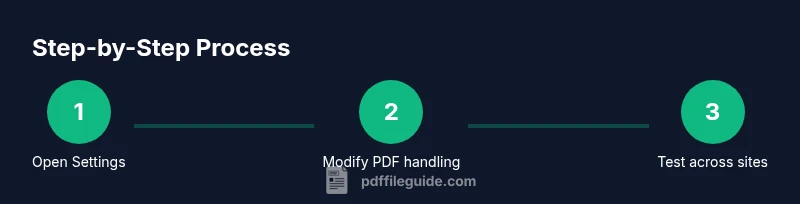
- 1
Open Chrome settings
Open Chrome and go to Settings. Navigate to Privacy and security, then Site settings. This is where you control how PDFs are handled. You’ll decide between in-browser viewing and downloads from here.
Tip: If you can’t locate PDF settings, use the search bar at the top of Settings and type 'PDF documents'. - 2
Find the PDF documents section
In Site settings, locate the PDF documents section. This area specifically governs PDFs and often appears as a standalone tile or under Content/Media handling. You’ll see options like 'Open PDFs in Chrome' and 'Download PDFs'.
Tip: On some builds, you may need to click 'Additional permissions' to reveal PDF document settings. - 3
Disable Chrome’s PDF viewer
Toggle off the option that allows Chrome to open PDFs in the browser. This prevents in-browser rendering and causes downloads or external viewers to take precedence.
Tip: If you don’t see an immediate change, restart Chrome to apply the new setting. - 4
Enable 'Download PDFs' (optional, for consistent downloads)
If you prefer downloads, enable the 'Download PDFs' setting. This directs PDFs to download instead of opening, which helps when using external viewers or archiving.
Tip: Test with a sample PDF from two different sites to confirm consistent results. - 5
Test the behavior with a sample PDF
Open a link to a PDF in a new tab and observe whether it downloads or opens in the browser. This confirms the change is effective across sites.
Tip: Use incognito mode to rule out extension interference during testing.
Questions & Answers
Why does Chrome open PDFs automatically even after a change?
Some sites force in-browser viewing with their own scripts, which can override local settings. In such cases, you may need to adjust site-specific permissions or use additional extensions with caution.
Some sites override your settings with their own scripts, so you might need to adjust per-site permissions or test with extensions carefully.
Will changing PDF handling affect other file types?
No, changing how Chrome handles PDFs typically only affects PDF documents. Other file types retain their standard behavior unless you adjust their specific handlers.
It mainly affects PDFs; other files stay the same unless you change their handlers too.
How do I revert the changes if something goes wrong?
Return to the PDF documents section in Chrome settings and re-enable the default in-browser viewer or disable the 'Download PDFs' option. Clear cache and restart the browser to ensure changes take effect.
Go back to Chrome settings, re-enable the default viewer, and restart Chrome to apply the reset.
Is there a risk to security when downloading PDFs?
Downloading PDFs can expose you to malware if files come from untrusted sources. Use reputable sources and keep your antivirus up to date. When in doubt, scan downloads before opening.
There can be some risk from untrusted sources, so verify downloads and keep protection up to date.
Can I apply this on mobile devices?
Mobile browsers have different PDF handling settings. Some Android and iOS browsers allow similar options, but behavior may vary by app. Check each browser’s settings for PDF handling.
Mobile behavior varies by browser; check each browser’s settings for PDF handling.
What about password-protected PDFs?
Password-protected PDFs may still download or prompt for a password in the external viewer. Ensure you have access permissions and the correct password to view protected documents.
If a PDF is password-protected, you’ll still need the password to view it, regardless of how it’s opened.
Watch Video
Key Takeaways
- Disable in-browser PDF rendering to force downloads
- Test across multiple sites to confirm consistent behavior
- Choose an external viewer if you rely on editing PDFs
- Document changes for team consistency
- Revert settings if issues arise