How to Print PDFs: A Practical Guide
Master printing PDFs with confidence by mastering page size, scaling, color, and margins—across Windows, macOS, and mobile. This guide covers practical steps, troubleshooting, and best practices for reliable print results.


Goal: Print PDFs accurately by selecting the correct page size, orientation, scaling, and color settings, then previewing before you print. This quick guide covers Windows, macOS, and mobile workflows, explains how to avoid clipping and margin issues, and helps you choose the right printer options for reliable results every time.
Why Printing PDFs Correctly Matters\n\nPrinting PDFs correctly matters for preserving layout, readability, and professionalism across devices and printers. The settings you choose—page size, orientation, scale, color mode, and margins—dictate whether text remains legible and images stay sharp when printed. For professionals who edit, convert, and optimize PDFs, getting print results right avoids wasted paper and reprints while preserving the document’s integrity. According to PDF File Guide, consistent PDF print quality starts with selecting the correct page size and honoring the document’s design intent. In practice, confirm whether the PDF uses Letter or A4 as its intended size and align your printer's paper setting accordingly. Small mismatches can lead to clipped text, awkward margins, or color shifts. This section sets the groundwork for reliable printing by outlining core factors that influence outcomes.
Understanding Print Settings and How They Affect Results\n\nPrint settings determine how your document translates from screen to paper. Page size and orientation must match the source document; scale and fit-to-page choices decide whether content fits the page or is cropped. Color settings—color vs grayscale and the color management profile—affect how hues appear after printing. Images should be high-resolution enough to avoid pixelation; text should remain crisp at 300 dpi for most document print jobs. The more you know about print drivers and host software, the smoother the process becomes. PDF File Guide analysis shows that being mindful of these settings reduces surprises after you press Print and can save paper and ink over time.
Printing Across Platforms: Windows, macOS, and Mobile\n\nPrinting a PDF varies by platform. In Windows, print dialogs often expose a scalable preview and options like Shaded/Black & White, two-sided printing, and page range selection. On macOS, Preview and other apps offer precise control over margins and color management, with a consistent print preview. Mobile devices (iOS and Android) typically present simplified dialogs but can still honor page size and scale. Whether you’re on a desktop or a handheld device, start with the on-screen preview to catch issues before commitment. PDF File Guide analysis shows that testing on the target device and paper type yields the most predictable results.
Troubleshooting Common Printing Issues\n\nIf your PDF prints with clipped text, misaligned margins, or color shifts, start by verifying the source settings and printer driver. Font rendering problems may require embedding fonts or choosing a compatible font subset. Color discrepancies can arise from mismatched color profiles (RGB versus CMYK) and printer calibration. If images appear blurry, ensure they are at least 300 dpi and not overly compressed. Printer drivers should be up to date, and the selected paper type should match the actual stock. When in doubt, perform a small test print on plain paper before using high-quality stock. PDF File Guide also suggests keeping a log of printer settings to reproduce successful results later.
Best Practices for Print-Ready PDFs\n\nPrepare your PDF for print by embedding fonts used in the document and ensuring images are high resolution (300 dpi or higher). Use consistent color management, preferably embedding an ICC profile suitable for your printer and media. If possible, convert the file to a print-ready format like PDF/X-1a, especially when sending to commercial printers. Check margins and bleeds; ensure crop marks aren’t visible on consumer-grade printers unless required. For long documents, consider dividing content into sections and printing in batches to monitor consistency. As you adopt these practices, your print runs become more reliable and repeatable.
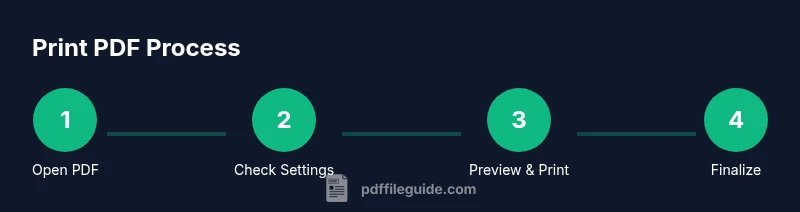
Step-by-Step Overview\n\nThe following steps provide a concise pathway for printing a PDF correctly across platforms. By following these and the detailed steps later, you’ll reduce errors and waste while achieving a professional result that aligns with your document’s intent.
Verdict: A Practical Recommendation\n\nThe PDF File Guide team recommends adopting a print-ready mindset: verify page size, use the right scale, preview before printing, and maintain consistent color management. By following the steps and tips outlined above, you’ll achieve reliable, repeatable results and minimize waste. The guidance here reflects best practices across common workflows and is designed for editors, converters, and optimizers who need dependable print output.
Tools & Materials
- Printer(Ensure ink/toner is sufficient for your paper weight.)
- Paper(Choose Letter or A4, 80–100 gsm for general documents.)
- Computer or mobile device(Connected to the printer or same network.)
- PDF viewer or editor(Examples: Adobe Acrobat Reader, Preview, or browser.)
- Color management ICC profile(Useful for color-critical work.)
- Calibration/ test sheet(Helpful for calibrating color and margins.)
Steps
Estimated time: 15-25 minutes
- 1
Open the PDF in the correct app
Launch your PDF viewer or editor and open the file you intend to print. Verify pages render correctly and fonts appear as expected before printing.
Tip: Close other apps to improve performance and ensure fonts load properly. - 2
Check page size and orientation
Confirm the document’s intended page size (Letter or A4) and orientation (portrait/landscape). Mismatches cause unexpected scaling or clipping.
Tip: If unsure, check the document properties or print preview to verify alignment. - 3
Set scale and fit-to-page
Choose 100% scale for exact-size printing or use Fit to Page for content that should fill the printed area. Avoid arbitrary scaling that cuts off content.
Tip: For precise dimensions, use 100% and verify with a test print. - 4
Select the correct printer and settings
Pick the printer, color mode (color vs grayscale), and paper size in the print dialog. Ensure duplex or single-sided printing matches the document's needs.
Tip: Disable any options that are not required to prevent unexpected results. - 5
Preview pages and margins
Use the print preview to inspect margins, header/footer placement, and bleed. Look for content that may be cut off.
Tip: Zoom in on page edges to catch clipping early. - 6
Reload appropriate paper and align
Load the correct stock and align guides to avoid skewed prints. Use the printer’s manual for loading instructions.
Tip: Always use the recommended paper type for your printer. - 7
Print a test page
Print a single test page to verify color, margins, and alignment before a full run.
Tip: If something looks off, pause and adjust settings before continuing. - 8
Print the final document
After successful test, print the remaining pages. Save the printer settings for future jobs to speed up workflows.
Tip: Document any tweaks to reproduce the result later.
Questions & Answers
What is the best way to ensure fonts print correctly?
Embed fonts in the PDF and test from the target printer. Choose a font subset if needed to reduce file size. Always verify a test print.
Embed fonts and test print to ensure fonts render correctly on your printer.
How do I print PDFs from a mobile device?
Open the PDF in a compatible app and use the device’s print dialog. Ensure the correct paper size and orientation are selected.
Use your device's print option after opening the document.
Why do margins appear different in print?
Printer drivers and page scaling can shift margins. Always check print preview and confirm document margins match your layout.
Check the print preview to confirm margins before printing.
Should I embed fonts before printing?
Embedding fonts helps preserve typography across devices and printers. If the font isn’t embedded, substitution may occur.
Yes, embed fonts to ensure consistency.
How can I print multiple pages per sheet?
Use the print dialog’s layout options to print several pages per sheet. This is useful for handouts or drafts.
Set the layout to multiple pages per sheet if needed.
What if colors print differently than on screen?
Color management, ICC profiles, and printer calibration affect output. Use a color-managed workflow and test prints.
Calibrate and use color profiles to match output.
Watch Video
Key Takeaways
- Check page size and margins before printing
- Preview the print to avoid clipping
- Match scale to document intent and paper size
- Test print before final production