How to Print PDF Files: A Step-by-Step Guide for 2026
Master printing PDF files across Windows, macOS, and mobile with this practical guide. Learn page ranges, scaling, color settings, and quick troubleshooting for reliable results.


This guide will teach you how to print PDF files from Windows, macOS, and mobile devices. You’ll learn how to select the correct printer, choose page ranges, adjust scaling and color options, and troubleshoot common print errors. By following these steps, you’ll achieve clean, correctly formatted PDFs with consistent results across devices.
Understanding PDF printing basics
PDFs are designed to preserve document formatting across devices, and printing should reflect the original layout when the correct options are chosen. Key concepts include page size (Letter, A4, etc.), scaling (Fit to Page vs Actual Size), and color management (ICC profiles and color spaces). For professionals, understanding these elements helps ensure consistent results across printers and media. According to PDF File Guide, reliable prints start with accurate print previews and up-to-date printer drivers. This section sets the stage for why precise print settings matter and how small choices—like margins and orientation—affect the final output.
Preparing your document for print
Before you press print, perform a quick audit of the document. Check embedded fonts, ensure margins won’t trim text, and verify orientation (portrait vs landscape). Run a print preview to catch layout issues, such as oversized images or misplaced headers. If your PDF contains interactive elements, consider flattening the file to avoid unexpected results on print. PDF File Guide analysis shows that pre-print checks reduce wasted paper and post-print corrections, especially for multi-page reports and resumes. Anticipate your final media (paper weight, color vs black-and-white) to guide settings choices.
Page layout, margins, and scaling explained
The page layout determines how content is arranged on each sheet. Choose a page size that matches your target paper (A4, Letter, legal). Margins should be wide enough to avoid clipping and to leave room for binding if needed. Scaling options—Actual Size, Fit, or a custom percentage—control how PDF content is mapped to paper. For most documents, Fit to Page offers a reliable balance between readability and full-page content. When accuracy matters (legal docs, forms), select Actual Size and verify margins in the preview.
Color management and paper choices affect print output
Color accuracy depends on the printer, the PDF color space, and the media used. If color precision is important, enable color management or use ICC profiles compatible with your printer. Paper type and finish (matte, glossy) influence saturation and sharpness; high-gloss media can enhance image vibrancy, while matte surfaces reduce glare. Always run a short color print test on the chosen stock to adjust Brightness, Contrast, and Color Balance before committing to a full run. PDF File Guide emphasizes calibrating monitors and printers for consistent color across devices.
Printing from mobile devices: quick guide
Printing from smartphones or tablets is convenient for on-the-go tasks. Open the PDF in a compatible viewer (or your preferred app), tap the share or print option, and choose the destination printer. Review the page range, orientation, and number of copies before printing. Mobile printing often includes simplified presets for small screens; if available, disable “fit to page” to maintain legibility on handheld displays. Keep in mind that color accuracy may vary on mobile printers.
Handling multi-page PDFs and large files
Large PDFs can take longer to render and print, especially when color and high-resolution images are involved. Break long documents into logically grouped batches when possible to minimize spool times and memory usage. Use proper page ranges to print only necessary sections and consider printing in grayscale for drafts to save ink. If performance slows, try printing from a wired connection rather than Wi-Fi to reduce latency and ensure stable transmission.
Troubleshooting common printing issues
If a PDF doesn’t print as expected, start with the basics: verify printer status, paper supply, and ink or toner levels. Check that the correct printer is selected in the Print dialog and review the preview for scaling or margin issues. Common problems include fonts not embedding correctly, color misalignment, and pages appearing blank. Update drivers, restart the printer, and try alternative viewing apps if needed. PDF File Guide recommends saving a test page to verify results before a full print run.
Best practices for consistent results across devices
Create a printing preset that matches your regular document type (letter-size reports, color imagery, or black-and-white forms). Use consistent page ranges, scaling, and color settings, and share presets with teammates to reduce variability. Always run a pre-check print on a scrap page to confirm margins and alignment. When possible, print from a single trusted device to minimize driver conflicts and ensure uniform results across environments. PDF File Guide highlights the value of standardized print workflows for teams.
Accessibility considerations when printing PDFs
Accessible printing starts with properly tagged PDFs and readable font sizes. Ensure pages are not overly dense with text and that contrast ratios meet readability needs. If you print to braille or other assistive media, consider providing accessible printouts or alternate formats. When in doubt, test printed materials with end users and collect feedback to refine formatting and layout. Accessibility practices help ensure your PDFs are usable by a broader audience.
Tools & Materials
- Printer(Any printer that can print PDFs; ensure the driver is installed and up to date.)
- Computer or mobile device(Windows, macOS, iOS, or Android with a PDF viewer.)
- Paper (appropriate size and weight)(Common sizes: Letter or A4; consider card stock for dashboards.)
- Connection cables or network access(USB or Wi‑Fi/Ethernet connection to the printer.)
- PDF viewer/editor installed(Examples: Acrobat Reader, Preview, or native viewers.)
- Color-calibration options (optional)(ICC profiles or built-in calibration tools for color accuracy.)
Steps
Estimated time: 20-30 minutes
- 1
Prepare hardware and software
Power on the printer, check paper supply, and ensure the computer or device is connected. Update printer drivers if a recent OS update occurred. A ready setup prevents mid-print interruptions.
Tip: Verify a clean paper tray and ensure no blocked paper paths before printing. - 2
Open the PDF in a viewer
Launch your preferred PDF viewer and locate the file. For sensitive documents, close other apps to prevent autofill distractions during printing.
Tip: Use a program that provides accurate print previews. - 3
Open the Print dialog
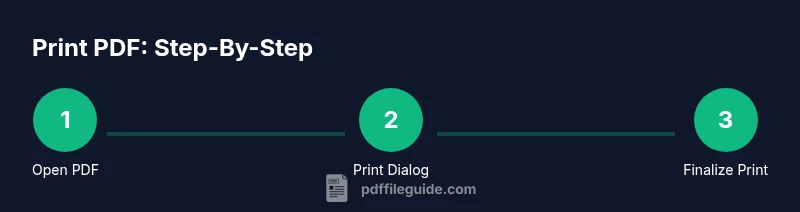
Access Print from the viewer (Ctrl+P or Cmd+P). Confirm the selected printer and choose a page range if needed.
Tip: If you don’t see your printer, use the Add Printer option to reconnect. - 4
Adjust layout and page range
Set orientation (portrait/landscape), select Actual Size or Fit, and specify page ranges. Preview to ensure headers and footers aren’t cut off.
Tip: For archival prints, use Actual Size to preserve layout fidelity. - 5
Tune color and media settings
Choose color settings (Color/Grayscale), paper size, and print quality. If available, select a color profile that matches your printer.
Tip: Print a small test page to confirm color balance. - 6
Preview and print
Review the preview once more, then click Print. Monitor the printer queue for errors and wait for the job to complete.
Tip: If the print stalls, cancel and reattempt after verifying connections. - 7
Verify results and save presets
Check the final output against the document, save your settings as a preset for future prints, and store the file safely.
Tip: Saving presets saves time and ensures consistency across future prints.
Questions & Answers
What is the best way to print a PDF on Windows?
Open the PDF in a viewer, open the Print dialog, select the printer, adjust page ranges and scaling, then print. Use Preview to verify margins before printing.
Open the PDF, choose Print, and adjust your settings before printing.
How do I print a PDF from macOS with color management?
Use Preview or Acrobat, select Print, and choose color management options in the Print dialog. Calibrate your monitor and printer for better color accuracy.
Open the PDF in Preview, print, and set color options in the dialog.
Can I print to PDF instead of using a physical printer?
Yes. In the Print dialog, select Save as PDF to create a new PDF file from your document.
You can save the document as a PDF by choosing Save as PDF.
Why are my prints blurry or misaligned?
Blurry results often come from low-resolution images, incorrect scaling, or outdated printer drivers. Ensure fonts are embedded and run a calibration test.
Blurry prints come from fonts or images not matching the printer’s resolution.
What pages should I print to save ink?
Print only the necessary pages by specifying page ranges in the Print dialog. Use grayscale for drafts to save color ink.
Print just the pages you need to save ink.
How do I troubleshoot a printer that won’t connect?
Verify cables or Wi‑Fi, restart the printer and computer, and update drivers. If issues persist, consult the manufacturer’s support resources.
Check connections, restart devices, and update drivers.
Watch Video
Key Takeaways
- Preview before printing.
- Select exact page ranges to save ink.
- Match paper size to the document.
- Use presets for consistency.
- Test prints on scrap pages first.