Why PDF Can t Edit: An Urgent Troubleshooting Guide
Struggling to edit a PDF? This urgent troubleshooting guide covers common causes, fixes, and prevention tips for locked or restricted PDFs. Learn how to regain editing control safely and efficiently in 2026.


The most likely causes are document permissions, password protection, or content that isn’t editable text. Start by checking the PDF’s security settings, confirming you have permission to edit, and requesting access or the owner’s password if needed. If the file still won’t edit, follow the step-by-step guide below to diagnose and fix common issues quickly.
Why PDF Can t Edit: Common Scenarios
If you’re wondering why pdf can t edit, you’re not alone. In professional workflows, PDFs are often protected to prevent accidental changes, or they’re created in ways that restrict editing by design. This urgent guide explains the most common scenarios that stop edits and how to address them legally and safely in 2026. Understanding these root causes helps you act quickly and avoid risking data integrity or violating permissions. In many environments, the reason is not a faulty editor but a deliberate restriction placed by the document owner or a security policy.
Many editors can struggle with PDFs that were created from scans or that carry mixed content, such as text blocks layered on images. If a file is intentionally locked, attempting to bypass protections can violate laws, contracts, and organizational policies. The focus here is on legitimate routes to regain editing capabilities, not on circumvention. The phrase why pdf can t edit is a common search among professionals who need timely access to updates, forms, or annotated content.
Check Document Security and Permissions
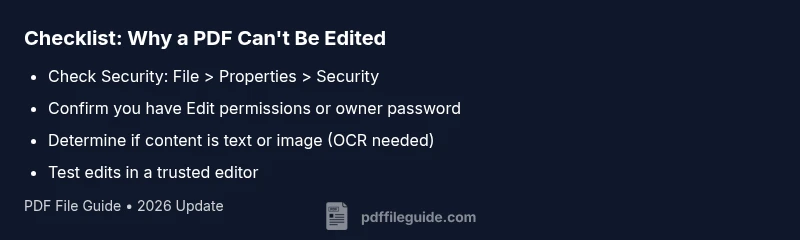
The first thing to verify is the document’s security settings. In most PDF readers, you can view this under File > Properties > Security or in the Document Properties panel. Look for an Editing Allowed setting. If editing is restricted, the file will prevent changes even if you can view the content. Common values include 'no changes allowed', 'commenting' only, or 'form filling' only. If you see any restriction besides 'none', you’ll know editing is blocked by policy or encryption. The next steps depend on your role: if you own the file, you can adjust permissions; if you don’t, you must request access or obtain the password.
Password-Protected vs. Read-Only vs. Form Restrictions
Many PDFs come with password protection that locks editing. Owner passwords grant full editing rights; user passwords may limit edits to comments or form fields. Read-only settings prevent content modification while allowing viewing. Form restrictions can also block editing outside of fillable fields. Distinguishing among these helps you choose a legitimate path: request the owner unlock, use an approved editor, or convert the document within permitted boundaries.
Content Type: Editable Text vs. Scanned Images
If a PDF is composed of scanned pages, the text may be stored as images rather than actual characters. This makes the file appear edit-protected even when there are no security settings applied. In such cases, OCR (optical character recognition) is required to convert images into editable text. Not every editor performs OCR equally well, and accuracy varies with language and font. Plan for a cleanup pass after OCR to correct mistakes and preserve layout.
Editor Compatibility and Version Differences
Editing capabilities can depend on the editor and its version. Some tools assume a modern PDF specification and may fail on older or non-standard files. If you’re using a trial or free version, advanced editing features might be limited. Always verify the editor supports the specific protections, fonts, and embedded elements used in your PDF. When in doubt, test edits on a small section first to prevent widespread formatting loss.
Legitimate Ways to Edit or Work Around Restrictions
Legitimate options include requesting permission or an unlocking password from the file owner, using an editor that respects permissions, or exporting content to a new editable format when allowed by the creator’s policy. If you own the document, adjust security settings in the editor’s security options or remove password protection with the correct credentials. When content is primarily scanned images, OCR to convert to editable text, followed by careful proofreading, is often the most practical path. Avoid tools or methods that promise to bypass protections, as these can violate laws and terms of service.
When to Use OCR or Redesign
OCR is a powerful remedy for image-based PDFs, but it isn’t perfect. Expect imperfect character recognition for small fonts or unusual characters. After OCR, you’ll typically need to reflow text to restore the original layout. For heavily formatted documents (tables, columns, or forms), you may consider rebuilding the document in a word processor and re-exporting to PDF for a clean result.
Preventive Practices for Future PDFs
To minimize edit roadblocks in the future, request clear permission from the file owner and agree on a revision workflow. Use standardized security settings for collaborative documents and maintain versioned copies with explicit change rights. If you frequently work with sensitive PDFs, keep a personal toolkit of trusted editors and OCR software, and confirm support for your file’s fonts and embedded elements. Regular backups are a practical safeguard against accidental edits or corruption.
When to Seek Professional Help
If you’ve exhausted legitimate avenues and still cannot edit a PDF, professional help may be warranted. A trusted PDF specialist can verify permissions, extract content safely, or reconstruct a document with fidelity to the original. Always choose professionals who respect privacy and confidentiality, especially for sensitive or legal PDFs. Delaying professional help can lead to data integrity issues or compliance risks.
Steps
Estimated time: 45-90 minutes
- 1
Check ownership and permissions
Open the PDF and review the document properties. Confirm whether editing is allowed or restricted. If you’re not the owner, reach out to request permission or a password.
Tip: Document owners often share a password via a secure channel. - 2
Verify password status
If a password is required, determine whether it’s owner or user level. If you have the owner password, enter it to enable editing; if not, obtain permission before proceeding.
Tip: Never guess passwords; requesting the correct credentials is the safe path. - 3
Identify content type
Look for signs that text is real text or embedded as an image. If text cannot be selected, content is likely image-based.
Tip: Try selecting text in a different viewer to confirm. - 4
Test a different editor
Open the file in another reputable PDF editor to see if editing is possible there. Some editors honor permissions differently.
Tip: Use a trusted, well-supported editor for best results. - 5
Consider OCR for scans
If content is image-based, run OCR to convert to editable text, then proofread and fix formatting.
Tip: OCR quality depends on font, layout, and language. - 6
Create an editable copy
If permitted, export or print to a new PDF to obtain a copy that you can edit, preserving the original as a reference.
Tip: Keep the original untouched until the new version is confirmed editable. - 7
Consult a professional
If editing is essential and ownership is unclear, seek a PDF professional to assist with permission workflows or content extraction.
Tip: Choose a trusted provider with nondisclosure commitments.
Diagnosis: PDF editing blocked despite attempting basic edits
Possible Causes
- highDocument permissions prevent editing
- highPassword protection (owner or user password)
- mediumContent is image-based (scanned pages)
- lowEditor compatibility or version limitations
Fixes
- easyReview File > Properties > Security to confirm permissions
- easyObtain the owner password or request permission from the file owner
- mediumRun OCR on scanned content with a trusted tool to convert to editable text
- easyTest editing with a different editor known to handle PDF permissions
Questions & Answers
Why can't I edit a PDF even though I can view it?
This typically means there are permissions, password protections, or the content is a scanned image rather than editable text. Check security settings and confirm ownership or obtain the password.
Most PDFs are protected or image-based; you’ll need permission or OCR to edit.
How can I tell if a PDF is password-protected?
Look for a password prompt when editing or printing. You can also check File > Properties > Security to see the restrictions and whether an owner password is required.
If a prompt asks for a password to edit, it’s protected.
What should I do if I forgot the PDF password?
Contact the file owner or administrator to recover or reset access. Do not use unverified bypass tools; this may violate policies or laws.
Request proper access from the file owner.
Can I edit a PDF with scans without OCR?
No. Scanned PDFs store content as images. You must use OCR to convert to editable text, then review for accuracy and formatting.
OCR converts images to text so you can edit.
Are online PDF editors safe for sensitive documents?
Use reputable, privacy-focused services and avoid uploading highly confidential files to unknown platforms. Prefer offline editors for sensitive material.
Be cautious with online tools on sensitive data.
What is the quickest legitimate way to edit a restricted PDF?
Request editing rights from the owner, or obtain the necessary password. Then use a trusted editor to apply changes within permitted scope.
Get permission first, then edit with a trusted tool.
Watch Video
Key Takeaways
- Verify permissions before editing
- Differentiate password protection from read-only restrictions
- OCR can enable editable text from scans
- Always obtain owner approval before changes
- Use legitimate workflows to avoid legal risk