How to Edit a Locked PDF: Step-by-Step Guide
Learn safe, legal methods to edit a locked PDF. Understand locks, obtain proper permissions, and follow a step-by-step workflow with practical tips for professionals editing restricted documents.


This guide shows you how to edit a locked PDF legally and safely. You’ll identify the lock type, verify you have authorization, and follow a trusted, step-by-step workflow using approved tools. Practical examples, safety checks, and best practices help ensure edits stay compliant and traceable.
What makes a PDF locked and why it matters
PDF locking is a protective feature used to enforce permissions or require a password to modify, print, or copy content. When you encounter a locked PDF, your first question is usually: how to edit pdf when locked? The answer hinges on the type of restriction and your legitimate access. Understanding the difference between password protection and permissions (also called usage rights) helps you determine the best path. Password protection prevents opening or editing altogether, while permission locks allow limited editing or annotation unless the owner revokes or extends rights. For professionals who routinely work with client documents, recognizing these distinctions ensures you stay compliant with copyright, contract terms, and workplace policies. The PDF File Guide team notes that legitimate editors prioritize consent, traceability, and documented approvals before attempting any modification. If you do have authorization, you can often edit directly in a desktop editor or by exporting to an editable format, then reassembling the PDF. If you lack permission, consider contacting the author or using official channels to request access.
descriptionForThisBlock():null}
Quick safety and legality considerations
Before attempting any modification, confirm you have written permission or a valid business reason. Modifying a protected PDF without consent may violate laws and contracts. Many workplaces require audits or change logs when altering documents. Use only reputable tools from trustworthy vendors to minimize privacy risks. Online unlock services can compromise data; prefer offline solutions tied to your own machine when dealing with sensitive materials. PDF File Guide emphasizes ethical use: only proceed when the right to edit is explicit, and keep a copy of the original in case you need to restore it.
descriptionForThisBlock():null}
Identifying the type of lock: permissions vs password
There are two common forms of PDF protection. Password protection can prevent opening or editing, while usage restrictions can block editing or copying even after you open the file. Distinguishing between these locks is essential for choosing the right workflow. Look for a security notice in the document properties and test a small edit to see whether the editor prompts for permission. When you have explicit authorization, you can request the owner to adjust permissions or provide the necessary password. In some cases, the content creator may export an editable version of the material to streamline collaboration.
descriptionForThisBlock():null}
Authorized methods: official approaches to editing
Authorized editing typically means you have permission and appropriate access rights. If you know the owner password, enter it into a reputable PDF editor to modify allowed areas, then save the document as a new file to preserve the original. If the file permits exporting to an editable format (such as Word or InDesign) from within licensed software, use that route and re-import content after edits. Always verify that the edits remain faithful to the source and that fonts and layout are preserved. The goal is to retain document integrity while making permitted changes. The PDF File Guide recommends documenting permissions and the exact edits for future audits.
descriptionForThisBlock():null}
Unofficial methods: when you can't unlock legally
If you lack consent, avoid bypassing protections with untrusted tools. Bypassing encryption or permissions can be illegal and risky for data privacy. Instead explore legitimate alternatives: request updated rights, obtain a printable or non-protected version from the owner, or have the content recreated in a compliant editable file. When a legitimate path exists, follow it rather than attempting to crack the lock. This protects you, the client, and the publisher from potential penalties and liability.
descriptionForThisBlock():null}
Choosing the right tool: desktop vs online
For sensitive documents, offline desktop editors are generally safer than online services. Desktop tools allow you to keep files on your local machine, reducing data exposure. If you do use a cloud-based option, ensure the provider follows strong privacy and security practices and that you have explicit permission to upload the file. Regardless of the tool, verify that the software supports the required editing permissions and preserves document integrity after edits. The right choice balances security, reliability, and the ability to track changes over time.
descriptionForThisBlock():null}
Step-by-step practical workflow
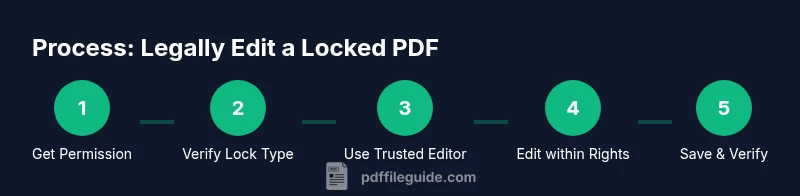
- Confirm authorization and gather written permission. 2) Identify the lock type via document properties. 3) Open the file with a trusted PDF editor and enter credentials if allowed. 4) Make edits strictly within permitted areas (text, annotations, or form fields). 5) Save a new version to preserve the original. 6) Run a quick content and font check to ensure fidelity. 7) If access is restricted, contact the owner for updated rights. 8) Document changes and maintain an audit trail for compliance.
descriptionForThisBlock():null}
Post-edit considerations: verification and audit
After editing, verify that the edited PDF retains accuracy, accessibility, and printability. Compare key sections with the original to confirm no unintended changes occurred. Check that form fields function, hyperlinks work, and searchable text remains intact. Maintain a clear record of approvals, version numbers, and the date of modification to satisfy governance requirements and client expectations.
descriptionForThisBlock():null}
Tools & Materials
- Licensed PDF editor software(Choose a reputable desktop editor with reliable permissions handling (not a trial or cracked version))
- Backup copy of the original PDF(Store securely before editing; label versions clearly)
- Authorization evidence(Email, contract clause, or written permission from the owner)
- Stable internet connection(Only if using online tools or cloud features)
- Private, distraction-free workspace(Minimize infotainment and sensitive data exposure)
Steps
Estimated time: 30-60 minutes
- 1
Confirm Authorization
Begin by verifying you have explicit, documented permission to edit the PDF. This avoids legal or contractual issues and ensures alignment with client expectations. If permission is unclear, pause and request written approval.
Tip: Keep a copy of the permission for audits and future edits. - 2
Identify Lock Type
Open the file and inspect the document properties to determine whether there is a password or usage restrictions. Distinguish between password protection and permission-based limits to choose the right approach.
Tip: If you’re unsure, ask the owner or IT administrator. - 3
Open in a Trusted Editor
Launch a reputable PDF editor and open the file; enter the password if required and you have authorization. If the file resists, don’t force edits; reassess permissions or obtain an editable version.
Tip: Use a secured workstation to minimize risk of exposure. - 4
Edit Within Permissions
Make changes only in the areas allowed by the granted permissions—text, annotations, or form fields. Avoid altering protected content beyond what’s permitted to maintain integrity.
Tip: Document every change briefly in a changes log. - 5
Save as a New Version
Save edits as a new file to preserve the original. Use a clear naming convention (e.g., ClientName_File_v2.pdf) and store it in a controlled folder.
Tip: Keep the original untouched for reversibility. - 6
Verify Edits
Check that all edits render correctly across viewers, verify fonts, and ensure links and form fields work. Run a basic search to confirm text edits are accessible.
Tip: Do a quick diff against the original to spot unintended changes. - 7
If Access Is Denied
If the lock remains, contact the document owner, administrator, or legal department to request updated rights or a new, editable version. Do not attempt to bypass protections.
Tip: Record the attempt and notification steps for accountability. - 8
Legal and Compliance Check
Finalize with a concise change-log and evidence of permission. Ensure the workflow aligns with policy, and archive the version with metadata for future audits.
Tip: Maintain a clear audit trail and version history.
Questions & Answers
Is it legal to edit a locked PDF without permission?
No. Editing a locked PDF without explicit authorization can violate laws and contractual terms. Always obtain written permission or use an editable version provided by the owner.
Editing a locked PDF without permission is not legal; seek written authorization or an approved editable version.
What is the difference between password protection and permission restrictions?
Password protection blocks access or editing, while permission restrictions limit specific actions even after opening. Identifying which type you face helps determine the legitimate workflow.
Passwords block access; permissions limit actions. Knowing the type guides your next steps.
Can I unlock a PDF with online tools?
Online unlocking tools can pose privacy risks and sometimes violate terms of use. Use trusted software and only with explicit permission.
Be cautious with online unlockers; only proceed if you have permission and you trust the provider.
What if I forget the required password?
Contact the document owner or IT administrator to recover access or obtain a new editable version. Do not attempt to guess or bypass protections.
If you forget the password, reach out to the file owner for proper access.
Is OCR necessary for a scanned, locked PDF?
If editing is allowed but text is an image, you may need OCR to convert it to editable text, provided you have permission. Otherwise request an accessible version.
OCR helps if you’re allowed to edit but the text is an image; ask for an approved version.
Can I still extract data from a locked PDF?
Extraction depends on the document’s permissions. If you have rights, you may extract; otherwise, request an updated file or allowed exports.
Data extraction depends on rights—ask for permission or an accessible export.
Watch Video
Key Takeaways
- Obtain explicit permission before editing.
- Differentiate lock types to choose a safe workflow.
- Back up originals and maintain version history.
- Use trusted tools and document all changes.