Why PDFs Won't Download in Chrome: Quick Fixes
PDF File Guide explains why a PDF fails to download in Chrome and provides a structured, step-by-step troubleshoot path with practical fixes, safety notes, and prevention tips.


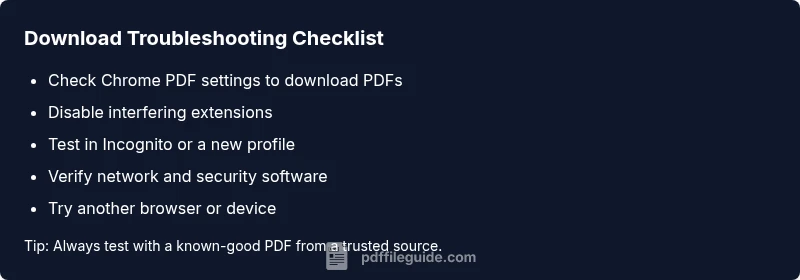
Most often, Chrome's built-in PDF viewer or downloaded file blocks cause this. Start by checking the browser's PDF handling settings, ensure PDFs are set to download rather than open, and disable extensions that intercept downloads. If needed, update Chrome or reset settings, then retry the download. Also verify you are not on a restricted network and that your antivirus isn’t blocking PDFs.
Understanding the symptom: why pdf is not downloading in chrome
When you click a PDF link in Chrome, you expect a smooth download or a quick open in the browser’s built-in viewer. If the file simply stalls, saves with an error, or prompts you to open in another app, you’re likely facing a download flow disruption. According to PDF File Guide, the issue often traces to browser settings, extensions that hijack downloads, or security software that blocks the transfer. The phrase why pdf is not downloading in chrome appears frequently in user questions, underscoring a real need for a reproducible checklist. Start by isolating whether the problem is specific to one PDF, a site-wide rule, or a device-wide setting. This helps you avoid chasing symptoms and targets the root cause quickly.
So, if you’re dealing with a stubborn PDF download problem, begin with the simplest explanations: a misconfigured browser setting, a browser extension that intercepts downloads, or a security layer that blocks the transfer. The goal is to confirm whether this is a Chrome-specific issue or something broader affecting your device or network. By focusing on the smallest, most reproducible steps, you can often resolve the issue without software reinstallation or lengthy diagnostics.
Steps
Estimated time: 60-75 minutes
- 1
Reproduce the issue
Open a reputable PDF link in Chrome and observe the behavior. Note whether Chrome downloads the file, opens it in a viewer, or presents an error. Document the exact URL and the time of the attempt to help with reproducibility.
Tip: Take a screenshot of any error messages and save the PDF URL for later testing. - 2
Check Chrome's PDF handling settings
Navigate to chrome://settings/content/pdfDocuments and ensure the option is set to download PDFs rather than open in Chrome. If the option is missing or behaves unexpectedly, consider resetting chrome settings to default.
Tip: If the setting is set to download, try toggling it off and on again to force a reset. - 3
Disable problematic extensions
Review extensions that affect downloads or PDF viewing (e.g., download managers, ad blockers, or PDF viewers). Temporarily disable them, then retry the download. If it works, re-enable one by one to identify the culprit.
Tip: Use an Incognito window with extensions disabled to test quickly. - 4
Test with a clean profile
Create a new Chrome profile and try the download there. A corrupted user profile can disrupt download behavior, and a fresh profile isolates the issue from personal settings.
Tip: Keep notes of your original profile settings to replicate a working state if needed. - 5
Check network and security software
Ensure your firewall, antivirus, or corporate network isn’t blocking the PDF download. Temporarily disable security modules (if safe) or switch to a different network to confirm whether the block is network-based.
Tip: Always re-enable security software after testing. - 6
Try another browser or device
If the PDF downloads normally in another browser or device, the problem is likely Chrome-specific or device-specific. Use this to guide further troubleshooting.
Tip: Document cross-browser results to help IT support diagnose quickly. - 7
Check the PDF file integrity
Sometimes a damaged PDF at the source causes download issues. Try downloading a different PDF from the same site or obtain the file from a trusted source.
Tip: If the site provides a non-PDF alternative (e.g., a ZIP or image), test those formats to verify connectivity.
Diagnosis: PDF won't download in Chrome
Possible Causes
- highChrome's built-in PDF viewer settings are set to open or protect PDFs instead of downloading
- mediumExtensions intercept downloads or force PDF viewing
- lowNetwork restrictions, firewall, or antivirus blocks the PDF download
Fixes
- easyAdjust Chrome's PDF handling to download PDFs by default
- easyDisable or temporarily remove extensions that affect downloads
- easyTest on a different network or device to rule out corporate or firewall blocks
Questions & Answers
What are the most common reasons Chrome won't download PDFs?
The most common causes are the built-in PDF viewer settings, extensions that intercept downloads, and security software blocking the transfer. Verifying each area in sequence helps isolate the root cause.
The main culprits are viewer settings, extensions, and security blocks. Check each area step by step for a quick fix.
How can I force Chrome to download a PDF instead of opening it?
Adjust Chrome's PDF documents settings to download PDFs by default, or use the download link context menu option 'Save link as' to manually save the file.
Set PDFs to download by default in Chrome, or right-click the link and choose Save link as.
Can extensions cause PDFs not to download in Chrome?
Yes. Some extensions intercept downloads or force in-browser viewing. Temporarily disable extensions and retry the download to identify if one is causing the problem.
Extensions can interfere. Disable them one by one to find the culprit.
What should I do if the PDF download works on another browser?
If a PDF downloads normally in another browser, the issue is likely Chrome-specific or profile-based. Compare settings, create a new profile, or reinstall Chrome if needed.
If it works elsewhere, focus on Chrome settings or profile issues.
Is a corrupted PDF file a common cause of download failures?
Corrupted files can block downloads or fail to render after download. Try downloading from a different source or re-requesting the file from the provider.
Could be the file itself; try another source to confirm.
When should I escalate to IT or a security administrator?
If downloads are blocked across multiple sites or devices within a managed network, involve IT or security admins to review corporate policies and firewall rules.
If the issue spans multiple sites, involve IT.
Watch Video
Key Takeaways
- Identify whether the issue is browser- or network-related
- Disable extensions that interfere with downloads
- Test across devices and networks to isolate causes
- Use incognito or clean profiles to confirm Chrome-specific problems
- Securely verify file integrity and source reliability