How to Remove Pages from a PDF: A Complete Guide
Learn safe, step-by-step methods to remove pages from a PDF using Preview, Acrobat, Edge, or online tools. This guide covers backups, edge cases, and best practices for preserving bookmarks and metadata.


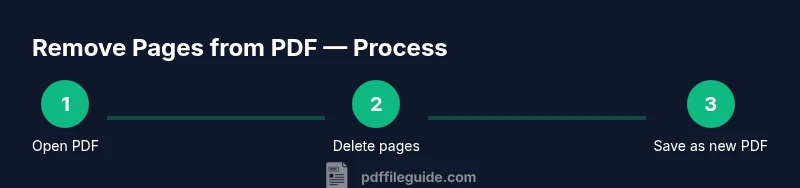
To remove pages from a PDF, open the document in a capable editor (like Preview on Mac, Microsoft Edge or Acrobat on Windows), choose the pages you want to delete, and save or export a new PDF. You can also use dedicated tools online or print-to-PDF methods as a last resort. This guide covers the main approaches, safety tips, and edge cases.
What removing pages from a PDF enables
According to PDF File Guide, removing pages from a PDF helps you tailor documents for sharing, reviews, and compliance. By pruning unnecessary pages, you reduce file size, focus readers on essential content, and simplify workflows. This is especially important for reports, contracts, and manuals that accompany others. In professional settings, removing pages to pdf is a common workflow to keep client deliverables concise and relevant. The ability to trim content safely rests on understanding where to cut and how to preserve core information while maintaining the document’s structure. Throughout this guide, you’ll learn to remove pages from PDFs using offline editors and trusted online tools, with checks for bookmarks, links, and metadata. PDF File Guide Analysis, 2026 shows that many workflows prioritize page pruning to improve readability and collaboration. The practical goal is to produce a compact file that still preserves essential navigational elements for readers.
Desktop editors vs online tools: pros and cons
When deciding how to remove pages from a PDF, you weigh offline editors against online tools. Offline editors—such as Preview on macOS or Acrobat on Windows—offer stronger privacy, more reliable layout preservation, and better handling of bookmarks and form fields. Online tools excel in convenience and speed, especially when you’re away from your workstation. From a security perspective, offline editing keeps your documents on your device, reducing exposure to third-party servers. Based on PDF File Guide Analysis, 2026, offline editors generally offer more consistent results for complex PDFs, while online tools are useful for quick, one-off tasks. Consider file sensitivity, browser privacy, internet access, and whether you need to preserve annotations and metadata before choosing a method. Always back up your files before editing to avoid accidental loss or irreversible changes.
Step-by-step: remove pages in Preview (Mac)
- Open the PDF in Preview and verify you’re editing a copy, not the original. 2) Show Thumbnails (View > Thumbnails) to see each page as a small card. 3) Select the pages you want to delete by clicking their thumbnails while holding the Command key for multiple selections. 4) Press the Delete key or choose Edit > Delete to remove the pages. 5) Save the edited file by choosing File > Save (or File > Export as PDF to create a new file). 6) Close Preview and reopen the new PDF to confirm the pages are gone. Pro tip: keep a backup copy of the original before deleting anything. If the document contains important bookmarks, run a quick check after saving to ensure navigation remains intact. This approach illustrates one of the practical ways to remove pages to pdf in a familiar Mac environment.
Step-by-step: remove pages in Adobe Acrobat DC
- Open the PDF in Acrobat DC and choose Tools > Organize Pages. 2) In the thumbnail strip, click the pages you want to remove; hold Shift or Ctrl to select multiple pages. 3) Click the trash icon or right-click and choose Delete. 4) Save the document as a new file to avoid overwriting the original. 5) If you plan to share, run a quick check for bookmarks and internal links. 6) Close Acrobat and reopen the new file to verify. Pro tip: use the built-in Compare tool to confirm no pages or critical content are missing. This section demonstrates another reliable path to remove pages to pdf using a robust desktop editor.
Step-by-step: remove pages using Microsoft Edge or Windows tools
- Open the PDF in Edge (or your preferred Windows PDF viewer) and choose Print. 2) In the Print dialog, select Page Range to keep only the pages you want, excluding the ones you wish to remove. 3) Choose 'Microsoft Print to PDF' (or a similar PDF printer) as the printer. 4) Click Print and save the resulting PDF as a new file. 5) Open the new file and verify that the unwanted pages are gone. 6) Keep your originals safely backed up. Pro tip: for large documents, splitting into logical sections before removal can help prevent accidental deletions and simplify review.
Step-by-step: using a print-to-PDF workflow
This cross-platform method works when editing tools are limited. Open the document, select File > Print, or press Ctrl/Cmd+P. In the Page range field, specify the pages you want to retain, then choose a PDF printer or Print to PDF as the destination. Save the output as a new file. Review the result carefully to confirm the undesired pages were removed. This technique is especially handy when you don’t have a dedicated PDF editor installed, but you still need a clean, distributable PDF that excludes certain pages.
Handling secured or scanned PDFs
If the PDF is password-protected, you’ll need to unlock it first with the correct password or authorization. For scanned PDFs, ensure you have OCR text or editor that can handle image-based content. In many cases, removing pages from a scanned PDF is simply a matter of deleting the corresponding image pages using a PDF editor with image handling, followed by re-creating the file. If you cannot unlock the file, use a legitimate method to obtain permission to edit. Pro tip: never attempt to bypass security protections on documents you do not own.
Quick checks after removal
After you remove pages, perform a quick check: confirm the page count matches your intended range; verify bookmarks and internal links still navigate to the correct sections; test any forms or annotations; and review metadata and document properties to ensure nothing essential was removed inadvertently. If you rely on accessibility features, run a quick screen reader check to ensure the structure remains logical. This ensures your remove pages to pdf task preserves usability and compliance.
Edge cases: bookmarks, page labels, and metadata
Removing pages can affect bookmarks, page labels, and the document’s metadata. Update or repair the bookmarks so they reflect the new page order; adjust page labels if you used Roman numerals or custom numbering; and re-run any indexing or search optimization that depends on the final page count. In some formats, fonts or embedded resources may shift slightly after removal; re-check visual fidelity and verify that links still target the correct destinations. The PDF File Guide's verdict is to always verify the final document against the original and keep backups, ensuring you can revert if something looks off.
Tools & Materials
- PDF editor with page deletion feature(Examples: Adobe Acrobat DC, Preview (macOS), or other editors with Organize Pages/thumbnail view)
- Backup copy of the original PDF(Always preserve the original before editing)
- Web browser(Needed for online tools if offline editor isn’t available)
- Print-to-PDF capability or a PDF printer(Useful for cross-platform removal workflows)
Steps
Estimated time: 30-60 minutes
- 1
Open the PDF in your chosen editor
Launch the editor and open the document you plan to modify. Always start by working on a copy or rename the destination file to avoid overwriting the original. This initial step sets the stage for precise removal and safe backups.
Tip: If editing a large file, enable page thumbnails first for easier navigation. - 2
Locate the pages to remove
Use page thumbnails or the page range view to identify exactly which pages should be deleted. Mark or select the pages you want to discard. Double-check ranges against the table of contents or section headers to prevent omissions.
Tip: Group related pages together to minimize risk of removing critical content. - 3
Delete the selected pages
Remove the chosen pages via the editor’s delete function or by right-clicking the thumbnail and selecting Delete. Confirm the action when prompted and ensure the reader flow remains intact.
Tip: If you accidentally delete the wrong page, restore from the backup copy immediately. - 4
Save or export a new PDF
Choose Save or Export as PDF to generate a new file. If you need to preserve the original, use a clearly distinct filename (e.g., Project_Report_v2.pdf) and document the change in version control.
Tip: Prefer exporting to a new file rather than overwriting the original in one step. - 5
Verify bookmarks and links
Open the new file and traverse bookmarks and internal links to ensure they still point to correct destinations. If any navigation fails, adjust bookmarks or update destinations accordingly.
Tip: Run a quick search to ensure all references align with the revised page order. - 6
Handle password-protected or scanned PDFs
If the file is protected, unlock with the proper credentials, then remove pages as above. For scanned PDFs, confirm OCR text availability or use tools that preserve image integrity during deletion.
Tip: Never bypass password protections; obtain permission or use an authorized workflow. - 7
Keep backups and document changes
Store a backup of the original and maintain a brief changelog describing which pages were removed and why. This practice supports auditing and reversibility.
Tip: Use versioned filenames or a dedicated folder for edited PDFs.
Questions & Answers
Can I remove pages from a password-protected PDF?
Yes, but you must unlock the document with the correct password or authorization before deleting pages. After unlocking, follow the standard removal steps and save a new file.
You can remove pages from a password-protected PDF after unlocking it with the proper password.
Is it possible to remove pages from a scanned PDF?
For scanned PDFs, you typically need OCR-capable software to edit the content; if you only remove pages, ensure no critical images or OCR text are lost. In some cases you may need to re-run OCR after changes.
Scanned PDFs may require OCR and careful editing to preserve readability after removal.
Will removing pages affect bookmarks or links?
Yes, bookmarks and internal links can point to now-missing pages. After removal, review and update bookmarks, destinations, and links to keep navigation accurate.
Yes, you should review bookmarks and internal links after removing pages.
Which method is safest for confidential documents?
Offline editors installed on trusted devices are generally safer for confidential documents because they avoid transmitting data to online servers.
Offline editors are typically safest for confidential PDFs.
How can I remove pages without special software?
You can use print-to-PDF workflows on most systems by selecting the pages you want to retain in the print dialog and printing to a new PDF file.
Print-to-PDF can work when you don’t have dedicated software.
What should I check after removal to prevent mistakes?
Check page count, verify bookmarks/links, review forms and annotations, and compare the new file against the original for critical content.
Verify counts, navigation, and content after removal.
Can I remove pages to pdf in bulk?
Yes. Most editors allow multi-page selection in thumbnail view or by page range. Perform removal in batches if you’re dealing with large documents.
Yes, bulk removal is possible with thumbnail selection or page range.
Watch Video
Key Takeaways
- Back up the original PDF before editing.
- Choose offline editors for sensitive documents.
- Verify bookmarks, links, and metadata after removal.
- Save as a new file to preserve the original.