Can PDF Be Converted to EPUB? A Practical Guide
Learn how to convert PDF to EPUB, the best tools, step-by-step workflow, and tips to preserve formatting and accessibility for an optimal reading experience.


Yes—PDF can be converted to EPUB, but results depend on the PDF’s structure, the complexity of layouts, and embedded fonts. For text-dominant PDFs with simple images, conversions tend to preserve readability well; complex columns, tables, or custom fonts may need post-processing. This guide provides reliable methods, realistic expectations, and best-practice workflows for 2026.
Can PDF be converted to EPUB? What you should know
Converting a fixed-layout PDF into a reflowable EPUB is a common goal for readers who want flexible formatting on various devices. According to PDF File Guide, the short answer is yes, but outcomes vary. If a PDF mainly contains clean text with occasional images, the EPUB version will usually read well on e-readers, tablets, and smartphones. If the PDF includes elaborate layouts, multi-column text, intricate typography, or many embedded fonts, you should expect some fidelity loss or the need for manual tweaks after conversion. This reality check helps you set expectations and pick the right workflow.
In 2026, the PDF File Guide team emphasizes that the best results come from purpose-built workflows, not “one-click” miracles. By understanding how EPUB reorganizes content and styles, you can preserve headings, lists, and metadata while maintaining accessibility where possible.
Why conversions vary: layout, fonts, and images
PDF is inherently a page-fed format with fixed positioning. EPUB, by contrast, is a flexible, reflowable format designed for diverse screen sizes. When you convert, headings, lists, and images may be mapped to EPUB structures, but the original layout can be disrupted. Font embedding in PDFs does not guarantee identical font rendering in EPUB unless the font is licensed for embedding and properly declared in the EPUB file. Images can usually be preserved, but their resolution and placement might shift, especially within complex columns or side-by-side adjoined elements.
The PDF File Guide analysis shows the most reliable conversions occur when PDFs use straightforward typography, clear headings, and consistent image labeling. For documents with nested tables or heavy formatting, plan for post-conversion editing to restore the intended reading order and visual hierarchy.
Choosing the right tool: Calibre, InDesign, and online converters
Several pathways exist for PDF-to-EPUB conversion, each with trade-offs. Calibre is a free, widely used option that handles batch conversions and provides a built-in editor for adjustments. Adobe InDesign offers professional publishing capabilities, allowing you to export polished EPUBs but requires a license and a learning curve. Online converters can be convenient for one-off jobs but can raise concerns about privacy and accuracy, especially with long documents or proprietary content. PDF files with password protection or DRM may block conversion, so unlock or obtain permissions first. In all cases, verify results on multiple devices to ensure the reading order, headings, and lists are preserved.
Step-by-step workflow overview
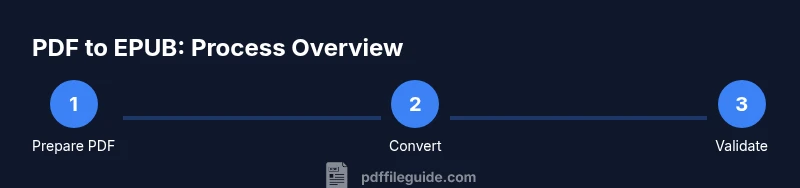
A robust workflow blends automation with manual checks. Start from a clean PDF, then convert with a trusted tool, adjust mappings for headings and lists, and validate the EPUB with both automated checks and real-device testing. Keep backup copies of the original PDF and each EPUB iteration. By separating content structure from presentation, you can maximize readability across devices while staying faithful to the source material.
Common issues and remediation
Your EPUB may exhibit broken reading order, stray hyphenation, or missing images after conversion. Common fixes include reassigning headings in the editor, correcting the CSS for font sizes, and remapping image alt text for accessibility. If a table is essential, re-create it within the EPUB using clean markup rather than relying on a direct table transfer. For font-related discrepancies, prefer system fonts or licensed web fonts and include proper font-face declarations in the EPUB stylesheet. The goal is a readable, accessible document that adapts gracefully to phones, tablets, and e-readers.
Accessibility and testing
Accessibility matters for a broad audience. Ensure alt text for images, meaningful heading order, and navigable table of contents. Validate the EPUB with tools like epubcheck and test on multiple devices (e-reader, iPad, Android tablet, and desktop e-reader apps). PDF File Guide recommends documenting metadata and ensuring that the reading sequence remains logical for assistive technologies. These checks reduce the risk of disappointment for users relying on screen readers or keyboard navigation.
Best practices and recommendations
- Start with a clean, text-focused PDF when possible to maximize reflowability.
- Prefer tools that expose fine-grained control over structure (headings, lists, TOC) rather than opaque automatic mappings.
- Validate and test early and often; iterative tweaks save time later.
- Keep backups of every stage: original PDF, intermediate EPUBs, and final versions.
- Respect font licensing and include accessible alternatives or fallbacks in the CSS.
Authoritative sources and testing workflow
For further guidance, consult reputable sources on EPUB standards and accessibility. The W3C’s EPUB 3 specifications provide the formal framework for structure and semantics, while the Library of Congress offers a lens on digital formats in libraries. PDF File Guide also highlights best practices for practical conversion and verification. See the recommended external sources below for deeper technical details and compliance considerations.
Tools & Materials
- Calibre(Free, cross-platform tool; use its ebook-convert feature for PDF to EPUB conversions and the built-in editor for quick fixes.)
- Original PDF file(Keep a clean, unencrypted copy; password-free if possible to avoid conversion barriers.)
- Adobe InDesign (optional)(Professional export to EPUB with advanced styling; requires a license.)
- EPUB validator (epubcheck or equivalent)(Ensures structural compliance and helps catch issues before distribution.)
- Text editor (optional)(Useful for tweaking CSS or metadata if you dive into manual edits.)
Steps
Estimated time: 60-120 minutes
- 1
Prepare the PDF for conversion
Unlock the file if needed and ensure all fonts are embedded or licensed for embedding. Check that the document structure is clean: consistent headings, proper lists, and labeled images. Create a backup before making changes.
Tip: If a password is required, obtain permission or remove protection before conversion to avoid errors. - 2
Choose a conversion method
Decide between Calibre for a free, flexible workflow or InDesign for more precise control over layout. Consider privacy if using online converters and prefer offline tools for sensitive content.
Tip: For a first pass, start with Calibre to gauge how much post-editing your EPUB will need. - 3
Run the conversion and adjust settings
In Calibre, set the output format to EPUB and review the content mapping. Tweak heading detection, image handling, and metadata. Run the conversion and inspect the result in an EPUB viewer.
Tip: Enable structure detection to improve headings and lists alignment; disable auto-styles if you prefer manual CSS tweaks. - 4
Post-process for accuracy
Open the EPUB in an editor or Calibre’s editor to fix any misordered headings, broken lists, or missing alt text. Re-map images' alt attributes and verify the table of contents reflects the actual reading order.
Tip: Use CSS to define a consistent typographic scale and line height for readability on small screens. - 5
Validate and test on devices
Run an EPUB checker and test on at least two devices (preferably iOS and Android) to ensure the reading experience is consistent. Note any device-specific issues and adjust CSS or markup accordingly.
Tip: Document the device test results to guide future conversions. - 6
Finalize and archive
Save a final EPUB with metadata, cover image, and font fallback options. Archive the original PDF and all intermediate EPUBs for future updates or re-conversions.
Tip: Keep a changelog of edits to simplify future revisions.
Questions & Answers
Can all PDFs be accurately converted to EPUB?
Not every PDF converts perfectly. Simple, text-focused PDFs generally map well, while complex layouts or nonstandard fonts may require manual adjustments after conversion. Expect some fidelity changes and plan for tweaks.
Not every PDF converts perfectly; expect some tweaks after conversion.
Will EPUB preserve images, fonts, and links?
Images usually transfer, but their placement and resolution can shift. Fonts may be substituted unless licensed fonts are embedded and declared in the EPUB. Hyperlinks typically convert, but verify link validity across devices.
Images transfer with possible layout shifts; fonts may substitute; verify links.
Is Calibre free and safe to use?
Calibre is free and widely used for PDF to EPUB conversions. It’s open-source and generally considered safe, but always download from the official site and scan for security risks with downloaded content.
Calibre is free and commonly used; download from the official site and scan for safety.
Do I need InDesign to convert PDFs to EPUB?
No. InDesign can export high-quality EPUBs, but it’s not required. Use InDesign if you already work within that ecosystem or need advanced layout control; otherwise, Calibre or similar tools suffice for many projects.
InDesign isn’t required; use it for advanced layouts if you already have access.
What should I do if formatting looks off after conversion?
Open the EPUB in an editor and adjust the CSS, headings, and image alt text. Rebuild the TOC and verify reading order. Rerun validation and device tests after edits.
If formatting is off, edit CSS and structure, then retest on devices.
Can scanned PDFs be converted to EPUB?
Scanned PDFs require OCR. After OCR, you’ll still need formatting cleanup to ensure proper text flow and structural tagging in EPUB.
OCR is needed for scanned PDFs; follow with formatting cleanup.
How do I test EPUB across devices?
Install a few EPUB readers on major devices (iOS, Android, desktop) and verify typography, navigation, and image display. Use devices with different screen sizes to ensure consistent experience.
Test on multiple devices and apps to ensure consistency.
Watch Video
Key Takeaways
- Know: EPUB is reflowable; PDF is fixed-layout, so results vary.
- Choose the right tool: Calibre for free workflows or InDesign for advanced layouts.
- Validate and test: use epubcheck and device testing to ensure quality.
- Plan for post-conversion edits to preserve structure and accessibility.
- Back up everything and document changes for future revisions.