Adobe Reader Compress PDF: A Practical Guide
Learn why Adobe Reader can’t directly compress PDFs and how to reduce file size using Acrobat Pro, online tools, and best practices for preserving readability and quality.


Adobe Reader alone cannot compress PDFs. To shrink a file size, you’ll need a tool from Adobe or another service, such as Adobe Acrobat Pro’s 'Reduce File Size' or 'PDF Optimizer', or export to a lower quality version. If you only have Reader, consider printing to PDF with a lower DPI or using a web-based compressor.
Why compression matters for PDFs
In daily workflows, large PDFs slow down sharing, loading times, and archival processes. Reducing file size helps email transmission, faster web uploads, and easier storage. The phrase adobe reader compress pdf is frequently searched, but it's important to understand that Adobe Reader alone cannot perform compression; you need a tool with optimization capabilities. According to PDF File Guide, compression is a practical, repeatable step that saves bandwidth and improves user experience, especially for dense reports, image-heavy brochures, or long manuals. When you compress, you balance size against quality to ensure legibility, readability, and accessibility remain intact for your audience. In professional settings, consistent compression practices support faster collaboration and streamlined document workflows, from legal packets to marketing decks. Think of compression as a refinement process: you shrink the file while preserving the essential content and structure.
Understanding why some PDFs compress better than others
The effectiveness of compression depends on content type. PDFs that consist mostly of text compress much more readily than those with high-resolution images or embedded multimedia. Vector graphics, clean typography, and minimal metadata compress more efficiently, while scanned pages are often the biggest culprits for large file sizes. For this reason, early planning matters: if you anticipate a need to share a PDF frequently, optimize it during creation by choosing appropriate image resolutions, font embedding options, and metadata handling. PDF File Guide highlights that understanding content composition helps you pick the right compression approach rather than applying a one-size-fits-all solution. Moreover, preserving select metadata can be important for searchability and accessibility; stripping all metadata can reduce sensitive data exposure but may hinder future indexing.
What exactly can be compressed and what cannot
Compression typically targets images, fonts, and metadata. Elements like embedded fonts and high-resolution images offer the most compression gains but can also affect readability if overdone. Text content is already compact, and thinned metadata may reduce searchability if removed indiscriminately. In many cases, removing unnecessary images, downsampling to a reasonable resolution, and re-encoding images with efficient formats yields a good balance. The goal is to keep content legible while achieving a practical file size. PDF File Guide’s guidance emphasizes testing after compression to confirm that visuals and text still render clearly across devices.
Where to perform compression: tools and environments
There are several avenues for shrinking PDFs. The most capable option is Adobe Acrobat Pro, which offers specialized tools like PDF Optimizer and the Reduce File Size feature. Free readers, including Adobe Reader, cannot access these optimization controls. Online tools can perform compression but introduce privacy considerations, so avoid uploading sensitive documents. Desktop software from other vendors may provide comparable options, but the quality and control can vary. When choosing a method, consider factors like file sensitivity, required output quality, and the intended distribution channel. PDF File Guide recommends evaluating options against your workflow needs and rechecking the resulting file for fidelity after compression.
Quality vs. size: setting expectations
Tuning compression is a balancing act. Aggressive downsampling reduces size but may degrade image clarity; conservative settings preserve visuals but yield smaller gains. A typical optimization workflow involves selecting an acceptable image downsampling level, deciding whether to re-embed fonts, and removing nonessential metadata. Always perform a side-by-side comparison of the original and compressed versions to ensure critical information remains legible. By maintaining a consistent quality standard, you avoid surprise issues when recipients open the document on different devices or platforms.
Privacy and security considerations
If you compress PDFs that contain sensitive or restricted information, you must consider privacy implications. Online compression services may process data on remote servers, which could expose confidential content. Keep sensitive documents on trusted devices or enterprise-approved services, and review the service's privacy policy before uploading. An internal or offline compression workflow is often preferable for legal or regulatory documents. PDF File Guide stresses that informed tool selection reduces risk and helps protect confidential material while achieving the desired size reductions.
Practical recommendations for professionals
For professionals who compress PDFs regularly, establish a standard workflow: identify file content, choose the optimization settings that preserve essential quality, and document the resulting file name and version. Maintain a repository of compressed versions for audit and reuse, with clear versioning. When distributing externally, consider accessibility requirements, such as text extraction and logical reading order, which should be preserved during optimization. In many cases, it’s helpful to run a quick accessibility check after compression to ensure assistive technologies continue to function properly.
Summary of best practices
To summarize, compression is most effective when you tailor settings to content, verify readability after optimization, and choose trusted tools. Avoid over-compression that harms legibility, and maintain privacy controls for sensitive documents. With a thoughtful approach, you can achieve meaningful reductions in file size without sacrificing essential information or accessibility.
Quick-start checklist for compressing PDFs
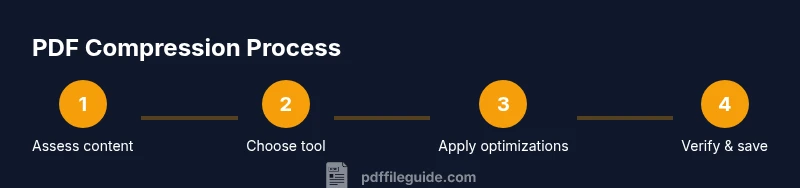
- Inspect content type (text vs. images).
- Choose a compression tool with granular controls.
- Set image downsampling to a practical level.
- Decide on font embedding carefully.
- Remove unnecessary metadata only if appropriate.
- Save and compare original vs compressed file.
- Verify readability and accessibility after compression.
Tools & Materials
- Original PDF file(The file you want to compress)
- Adobe Acrobat Pro (or equivalent)(For in-depth optimization with PDF Optimizer/Reduce File Size)
- Reliable internet connection(Needed for online compression tools (optional))
- Printer-friendly or virtual PDF driver(Useful for re-publishing with different settings)
- Backup copy of the original(Always keep an unmodified version)
Steps
Estimated time: 30-60 minutes
- 1
Open the PDF in Acrobat Pro
Launch Acrobat Pro and open the target PDF to establish a baseline. This ensures you know the original file size and content before applying optimizations.
Tip: Use File > Open and verify the document renders correctly before compression. - 2
Choose Reduce File Size
Navigate to File > Save as Other > Reduced Size PDF. This shortcut provides a quick-downsample option while preserving core content.
Tip: If prompted, select the earliest compatible Acrobat version to maximize compatibility. - 3
Set compatibility and options
Choose a compatibility level (e.g., Acrobat 10.0 or later) to balance features with compatibility for recipients. Review the prompt for optional optimizations.
Tip: Lower compatibility can yield smaller files but may affect features in older readers. - 4
Fine-tune with PDF Optimizer (Advanced)
Open Advanced Optimizations to adjust image downsampling, compression, font embedding, and metadata handling. Apply precise settings for each content type.
Tip: Experiment with a test file first to avoid unintended quality loss. - 5
Review and compare
Save the optimized file as a new version and compare side-by-side with the original to ensure readability and layout preservation.
Tip: Check a representative set of pages with graphics and text. - 6
Finalize and archive
Keep a named, versioned copy and document the optimization settings used. Store both the original and compressed versions for auditability.
Tip: Include a note about the specific downsampling and font decisions.
Questions & Answers
Can Adobe Reader compress PDF files?
No. Adobe Reader is a viewing tool and does not expose optimization controls. Compression requires Acrobat Pro or an online/desktop compressor. If you only have Reader, you’ll need to use a different method or service to shrink the file size.
No, Adobe Reader can’t compress PDFs. You’ll need Acrobat Pro or an online/desktop tool to shrink the file size.
What is the difference between Reduce File Size and PDF Optimizer?
Reduce File Size is a quick, high-level option that applies basic downsampling and compression. PDF Optimizer provides granular, content-specific controls for images, fonts, metadata, and transparency, allowing precise tuning.
Reduce File Size is quick and simple; PDF Optimizer gives detailed controls for each content type.
Will compression affect image quality?
Yes, downsampling and compression can reduce image clarity. Aim for a balance that preserves legibility while achieving the desired file size, especially for print-ready PDFs.
Compression can affect image quality; find a balance that keeps text readable and images clear.
Are there free ways to compress PDFs without Acrobat Pro?
Yes, several free tools exist, including online compressors and some desktop apps. However, they may offer fewer controls and raise privacy concerns for sensitive documents. Use offline options when possible for security.
There are free tools, but guard privacy with sensitive docs and test results.
How do I verify a compressed PDF is still accessible?
Run a quick accessibility check by ensuring logical reading order, tagged structure, and readable fonts. If you rely on assistive tech, verify with a screen reader after compression.
Check accessibility after compression by testing with screen readers and reviewing document structure.
Should I strip metadata during compression?
Stripping metadata can reduce file size and privacy risk, but may remove searchable information. Decide based on whether metadata serves your workflow or privacy needs.
Metadata removal can save space but may affect searchability; weigh privacy against usefulness.
Is it safe to compress PDFs containing forms or annotations?
Yes, but check that form fields and annotations retain functionality after optimization. Some compression settings may affect interactive features.
Forms and annotations may be affected; test interactivity after compression.
Watch Video
Key Takeaways
- Reader cannot compress PDFs; use Acrobat Pro or alternative tools
- Balance size savings with readability and accessibility
- Test, compare, and document each compression step
- Choose offline options for sensitive documents