Compress PDFs Online for Free: A Practical How-To
Learn how to compress PDFs online for free without sacrificing essential quality. This guide covers trusted tools, privacy best practices, step-by-step methods, and tips to verify results for reliable size reduction.


You can compress PDFs online for free by using trusted web tools. You’ll need a device with a web browser and your PDF file. Choose a compression level that balances size with readability, then download the reduced file. This guide shows how to pick safe services, avoid privacy risks, and verify results.
Choosing Free Online PDF Compressors
When you start compressing PDFs online for free, prioritize services that explicitly offer free compression without demanding sensitive data or mandatory account sign-ups. Look for transparent privacy policies, data retention statements, and the option to delete uploaded files after processing. The PDF File Guide team emphasizes selecting reputable providers and avoiding sites that push intrusive ads or request unnecessary permissions. Before you upload, confirm which features the tool preserves (embedded fonts, image quality, annotations) and whether it supports batch processing for larger tasks. In practice, run a small test file first to gauge output quality and then proceed with bigger documents if you’re satisfied. This practice helps ensure your document remains usable and legible after compression.
How compression changes file size and quality
PDF compression reduces file size by removing redundant data, downsampling images, and sometimes encoding fonts more efficiently. There is a trade-off between file size and quality; lossy compression saves more space but can blur images or reduce clarity, while lossless methods keep visual fidelity but yield smaller gains. When choosing a method, consider the document type: text-heavy reports tolerate more compression than photo-intensive brochures. For critical documents, aim for a modest size reduction and review key pages to ensure legibility remains intact.
How to assess tool trustworthiness
Look for tools with transparent privacy policies, no upfront download, and clear terms about data handling. Favor services that perform processing in your browser (client-side) or state that uploads are deleted quickly after processing. Check for independent reviews and avoid sites with excessive ads, suspicious links, or vague statements. If the site asks for a password or sensitive credentials, pause and reassess. According to PDF File Guide analysis, choosing privacy-conscious options significantly reduces risk when handling sensitive information.
Step-by-step: compress with a popular free tool (Browser-based)
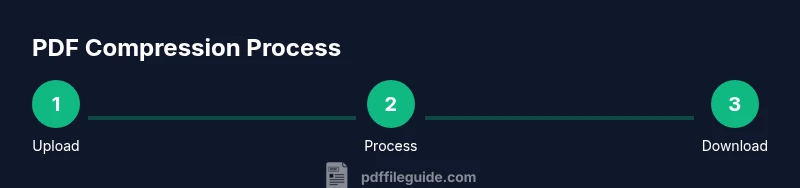
- Open the chosen compressor in your browser. 2) Upload your PDF file. 3) Select a compression level and options (image downsampling, font handling, metadata). 4) Preview the result and adjust to balance quality and size. 5) Download the compressed file and compare the size and readability with the original. 6) Keep a backup of the original in a secure location. Pro tip: run a quick page-by-page check to spot any degraded visuals or unreadable text.
Desktop alternatives: Free software you can use offline
If you’re handling confidential PDFs or want greater control, offline tools can be a better option. Free software like LibreOffice and PDFsam Basic offer basic compression and optimization features without uploading documents to the cloud. Offline processing reduces exposure to third-party servers and can speed up workflows on multi-file tasks. Ensure you download from the official project sites and verify checksums when possible. For advanced users, consider dedicated open-source PDF optimizers that let you tune image quality and font embedding with precision.
Handling images and fonts during compression
Image-heavy PDFs benefit most from selective downsampling and compression; however, excessive downsampling can compromise readability. Font embedding should be preserved if you rely on accurate typography, especially for corporate documents. Some tools offer presets like 'optimize for display' or 'print quality'—choose based on intended use. If unsure, test multiple presets on a copy of the file to identify the best balance between file size and legibility.
Metadata and accessibility considerations
Compression can alter or strip metadata and bookmarks. If your PDF relies on accessibility features, verify that text remains selectable and that document structure is intact after processing. Some tools remove metadata to save space; if that data is important for compliance or searchability, consider performing a separate metadata remediation step. Always review the document’s metadata, tags, and accessibility attributes after compression.
Batch compression tips
For multiple files, use a tool that supports batch processing to maintain consistency across documents. Create a standard set of compression parameters (level, image quality, and font handling) and apply them to all files in the batch. Maintain a folder of originals and a parallel folder for compressed outputs. If you’re automating the workflow, consider scripting or using offline tools that offer command-line interfaces to avoid repeat manual work.
Privacy and data handling practices
Online compressors may log uploads or usage metadata. Read the privacy policy to understand retention timelines and whether files are stored, hashed, or deleted after processing. Where possible, prefer client-side processing that keeps data within your device. If sensitive information is involved, limit usage of cloud-based services and opt for offline tools or trusted providers with clear data-handling commitments.
Troubleshooting: why file sizes not reducing much
If compression yields little size reduction, the PDF may already be optimized or primarily contain vector data and text. Try adjusting the compression level, downsampling more aggressively (without breaking readability), or removing embedded fonts if available. Some tools allow selective optimization (e.g., compress images only, keep graphics untouched). Re-check the output by comparing both file size and visual quality on multiple pages.
Quick checks: verify quality after compression
After compression, open the document and inspect key pages for clarity, legibility, and layout integrity. Use a text search to ensure important information remains accessible. Test interactive elements like links and forms and run a basic OCR check if your PDF contains scanned content. When in doubt, revert to the original and re-run with adjusted settings.
Next steps and best practices
Treat compression as a step in your document workflow, not a one-off fix. Store originals securely, document the compression settings used, and consider applying different levels of optimization for archival copies vs. shareable versions. If you frequently compress PDFs, create a simple, repeatable process using offline tools for privacy and reproducibility. The goal is to achieve a reliable size reduction while preserving usability.
Tools & Materials
- Web browser (Chrome, Firefox, Edge, or Safari)(Ensure it’s up-to-date and supports JavaScript; enable cookies if needed for some tools)
- Original PDF file(Back up before compression; consider content sensitivity)
- Stable internet connection(Prefer wired or reliable Wi‑Fi for upload/download stability)
- Trusted online compressor service(Read privacy policy and ensure site is reputable)
- Backup plan for originals(Optional, but recommended for safety)
Steps
Estimated time: 15-25 minutes
- 1
Choose a trusted online compressor
Select a reputable, privacy-conscious tool with clear data handling statements. Avoid sites with vague terms or excessive ads. This reduces risk when working with sensitive PDFs.
Tip: Prefer browser-based tools that process in-browser or have explicit short data retention policies. - 2
Upload your PDF
Open the tool, locate your file, and upload it. Ensure the file size is within the tool’s free tier limit and watch for any warnings about missing fonts or accessibility features.
Tip: Use a copy of the file if you’re testing multiple settings. - 3
Choose compression level and options
Select a preset (e.g., display-optimized or print-quality) or customize downsampling and font handling. Higher compression reduces size but may affect readability.
Tip: Start with a light preset, then adjust as needed. - 4
Preview and adjust
Review a few pages to check image sharpness, font clarity, and layout. If quality looks degraded, reduce compression or adjust image settings.
Tip: Preview key pages first, not every page, for speed. - 5
Download and compare
Save the compressed file and compare its size to the original. Open the document to verify essential content remains legible and functional.
Tip: Keep a record of the original file size for future comparisons. - 6
Archive originals securely
Store the original in a safe location. If you use cloud services, consider removing licenses or sensitive embeds before sharing.
Tip: If the document is sensitive, prefer offline tools or trusted cloud providers with strong security.
Questions & Answers
Is it safe to upload PDFs to online compression tools?
Only use reputable tools with clear privacy policies and short data retention. If the document is confidential, prefer offline processing or client-side compression.
Use reputable tools with clear privacy policies; for confidential documents, consider offline options.
Will compression degrade image quality?
Yes, lossy compression can reduce image sharpness. Start with light compression and inspect critical pages before applying stronger settings.
Yes, expect some quality changes with lossy compression; preview important pages.
Can I compress password-protected PDFs online?
Some tools require removing protection first, while others may support on-the-fly handling if you provide access. Check each tool’s policy.
Many tools can’t compress protected PDFs unless you unlock them first.
Do I need an account to use free online compressors?
Many free tools don’t require accounts, but some may limit features or throughput without login. Review limits before starting.
Most sites don’t require accounts, but features might be limited without one.
How can I verify the compressed file preserves essential data?
Open multiple pages, run text search, and test interactive elements to ensure content remains accessible and accurate after compression.
Open key pages and search text to confirm content is intact.
Are there size limits on free online compression tools?
Yes, many free tools cap input size or total daily usage. If your PDF is large, try offline tools or a service with higher limits.
Most free tools have size caps; check the limit before starting.
Should I compress every PDF the same way?
Not always. Adjust settings based on document type and destination (print vs. display). Save presets for consistency.
Use document-appropriate settings and presets for consistency.
What is the best practice for batch compression?
Use the same compression profile across files, keep originals, and document the chosen settings for reproducibility.
Apply uniform settings and retain originals for safety.
Watch Video
Key Takeaways
- Define your target size before compressing.
- Prioritize privacy-conscious online tools.
- Always verify output quality after compression.
- Keep originals for safety and future needs.
- Use offline options for highly sensitive PDFs when possible.