Free Online PDF Compression: Safe, Quick Methods
Learn how to reduce PDF file sizes for free using online tools. This educational guide covers safe practices, quality tradeoffs, and best workflows for compressing PDFs without compromising readability.


You can compress PDFs online for free by using reputable web tools that optimize images, remove redundant data, and flatten layers without sacrificing key readability. Look for services that offer lossless or near-lossless compression by default, clear file-size limits, and transparent privacy policies. Always back up your original file before compressing, and avoid uploading highly sensitive documents to unfamiliar sites.
What free online compression pdf means and why it matters
PDFs can quickly balloon in size when they contain high‑resolution images, embedded fonts, or scanned pages. Free online compression pdf tools offer a fast, accessible way to shrink those files without installing software. This matters when you need to email a document, upload it to a submission portal, or share via cloud links where size limits apply. When selecting a service, prioritize privacy and reliability: read the privacy policy, verify that the site does not require mandatory login, and check how long files are retained. PDF File Guide notes that reputable tools often process files without visible blemish on readability, preserving layout and typography while trimming extraneous data. The key tradeoffs are speed, convenience, and potential quality loss. If your PDF includes high‑color graphics or form fields, test a small sample first to see how compression affects images, tables, and fonts. Also watch for watermarks, page order changes, or altered metadata. In many cases, you can achieve meaningful size reductions with minimal perceptible differences, especially for text‑dense documents.
How online compression works: lossy vs lossless
Online PDF compression generally uses two main strategies: lossy and lossless. Lossless compression reduces file size without changing any content by tightening how data streams are stored, often by removing redundant metadata or compressing streams more efficiently. Lossy compression reduces information, typically by downsampling embedded images, reducing color depth, or recompressing images with lower quality settings. The result is smaller files, but the quality may change, especially in photos or diagrams. Good tools let you choose between presets such as 'auto', 'high quality', or 'maximum compression', and some offer fine‑grained controls for image downsampling, font embedding, and stripping unused objects. If you primarily share text documents, you can usually use lossless or near‑lossless modes with minimal visible impact. For image‑heavy PDFs, you may need to balance size against image fidelity. Server‑side tools may improve compression aggressively, but can raise privacy concerns; in‑browser options stay on your device and avoid sending documents to the cloud, at the cost of sometimes lower compression ratios. Always validate the final document before sending it.
Safety and privacy considerations for free online compression pdf tools
A core concern with free online compression pdf tools is privacy. When you upload a file, you must trust the service to handle content responsibly. Some sites delete files quickly, while others retain copies for longer periods. If your document contains sensitive information, prefer tools that process files locally in your browser or that publish a clear data‑retention policy. For added protection, consider applying password protection to the PDF before uploading, or avoid online tools altogether for confidential files and use offline software. Check for https encryption, transparent terms, and third‑party audits if available. PDF File Guide recommends reviewing user reviews and independent assessments to gauge reliability. After compression, verify that no metadata or embedded files were inadvertently introduced and that hyperlinks continue to work. Be mindful of accessibility considerations as well; ensure that any redactions or metadata removals do not impair screen reader compatibility for accessible PDFs.
How to choose a tool: criteria and checklist
Use the following checklist to select a reliable free online compression pdf tool:
- Privacy: read the privacy policy, data retention, and whether uploads are stored.
- In‑browser vs server: in‑browser keeps data on your device; server tools may offer stronger compression.
- File support: ensure the tool handles PDFs of your page size and image types.
- Quality controls: look for image downsampling options, color depth, and font embedding settings.
- Output previews: if possible, view a low‑resolution preview to judge quality before downloading.
- Page count and file size: check any stated limits, especially for free tiers.
- Security features: HTTPS, no watermarks, and clear deletion policies.
- Accessibility: confirm that text remains selectable and search indices are preserved.
- Brand trust: rely on tools with transparent authorship and independent reviews.
If you need to compress large volumes regularly, consider a workflow that combines in‑browser testing with occasional offline processing to maintain control over quality and privacy.
Step-by-step workflow overview
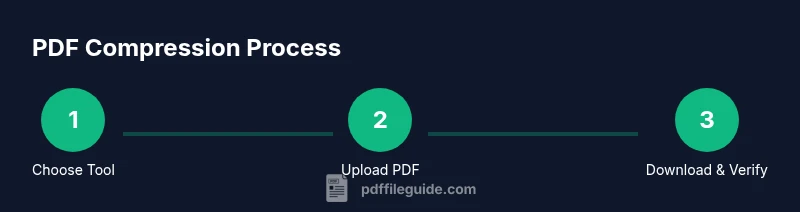
A typical online compression workflow combines simplicity with careful validation. Start by choosing a tool that matches your privacy needs and quality expectations. Then prepare the PDF by removing any sensitive metadata you don’t need and backing up the original. Upload the file and select your compression preset, prioritizing either size or fidelity. Run the compression, then download the result and review it on multiple devices. Finally, compare the compressed file to the original to ensure readability, layout, and important features remain intact. This overview sets the stage for the detailed steps that follow, including checks for fonts, images, and accessibility.
Quality factors to watch during compression
When evaluating compressed output, look for several quality factors:
- Text clarity: ensure legibility of fonts, kerning, and spacing.
- Image fidelity: check color accuracy, sharpness, and absence of banding in photos.
- Layout integrity: verify page order, margins, and embedded objects remain unchanged.
- Hyperlinks and forms: test clickable elements to confirm functionality.
- Metadata: confirm that document properties and accessibility tags are preserved or improved.
- Accessibility: ensure screen readers can properly interpret headings and content structure.
- Consistency: compare one or two pages side by side with the original for a quick visual check.
If any factor deteriorates noticeably, adjust the compression settings and re‑process before finalizing.
Practical workflow example
Consider a typical multi‑page brochure. Start by testing a small sample page to gauge the tool’s impact on images and text. If the sample looks acceptable, apply the same settings to the full document. Download the result and view on a smartphone screen as well as a desktop monitor to catch issues that only appear at certain resolutions. If you notice color shifts or blurry graphics, tweak image downsampling, switch to a higher quality preset, or remove embedded fonts in favor of system fonts. Through this iterative approach, you can achieve substantial size reductions while preserving readability and layout integrity. Always keep a backup of the original file in a safe location.
Verifying the result: quality checks and verification
After compression, perform a quick but thorough verification. Open the compressed file and scan a few representative pages. Check text flow, image sharpness, and the behavior of interactive elements such as forms or links. Use built‑in PDF viewers to compare contrast, color, and brightness against the original. If available, run accessibility validators to ensure headings and reading order are preserved. Save any notes about differences and adjust settings accordingly for future tasks. This disciplined approach helps prevent surprises when you share the document externally.
Advanced tips to maximize compression without losing readability
- Disable unnecessary embedded fonts or substitute with standard fonts available on most devices.
- Downsample color images to a resolution that matches typical viewing contexts (e.g., screens) without sacrificing legibility.
- Remove unused objects and metadata judiciously to avoid removing essential accessibility data.
- Use lossless mode for text‑dense documents and test the impact on images before deciding.
- Prefer tools that allow you to preview changes before downloading to avoid wasted reprocessing.
- If your PDF contains large images, consider replacing them with web‑optimized equivalents before compression, then re‑embed if necessary.
- For long documents, split into smaller files and compress each part separately to maximize overall efficiency.
When online tools aren't enough and what's next
If offline software is preferred or required for security, consider desktop solutions that perform compression locally. Many reputable programs offer batch processing, better control over color profiles, and stronger privacy guarantees for sensitive PDFs. For organizations with strict compliance needs, enterprise‑level tools may provide auditing, retention management, and centralized policy enforcement. In all cases, create a backup, test small samples, and document your chosen workflow so others can reproduce results consistently.
Tools & Materials
- Original PDF file(Keep a backup before compression)
- Web browser (Chrome/Edge/Firefox)(Updated browser recommended)
- Stable internet connection(To upload/download large files without interruption)
- Optional sample image set (for testing)(To test compression impact on images)
- External storage or cloud backup(For archiving originals)
Steps
Estimated time: 20-30 minutes
- 1
Choose a tool
Select a reputable online PDF compression tool that offers privacy assurances and clear lossless or high‑quality presets. Consider whether you prefer in‑browser processing to avoid uploading to the cloud.
Tip: Review the privacy policy and user reviews before proceeding. - 2
Back up your file
Create a secure backup of the original PDF. This ensures you can revert if the compression results are unacceptable or if settings need tweaking.
Tip: Store the backup in a separate folder or external drive. - 3
Upload your PDF
Open the selected tool and upload the backup or the original file. Confirm that the file appears correctly in the preview area if provided.
Tip: Avoid uploading password‑protected files unless the tool explicitly supports it. - 4
Select compression settings
Choose a preset aligned with your goal (lossless or high quality for text, lossy with image downsampling for heavy graphics). Adjust image downsampling and font embedding as needed.
Tip: Start with a conservative setting and test results before applying to large documents. - 5
Run compression
Execute the compression and wait for the tool to process the file. Large PDFs may take more time, depending on the service and your connection.
Tip: If the tool shows errors, try a different preset or tool and compare results. - 6
Download the compressed PDF
Save the new file to your device and name it clearly to distinguish it from the original. Keep the original untouched for comparison.
Tip: If download links expire, use a different browser or tool and re‑download promptly. - 7
Compare with the original
Open both files and review a representative set of pages for legibility, layout, and interactive elements. Ensure links and forms work after compression.
Tip: Use side‑by‑side viewing and enable zoom to inspect details. - 8
Adjust settings if needed
If quality isn’t sufficient, reprocess with different presets or reduced downsampling. This may require multiple iterations.
Tip: Document the settings used for future reference. - 9
Verify metadata and accessibility
Check that metadata, tags, and accessibility structure are preserved. Redactions or metadata removals can impact screen readers.
Tip: Run a quick accessibility check if your document targets assistive tech users. - 10
Securely delete uploads and store originals
If the tool offers deletion, use it. Otherwise, clear your browser cache and remove local copies after verification.
Tip: Keep a record of the tool used and settings for audits.
Questions & Answers
What is free online PDF compression?
Free online PDF compression uses web tools to reduce the file size of PDFs by removing unnecessary data, downsampling images, and compacting content streams. Users should weigh speed and convenience against privacy and potential quality changes.
Free online PDF compression uses web tools to shrink file sizes by removing data and adjusting images. It’s fast, but you should consider privacy and potential quality changes before sharing.
Will compression degrade image quality?
Compression can affect image quality, especially with lossy settings and heavy downsampling. If your document has graphics or photos, test different presets to find a balance between size and visual fidelity.
Yes, images can look worse if too aggressively compressed. Test presets to balance size and quality.
Is online compression safe for sensitive documents?
Online safety depends on the provider and policy. For highly sensitive content, use offline tools or services with explicit data‑handling policies and short retention times. Always verify HTTPS and vendor reputation.
Online safety depends on the provider. For sensitive documents, prefer offline tools or trusted services with clear data policies.
Can you compress password‑protected PDFs online?
Some tools support password‑protected PDFs, but many do not. If protection is required, look for services that explicitly state support, or remove protection locally before using online options.
Some tools support protected PDFs; many do not. Check the tool’s policy or remove protection first in a safe environment.
Are there size limits for free online tools?
Many free tools impose file size or page count limits. If your document exceeds these limits, you may need to split the PDF or use a different tool, possibly commercial, that handles larger files.
Free tools often have size or page limits. Larger PDFs may require splitting or using another tool.
How can I verify the compressed file’s integrity?
Open the compressed file on multiple devices, check fonts, layout, links, and forms, and compare with the original. Run accessibility checks if available to ensure structure remains intact.
Open the file on different devices and compare with the original to ensure integrity and accessibility.
Watch Video
Key Takeaways
- Test with a small page set before full compression.
- Choose lossless when readability matters most.
- Verify results across devices to catch display issues.
- Prioritize privacy for online tools and keep backups.