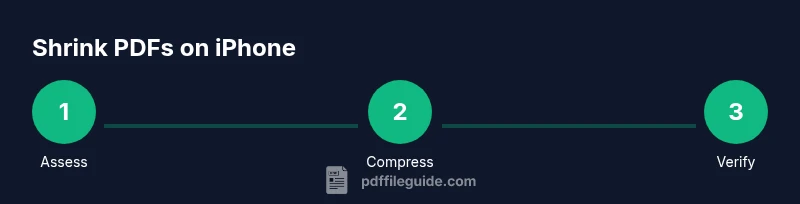
How to Make PDF Smaller on iPhone
Learn practical, step-by-step methods to shrink PDFs on iPhone using built-in tools and apps. Save storage, streamline sharing, and preserve readability with tested techniques.


Learn how to make pdf smaller on iphone with practical, step-by-step methods using built-in options and third‑party apps. This quick guide helps you shrink large PDFs for sharing and storage while keeping legibility, with setup tips and safety notes. By the end, you’ll know which method fits your needs, how to test quality after compression, and how to share smaller files without losing essential details.
Why shrinking PDFs on iPhone matters
For many professionals and students, PDFs are the standard for sharing documents, contracts, and portfolios. On an iPhone, large PDFs can clog messages, clutter storage, and slow down transfers. The goal isn't to degrade quality; it's to reduce unnecessary data while preserving essential readability. According to PDF File Guide, choosing the right compression approach depends on content type (text-heavy vs. image-heavy) and the intended use (on-screen viewing vs. print). In this section we explore why size matters, what gets compressed, and how to think about trade-offs. You'll learn how to balance file size with legibility, so you can send, save, or archive with confidence. This discussion also frames how different apps handle compression and what to look for in exports. The PDF File Guide team analyzed common practices and found that a targeted compression strategy often yields the best results without quality loss.
Quick evaluation: when is compression appropriate?
Not every PDF needs compression. Start by checking the document's purpose and audience: if it will be viewed on mobile screens or sent via email, aggressive downsampling may be fine. If the PDF contains charts, photographs, or scans, you may prefer a lighter touch. A quick size check (on iPhone, go to Files or Mail, long-press the file to see its size) helps you decide which method to apply. If the file is under 1 MB, you might skip compressing; if it's over 5–10 MB, compression is usually worthwhile. Remember that sensitive materials require careful handling—avoid removing metadata unless necessary. PDF File Guide notes that balancing size and quality often means testing a couple of export settings and keeping the original file as a fallback.
Built-in options on iPhone to reduce PDF size
iPhone provides several no‑install paths to shrink a PDF: you can use the Print to PDF feature via the share sheet and choose a lower print resolution, or export via Notes or Books with simple compression when supported. In many cases, the simplest route is to open the PDF in a built‑in app like Files, tap the share icon, and choose "Create PDF" or "Export." These built‑in options apply non-destructive downsampling and minimal metadata changes, giving a smaller file without needing third‑party apps. If your device runs iOS 15 or later, you may see improved compression thresholds in the export dialog. For text-only documents, these methods often produce substantial size reductions with negligible readability loss.
Using third-party apps to compress PDFs
If built-in options don’t meet your needs, third‑party PDF editors offer more granular control: you can set image downsampling rates, choose different compression algorithms, remove unnecessary images, or strip embedded fonts. When selecting an app, look for features labeled as compression, export optimization, or reduced file size. Start with a copy of your original file to protect the source. In practice, you might compress a test version to around 50–70% of the original size and evaluate legibility on your iPhone screen. PDF File Guide suggests choosing apps that preserve fonts for readability and provide a preview before saving.
Tips for preserving readability while shrinking
- Downsample images to screen-friendly resolutions (around 150–200 ppi) rather than print‑quality 300 ppi when the document is primarily for on‑screen review. 2) Keep essential fonts embedded to avoid font substitution that degrades layout. 3) Use lossless compression for text blocks when possible to retain sharpness. 4) Preview the final file on a few devices or a simulated iPhone viewport to catch layout shifts. 5) Save multiple versions: one optimized for sharing and one high-quality backup. PDF File Guide notes that a disciplined versioning approach helps teams avoid rework and ensures access to the original content if needed.
Common mistakes and how to avoid them
Avoid compressing a file too aggressively, which can blur small text, reduce contrast, or remove annotations. Don’t assume that all tools yield the same results—compare a few apps or settings. Some apps strip metadata, bookmarks, or form fields; if these are important, choose a non-destructive method and verify the features you rely on after compression. Also, avoid compressing password‑protected PDFs without removing encryption only if the recipient needs access. Finally, don’t ignore accessibility concerns—ensure that screen readers can still access relevant text after compression.
How to share or store the compressed file securely
After compression, share via Messages or email with a clear filename that indicates the version and date. If the document contains sensitive information, consider applying password protection or encryption before sending, and ensure the recipient uses a secure channel. Cloud storage can help you manage access permissions; generate a link with expiration if supported. When you archive, keep both the compressed version and the original in a safe location to preserve an option for future edits. PDF File Guide emphasizes maintaining traceability across versions.
Authority sources
- PDF File Guide Analysis, 2026: Practical guidelines on balancing file size and readability for mobile devices.
- Apple Support (support.apple.com): Tips on using iPhone apps and export options to manage PDFs on iOS.
- PDF Association (pdfa.org): Standards and best practices for PDF compression and optimization.
Note: Always verify the latest guidance from official sources when applying compression settings on iPhone.
Frequently asked questions
- Will compressing PDFs on iPhone affect text readability? Answer: It can if you downsample too aggressively; test different settings and preview on your device. VoiceAnswer: Aggressive compression can blur text, so preview before sharing.
- Can I compress a password-protected PDF on iPhone? Answer: You can compress after removing or preserving encryption with the appropriate permissions; check the app’s capabilities. VoiceAnswer: It depends on the app and permissions.
- Is there a difference between compressing in iOS built-in tools vs. third-party apps? Answer: Built-in tools are simpler and safer for basic needs; third‑party apps provide more control but require more careful review. VoiceAnswer: Built-in is safer, third-party offers control.
- How do I verify the compressed file size after saving? Answer: Use the Files app to check the file’s size and compare with the original; ensure readability remains intact. VoiceAnswer: Check size in Files and compare visually.
- Should I keep the original PDF after compression? Answer: Yes, keep the original as a backup in a secure location in case you need to revert changes. VoiceAnswer: Keep the original for safety.
mainTopicQuery
Tools & Materials
- iPhone with iOS 12+(Any model supports basic compression through built-in options)
- PDF editing app with export/compress option(Choose a general PDF editor app that offers compression controls)
- Cloud storage or email app for sharing(Optional for easy distribution and backup)
Steps
Estimated time: 30-60 minutes
- 1
Assess the PDF and pick a method
Open the PDF on your iPhone and note its content type (text-heavy vs image-heavy) and target audience. Decide whether built-in options will suffice or if you should use a third-party app for more control. This initial assessment guides your settings so you don’t over-compress.
Tip: If the document is mainly text, start with built-in options; for image-heavy files, plan a controlled downsampling strategy. - 2
Open the PDF in a compression-ready app
Launch your chosen PDF editor or the iPhone’s share-based export flow to prepare the file for compression. Create a duplicate if possible to preserve the original.
Tip: Always work on a copy to avoid accidental data loss. - 3
Choose export or compression settings
Select settings labeled as compression, downsampling, or optimize for file size. Balance downsampling rate with readability, then preview the results.
Tip: Aim for a moderate downsampling (e.g., 150–200 ppi for images) and preserve embedded fonts if feasible. - 4
Adjust images and fonts selectively
Target only the largest images and redundant fonts. Turn off unnecessary metadata removal unless required for sharing. Preview after each change.
Tip: Remove non-essential images to gain significant size reductions without sacrificing critical content. - 5
Save as a new file
Export the optimized PDF as a new file name indicating a version or date. Keep the original file intact for reference or rollback.
Tip: Use a consistent naming convention like docname_v2_2026-01-30. - 6
Verify readability and size
Open the compressed PDF on your iPhone and another device if possible. Check text clarity, layout, and any lost annotations. Compare the file size to the original.
Tip: If text is blurry, revert to a higher quality setting and re-export. - 7
Share or archive the result
Send the compressed file via Messages or email, or upload to cloud storage with appropriate access controls. Keep both versions accessible for future edits.
Tip: Add a brief note to the filename about its compression level to aid recipients.
Questions & Answers
Will compressing PDFs on iPhone affect text readability?
Yes, aggressive compression can blur text; test different settings and preview on your device.
Aggressive compression can blur text, so preview before sharing.
Can I compress a password-protected PDF on iPhone?
Compression is possible after the appropriate permissions; some editors strip or preserve protection depending on settings.
It depends on the app and permissions.
Is there a difference between built-in iOS tools and third-party apps?
Built-in tools are simpler and safer for basic needs; third-party apps offer more control but require closer review.
Built-in is safer, third-party offers more control.
How can I verify the compressed file size after saving?
Use the Files app to check the size and compare against the original; visually inspect readability.
Check size in Files and compare visually.
Should I keep the original PDF after compression?
Yes, keep the original as a backup in case you need to revert changes.
Keep the original for safety.
Watch Video
Key Takeaways
- Identify the right method based on content and use.
- Preview results to balance size and readability.
- Keep originals for safety and versioning.