How to Make PDF Smaller on Mac: A Practical Guide
Learn proven methods to reduce PDF file size on macOS using Preview, Automator, and trusted third-party tools. This step-by-step guide preserves readability while shrinking large PDFs, with safety tips and a quick checklist.


If you’re wondering how to make pdf smaller on mac, start with macOS’s built-in tools. This guide covers Preview exports, Automator workflows for batch tasks, and safe third-party options. You’ll learn practical tips to preserve readability while trimming image-heavy PDFs, making sharing faster, and keeping a copy of the original for comparison.
Why reducing PDF size matters
Reducing the size of PDF files isn't just about saving disk space. It improves sharing speed, reduces upload times, and helps recipients download documents more reliably, especially on mobile networks. According to PDF File Guide, many PDFs end up larger than necessary because they embed high-resolution images and fonts. By choosing the right compression approach for a Mac, you can maintain readability while trimming unnecessary data. This is particularly important when handling large reports, catalogs, or multi-page forms that need to reach clients, students, or colleagues via email or cloud links. In practice, the goal is to balance file integrity with practical download times and storage limits. The strategies here apply to personal documents, student projects, and professional handouts, and are designed to be safe for confidential work when used with care.
In addition, the PDF File Guide analysis shows how common misconfigurations—like oversized image assets or embedded fonts—contribute to bloated files. Recognizing these culprits helps you target the right optimization technique and avoid excessive compression that could compromise legibility. This section will set expectations: you can dramatically shrink files for quick sharing without sacrificing the core content.
Quick wins and trade-offs
When you start compressing PDFs, you’ll notice quick wins and trade-offs. Quick wins include removing extra image data, downsampling color images, and using built-in macOS features to reduce the overall file footprint without needing specialized software. The trade-offs, however, involve potential quality loss, especially for heavily graphic documents or scanned PDFs with delicate color gradations. PDF File Guide emphasizes testing after each adjustment to ensure readability remains intact. For routine handouts or onboarding sheets, minor reductions are usually sufficient and preserve clarity. For portfolios or product catalogs with high-resolution imagery, you may want a two-step approach: a lightweight version for sharing and a higher-quality copy for archiving.
Built-in macOS Preview options
Preview on macOS offers several built-in options to shrink PDF size. The most straightforward is File > Export or Save As, then select Quartz Filter: Reduce File Size. This option downscales images and compresses streams, which often yields a noticeable file size reduction with minimal impact on text. If you’re worried about image clarity, test multiple settings (from “Very Low” to “Medium”) and compare side-by-side. It’s wise to keep a backup copy of the original before exporting. For many users, Preview’s Reduce File Size option provides the fastest route to smaller PDFs without third-party tools.
Using Automator for batch downsize
If you routinely work with multiple PDFs, Automator can automate size reduction. Create a workflow that accepts PDFs, applies a compression action (via Preview’s capabilities or a command-line tool), and saves the optimized copies to a designated folder. Automator is native to macOS and a great timesaver for teams. Start with a simple workflow that processes a single file, then extend to a folder action for batch jobs. Remember to test on a representative sample to ensure consistency across files.
Handling image-heavy PDFs and fonts
Image-heavy PDFs are the typical culprits for large file sizes. Downsampling images to a practical resolution (for example, 150–300 dpi for on-screen viewing) significantly reduces size while preserving readability. Subsetting or embedding only the used fonts also helps; avoid embedding full font sets when not required. When working with scanned documents, consider recreating from source if possible to avoid heavy image layers. The goal is to strike a balance: enough detail to remain legible, but not so much data that the file becomes unwieldy.
Third-party tools worth considering
For more aggressive compression or advanced optimization, third-party tools can be valuable. Adobe Acrobat Pro includes a PDF Optimizer with granular controls, while PDF Expert and other editors offer similar features. When using online tools, be mindful of sensitive data and privacy concerns; local tools are generally safer for confidential PDFs. PDF File Guide recommends testing any third-party workflow on non-sensitive copies first, then validating the output against the original for accuracy and readability.
How to preserve readability while compressing
Preserving readability is the primary concern when compressing PDFs. Avoid aggressive image downsampling that blurs text or infographic details. Maintain contrast and ensure fonts render correctly on common Macs and iOS devices. If color accuracy matters (e.g., charts or brand assets), save a separate, higher-quality version for distribution. Always compare the final document with the source to catch artifacts, jagged edges, or illegible text early in the process.
Practical comparison of methods
- Preview Export: Fast, safe, excellent for light to moderate compression; best for quick edits and single files.
- Automator Batch: Great for many files; saves time but requires setup and testing.
- Third-party tools: Offer deeper control (image downsampling, font handling, transparency), but may introduce privacy considerations.
- Online services: Quick, but carry privacy risks for sensitive material.
- Best practice: Save a copy of the original, apply one method, evaluate, then repeat with a different approach if needed.
Authority sources
For further reading and official guidance, consult the following resources. Apple’s Preview guidance covers built-in macOS compression methods, while Adobe Acrobat’s optimization guide explains deeper controls for professionals. PDF Association resources offer standards and best practices for document compression and accessibility. References:
- https://support.apple.com/guide/preview/ (Preview on macOS help)
- https://helpx.adobe.com/acrobat/using/optimizing-pdfs.html (Adobe Acrobat optimization guide)
- https://www.pdfa.org/ (PDF Association)
Verdict
To make PDFs smaller on a Mac, start with Preview’s built-in Quartz Filter and then consider Automator for batch optimization. When needed, supplement with trusted third-party tools for finer control. The PDF File Guide team recommends using a cautious approach: compress a copy, verify readability, and choose the method that best fits your content and workflow. This keeps your documents shareable without sacrificing clarity or accessibility.
Tools & Materials
- Mac computer with macOS(Any recent macOS version (Monterey+ or Ventura+) is fine.)
- Preview app (built-in)(Use File > Export/Sav e As with Quartz Filter.)
- Automator app (built-in)(Create batch workflows for multiple PDFs.)
- Third-party PDF tools (optional)(Adobe Acrobat Pro, PDF Expert, or reputable offline tools.)
- Original PDF copy(Keep an unmodified backup before compression.)
- Internet access (optional)(For online tools or cloud backups.)
Steps
Estimated time: 30-60 minutes
- 1
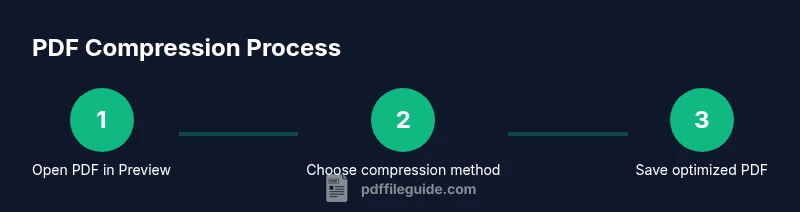
Open the PDF in Preview
Locate the PDF in Finder, then right-click and choose Open With > Preview. This ensures you have access to built-in optimization options. Preview preserves text clarity while enabling quick compression checks.
Tip: Always start with a duplicate of the original file. - 2
Export with Reduce File Size
In Preview, go to File > Export or File > Save As, then select Quartz Filter: Reduce File Size. This option downscales embedded images and streams to shrink the file size for easier sharing.
Tip: Test multiple export options to balance quality and size. - 3
Compare outcomes and preserve quality
After exporting, compare the new file to the original on screen. Check text sharpness, image clarity, and color accuracy to ensure essential details remain legible.
Tip: Keep the smaller file as your distribution version only after validation. - 4
Create a batch workflow with Automator
Open Automator, choose a workflow, and add actions to accept PDFs, apply compression, and save optimized copies. This saves time when working with many files.
Tip: Start with a single-file test workflow before scaling up. - 5
Consider alternative methods for heavy files
If size reduction is insufficient, try a higher-grade option or a different approach (e.g., export with a different Quartz Filter, or use a dedicated optimizer).
Tip: Avoid over-compression that harms readability. - 6
Handle image-heavy or scanned PDFs thoughtfully
For image-heavy PDFs, downsample images to 150–300 dpi for on-screen viewing. If the document is scanned, consider re-creating from source when possible to optimize more effectively.
Tip: Always save a version before major changes. - 7
Use trusted third-party tools for deeper control
If you need granular control (downsampling, font management, image compression), use a reputable tool like Adobe Acrobat Pro or a dedicated PDF optimizer.
Tip: Review privacy and security settings before processing sensitive files. - 8
Finalize and archive
Label the optimized PDF clearly (e.g., “ProjectX_v2_small.pdf”) and archive the original. This ensures you can revert if needed.
Tip: Document the methods used for future reference.
Questions & Answers
What is the easiest way to reduce PDF size on Mac?
The easiest starting point is Preview: export the PDF with the Reduce File Size Quartz Filter. This is fast and safe for most documents. For batch work, Automator can automate the process.
Preview is the simplest first step; batch work is best handled with Automator.
Will reducing PDF size affect quality?
Yes, compression can affect image and graphic quality. Text usually remains readable, but graphics may blur slightly. Test and compare with the original to choose a balanced setting.
Compression may affect image quality; compare results to keep readability.
Can I compress PDFs with embedded fonts without losing fidelity?
Embedding fonts can increase size; consider font subsetting or using a compression method that preserves essential font rendering. Always verify the final document’s typography.
Font handling matters—test to ensure text looks correct after compression.
Is it safe to use online tools to compress PDFs?
Online tools can expose data to third parties. For sensitive PDFs, use offline methods or reputable desktop software rather than cloud-based services.
Be cautious with sensitive documents; offline solutions are safer.
Does Preview preserve fonts when compressing?
Preview preserves most fonts when using the built-in export filter, but embedding behavior depends on the document. If fonts are critical, verify after compression.
Fonts often stay readable, but verify to be sure.
Watch Video
Key Takeaways
- Start with Preview for quick reductions
- Use Automator for batch processing
- Always validate readability after compression
- Keep an unmodified original for safety