Shrink Large PDFs Quickly: A Troubleshooting Guide
Urgent guide to shrink pdf is too large files. Learn quick fixes, compression, downsampling, and best practices to optimize size without sacrificing readability.


If your PDF is too large, start with a quick 2-step fix: downsample images to reduce bitmap resolution and remove any unnecessary embedded fonts or metadata. This often halves file size without noticeable quality loss. For stubborn files, move to more aggressive compression and consider splitting the document into smaller parts.
Why pdf is too large and why it matters
When you’re working with PDFs, size matters. A pdf is too large can block sharing, slow down projects, and cause issues with email limits, cloud uploads, and client delivery. According to PDF File Guide, many large PDFs come from unused data, high‑resolution images, or embedded fonts that aren’t essential for viewing. The first step is recognizing the impact: slow downloads, wasted storage, and frustrated teammates. By understanding why a file grows, you can apply targeted changes that preserve legibility and accessibility while trimming bytes. This section explains the practical consequences and why reducing size should be part of your standard workflow, not a last-minute fix.
How size affects performance and delivery
Large PDFs impact every step of the process. Sharing them via email can hit attachment limits; uploading to document portals can fail or time out; and mobile readers may struggle with navigation. A smaller file often loads faster, improves search indexing, and reduces storage costs. The PDF File Guide team emphasizes that speed and accessibility matter just as much as content quality. By optimizing size, you maintain usability for readers on desktops, tablets, and smartphones, while keeping archival formats compact for long‑term retention.
Common causes of oversized PDFs
There are several frequent culprits that make PDFs balloon in size:
- High‑resolution images and uncompressed graphics
- Embedded fonts with full font sets
- Excessive metadata and hidden data
- Color profiles, transparencies, and layered content
- Attachments or multimedia objects within the PDF
- Scanned documents with high DPI and no downsampling Identifying these items helps you target which optimizations will have the biggest impact while preserving readability and accessibility.
Quick wins you can apply in minutes
If you’re short on time, try these fast fixes:
- Downsample images to a moderate resolution and apply lossy compression to pictures.
- Remove any unnecessary embedded fonts or subset them to only the glyphs used in the document.
- Strip nonessential metadata and hidden layers.
- Disable optional features like bookmarks if they aren’t required for your audience. These steps often reduce file size substantially without harming on‑screen readability or print quality.
In-depth optimization techniques
For deeper reductions, adopt a methodical approach:
- Image downsampling: reduce image resolution and switch to efficient image formats where appropriate (JPEG for photos, lossless for diagrams).
- Compression settings: use balanced compression that preserves text clarity and legibility while shrinking file size.
- Font management: embed only the glyphs used (font subsetting) or select system fonts when possible to avoid embedding.
- Metadata and structure: remove unused metadata, comments, and nonessential structure elements; flatten transparency where safe.
- Accessibility considerations: ensure alt text and structure remain intact after optimization so screen readers can still navigate content. These steps require careful testing to verify readability and accessibility are preserved across devices and viewers.
Advanced options: splitting and external storage
If downsizing isn’t enough, consider partitioning the document:
- Split the PDF into logical chapters or sections and share or store as separate files.
- Use linked attachments or external references for large media instead of embedding them directly.
- When possible, provide a lightweight summary file with links to the full content. Splitting can dramatically reduce individual file sizes and improve user experience, especially for email and mobile access.
Best practices for creation and review
Prevention beats cure. When creating PDFs, use settings that optimize for size from the start:
- Set images to an appropriate resolution and choose efficient compression.
- Enable font subsetting to avoid embedding entire fonts.
- Minimize embedded media and avoid nonessential layers.
- Run a quick preflight check to catch oversized elements before finalizing. Regularly review large documents for outdated assets and re‑optimize after edits. Document owners should specify acceptable size targets to guide ongoing production.
Compatibility, safety, and accessibility considerations
Size reduction should not compromise accessibility or security. Always verify that heading structure, alt text, and reading order remain correct after optimization. Test the file in multiple viewers and on several devices. If the document is contractually or legally sensitive, maintain compliance with any retention or confidentiality requirements. Finally, keep a backup of the original file before applying any compression or structural changes to avoid data loss.
Steps
Estimated time: 45-90 minutes
- 1
Assess size and target usage
Check current file size and identify delivery channels (email, web upload, or client portal). Note any constraints such as maximum attachment size or upload limits. This helps you decide how aggressive to be with optimization.
Tip: Document the target size before you begin to measure success. - 2
Back up the original
Create a copy of the original PDF to prevent data loss if you need to revert changes. Maintain a changelog of optimizations applied.
Tip: Keep the backup in a separate folder or cloud location. - 3
Downsample images
Reduce image resolution and apply lossy compression to non-text images. Re-check readability and ensure diagrams remain clear.
Tip: Avoid downsampling below a readable threshold for print-ready documents. - 4
Subset fonts and remove unused data
Embed only glyphs used in the document and strip hidden data or metadata that isn’t needed for viewing.
Tip: If the document relies on fonts for precise layout, test before finalizing. - 5
Save as optimized PDF
Use an optimization option in your PDF tool, choosing a balanced quality setting that reduces size while preserving readability.
Tip: Compare before/after images to ensure no visual degradation. - 6
Test across platforms
Open the optimized file in multiple viewers and devices to verify accessibility and navigation are intact.
Tip: Check searchability and text selection in each viewer. - 7
Consider splitting or external storage if needed
If the file remains too large, split into chapters or attach media externally while providing a lightweight summary file.
Tip: Communicate clearly how recipients should access the full content.
Diagnosis: PDF is too large to share via email or upload to cloud storage
Possible Causes
- highHigh-resolution images or uncompressed graphics
- mediumEmbedded fonts with full sets
- lowExcess metadata or hidden data
- lowColor profiles and transparency effects
- highScan DPI too high on many pages
Fixes
- easyDownsample images and apply balanced JPEG compression
- mediumSubset or remove embedded fonts
- easyRemove metadata and extraneous data
- mediumFlatten transparency and optimize color settings
- easySplit the document into logical parts or attach media externally
Questions & Answers
What makes a PDF so large and how can I identify the main culprits?
Most large PDFs come from high‑resolution images, embedded fonts, and unnecessary metadata. Use a preflight or optimization tool to scan for these elements and target downsampling, font subsetting, and metadata removal.
Large PDFs usually have heavy images or fonts and extra data. Start by checking for oversized images and embedded fonts, then clean metadata and compress content.
Will reducing image quality affect readability or print quality?
Reducing image resolution and applying selective compression can significantly shrink size with minimal visible impact on readability. For print materials, keep images above a minimum DPI threshold.
You can downsample images without losing readability. Test print quality to confirm it still looks good.
Can I remove all fonts to minimize size?
If the document uses standard system fonts, you can subset or remove embedded fonts. If it relies on custom fonts for layout, preserve necessary glyphs to avoid distorted text.
Font removal is possible if you only use common fonts. Otherwise, font subsetting keeps layout intact.
Is it risky to split a PDF into multiple files?
Splitting can improve handling and delivery, but ensure each file remains self-contained and accessible. Provide a clear index or guide linking the parts.
Splitting helps sharing, just include a guide to navigate the parts.
What tools should I use to shrink PDF size?
Many PDF editors offer optimization options, including image downsampling, font subsetting, and metadata removal. Choose reputable tools and test results across devices.
Use trusted PDF tools with built‑in optimization and verify results.
When should I consider professional help?
If the document is mission-critical or highly complex (legal, archival, or accessibility requirements), consider a professional preflight and optimization review.
For critical documents, a professional review may be worthwhile.
Watch Video
Key Takeaways
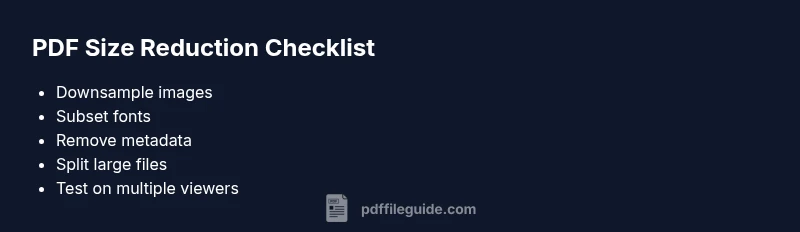
- Identify size drivers and target delivery constraints
- Use image downsampling and font subsetting first
- Remove metadata and unnecessary data for quick wins
- Split large PDFs if needed to improve shareability
- Always verify accessibility and readability after optimization