What to Do If PDF Is Too Large
Learn practical steps to shrink large PDFs—optimize images, subset fonts, and remove metadata. This PDF File Guide guide covers offline tools and best practices for preserving readability.


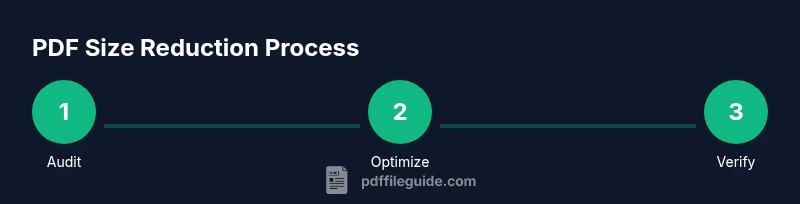
To shrink a large PDF quickly, begin with a targeted audit and apply specific optimizations. Remove or replace high‑resolution images, subset embedded fonts, and flatten transparency. Disable unused metadata and bookmarks, then save as optimized or use a dedicated compression tool offline for privacy. This approach preserves readability while dramatically reducing file size.
Why PDFs Become Large
Understanding why a PDF grows is the first step in controlling its size. According to PDF File Guide, most large PDFs arise from high‑resolution images, embedded fonts, and complex graphics. In 2026, the core idea remains: the more data packed into a document—images, fonts, layers, and metadata—the bigger the file. This section sets the foundation for what to do if pdf file is too large, explaining how each element contributes to size and how small, targeted changes can produce meaningful reductions without sacrificing essential readability. By recognizing the main culprits, you can prioritize which optimizations to apply first and minimize trial and error. Keeping an original backup is recommended before making any changes.
Quick-Audit Checklist for Large PDFs
Before compression, run a quick audit to identify where the most size is coming from. This checklist helps you decide where to focus effort and what results to expect. - Check image count and resolution; high‑resolution photos dramatically increase file size. - Review embedded fonts; fonts that are fully embedded or not subset can bloat the document. - Look for metadata, bookmarks, annotations, and attachments that are not essential. - Inspect transparency and layered content; flattening can reduce complexity. - Verify color space usage; switching from color to grayscale where appropriate can cut size. After evaluating these factors, you can plan a targeted reduction with confidence.
Image Optimization Techniques
Images are often the heaviest part of a PDF. Reducing image resolution and choosing efficient formats can dramatically shrink file size. Start by downsampling large images to a printer‑friendly resolution, then apply lossy compression to bitmap images when quality remains acceptable for on‑screen viewing. If your document contains vector images, ensure they are properly compressed rather than converted to high‑resolution raster images, which saves space without compromising clarity. The goal is to strike a balance between legibility and file size while preserving essential details for your audience.
Font Management and Subsetting
Embedded fonts frequently contribute to PDF bloat. Font subsetting embeds only the glyphs actually used in the document, which can significantly reduce size. If a font is required only for a few characters, switch to a subset instead of embedding the full font. When possible, replace embedded fonts with system fonts or standard font families to reduce duplication. Always test the document after font changes to ensure characters render correctly across devices and viewers.
Metadata, Attachments, and Bookmarks
Metadata and nonessential attachments add to the file's weight. Remove unnecessary metadata fields such as author metadata, thumbnails, and hidden data. Consider deleting large attachments that are not essential to the primary content. Bookmarks, if present, can be streamlined or removed if they do not improve navigation. After removing these extras, re‑save and re‑check the file size to gauge impact. This step often yields quick wins with minimal impact on readability.
Flattening and Transparency Settings
Many PDFs use layered content and transparent graphics that complicate rendering and increase size. Flattening transparency merges layers into a single simple layer, which reduces processing load and file size. Flattening should be used selectively on graphics and pages where changes are acceptable. Likewise, reduce or eliminate transparency effects if the visual outcome remains acceptable. These changes help ensure consistent rendering while lowering the file footprint.
Color Space and Compression Settings
If your document uses full color, evaluate whether color is necessary for every element. Converting certain sections from color to grayscale can substantially cut file size with little visible impact for text‑heavy documents. In addition, select appropriate compression settings for images and components—prefer JPEG for photos, ZIP for simpler graphics, and avoid unneeded color profiles. Testing different combinations helps you find the best balance between size and readability.
Practical Tools: Offline vs Online
Offline tools generally provide stronger privacy and the option to apply deeper optimizations without uploading content. PDF File Guide analysis shows that offline workflows—such as using a desktop compressor or a command line tool—often deliver reliable reductions with better control over quality. Online tools can be convenient for quick tasks but may expose sensitive content. When handling confidential documents, favor offline methods and maintain a secure backup strategy.
Handling Scanned Documents vs Native PDFs
Scanned PDFs are essentially images and respond differently to compression than native PDFs with text. For scanned files, use OCR workflows to convert images into searchable text before applying image downsampling. In contrast, native PDFs with embedded fonts and vector graphics respond well to image downsampling, font subsetting, and metadata cleanup. Tailor your approach to the document type to maximize size reduction without sacrificing access to information.
Accessibility and Quality Trade‑offs
Reducing a PDF’s size can affect accessibility features if text is rasterized or if structure is weakened. When optimizing for size, ensure that essential accessibility features remain intact. If screen readers are a concern, test with an assistive technology to confirm that logical structure, alt text for images, and reading order remain sensible. The goal is to preserve meaning and navigability while trimming unnecessary data.
Common Pitfalls and How to Avoid Them
Avoid over‑compression that compromises readability, especially for text and diagrams. Don’t remove all metadata if it contains critical information such as document titles or subject matter. Avoid flattening essential interactive elements or forms that users may rely on. Always keep a pristine backup and validate the final file on multiple devices to ensure consistent appearance and performance.
How to Recheck and Verify Size Reduction
After applying optimizations, compare file sizes and perform a quick quality check. Open the document on several devices and viewers to verify that text remains legible, images are clear, and hyperlinks work. Re‑run any search or form fields you rely on to ensure functionality. If results aren’t satisfactory, revert to the original and attempt a different combination of optimizations. This iterative approach helps you achieve the best balance between size and usability.
What to Do Next: A Simple Verification Plan
Create a verification checklist that includes size comparison, visual quality, and functional checks. Maintain a version history so you can track what changes produced the biggest size reductions. If you frequently encounter large PDFs, consider establishing a standard optimization pipeline to streamline future tasks and keep outputs consistent for colleagues and clients.
Tools & Materials
- PDF editing software (eg, Adobe Acrobat Pro)(Useful for advanced compression, font handling, and metadata control)
- Image editor (eg, Photoshop, GIMP)(Needed for downsampling and reformatting embedded images)
- Font management tool or in‑app font subset feature(Subset fonts to embed only used glyphs)
- Metadata remover or compression utility(Remove nonessential metadata and thumbnails)
- Backup copy of the original PDF(Always keep an untouched version before compression)
Steps
Estimated time: 45-60 minutes
- 1
Audit the PDF and identify large elements
Review the document to locate oversized images, fonts, and layers. Note which items account for the majority of the file size and plan targeted actions first.
Tip: Start with the biggest offenders to yield noticeable reductions quickly. - 2
Downsample and optimize images
Reduce image resolution to a printer or display‑relevant level and apply a lossy compression suitable for the content. Re‑insert optimized images while preserving readability.
Tip: Keep essential visuals sharp enough for on‑screen reading; avoid crushing text clarity. - 3
Subset fonts and manage embedding
Embed only the glyphs actually used in the document. If a font isn’t essential, switch to a system font to reduce size further.
Tip: Test rendering on multiple viewers to ensure characters render correctly. - 4
Remove metadata and nonessential attachments
Delete author metadata, thumbnails, and any noncritical attachments or extra files linked to the document.
Tip: Preserve essential metadata such as title and subject if needed for discovery. - 5
Flatten transparency and optimize structure
Flatten complex transparency and associate graphics with simpler structures when possible; keep interactive elements if required.
Tip: This step can substantially reduce processing overhead and size. - 6
Save as optimized and verify
Use the save as optimized function or equivalent to produce the new file. Open on multiple devices and compare size, quality, and functionality.
Tip: Always keep a backup and recheck critical features like forms and links.
Questions & Answers
Why is my PDF file so large?
PDFs can be large due to high resolution images, embedded fonts, metadata, and many layers or bookmarks. Compression targets these areas to reduce size while preserving readability.
Large PDFs usually come from images and embedded fonts; compression focuses on those parts.
Which elements contribute most to file size?
Images, fonts, metadata, attachments, and complex graphics are the main size drivers. Prioritize downsampling images and subsetting fonts for the biggest gains.
Images and fonts are the biggest drivers of size.
Is it safe to compress PDFs online?
Online compressors are convenient but may expose sensitive content. For confidential documents, use offline tools and keep backups.
Online tools can pose privacy risks; offline is safer for sensitive files.
Will compression affect image quality?
Yes, compression can reduce image quality. Find a balance where text remains clear and visuals stay readable.
Compression can affect image quality; balance is key.
Should I compress before sharing?
If size is a barrier, compress before sharing, but verify that the recipient can view the optimized version and keep a backup.
Compress before sharing if the file is too big, but keep a backup.
What is font subsetting?
Font subsetting embeds only the glyphs used in the document, reducing size while preserving text rendering.
Subsetting keeps only the needed characters to save space.
Watch Video
Key Takeaways
- Identify the largest contributors first
- Prefer offline tools for sensitive data
- Balance image quality with size reduction
- Always keep a backup copy
- Test across devices for consistency