What to Do If PDF Is Too Large to Email: Practical Fixes
Learn practical methods to share large PDFs without emailing them directly. Discover compression, splitting, and secure cloud sharing to preserve readability while meeting size limits.


If you’re wondering what to do if pdf is too large to email, you can shrink the file, split it into parts, or share a secure cloud link. Before you start, confirm you’re allowed to modify the file, gather a compression tool or converter, and pick a sharing method that preserves readability. This PDF File Guide overview covers practical, tested options.
Understanding why PDFs become large
PDFs balloon in size for several reasons: high-resolution images, embedded fonts, color profiles, and scans. If you are asking what to do if pdf is too large to email, the problem often comes from image-heavy pages or unnecessary metadata. By understanding these factors, you can choose an optimization approach that preserves readability while trimming the file. PDF File Guide's analysis highlights that large image data and unneeded metadata drive most size increases. With this context, you can decide whether to compress, split, or switch delivery methods while staying within policy and recipients' bandwidth.
Quick fixes you can try before compression
Before applying any tool, perform quick, reversible tweaks. Remove extraneous pages, replace color images with grayscale where appropriate, and flatten transparency if the software supports it. Downscale scanned photo pages from 300 dpi to 150–200 dpi, and strip out unnecessary metadata such as author notes. These small steps often reduce size dramatically without requiring complex tools. Keep a backup of the original file, then compare the before/after to ensure legibility remains intact. When in doubt, follow a staged approach: non-destructive edits first, then targeted compression.
1) Compress the PDF using built-in tools
Many systems include PDF optimization options. On macOS, Preview offers an Export to PDF with a Reduce File Size option, which can drop a large image set by discarding redundant data. Windows users can try the built-in print-to-PDF flow or dedicated options in some apps. While built-in tools are convenient and free, they may reduce image quality more than preferred. For sensitive documents, test the result on multiple devices to ensure typography and diagrams remain legible.
2) Split the PDF into smaller parts
If a single file remains unwieldy, consider splitting it into logical sections or chapters. A multi-file approach allows you to email or share smaller chunks, while preserving a navigational map in the first file. When splitting, include a table of contents or a short index so readers can locate sections quickly. Splitting is particularly effective for manuals, reports, or large catalogs where each part stands on its own.
3) Share via cloud storage instead of email
Cloud services let you publish a secure link rather than attaching the file. Upload the PDF to a trusted platform (Google Drive, Dropbox, OneDrive, or an enterprise solution), then set link permissions (view-only, or restricted to specific people). Share the link in your email message and verify access from a separate account. This approach avoids mailbox size limits and keeps the original document intact.
4) Optimize images and fonts without sacrificing readability
Target image downsampling and font subsetting to reduce size with minimal quality loss. In practice, downsample color images to 150–300 dpi based on how the document will be viewed, and save using JPEG compression with quality around 60–80. Remove embedded fonts if the document uses standard fonts installed on most devices, or subset fonts to include only used characters. Always recheck readability after optimization.
5) Consider alternative formats or export settings
Sometimes exporting to an alternative, lighter format (such as a PDF/A subset or a high-watermark reproduction) can reduce size while maintaining accessibility. In many editors, the Save As or Optimize dialog offers presets like Smallest File Size or Balanced. If your content is primarily text with simple graphics, exporting with fewer color profiles and simpler compression settings can dramatically shrink the file without harming comprehension.
6) When to choose paid tools vs free options
Free tools are often sufficient for simple PDFs, but paid tools provide more granular controls and better preservation of readability. If you regularly work with large documents, consider a paid editor that offers advanced downsampling, font subsetting, and batch processing. Always verify that the selected tool handles embedded content properly and retains searchability in the final PDF.
7) Privacy, security, and policy considerations
Always verify that you have permission to modify and share the document. Remove sensitive metadata, and avoid exposing confidential notes during sharing unless encryption or access controls are in place. When sharing via the cloud, use access-restricted links and consider password protection if the platform supports it. Document retention policies may govern how long you keep an optimized copy.
Tools & Materials
- Computer or mobile device with internet(Desktop or laptop recommended for drag-and-drop file operations)
- PDF compression software or online service(Examples include offline editors or reputable online tools; ensure they preserve readability)
- Original PDF file(Keep a backup before editing)
- Cloud storage or sharing account(Optional if you plan to share via cloud link)
- Email client or messaging app(Needed to send the final link or compressed file)
Steps
Estimated time: 45-90 minutes
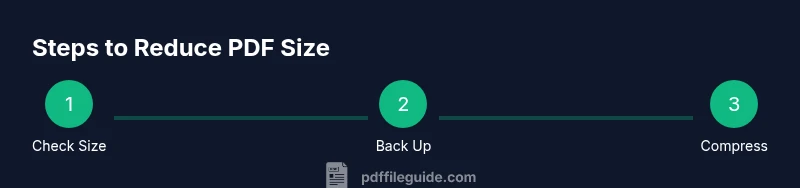
- 1
Check file size and permissions
Open the PDF and note its current file size and any usage restrictions. This helps you decide whether compression alone will meet the size target or if you must split. If permissions prevent editing, request access before proceeding.
Tip: Document the original size for comparison after optimization. - 2
Back up the original PDF
Create a separate copy of the original file in a safe location. This ensures you can revert if the changes degrade readability or structure.
Tip: Use a clearly named backup file suffix, e.g., _orig or _backup. - 3
Downsample large images
Reduce the resolution of large images within the PDF to the minimum acceptable level for your audience. This typically means 150–300 dpi for most screen viewing. Higher DPI is rarely needed for on-screen viewing.
Tip: Test print quality briefly to confirm legibility after downsampling. - 4
Remove embedded fonts and metadata
If the document uses fonts that are standard on most devices, remove embedded fonts or subset them to include only used glyphs. Strip metadata that isn’t essential for readers to know the document’s origin or purpose.
Tip: Retain essential accessibility tags if the PDF will be read with screen readers. - 5
Optimize and save as a new PDF
Use your tool’s Optimize or Smallest File Size preset and save as a new file. Compare this version to the backup to confirm readability and layout remain intact.
Tip: Choose a descriptive new filename to avoid overwriting the backup. - 6
Split the PDF into smaller parts
If the single file remains large, divide it into logical sections or chapters. Ensure each part has a navigational aid or a table of contents to help readers.
Tip: Include a master index or cover file linking to all parts. - 7
Upload to cloud storage and prepare a share link
Upload the optimized PDF (or parts) to a trusted cloud service and generate a link with appropriate permissions. Configure access so only intended recipients can view or download.
Tip: Set the link to view-only if editing permissions aren’t needed. - 8
Test access from recipient’s side
Open the share link in an incognito window or a different device to confirm recipients can access the file. Check for any missing fonts, images, or broken links.
Tip: Ask a colleague to verify accessibility and readability. - 9
Decide delivery method and notify recipient
Choose whether to email the compressed file(s) or simply share the cloud link. Include a brief note on the delivery method and expected access steps.
Tip: Document the chosen method in your task log for audits.
Questions & Answers
What is the best way to reduce a PDF's size without losing quality?
Use a dedicated PDF optimization tool, downsample images, remove unnecessary metadata, and selectively subset embedded fonts. Test readability after each change.
Use a good optimization tool, adjust images, and verify readability after each change.
Can I email a large PDF directly after compression?
Yes, but verify the recipient’s size limits and your email provider's constraints. If the file is still too big, consider a cloud link.
Yes, but check recipient limits first. If it’s still big, share a cloud link.
What if splitting the PDF ruins the document's flow?
Split only when sections are self-contained and include navigational aids such as a table of contents. Provide a master index to preserve context.
Splitting can affect flow; ensure navigation is clear.
Are online tools secure for confidential documents?
Prefer trusted, privacy-respecting tools and review policies. For sensitive files, use offline tools or on-premises solutions.
Be cautious with online tools; use trusted offline options for sensitive files.
How do I know compression didn’t hurt readability?
Open the final PDF on multiple devices and zoom levels to confirm text and images remain legible. If issues appear, revert to the backup and adjust settings.
Test on several devices to confirm readability.
What are alternatives to emailing large PDFs in a corporate environment?
Use secure cloud links, shared drives, or enterprise file transfer solutions with access controls.
Cloud sharing or secure transfers are safer than large attachments.
Watch Video
Key Takeaways
- Back up the original before making changes.
- Use cloud links for very large files to avoid email limits.
- Test readability after every optimization step.
- Split only if necessary to preserve flow and navigation.
- Choose the method that best balances size and readability.