What to Do If PDF Is Too Large to Upload
A practical, step-by-step guide to handling large PDFs that exceed upload limits, including compression, splitting, and alternative sharing options for 2026.


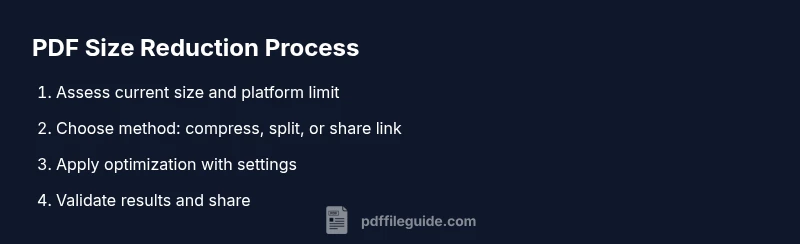
Large PDFs fail to upload mainly due to size limits or complex content. According to PDF File Guide, practical steps can reliably fix this: compress images and fonts, downsample graphics, remove hidden data, and split the document into smaller parts. You’ll also learn upload-safe alternatives, like cloud links, and a quick pre-upload checklist to improve success rates. Followed correctly, these steps save time and preserve document integrity.
Why the problem happens
When a PDF is too large to upload, the root causes are usually the file size limit imposed by the platform and the document’s content complexity. Large image-heavy reports, long scans, or embedded media can push a file beyond what a server accepts in a single transfer. According to PDF File Guide, many users encounter this issue when they try to upload files without checking the platform’s constraints or performing basic optimization. The good news is that you don’t have to recreate the document from scratch. With a structured approach to compression, splitting, and sharing, you can preserve most of the original content while enabling a smooth upload. The goal is to reduce size without sacrificing legibility or accessibility, so you can proceed with confidence.
Tools & Materials
- PDF optimization software (e.g., Acrobat Pro)(Essential for most compression tasks)
- Offline PDF compressor (desktop app)(Better for sensitive documents and privacy-conscious workflows)
- Cloud storage or file-sharing link service(Optional for large files and remote collaboration)
- ZIP archiver (optional)(Useful for bundling multiple parts into one attachment)
- Backup drive or cloud backup(Important before manipulating files)
Steps
Estimated time: 30-60 minutes
- 1
Check platform limits and accepted formats
Identify the upload limit of your target platform and confirm the file type is supported. Read the help or support articles, then note the exact ceiling and any quirks (e.g., chunked uploads or timeouts). This step prevents unnecessary work on a file that won’t upload regardless of optimization.
Tip: Always confirm the exact limit for the specific account or plan you’re using. - 2
Back up the original PDF
Create a secure copy of the original file before making changes. This ensures you can restore the document if compression or splitting introduces issues or if you need to compare quality after optimization.
Tip: Store backups in a separate location from the working folder. - 3
Open the file in your optimization tool and run a preflight
Run a basic audit to identify oversized images, embedded media, or heavy fonts. This helps target the most impactful optimizations first.
Tip: Use the preflight report to guide which sections to compress first. - 4
Downsample images and compress content
Reduce image resolution to a practical level (e.g., 150 ppi for most business docs; down to 72–150 ppi where appropriate). Compress images with a balanced quality setting and remove unnecessary metadata.
Tip: Avoid over-compression that harms readability or print quality. - 5
Remove metadata and unused objects
Strip hidden data, metadata, and embedded color profiles if not needed for your use case. This can markedly decrease the file size without affecting the visible content.
Tip: Retain essential accessibility tags and OCR data if required. - 6
Save as optimized PDF and test readability
Export or save as an optimized PDF with a meaningful filename. Open on multiple devices and test searchability, links, and form fields if present.
Tip: Verify that text remains selectable and images are clear. - 7
If still large, split into parts
Divide the document at logical points (chapters, sections, or appendices) and export each as a separate PDF. Prepare a simple index so recipients can navigate across parts.
Tip: Keep the original sequence and provide a short index document. - 8
Choose an upload alternative or share link
If size remains prohibitive, upload the file to a cloud service and share a secure link, or bundle parts into a ZIP archive and attach it if the platform supports archives.
Tip: Test the link or archive on a different network to confirm accessibility.
Questions & Answers
Why is my PDF too large to upload even after compressing?
Compression helps, but large scanned or image-heavy PDFs may still exceed limits. In such cases, splitting the document or sharing via a secure cloud link is often the best solution.
Compression helps, but if the file is still large, try splitting it or sharing via a secure cloud link.
Is it safe to use online tools for compressing PDFs?
Online tools can be convenient, but they may expose sensitive content. For confidential documents, use offline desktop tools or trusted services with strong privacy guarantees.
Online tools are convenient but may risk sensitive data; prefer offline options for confidential files.
Will downsampling harm print quality?
Lowering image resolution can affect print quality. For print-ready PDFs, balance the target resolution with your print requirements and test a print proof.
Downsampling can affect print quality; test proofs to balance size and readability.
Can I avoid size limits by renaming the file?
Renaming the file does not change its size or the platform’s limits. Focus on compression, splitting, or sharing via links instead.
Renaming won’t fix size limits; compress or share via links instead.
What’s the best practice for sharing large PDFs with others?
Prefer cloud links for large files, with clear access controls. If sending attachments, consider a ZIP or multi-part PDFs with an index.
Use cloud links for large files or ZIP archives with an index when attaching multiple parts.
Watch Video
Key Takeaways
- Know your platform limits before starting
- Compress intelligently to preserve readability
- Split large PDFs to manage upload</br>and recipient experience
- Test accessibility and navigation after optimization