How to Make a PDF File: A Complete Step-by-Step Guide
Learn how to make a PDF file from documents, images, and forms. This guide covers methods, best practices, accessibility, security, and quality checks for professional results.


Using a word processor or a PDF tool, you can reliably create a PDF file by exporting or printing to PDF, then applying metadata and basic accessibility checks. This guide outlines the easiest workflow, common pitfalls, and professional tweaks to ensure your PDF is portable, searchable, and secure.
Understanding the purpose and basics of creating a PDF file
A PDF file (Portable Document Format) is designed to preserve layout, fonts, and graphics across systems. When you learn how to make a pdf file, you gain a portable document that looks the same on Windows,
Methods you can use to create a PDF file
There are several reliable methods to create a PDF, each with trade-offs between ease, fidelity, and control. The most common path is exporting or saving as PDF from your source application (Word, Google Docs, or a desktop publishing tool). If that option is unavailable, you can use a built-in print-to-PDF feature (virtual printer) available in modern operating systems. For more complex layouts, you might rely on dedicated PDF editors or conversion tools that preserve advanced formatting, hyperlinks, and forms. The key is to pick a method that aligns with your source material and your distribution needs. PDF File Guide notes that for everyday documents, exporting from a word processor is usually enough; for form-heavy or accessibility-critical files, use a tool that supports tagging and structure.
Step-by-step workflow overview for most users
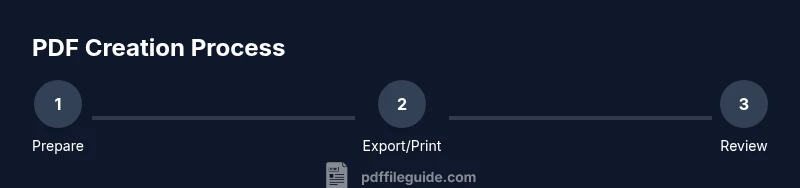
A typical workflow starts with a source document that is finalized and proofread, followed by choosing a creation method, exporting to PDF, and then validating the result. You’ll set the file name, metadata, and permissions, then review the PDF on multiple devices to ensure consistent appearance. This segment outlines the default path most professionals use for reliable results, while still allowing room for tweaks based on your software ecosystem. PDF File Guide’s research underscores the importance of consistency and test viewing before sending the file externally.
How to choose the right creation method for your project
Your choice depends on content type, required fidelity, and downstream use. If you’re producing text-heavy reports with images, exporting from Word or Docs usually keeps fonts embedded and layout intact. For highly designed PDFs, Desktop Publishing tools (like InDesign) may yield better control over grids and typography. If you need rapid results or a quick share, a browser-based converter can work, but verify that links, fonts, and accessibility tags are preserved. The method you select should balance speed with quality, always prioritizing readability and print accuracy.
Preserving fonts, layout, and color accuracy
Embedding fonts prevents substitution on other machines, and ensuring color profiles are preserved helps maintain brand consistency. When you make a pdf file, verify that your export settings include font embedding, subset fonts when possible, and color management. Some programs offer preflight checks to catch missing fonts or incompatible images. If your document uses custom fonts, consider hosting the font within the PDF or using a subset to reduce file size without compromising appearance. This practice reduces the risk of unexpected font changes for recipients.
Accessibility and structure: making PDFs usable for everyone
An accessible PDF is navigable with screen readers and supports search. Start by tagging the document structure (headings, lists, tables), adding alternate text to images, and providing meaningful document titles. Ensure there are logical reading orders and tagged PDFs that preserve the reading sequence. Including an accessible table of contents and readable font sizes helps users with disabilities access content more easily. PDF File Guide highlights that accessibility is not optional; it expands reach and utility for a broader audience.
Security, permissions, and privacy when creating PDFs
If the document contains sensitive information, you may want to apply password protection or restrict editing. When you make a pdf file for distribution, consider whether encryption is appropriate, and decide on the level of permissions (copy, print, annotate). Be mindful of how password sharing might affect collaboration. Always balance security with accessibility; overly strict restrictions can hinder legitimate use. The right settings protect confidential content while preserving usability for intended recipients.
Quality checks: testing, reviewing, and final delivery
Before distributing a PDF, perform a quick quality check: verify text readability, confirm that links work, test on mobile devices, and ensure the file name clearly reflects the content. Run a basic accessibility check if possible, review metadata (title, author, subject), and confirm that the document renders correctly in different viewers. Small issues—like hyphenation or image compression—can distract readers, so catch them early. PDF File Guide suggests a final review pass with a colleague to catch overlooked problems.
Advanced tips for power users and professionals
If you frequently create PDFs, consider optimizing a standard workflow: establish a named export profile, automate metadata entry, and build a lightweight preflight checklist. Use bookmarks and a structured outline for long documents, add metadata for searchability, and consider archiving in PDF/A for long-term preservation. For forms, implement proper field types and ensure compatibility with common readers. These steps help you produce professional-grade PDFs consistently.
Tools & Materials
- Computer or device with internet access(Any OS (Windows, macOS, Linux, iOS, Android) with a PDF workflow)
- Word processor or office suite(e.g., Microsoft Word, Google Docs, LibreOffice)
- PDF export/print-to-PDF capability(Built-in export to PDF or virtual printer option)
- PDF editor (optional)(For post-creation edits, annotations, or form setup)
- Reliable file naming scheme(Include version and date (e.g., Q2_Report_v1_2026.pdf))
- Storage location(Local drive or cloud storage for backup and sharing)
Steps
Estimated time: 20-40 minutes
- 1
Prepare the source document
Review the content for accuracy and final layout. Clean up stray formatting, ensure all images have alt text if applicable, and confirm fonts are consistent. This foundation reduces post-export edits.
Tip: Do a quick spell-check and verify image alt text before proceeding. - 2
Choose the PDF creation method
Decide whether to export from the source app or use a print-to-PDF tool. Exporting preserves most metadata automatically, while print-to-PDF may offer broader cross-app compatibility.
Tip: If your source supports font embedding, enable it in the export settings. - 3
Export or print to PDF
Use the Export or Save As option to generate the PDF, or select Print and choose the PDF option. Review the preview to catch layout shifts before saving.
Tip: Choose high-quality image settings to avoid compression artifacts in graphics. - 4
Name and save the file
Save with a descriptive, versioned name. Include project name, date, and version. Choose a predictable folder structure for easy retrieval.
Tip: Use underscores or hyphens instead of spaces for better cross-platform compatibility. - 5
Embed metadata
Add title, author, subject, and keywords to improve searchability. Metadata helps users discover your document in archives and on devices.
Tip: Keep metadata concise and relevant to the document content. - 6
Set security options
If needed, apply password protection or restrict editing. Balance security with accessibility and collaboration requirements.
Tip: Avoid overly strict restrictions that block legitimate use, especially for team sharing. - 7
Check accessibility and structure
Ensure headings, tags, and reading order are correct. Add alternative text to images and confirm that the document is navigable with assistive tech.
Tip: Run a quick accessibility check if your software supports it. - 8
Test and distribute
Open the PDF on multiple devices to verify rendering. Share via trusted channels and confirm recipients can access it without issues.
Tip: Keep a master copy and archive older versions for reference.
Questions & Answers
What is a PDF file and why should I use it?
A PDF is a portable document format designed to preserve layout and fonts across devices. It’s ideal for sharing printable documents with reliable rendering. PDF File Guide emphasizes consistency and accessibility for professional results.
A PDF is a portable document that keeps formatting. It’s ideal for sharing reliably, and we recommend starting with consistent fonts and accessible structure.
How do I create a PDF from a Word document?
Most word processors offer Export or Save As PDF options. Choose embedded fonts and verify formatting before saving. This is the simplest path for most typical documents.
Export or save as PDF from Word, then check formatting and fonts.
Can I password-protect a PDF?
Yes. Most editors and readers provide security settings to password-protect a PDF or restrict editing. Use strong, unique passwords and share them securely.
Yes, you can password-protect PDFs. Use strong passwords and share them securely.
How can I make a PDF accessible?
Tag the document structure (headings, lists), provide alt text for images, and ensure a logical reading order. Accessibility improves usability for screen readers and search.
Tag structure, add alt text, and ensure reading order for accessibility.
What should I name the PDF file?
Use clear, descriptive names with versioning, e.g., Project_Report_v2_2026.pdf. This helps with archiving and retrieval.
Name files clearly with version info and date.
What’s the difference between exporting vs. printing to PDF?
Export typically preserves metadata and embedded fonts. Print-to-PDF is a reliable fallback if export isn’t available, but check font embedding and hyperlinks afterward.
Export preserves metadata; print-to-PDF is a good fallback with a check afterward.
Watch Video
Key Takeaways
- Identify the best creation method for your content.
- Embed fonts and preserve color profiles for fidelity.
- Make accessibility and metadata a priority from the start.
- Test across devices before distribution.
- Archive versions to simplify future edits.