How to PDF with Images: Create Rich Visual PDFs
Learn to create PDFs that embed images with crisp quality and clear layout. This comprehensive guide covers formats, resolution, layout, accessibility, and optimization for print and digital use.


You will learn how to create a PDF that includes multiple images with crisp quality, consistent layout, and accessible metadata. Start by choosing image formats and resolutions, then pick a reliable PDF creator (offline or online). This guide covers step-by-step techniques, layout tips, and common pitfalls to avoid, so you can produce polished PDFs suitable for print, shareable PDFs, and professional reports.
Why images elevate PDFs in professional workflows
Images are not just decorative; they anchor concepts, illustrate steps, and reinforce branding. A well-chosen image can convey data faster than a paragraph of text, improve retention, and guide the reader through complex instructions. According to PDF File Guide, visuals improve understanding in technical documents and can reduce cognitive load when used consistently. In this section, you’ll learn how to use images strategically: selecting formats, sizing for print and screen, and aligning with your typography and margins. We'll also discuss how to keep PDFs accessible for screen readers and how to maintain consistent color across devices. By planning image usage before you start, you’ll avoid common layout pitfalls and ensure a polished final product that supports your message and your brand. This approach is especially valuable for reports, manuals, product catalogs, and training materials. The goal is to create a cohesive document where images and text feel intentional, not accidental. The PDF File Guide team emphasizes that image-driven PDFs should respect readability, contrast, and loading performance in every project.
Image formats, resolution, and color management
Choosing the right image formats and resolution is crucial for producing crisp PDFs. For photographs with many colors, use JPEG with a quality setting that preserves detail while keeping file size manageable. For graphics with sharp edges or text, PNG is often preferable due to its lossless compression. If you plan to print professionally, consider TIFF or high-quality PNG for your source images. DPI matters: 300 DPI is a safe target for print, while 72-150 DPI works for on-screen viewing; escalating to higher DPI increases file size, so balance fidelity and performance. Color management matters too: work in a consistent color space (prefer sRGB for on-screen and CMYK for commercial print). When possible, convert color profiles before embedding images. This reduces variations between devices and printers. PDF viewers apply compression and downsampling during export, so you should configure settings that preserve essential details while avoiding bloated files. As a workflow reminder, include a short alt text for each image to support accessibility; this is a best practice recognized by digital publishing guidelines. The end result should be ready to export with reliable appearance across most viewing environments.
End-to-end workflows: from Word, Google Docs, or design software to PDF
You can start from familiar word processors like Microsoft Word or Google Docs by inserting images where they belong and using built-in PDF export options. For more control, export from design tools such as InDesign or Illustrator, where you can manage image frames, layers, and alignment with precision. Regardless of the tool, keep a consistent page grid, margins, and whitespace to avoid crowding. After inserting images, check that image order reflecting your narrative flows logically and that captions are placed near their corresponding visuals. Finally, export with settings that embed fonts, preserve image quality, and generate bookmarks for easy navigation in larger documents. This workflow ensures your final PDF prints crisply and reads clearly on screens.
Layout basics and accessibility: captions, alt text, and navigation
Images should complement the text, not overwhelm it. Use captions to explain the image succinctly and provide context. Always include alt text describing the image for screen readers, which benefits users with visual impairments and improves search indexing. Maintain consistent image sizing and avoid placing images in the middle of long paragraphs unless absolutely necessary. For long PDFs, enable outline/bookmarks so readers can jump to sections featuring specific visuals. Test your document with a screen reader to confirm the flow works well in assistive technology. Finally, verify that color contrast between text and background meets accessibility standards to ensure readability for all users.
Performance considerations: file size, compression, fonts, and metadata
Images dramatically affect PDF weight. Use lossless compression only where it preserves legibility, and choose lossy options where appropriate to reduce file size. When exporting, enable font embedding only for needed fonts to minimize bloat, and index consistent font subsets to improve searchability. Use image downsampling to a reasonable DPI for the target audience and consider pre-flattening layers in complex layouts to avoid rendering issues. Add metadata like title, author, and keywords to improve accessibility and searchability. Finally, test the final file on multiple devices and platforms to verify rendering integrity and load times.
Tools & Materials
- Images to include (JPG/PNG/TIFF)(Ensure they are high-resolution and relevant.)
- Document creation software (Word, Google Docs, InDesign, or Illustrator)(Choose the tool you are most comfortable with.)
- PDF export/print settings panel(Enable font embedding and image downsampling appropriately.)
- A display device for preview(Monitors, tablets, or projectors to check appearance.)
- Alt text and caption templates(Prepare consistent captions and alt descriptions.)
Steps
Estimated time: 60-90 minutes
- 1
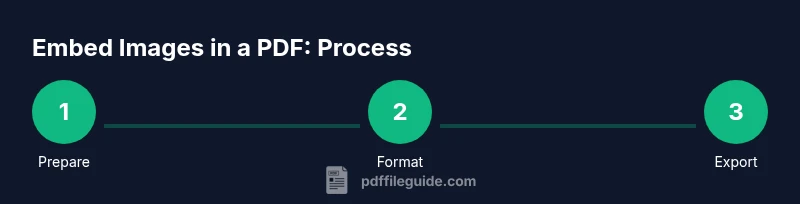
Gather your images and define the objective
Collect all source images and outline what the PDF should achieve (inform, persuade, educate). Decide the order they will appear and where captions will go. This phase sets the baseline for layout and quality.
Tip: Create a simple storyboard or list of figure numbers to keep order consistent. - 2
Choose formats and pre-adjust images
Evaluate each image type and convert to the appropriate format (JPEG for photos, PNG for graphics). Resize or crop to fit the intended page layout before import.
Tip: Avoid enlarging small images; start with high-res sources to maintain quality. - 3
Prepare the document layout
Set a clean grid, margins, and consistent image frames. Decide where captions will live and ensure alt text placeholders exist for accessibility.
Tip: Lock guided margins to prevent shifting during export. - 4
Insert images and arrange layout
Place images in logical sequence, align with text, and use consistent padding. Add captions and alt text, ensuring readability even in small viewports.
Tip: Group related visuals together on the same page for coherence. - 5
Export to PDF with optimal settings
Use the export or save-as-PDF option. Enable font embedding for chosen fonts and set image downsampling to balance quality and size. Enable bookmarks if possible.
Tip: Choose a single preset or create a custom one to reuse later. - 6
Validate the final PDF
Open the PDF in multiple viewers, check image sharpness, color fidelity, and navigation. Ensure accessibility features like alt text and captions are preserved.
Tip: Run a screen-reader check to confirm alt text is meaningful.
Questions & Answers
How do I embed images without losing quality?
Start with high-resolution sources and use the appropriate export settings. Avoid excessive compression and use lossless options for important graphics. Always preview at target sizes.
Use high-resolution originals and export with balanced compression. Preview at print and screen sizes to ensure clarity.
What image formats are best for PDFs?
Use JPEG for photographs and PNG for graphics or screenshots with sharp edges. Reserve TIFF for master archives if you need lossless quality for printing.
JPEG for photos, PNG for graphics; TIFF for masters if you need lossless color.
Can I edit images after inserting them into the PDF?
Yes, but it's usually easier to edit the source images in an image editor and re-import. Some tools allow on-document edits, but changes may affect layout.
You can, but it’s often better to edit images first and reinsert them.
How do I optimize a PDF for print vs. screen?
Export with higher resolution and CMYK color for print, and use sRGB and compressed images for screen. Enable font embedding and set bookmarks for easy navigation in longer documents.
Export differently for print and on-screen viewing; adjust color and resolution accordingly.
Do I need to compress images in the PDF?
Some compression helps file size, but avoid aggressive downsampling for critical visuals. Run a balance test to ensure readability and speed.
Yes, compress strategically; test readability and speed.
Watch Video
Key Takeaways
- Define image role before layout.
- Choose formats by content type (JPEG for photos, PNG for graphics).
- Embed fonts and captions; ensure accessibility.
- Test the final PDF across devices before distribution.