How to Make a PDF Picture
Learn step-by-step methods to turn photos into PDFs. This guide covers formats, embedding, resolution, color management, and best practices for portable picture PDFs.


By the end of this guide, you’ll know how to turn any image into a PDF and save it with optimal quality. You can do this with built-in OS features, a PDF editor, or trusted online tools. Supported image formats include JPEG, PNG, TIFF, and BMP, and the method you choose works on both desktop and mobile devices.
What is a PDF picture and when to use it
Often you need to share visual content in a universally viewable format. A PDF picture is simply an image embedded in a PDF container, preserving pixel data and color values. This format is useful for portfolios, product catalogs, design proofs, or archival records. Because PDFs can be opened on almost any device, a single file can replace multiple image formats. In practice, turning an image into a PDF ensures consistent layout and print-ready readiness. According to PDF File Guide Editorial Team, standardizing images into PDF reduces compatibility issues across software and platforms. Best of all, many tools allow you to control compression, color space, and DPI for image fidelity. If you're new to this, start with the simplest method and progressively explore more advanced options as you gain comfort.
How to choose the right method: built-in tools, apps, or online services
Choosing the right method depends on your priorities: speed, privacy, and final quality. If you want a quick result and you’re on a trusted device, built-in tools in your operating system or a standard PDF editor are usually enough. If privacy is a concern, avoid uploading sensitive images to public online services and use offline options. For batches or professional workflows, a dedicated PDF editor offers more control over compression, color spaces, embedding fonts, and metadata. PDF File Guide analysis shows that most users start with the simplest route (print-to-PDF or export) and move to a full editor when they need to merge multiple images or apply consistent settings across a project. Regardless of method, verify the resulting PDF in a viewer to confirm that the image is not cropped, color looks correct, and the DPI meets your needs. Finally, consider the audience: for screen sharing, 72-150 DPI is often sufficient; for print, aim for 300 DPI or higher.
Step-by-step quick method: print-to-PDF from Windows/macOS
Print-to-PDF is a convenient, widely supported method. On Windows, open the image in any viewer, press Ctrl+P, select 'Microsoft Print to PDF' as the printer, and click Print. On macOS, open the image with Preview, choose File > Print, click the PDF button, and select 'Save as PDF'. In both cases, choose a file name and location, ensure the orientation matches the image, and review the saved file.
Alternative method: export image to PDF in image editors
Using an image editor like Photoshop or GIMP or Affinity Photo: export or save as PDF; For Photoshop: File > Save As > Photoshop PDF, ensuring you preserve editing capabilities if needed; For GIMP: File > Export As > select PDF. In all cases, you can adjust compression, color profile, and DPI, and you’ll often have options to embed metadata for archival quality.
Best practices for image quality and color management
Always start with a high-quality source image. For print, target 300 DPI; for screen use, 72-150 DPI is typically sufficient. Use the sRGB color space for general viewing and consider embedding color profiles to avoid shifts across devices. If your workflow requires precise color reproduction, work with a proof color workflow and verify the final PDF in multiple viewers. Keep file size reasonable by balancing DPI with compression settings and choose lossless compression if you’ll do further edits, otherwise use balanced JPEG compression.
Tools & Materials
- Computer or mobile device(Any OS (Windows/macOS/iOS/Android) with an image viewer or editor)
- Source image file(Supported formats include JPEG, PNG, TIFF, BMP)
- PDF printer/export capability(Built-in OS feature (Print to PDF) or a PDF editor/app)
- PDF viewer/software(Used to verify the final file after creation)
- Optional image editor(For pre-conversion edits or batch processing)
- Destination storage(Folder path where the PDF will be saved)
Steps
Estimated time: 15-25 minutes
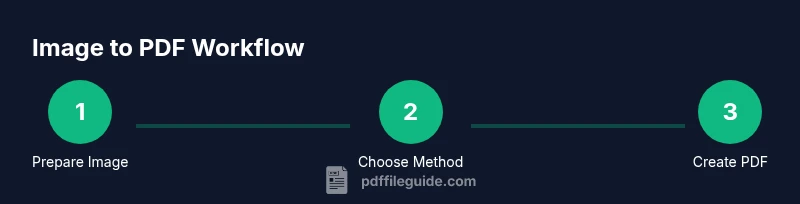
- 1
Prepare your image
Ensure the image has suitable resolution and color space for your use-case. If printing, use 300 DPI; for screen, 72-150 DPI. Adjust dimensions if needed to avoid excessive file size.
Tip: Check the image dimensions and crop or resize before conversion if necessary. - 2
Choose your method
Decide whether to use print-to-PDF or export from an editor. Consider privacy, the number of images, and whether you need metadata or color management.
Tip: If privacy is critical, avoid online converters and stay offline. - 3
Print to PDF on Windows
Open the image in a viewer, press Ctrl+P, choose 'Microsoft Print to PDF' as the printer, and click Print. Enter a file name and location, then save.
Tip: Verify orientation and page size before saving to prevent cropped edges. - 4
Print to PDF on macOS
Open the image in Preview, select File > Print, click the PDF button, and choose 'Save as PDF'. Name the file and pick a location, then save.
Tip: Use Preview’s page setup to align margins with the image before printing. - 5
Export from an image editor
In your editor, use Export or Save As and pick PDF. Adjust compression, color profile, and DPI according to your target use.
Tip: For batch workflows, apply a consistent export preset to maintain uniform quality. - 6
Verify and adjust
Open the resulting PDF in a viewer to confirm image fidelity, color accuracy, and cropping. Re-export if needed with adjusted settings.
Tip: Check the file on multiple devices if you’ll share widely.
Questions & Answers
Can I combine multiple images into a single PDF?
Yes. Many tools let you merge images into one multi-page PDF, either by a batch export or via a PDF editor's merge feature.
Yes, you can combine several images into one PDF using common tools, often by creating a multi-page document.
What image formats are supported when creating a PDF picture?
JPEG, PNG, and TIFF are widely supported by most tools; check the specific tool’s list to confirm compatibility.
Most tools support JPEG, PNG, and TIFF, but you should verify for your chosen app.
Will the PDF preserve image quality?
Yes, when you start from a high-resolution image and select appropriate DPI and compression settings.
Yes, with the right DPI and compression, you preserve image quality in the PDF.
Is it safe to use online converters for sensitive images?
Online tools can expose data; for sensitive visuals, use offline methods or trusted services with clear privacy policies.
Online converters can expose your images; use offline options for sensitive content.
Can I password-protect a PDF created from an image?
Yes, many tools offer encryption and password protection as part of PDF security options.
Yes, you can add a password using the security settings of many PDF tools.
How do I make a PDF picture on mobile?
On mobile, use built-in sharing or print-to-PDF options, or a mobile app that exports to PDF; steps vary by OS.
On mobile, use the share or print-to-PDF option, depending on your device.
Watch Video
Key Takeaways
- Convert images to PDF for universal viewing.
- Use appropriate DPI: 300 for print, 72-150 for screen.
- Verify the final PDF visually on multiple viewers.
- Be mindful of privacy with online conversions.