How to Make a PDF: A Step-by-Step Guide for 2026
Learn how to make a PDF from any document with step-by-step methods, practical tips, and best practices for accessibility, compression, and security in 2026.


To make a PDF, export or print to PDF from your source document. Start with any file you want to convert (Word, Google Docs, an image, or a web page), choose Save as PDF or Print to PDF, adjust options for quality and size, and save the result. This works on Windows, macOS, and mobile devices.
Understanding what a PDF is and why it matters
A Portable Document Format (PDF) is designed to preserve the visual layout of a document across devices and platforms. When you make a pdf, you lock in fonts, images, and formatting so recipients see exactly what you intended, regardless of software or hardware. PDFs are widely supported for sharing, printing, and archival, and they can include accessibility features, metadata, and search-friendly text. For professionals who edit, convert, or optimize PDFs, understanding the strengths and limits of this format helps you choose the right approach for each task. According to PDF File Guide, PDFs remain a reliable common denominator in digital workflows because they balance fidelity with portability. By using a consistent file format, teams avoid layout shifts during collaboration and ensure legal and compliance readiness. The idea of a PDF is simple in concept—a fixed layout file that travels with embedded instructions about fonts, colors, and images—but the practical uses are diverse, from business reports and manuals to forms and invoices. As you learn to create, compress, and annotate PDFs, keep in mind that quality, accessibility, and security drive long-term value. In short, a well-made pdf is readable, reliable, and portable across devices and apps.
Choosing the right creation method: export, print, or convert
There isn’t a single universal button to press; the method you choose depends on where your source content lives and how you plan to share it. In many apps, Saving as PDF or Export to PDF preserves the document’s structure and embedded resources. In others, Print to PDF creates a faithful rendering when an app lacks a direct export option. Web browsers offer Print to PDF for pages, images, or collections of links, turning a live webpage into a portable document. If you regularly convert content from a specific app, check whether the app supports batch export, preset profiles (e.g., for print versus screen), and metadata inclusion. For professionals managing multi-file projects, a consistent workflow reduces errors and keeps fonts, colors, and layouts aligned. PDF File Guide recommends choosing the method that preserves essential elements such as fonts and images while minimizing file size. If your goal is long-term archiving, you may also consider PDF/A, which enforces a self-contained file that pairs fonts with the content. The right method becomes a balance between fidelity, accessibility, and efficiency.
Creating PDFs from Word, Sheets, and Slides
Most office productivity suites include a one-click path to a PDF. In Microsoft Word, you can use Save as or Export to generate a PDF version that preserves layout. Google Docs and Slides offer Download as PDF; this typically exports embedded fonts, images, and hyperlinks. When you convert, consider whether to embed fonts (ensures consistent typography) and whether to retain interactive elements like forms or annotations. If you’re starting from a PDF editor or a printable layout, use the App’s built-in export with a profile optimized for your audience (screen viewing, print, or high-quality images). For complex documents with charts, ensure vector graphics stay crisp and avoid excessive downsampling. PDF File Guide notes that starting from a well-organized source—clean headings, proper fonts, and accessible alt text—produces cleaner PDFs with fewer post-export adjustments. If your document includes nonstandard fonts or embedded imagery, test the output on a secondary device to catch subtle rendering differences. By taking a structured approach to creation, you reduce the need for rework and keep your PDFs reliable across devices and readers.
Saving, exporting, and printing: practical settings
Before finalizing a PDF, review the settings that control fidelity, file size, and accessibility. In most apps, you’ll see options like page range, image quality, color space, and font embedding. Embedding fonts helps ensure the text looks the same on every computer, but it can increase file size—so adjust sensibly for distribution. If you intend to print, select print-quality settings with higher resolution and color management; for online sharing, optimize for screen readability and smaller file sizes. When possible, enable tags and alt text if your content includes images or charts; this improves accessibility for screen readers. Some tools offer preflight checks that verify potential issues such as missing fonts or broken links. Always save a draft version before applying compression so you can recover details if needed. After exporting, open the PDF in a couple of viewers—on desktop and mobile—to confirm layout, fonts, and hyperlinks behave as expected. If your workflow requires batch processing, consider automation scripts or enterprise tools that apply consistent presets across documents. The goal is to produce a dependable PDF that looks right, loads quickly, and remains legible in different contexts. PDF File Guide emphasizes planning your output for end users before you press Save.
Converting images, webpages, and scanned documents to PDF
Converting content from different formats into PDF is common when you consolidate materials for a report. For images, simply combine them into a single PDF using a PDF printer or a conversion tool; arrange images in order and verify resolution so text remains readable. Web pages can be saved as PDFs by using the browser’s Print to PDF feature or by exporting from a web capture tool. When saving webpages, consider including a brief title, description, and date in the metadata. Scans and printed documents require OCR (optical character recognition) to turn images into searchable text. If OCR is needed, select a qualification level that balances speed and accuracy, and verify that critical terms are recognized. If you’re scanning, choose a resolution around 300 dpi for text documents to balance clarity and file size. For mixed content, such as a report with photographs, export settings should preserve color and sharpness. Throughout this process, keep file naming consistent and organized so future users can locate, reprint, or repurpose the material easily. PDF File Guide recommends testing conversions against the original to identify any discrepancies.
Accessibility and searchability: making PDFs usable
Accessibility is about making the content usable by people with disabilities. When you make a pdf, enable tagging to define the reading order and structure; add alternative text to images, and provide meaningful document language. Use descriptive headings and consistent font choices so screen readers can navigate the document effectively. Include accessible tables and captions for data, and ensure hyperlinks have descriptive text. If the source content uses color to convey information, supplement with text or patterns that remain visible in grayscale. Validation tools can check tagging, reading order, and structure, and many PDF creators offer built-in accessibility checks. For long documents, split content with logical bookmarks and create a clear table of contents. Embedding metadata such as title, author, and subject improves searchability and archival organization. Remember: accessible PDFs benefit all users, including those with visual impairments and assistive technologies. The PDF File Guide highlights that accessibility should be planned during creation, not retrofitted afterward; investing in this upfront saves time and improves inclusivity.
Optimizing file size and performance
Large PDFs can frustrate readers and slow down review cycles. Start by simplifying high-resolution images, using appropriate compression and downsampling. Export formats often offer presets like high quality or web-optimized; select the one that balances readability and size for your audience. If your document includes many embedded fonts, consider subset embedding rather than full immersion to reduce bloat. Remove unused elements such as embedded previews, annotations-only layers, or redundant metadata. Use linearized (web-optimized) PDFs if the file will be opened over a network, especially on slower connections, as this helps page-by-page loading. When archiving, PDF/A compliance can ensure long-term integrity, but it may impose stricter constraints on embedded resources; weigh the trade-offs. Tools exist that measure the final file size and quality, allowing you to iterate quickly. Always test critical content after compression to confirm legibility, color accuracy, and interactive features such as forms or hyperlinks. The goal is a lean, accessible file that maintains fidelity without sacrificing readability, distribution scope, or compliance requirements.
Security and long-term preservation
Security considerations matter when PDFs contain sensitive information. If required, apply password protection or restrict editing and printing; ensure encryption aligns with your organization’s policy. Redact confidential data before sharing and review metadata that could reveal hidden content. Consider digital signatures for tamper-evidence and provenance in official documents. For archival practice, you might adopt PDF/A or ISO-compliant variants to improve long-term readability. Backups and version control help prevent data loss, and converting critical files to a stable format supports future access. When distributing, choose secure channels and avoid exposing unencrypted files in public folders. Finally, test accessibility and searchability after any security changes to ensure that the document remains usable. The PDF File Guide team emphasizes that security and preservation should be part of the creation workflow, not an afterthought, to protect content over time and across teams.
Best practices and common pitfalls
To make a PDF that serves its purpose well, start with clean source material: well-structured headings, legible fonts, and consistent styling. Document properties like title and author help search and indexing. Avoid over-complicating layouts with excessive fonts or, in color-critical documents, fragile color profiles. Check links, forms, and embedded media to ensure they work as expected. When combining multiple sources, keep a consistent page size and orientation; mismatches create a jarring reader experience. Avoid compressing too aggressively or downsampling to the point where legibility suffers. If you’re distributing externally, test the PDF on multiple devices and readers to catch platform-specific rendering issues. Planning ahead for accessibility and metadata saves time later. Remember to save interim versions to compare changes and revert if needed. Finally, adopt a repeatable workflow and presets for creation, compression, and security so your team can produce reliable PDFs at scale. The PDF File Guide recommendations center on clarity, accessibility, and reliability, reinforcing that careful preparation leads to frictionless sharing and long-term usability.
Tools & Materials
- Computer or tablet with internet access(Essential for downloads, web-based converters, and cloud storage)
- Source document (Word, Google Docs, images, or webpages)(Have the original file ready before starting)
- PDF creation capability (Save as PDF, Export, or Print to PDF)(Platform-specific: Windows, macOS, or mobile)
- PDF editor (optional)(For final tweaks like metadata, accessibility tagging, or redaction)
- Fonts and embedded fonts checker(Ensure fonts are embedded to preserve typography)
- Scanner or camera (optional)(For converting paper documents to PDF)
- Quality assurance tools (PDF viewer with accessibility checker)(Test across devices and readers)
Steps
Estimated time: 15-40 minutes
- 1
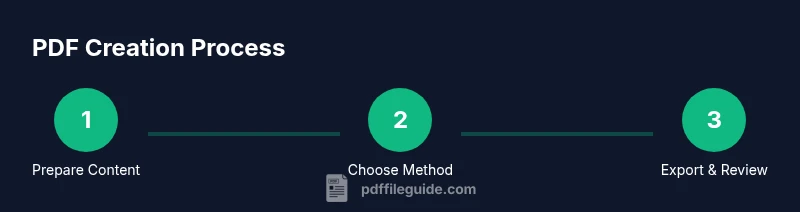
Gather content and determine destination
Collect all text, images, and metadata. Decide if the PDF is for print, archiving, or sharing. Organize assets in a single folder to prevent missing links or misplaced media.
Tip: Create a master folder with subfolders for text, images, and metadata. - 2
Choose your creation method
Decide whether to use Save as PDF, Export to PDF, or Print to PDF based on the app’s capabilities and your needs. If batch processing is required, consider automation or presets.
Tip: Print to PDF is a good fallback when export options are limited. - 3
Configure settings before exporting
Check font embedding, image resolution, color profiles, and accessibility tagging. Set metadata such as title and author to improve searchability.
Tip: Embed fonts only if necessary to balance fidelity and file size. - 4
Export or print and save
Choose a descriptive filename and destination. If archival quality is needed, consider PDF/A compatibility.
Tip: Use versioned filenames (e.g., report_v1.pdf). - 5
Verify the resulting PDF
Open the file in multiple viewers, check fonts, images, links, and metadata. Confirm accessibility tagging if applicable.
Tip: Run a quick readability check and test all links. - 6
Compress and optimize
If the file is large, apply compression settings while preserving readability. Downsample images only as needed.
Tip: Save a copy before compression to compare quality. - 7
Add security or share
If needed, password-protect or redact sensitive information. Share through secure channels and maintain access control.
Tip: Avoid sharing passwords via insecure channels.
Questions & Answers
What is the simplest way to make a PDF from a word processor?
In most word processors, choose Save as PDF or Export to PDF. This preserves layout and formatting, and you can name the file before saving. For a quick page capture from any app, Print to PDF can also work as a universal fallback.
Choose Save as PDF or Export to PDF in your word processor to quickly create a PDF. If you can't find export options, use Print to PDF as a reliable fallback.
Can I make a PDF from a web page?
Yes. Most browsers let you Print to PDF or Save as PDF directly from a page. This keeps layout and interactive elements accessible via hyperlinks in the PDF.
Yes. Use your browser’s Print to PDF option to save a web page as a PDF with links intact.
What is the difference between Save as PDF and Print to PDF?
Save as PDF is app-specific, often preserving document structure and metadata. Print to PDF is a universal capture that renders the page as it would appear on paper; it’s useful when a direct export isn’t available.
Save as PDF saves the document with its native settings; Print to PDF captures the view, useful when export isn’t present.
How do I ensure my PDF is accessible?
Enable tagging, add alt text to images, and ensure logical reading order. Use descriptive headings and provide a text-based description for non-text content. Validate with built-in accessibility tools.
Turn on tagging, add alt text, and verify reading order to make PDFs accessible.
Is it safe to password-protect PDFs?
Password protection can restrict access, but ensure you share passwords securely. Use strong encryption and consider redaction for sensitive content before sharing publicly.
Yes, but share passwords securely and use encryption to keep data safe.
Why is my PDF large, and how can I reduce its size?
Large PDFs usually result from high-resolution images or embedded fonts. Compress images, downsample wisely, and consider font subsetting. Balance the need for quality with distribution requirements.
High-res images or many fonts often bloat PDFs; compress and subset fonts to shrink size without losing readability.
Watch Video
Key Takeaways
- Choose an export method that preserves fonts and layout.
- Embed fonts and check accessibility during creation.
- Test PDFs in multiple viewers before sharing.
- Compress thoughtfully to balance quality and size.
- Secure sensitive documents and use metadata.