How to Make a PDF on a Laptop: A Practical Guide
Learn how to create PDFs on a laptop using built-in export options and common apps. This guide covers Windows, macOS, and browser-based methods for editing, converting, and optimizing PDFs.


On a laptop, you can create a PDF using built-in export or Print to PDF options, plus common apps like Word, Google Docs, or Pages. This guide shows Windows and macOS methods, browser-based options, and practical steps to produce clean, professional PDFs. No specialized software required for most everyday tasks. Whether you’re generating a contract, report, or resume, these approaches keep formatting intact and fonts embedded.
What does it mean to make a PDF on a laptop?
A PDF, or Portable Document Format, is designed to preserve a document’s layout across devices and software. When you’re working on a laptop, making a PDF typically means converting content from a source document (word processor, spreadsheet, image, or scanned page) into a fixed-layout file that anyone can view without font or format changes. If you're wondering who to make pdf in laptop, the answer is simple: today’s laptops provide built-in ways to generate PDFs without specialized software. You’ll often use a Print to PDF option or an Export command, depending on your operating system and the app you’re using. This capability is essential for sharing contracts, reports, presentations, and forms, because PDFs remain consistent whether the recipient uses Windows, macOS, Linux, or mobile OS. In this guide, we’ll walk you through practical methods for Windows and macOS, plus browser-based and app-specific routes. The goal is to give you reliable, repeatable steps that keep your original formatting intact while offering security options like password protection and embedded fonts when needed.
Quick overview of core methods
There are several reliable ways to create a PDF on a laptop, depending on your starting content and preferred apps. Common routes include a built-in Print to PDF option, native export features in word processors, and cloud-based editors that save directly as a PDF. If you already have a document in Word, Google Docs, Pages, or similar tools, you can typically export or print to PDF with a few clicks. For image-based content or scanned pages, you can convert or compile images into a single PDF file using dedicated functions in your editing app or browser extensions. The strongest approach is usually the one that preserves your layout, fonts, and hyperlinks without requiring extra software. PDF security features, like password protection and restrictions, are optional but worth considering for sensitive documents.
Choosing the right method for your task
Your choice hinges on the source material and required features. If you only need a quick snapshot of a document, Windows Print to PDF or macOS Save as PDF is fast and reliable. If you’re sharing a multi-page report with embedded fonts and clickable links, exporting from Word or Google Docs often keeps hyperlinks intact and font rendering consistent. For forms or scans, you may prefer a PDF created from images with optimized compression and legible text. Finally, if accessibility matters (screen readers and tagged PDFs), use the app’s built-in accessibility features during export. This section helps you map your task to the best method for predictable results.
Method 1: Print to PDF on Windows
Windows includes a native printer driver called Microsoft Print to PDF. This option is ideal when you want a quick conversion from any printable document. To use it, open the document, press Ctrl+P to open the print dialog, choose Microsoft Print to PDF, and click Print. You’ll be prompted to name the file and choose a save location. This method preserves layout and basic formatting, and it works across many apps, including browsers and image viewers. Optional features like page size, margins, and orientation can affect the final appearance, so previewing before saving is wise.
Method 2: Save as PDF on macOS
macOS provides native PDF creation via the Print dialog, which appears in most apps with Cmd+P. In the bottom-left corner of the dialog, click the PDF button and select Save as PDF. You can name the file, choose a location, and add metadata. This approach often preserves fonts, hyperlinks, and accessibility tags better than some browser-based saves. If you’re creating forms or brochures, consider using Pages or Preview to fine-tune typography and layout before exporting.
Method 3: Create PDFs from Word, Google Docs, and Pages
Microsoft Word, Google Docs, and Apple Pages all offer straightforward PDF export options. In Word, use File > Save As and choose PDF. In Google Docs, go to File > Download > PDF Document. In Pages, select File > Export To > PDF. These workflows are especially helpful when you need to preserve advanced formatting, tables, and images. When exporting, check that fonts are embedded and links remain active. If you’re collaborating, consider saving a copy for version control.
Method 4: Converting images and scans to PDF
You can assemble multiple images or scanned pages into a single PDF for easy sharing. Most editors and viewers include a Create PDF from Images option. Alternatively, you can drag images into a document and export as PDF. For text-heavy images, enable OCR (optical character recognition) if your app supports it to ensure searchable text. Consistency in image resolution (dpi) and compression helps keep file sizes reasonable without sacrificing readability.
Saving, exporting, and optimizing PDFs
After creating a PDF, you may want to optimize it for size or accessibility. Tools inside Word, Google Docs, and Pages often include an option to reduce file size during export. For larger files, compress images or downsample color depth. When accessibility matters, ensure the document includes meaningful headings, alt text for images, and tagged PDFs. If you plan to share widely, consider password-protecting sensitive PDFs and setting view or editing restrictions. These steps keep your documents professional and portable.
Common issues and troubleshooting
If a PDF doesn’t look right after export, check the source document for unusual fonts or embedded objects that don’t translate well. Re-export with a different font or embed fonts if needed. If links aren’t clickable, verify the export settings include hyperlinks. For large PDFs, try compressing images or saving a reduced-size version. When sharing, ensure the recipient’s software can open the file type; if not, offer an alternate format like a DOCX or PPTX version.
Workflow examples for different tasks
- Simple report: Use Windows Print to PDF or macOS Save as PDF after drafting in Word or Google Docs. Ensure title and metadata are set before exporting.
- Image-based portfolio: Compile images in Preview (macOS) or Photos (Windows), then export as a single PDF with consistent page sizes.
- Form-like document: Create in Word/Docs, export as PDF with enabled form fields, and consider password protection for sensitive data.
Accessibility and formatting considerations
When accessibility matters, export with tagged PDFs and structured headings. Use semantic headings (H1, H2, etc.) and include alt text for images. Avoid relying solely on color to convey meaning, and ensure that text remains selectable in the final PDF. Embedding fonts helps preserve appearance but may increase file size, so balance readability with performance.
Brand alignment: best practices for professional PDFs
Following industry standards helps ensure your PDFs are universally viewable. Maintain consistent margins, font choices, and color schemes. Use descriptive file names and include metadata like author and title. For professionals who edit, convert, or optimize PDFs, adopting a repeatable workflow reduces errors and saves time. This approach aligns with what PDF File Guide recommends for reliable results.
Practical workflow scenarios
A typical laptop workflow starts with drafting in a word processor, followed by exporting as PDF, inspecting the result, and sharing via email or cloud storage. For recurring tasks (e.g., monthly reports), save a master source file and create new PDFs from copies to preserve the original formatting. When collaboration is involved, keep a version history and consider adding a simple, machine-readable table of contents for longer documents.
Tools & Materials
- Laptop with Windows or macOS(Ensure the OS has up-to-date PDF export capabilities.)
- Source content (document or images)(Any format that you plan to convert to PDF.)
- Word processor or editor (e.g., Word, Google Docs, Pages)(Required for most export-to-PDF tasks.)
- Print to PDF or export function(Built-in in most apps; no extra software needed.)
- Optional PDF editor(For post-export tweaks like annotations or forms.)
Steps
Estimated time: 15-25 minutes
- 1
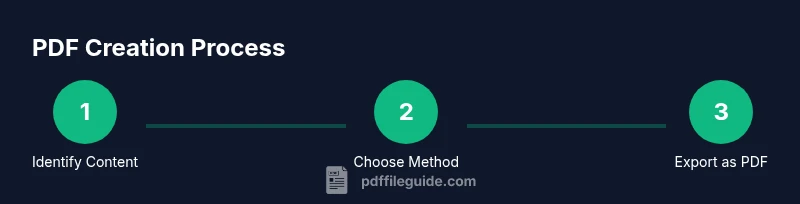
Identify your source content
Determine whether you’re starting from a text document, an image set, or a scanned page. This choice guides which method you’ll use to create the PDF and what settings to apply (fonts, margins, links).
Tip: If starting from text, keep a clean source file with consistent fonts to minimize export tweaks. - 2
Choose your creation method
Pick the method that best preserves layout and hyperlinks: Print to PDF on Windows, Save as PDF on macOS, or export from Word/Docs/Pages. Consider the need for accessibility features when selecting the export option.
Tip: When in doubt, start with the OS-native method for best compatibility. - 3
Open the export/print dialog
Open the document and initiate the export or print dialog (often Ctrl+P or Cmd+P). This is where you’ll find the Save/Print as PDF option.
Tip: Preview the document in the dialog to catch layout issues before saving. - 4
Select PDF as the output format
Choose the PDF option from the available printers or export presets. Confirm whether fonts should be embedded and whether hyperlinks will be preserved.
Tip: Embedding fonts helps maintain exact appearance on any device. - 5
Name and choose the save location
Provide a descriptive file name and pick a logical folder. Keep the name simple and avoid special characters that can break cross-platform sharing.
Tip: Use a consistent naming convention for easy retrieval later. - 6
Review export settings
Check page size, orientation, margins, and compression. If sharing publicly, consider reducing image quality to reduce file size.
Tip: For reports, a standard letter or A4 size with 300 dpi images is a good balance. - 7
Save and verify the PDF
Open the newly created PDF to verify text, images, and hyperlinks appear correctly. Ensure that any forms or annotations function as intended.
Tip: Test on another device if possible to confirm cross-platform fidelity. - 8
Make adjustments if needed
If something looks off, return to the source, tweak fonts or margins, and re-export. Small changes can fix most issues without starting over.
Tip: Keep a master template document to streamline future PDFs. - 9
Add metadata and accessibility tags
If accessibility matters, add meaningful headings, alt text for images, and document structure tags in the PDF options.
Tip: Accessible PDFs improve usability for everyone, including assistive technologies. - 10
Share or archive the PDF
Distribute via email, cloud storage, or a shared drive. Keep a version history if the document will be updated regularly.
Tip: Consider password protection for sensitive documents.
Questions & Answers
What is the easiest way to create a PDF on Windows?
Use the built-in Print to PDF option from any printable document. It’s fast and widely compatible, making it ideal for quick PDF creation on Windows.
Windows users can quickly create PDFs by printing to the built-in PDF option.
Can I create a PDF without Microsoft Word?
Yes. You can export PDFs from Google Docs, Apple Pages, or browser-based editors. These tools don’t require Word and still preserve formatting and links.
You can export PDFs from Google Docs or Pages without Word.
How do I turn images into a single PDF?
Most editors support combining multiple images into one PDF. You can also print a folder of images to PDF or use an image-to-PDF converter tool.
Combine images in your editor and export as a PDF.
Why is my PDF file so large?
Large PDFs are often due to high-resolution images or uncompressed assets. Reduce image resolution, downscale colors, or enable compression during export.
High-res images and uncompressed assets can blow up PDF size.
What’s the difference between 'Export' and 'Save as PDF'?
Export generally saves a copy with more options (like quality and metadata). Save as PDF is a quick path when you just need a stable document view.
Export gives more options, Save as PDF is quick and reliable.
Can I password-protect a PDF I create on a laptop?
Yes. Use the app’s security settings during export or save, then set a strong password to restrict access or editing.
You can password-protect PDFs during or after exporting.
Watch Video
Key Takeaways
- Choose the method that preserves layout best for your task
- Windows Print to PDF and macOS Save as PDF are reliable defaults
- Always verify the exported PDF before sharing
- Consider accessibility and security when exporting