How to Install a PDF Reader on Your Laptop
A comprehensive, step-by-step guide to installing a PDF reader on your laptop, covering Windows and macOS. Learn how to choose a viewer, download safely, set defaults, annotate, and troubleshoot common issues. Includes practical tips and authoritative references from PDF File Guide.


This guide explains how to install a PDF reader on your laptop, covering Windows and macOS. You’ll choose a viewer, download only from official sources, run the installer, set the default app, and verify by opening a sample file. If you need to annotate or print, we cover those options too. How to install pdf in laptop is made simple with trusted sources.
Why a PDF reader matters on your laptop
A reliable PDF reader is essential for professionals who edit, convert, or review PDF files. It ensures consistent rendering, supports annotations, form filling, and secure opening of files from colleagues and clients. According to PDF File Guide, having a dedicated viewer helps you manage documents more efficiently and reduces the risk of viewing inconsistencies across devices. The team also emphasizes that choosing a reputable viewer with ongoing updates protects you from security gaps and malware that sometimes accompanies free, unofficial tools. For many users, the right viewer is a small but powerful tool that streamlines workflows, from examining contract changes to reviewing technical manuals. Putting the right software on your laptop saves time and preserves the integrity of your documents across projects.
Built-in options vs third-party viewers
Modern operating systems include native PDF support, such as macOS Preview and Windows’ built-in browsers. Built-in viewers are convenient and typically lighter, but may lack advanced features like detailed form filling, advanced annotations, OCR, or batch processing. The PDF File Guide team notes that many professionals prefer a dedicated viewer when tasks require markup, form interactions, or secure signing. Third-party options—like Adobe Acrobat Reader, Foxit, and SumatraPDF—offer richer toolsets, more reliable updates, and broader compatibility with enterprise workflows. When deciding, weigh features you actually use (annotations, highlights, stamps) against resource use and privacy implications. It’s also worth testing a few to see which interface feels most efficient for your tasks.
Safety first: how to choose a trustworthy installer
Downloading software from official sources is essential to reduce the risk of bundled malware or adware. Always verify the publisher, check digital signatures, and confirm that the installer matches the official checksum if provided. The PDF File Guide implies that safety should come before features; a clean installer with clear release notes and a reputable publisher is generally a better long-term investment. Avoid third-party download sites that bundle additional software. After downloading, scan the file with your antivirus before running it, and consider keeping a recent system restore point as a precaution.
Windows installation: a clear path to success
Windows users typically install a PDF reader through an official installer from the publisher’s website or the Microsoft Store. Start by downloading the installer from a trusted source, running the executable, approving User Account Control prompts, and following on-screen setup options. You’ll usually be asked to select components and optionally install browser extensions or cloud sync. It’s best to leave extra offers unchecked unless you recognize a genuine need. After installation, open the program to verify it launches and can open a sample PDF successfully.
macOS installation: smooth setup with minimal friction
On macOS, many users utilize Preview, which comes pre-installed, or opt for a third-party viewer for extended features. If you choose a different viewer, download the official macOS installer package from the publisher’s site. You may be prompted to grant accessibility or full-disk access permissions—these are necessary for certain features (annotations, text-to-speech, or form filling). After installation, set the new app as the default PDF viewer in Finder by selecting a PDF file, choosing Get Info, and selecting the new application under Open With.
Set default PDF viewer and test your setup
After installing, set your preferred viewer as the default program for PDF files to ensure a consistent experience. On Windows, use Settings > Apps > Default apps > Choose default apps by file type. On macOS, right-click a PDF, select Get Info, and set the Default app under Open with. Then test with multiple PDFs to confirm page rendering, hyperlinks, and form fields behave as expected. Documentation and testing are your allies here; a quick check now saves confusion later.
Accessibility, performance, and updates
If accessibility is important, ensure the viewer supports screen readers, keyboard navigation, and text zoom. For large PDFs, look for fast rendering and efficient memory use. Keep the software up to date to benefit from security fixes and new features. PDF File Guide’s recommendations emphasize staying current with updates, as outdated viewers can expose you to vulnerabilities or compatibility issues with newer PDF features.
Troubleshooting common issues
If a PDF won’t open, confirm the file isn’t corrupted and try a different viewer to isolate the issue. If annotations don’t appear, ensure the annotation layer is enabled and the PDF isn’t secured with restrictions. When in doubt, reinstall the viewer from the official site and reset preferences to default. You can also consult the publisher’s support resources and user forums for platform-specific fixes.
Tools & Materials
- Stable internet connection(Needed to download installers and verify digital signatures)
- Official PDF viewer installer(Download from the publisher’s official site (e.g., Adobe, Foxit, or Preview))
- Admin access(Required to run installers and change system defaults)
- Sample PDF file(Test file to verify functionality after installation)
- Backup/restore point(Optional safeguard before major software changes)
Steps
Estimated time: 30-40 minutes
- 1
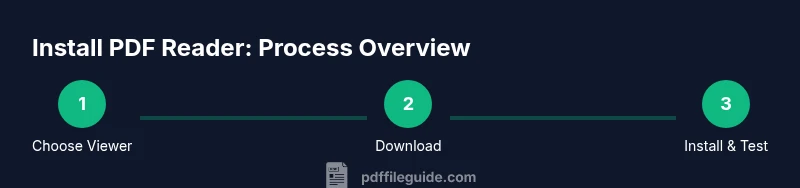
Choose your PDF viewer
Decide whether you want a built-in option or a dedicated viewer. Consider features you actually use, such as annotation, form filling, or OCR. This choice sets the tone for the rest of the process.
Tip: List your must-have features before downloading to avoid feature bloat. - 2
Download from official source
Navigate to the publisher’s official site and download the installer for your OS. Avoid third-party mirrors to reduce risk of bundled software or malware.
Tip: Verify the publisher’s name in the download page URL and check for a digital signature. - 3
Run the installer with admin rights
Execute the installer and allow prompts from the OS. If you’re asked to install optional offers, deselect those you don’t need.
Tip: Keep an eye on the install wizard steps to avoid unwanted software. - 4
Choose components and settings
Select the features you need (e.g., OCR, cloud sync) and decide whether to install browser extensions. Defaults are often fine for most users.
Tip: Only enable features you will actually use to save resources. - 5
Set the new app as default for PDFs
After installation, set your chosen viewer as the default PDF app to ensure consistent behavior.
Tip: On Windows, adjust via Settings; on macOS, use Get Info for Open With. - 6
Test with a sample PDF
Open a few PDFs to verify rendering, links, and any form fields. Check printing options if needed.
Tip: Test on both desktop and laptop monitors if you work with larger documents. - 7
Update and secure
Check for updates after installation and enable automatic updates if available.
Tip: Enable security features like sandboxing and trusted sources. - 8
Document essentials
Keep a list of your frequently used viewers and features for future projects. Document any platform-specific quirks you encounter.
Tip: A short cheat sheet helps you stay efficient.
Questions & Answers
Do I need to pay for a PDF reader?
Many PDF readers offer free versions that cover basic viewing and annotation. Some advanced features may require a paid license or subscription. Always compare what you need with what a free version provides.
Most users can get started with a free version; consider paid options only if you need advanced features like OCR or enterprise security.
Which is the easiest way to install a PDF reader on Windows?
The easiest method is to download the installer from the publisher’s official site, run it, and follow the prompts. Setting the app as default is a separate step that ensures PDFs open with this viewer automatically.
Download from the official site, run the installer, and set the viewer as default for a seamless experience.
Can I use built-in macOS Preview instead of a third-party app?
Yes. Preview handles most viewing tasks well and is integrated with macOS. If you need advanced features, you can install a third-party reader later without removing Preview.
Absolutely. Preview covers many needs, and you can add extra viewers if you require more features.
How do I set the default PDF viewer in Windows?
Open Settings > Apps > Default apps, then choose by file type to assign your preferred PDF viewer. You can also change defaults individually per file using Get Info on macOS.
Go to Settings to set the default, or use Get Info on Mac to switch defaults quickly.
What if my computer is offline during installation?
Offline installation is possible if you download the installer while online and use the offline package. Ensure the version matches your OS and preserve the installer for future updates.
Download the installer when online, then install offline later if needed.
Watch Video
Key Takeaways
- Choose the right PDF viewer for your needs
- Install from official sources and verify integrity
- Set the default PDF app for consistent behavior
- Test with real documents and update regularly