Edit PDF File Online: Step-by-Step Guide
Learn to edit a PDF file online with secure tools, step-by-step workflows, and best-practice tips for accuracy and privacy. No software install needed.


You can edit a PDF file online by using a web-based editor that lets you modify text, images, and annotations without installing software. Start by uploading your PDF, choosing the edit or annotate tool, making changes, then saving or exporting a new file. Look for secure providers and keep a local backup.
Understanding Online PDF Editing
Online PDF editing refers to using browser-based tools to modify the contents of a PDF without downloading or installing dedicated software. These editors typically offer text editing, image replacement, annotations, form filling, and sometimes OCR for scanned pages. For professionals who collaborate across teams or operate on devices with limited storage, online editing can save time and maintain workflow continuity. According to PDF File Guide, many users prefer online editors for quick fixes and shared reviews because they reduce setup friction and enable instant access from any device with internet connectivity. This approach also lowers the barrier for non-technical team members who only need basic changes, such as updating a contract clause or adjusting a resume. As with any cloud-based service, evaluate privacy policies, data retention, and encryption standards before uploading sensitive documents.
Choosing the Right Online Editor
When selecting an online PDF editor, prioritize security, reliability, and feature completeness. Look for end-to-end encryption in transit and at rest, clear data retention policies, and options to delete documents after editing. Verify that the tool supports the specific edits you need, such as font embedding, image replacement, form field editing, and annotation capabilities. Free plans can be tempting, but they may impose limits on file size, page count, or export formats. In contrast, paid plans often unlock batch processing, OCR, redaction, and batch export. Consider cross-platform compatibility (Windows, macOS, iOS, Android) and whether the editor preserves fonts and layout precisely. PDF File Guide’s analysis highlights the importance of privacy-conscious providers for sensitive materials, such as legal or financial documents.
Preparing Your Document for Online Edits
Before making changes, inspect the document for embedded fonts, image quality, and any security restrictions. If text appears as an image, OCR may be necessary to enable editing; not all editors handle OCR equally, and results can vary with language and font. For forms, ensure fields are accessible and correctly mapped to keep fillable features intact. If you plan to share the document for review, consider creating a duplicate copy to preserve the original. Remove any confidential metadata or comments that shouldn’t accompany the final version, and check that the page layout remains consistent after edits. These preparations help prevent formatting drift and ensure a clean export.
Step-by-Step Workflow for Editing PDFs Online
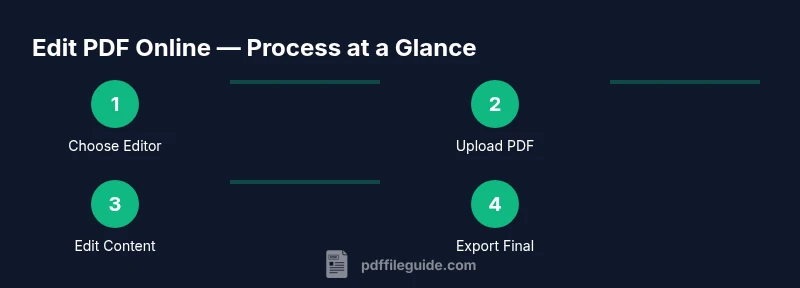
This section outlines a practical, repeatable workflow you can apply to most online editors. Start by opening the tool in a secure browser, then upload your PDF. Make edits in a dedicated text tool, adjust images if needed, and add or modify annotations. Use the built-in review features to leave comments or track changes. Finally, export the edited PDF in the desired format and verify that the content, fonts, and layout look correct on multiple devices. If the editor supports version history, save a named iteration to compare changes later. This workflow keeps edits organized and auditable.
Common Features You’ll Use in Online Editors
Most online editors provide a core set of features that cover the majority of editing tasks: text editing, image replacement, and page reordering. You’ll also encounter annotation tools such as highlights, underlines, strikethroughs, and sticky notes for reviews. Many editors support form fields with interactive elements, checkboxes, and signature blocks. Some include spell check, font embedding, and color management to preserve branding. For longer documents, consider features like bookmark management and search-and-replace to speed up revisions. Keep in mind that highly dynamic layouts or complex typography can shift during export, so always review the final file.
Security, Privacy, and Best Practices
Online PDF editing introduces new privacy considerations. Use editors with strong encryption, transparent data handling, and short data retention. Avoid uploading highly sensitive material to unvetted platforms; if possible, use a provider with enterprise-grade security or on-premise options. After editing, download the final version promptly and delete temporary files from the editor if available. Maintain a backup of the original document in a trusted storage location. If you share documents for collaboration, apply access controls and consider adding password protection or redaction where appropriate. These practices minimize risk and protect sensitive information.
Real-World Tips and Troubleshooting
If formatting changes after editing, try exporting to different formats (PDF/A or standard PDF) to preserve appearance. If text cannot be edited, confirm that the tool is in text-edit mode rather than image-edit mode, or perform OCR if the page is scanned. For large files, use editors that optimize performance or break the document into logical sections for editing. When encountering upload failures, check your browser permissions, disable extensions that block file access, and ensure the file isn’t corrupted. If you’re unsure about a tool’s privacy, default to a reputable, well-reviewed editor and run a quick audit on a non-sensitive sample first. The goal is a precise edit with minimal risk to document integrity.
Tools & Materials
- Stable internet connection(Essential for uploading/downloads and saving changes)
- A device with a modern browser(Chrome/Edge/Safari/Firefox recommended)
- Online PDF editor account(Some tools offer guest editing; others require signup)
- Original PDF backup(Optional but recommended to prevent data loss)
Steps
Estimated time: 15-45 minutes
- 1
Choose a trusted editor
Select a reputable online editor with clear security policies and good reviews. Compare features to ensure it supports your required edits, such as text editing, form fields, and image replacement. This initial choice impacts privacy, export quality, and collaboration ease.
Tip: Opt for editors that offer a free trial or free tier to test before committing. - 2
Upload your PDF
Open the editor and upload the file from your device or a cloud storage service. Ensure the upload completes without interruption and that you’re uploading the correct version. If the document is large, consider splitting it into sections to reduce upload time.
Tip: Check that the file uploads without creating duplicate copies in the browser cache. - 3
Edit the content
Use the text tool to modify existing content, add new paragraphs, or correct typos. When editing images, replace or resize elements while preserving overall layout. If your document uses special fonts, verify that the editor preserves them or substitutes fonts gracefully.
Tip: Keep edits focused; excessive reflow can disrupt layout across pages. - 4
Annotate and mark changes
Apply highlights, underlines, or sticky notes to indicate suggested changes. Use the comment feature to explain decisions and link related resources or references. This is especially helpful during review cycles with teammates.
Tip: Use consistent color coding for different reviewer roles (e.g., blue for edits, green for approvals). - 5
Review the edits
Closely re-check every page to confirm that edits appear as intended and that fonts align with the document’s style. Look for broken equations, misaligned graphs, or changed margins. Consider doing a quick print preview to catch layout issues.
Tip: Use the editor’s zoom and grid guides to inspect typography accuracy. - 6
Export the final version
Choose the appropriate export format and settings. If required, export to PDF/A for archival quality or set password protection. Save a local copy and, if collaboration is ongoing, share access via the editor’s secure link features.
Tip: Export at the highest available resolution to preserve clarity of images and text. - 7
Verify and back up
Open the downloaded file in a separate viewer to confirm the edits. Back up the final version in a trusted location and store any original versions securely. Document the changes to facilitate future revisions.
Tip: Maintain a changelog noting what was edited and when. - 8
Clean up temporary data
If the editor stores temporary copies or caches, delete them and sign out when finished. This reduces the risk of unintended access to your documents on shared devices.
Tip: Always sign out from public or shared computers after editing.
Questions & Answers
Is editing a PDF online safe for sensitive documents?
Safety depends on the editor's security posture. Use providers with strong encryption, clear data policies, and short retention. If in doubt, test on non-sensitive data first or use offline methods.
Online editing safety depends on the editor's security. Choose trusted providers and test with non-sensitive documents first.
Do I need an account to edit PDFs online?
Many editors require an account for saving and sharing changes, while some offer guest editing. An account often enables version history and cloud storage integration.
Most editors require an account for saving edits, though some allow quick guest edits.
Can I edit scanned PDFs online?
Yes, but you typically need OCR (optical character recognition) to convert images to editable text. OCR accuracy varies by language and font.
Yes, with OCR enabled. Accuracy varies by language and font.
What export formats should I choose after editing?
Export as PDF when preserving layout, or PDF/A for archival. Some editors offer Word or image exports if you need editable sources.
Export as PDF for final sharing, or PDF/A for long-term archives.
Are there size limits for online edits?
Many editors impose file size limits on free plans. Upgrading to a paid plan often raises or removes these limits.
Free plans often limit file size; paid plans usually raise or remove limits.
How can I redact sensitive information online?
Use the editor's redaction tools to permanently remove sensitive content before sharing. Verify the redacted areas are not recoverable in the export.
Use built-in redaction tools to permanently remove sensitive parts before sharing.
Watch Video
Key Takeaways
- Choose a trusted online editor with strong security.
- Prepare the document to minimize formatting drift.
- Verify edits across pages before exporting.
- Back up originals and final versions separately.
- Prioritize privacy when sharing documents online.