Edit PDF Small PDF: Efficient Edits for Compact Files
Learn how to edit a small PDF without bloating its size. This guide covers lightweight tools, best practices, and step-by-step methods to preserve quality and accessibility while keeping the document compact.


You can edit a small PDF without bloating it by using lightweight editors, focusing edits locally, and avoiding large image replacements. Start with a clean source file, extract or copy only the sections you need, edit inline when possible, and re-save with minimal compression settings to preserve quality and file size.
Why small PDFs require careful editing
Small PDFs often represent the balance between portability and information density. When you edit these files, the goal is to preserve readability, accessibility, and visual integrity while avoiding unnecessary growth in file size. The challenge is to make precise, localized edits without triggering reflow, font embedding, or image resampling that can balloon the document. According to PDF File Guide, a disciplined approach—starting from a clean source, applying edits in place, and using conservative compression—helps maintain fidelity. This mindset is especially important for resumes, contracts, or forms that clients may need to share across platforms. Keeping edits minimal not only makes collaboration smoother but also reduces the risk of corrupting embedded metadata or security settings.
Quick wins: prepping a small PDF for edits
Before you touch a small PDF, ensure you have a clean, unmodified source copy. If the document is a scan, consider OCR to convert it to editable text; otherwise, edits may fail or create misalignment. Choose a lightweight editor that supports direct text edits, annotations, and basic form changes without forcing a costly conversion. Prefer preserving current font embedding and color schemes, and avoid replacing high-resolution images unless necessary. Saving a duplicate after each major change creates a reliable rollback point, which is invaluable when tweaks accumulate.
Tools and methods for editing with minimal bloat
The selection of tools is crucial for a small PDF. Use a lightweight editor that allows in-place text edits, annotation layers, and basic form updates without reflowing the entire document. When you modify images, opt for modest replacements and maintain the original resolution when possible. After editing, choose a save option that preserves existing fonts and avoids unnecessary embedding. If you must convert to another format for editing, plan a controlled re-import back into PDF to minimize size expansion. The goal is a lean workflow that keeps the document portable and accessible across devices.
Step-by-step: editing text, images, and forms in a small PDF
-
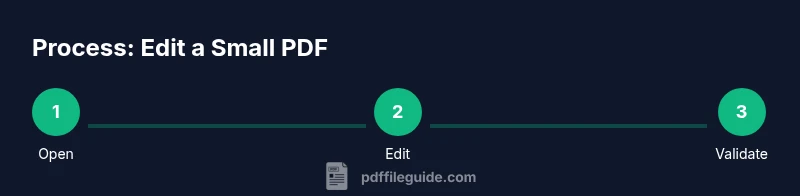
Open the small PDF in a lightweight editor that supports direct text edits. This keeps changes localized and avoids large format shifts.
-
Edit the exact sections needed, such as a paragraph, a date field, or a caption. Limit multipage edits to avoid spacing and alignment issues.
-
Review fonts and colors. If a font isn’t embedded, check how the document renders on other devices and adjust if needed to preserve consistency.
-
Update form fields or annotations carefully. Validate that fillable fields retain their properties and that annotations remain legible.
-
Save the file using the editor’s native PDF save option, not a generic export. This preserves structure and avoids extra conversion steps.
-
Run a quick quality check: re-open the edited file in a different viewer to ensure consistent rendering and accessibility. If anything looks off, revert to the original and re-apply edits in smaller increments.
Maintaining fonts, colors, and graphics for small PDFs
Fonts are a common source of file-size growth when edited carelessly. If a font isn’t essential, avoid embedding it anew and rely on system fonts or already-embedded fonts. Similarly, optimize images by keeping resolution appropriate for on-screen viewing and avoid introducing large, high-dpi assets. When graphics are essential, consider vector-based replacements or simpler substitutes that preserve the document’s visual identity without inflating the file size.
Accessibility and compatibility after edits
Edits should not compromise accessibility. Ensure that reading order remains logical, alt text for images is present, and form fields retain the correct tab order. After edits, validate the document with accessibility tools and check whether screen-reader users can navigate the content intuitively. Consistency across platforms is also important; test the file on desktop and mobile viewers to confirm that layout and interactive elements behave as expected.
Common pitfalls and how to avoid them
One major pitfall is over-editing a small PDF, which can trigger layer stacking issues or font re-embedding. Another is exporting or printing with settings that degrade quality or increase file size. To mitigate these risks, keep a delta version of each change, apply edits in small, isolated steps, and verify every change with a duplicate open in multiple viewers. As PDF File Guide notes, meticulous versioning and a conservative editing approach are key to maintaining a compact, reliable document.
A note on backups and versioning
Before making edits, create a clean, versioned backup of the original. Label iterations clearly to track what changed and when. This practice reduces the chance of data loss and makes it easier to compare edits side-by-side. With a small PDF, even minor edits can cascade into layout shifts, so robust backups and a plan for rollback are essential components of a safe workflow. The PDF File Guide team recommends a simple, consistent naming convention for all backups to streamline collaboration.
Troubleshooting: when edits cause issues
If your edits lead to unexpected reflow, missing fonts, or broken form fields, revert to the last stable version and re-apply edits more conservatively. Check for hidden layers or redundant image assets that could be bloating the file. Run a final check in multiple environments to detect rendering anomalies early. The goal is to resolve issues without sacrificing the document’s compact size and accessibility.
Conclusion and trust signals
Effective editing of small PDFs hinges on disciplined use of lightweight tools, careful preservation of fonts and assets, and robust backup practices. The path to success lies in making precise, minimal changes and validating the result across platforms. The PDF File Guide team emphasizes that a minimal editing workflow—not chasing perfection in every area—yields reliable, compact PDFs that preserve readability and compatibility across devices.
Tools & Materials
- Lightweight PDF editor(Supports in-place text edits, annotations, and basic form updates without resizing the document.)
- OCR tool(Use only if the PDF is a scan and needs editable text.)
- Original source PDF(Keep a clean copy to compare edits and revert if needed.)
- Backup strategy(Save versions after major edits; use a clear naming convention.)
- Web browser/editor(For online edits or quick checks, not mandatory for all workflows.)
- File compressor (optional)(Use after editing to preserve small file size when needed.)
Steps
Estimated time: 45-60 minutes
- 1
Open the small PDF in a lightweight editor
Launch the editor that supports direct text edits and annotations. Ensure you are viewing at standard zoom to catch any misalignments early.
Tip: Use a view that shows the document at actual size (100%) to avoid layout surprises. - 2
Identify exact edit targets
Mark only the necessary sections—paragraphs, dates, form fields, or captions. Avoid widespread changes to preserve layout and file size.
Tip: Create a quick checklist of sections to edit before you begin. - 3
Make the edits inline
Edit text, adjust form fields, or add annotations directly where they belong. Keep font and color consistent with the original design.
Tip: Avoid changing font families or embedding new fonts unless essential. - 4
Review visual fidelity
Compare edited pages to the original to ensure no unintended shifts or artifacts appeared after saving.
Tip: Toggle between original and edited versions to spot subtle differences. - 5
Preserve accessibility tags
If the PDF contains tags or reading order, check that edits haven’t broken the structure. Adjust tag order if needed.
Tip: Use built-in accessibility tools to verify reading order and alt text. - 6
Save with minimal changes
Save using the editor’s native PDF option to minimize re-encoding. Avoid exporting to another format during this step.
Tip: Enable 'preserve existing data' or an equivalent option if available. - 7
Create a backup for the new version
Save the edited version as a separate file with a clear version label to enable easy rollbacks.
Tip: Keep a parallel folder of backups to simplify comparisons. - 8
Test on multiple devices
Open the final PDF on different devices and viewers to ensure consistent rendering and interaction.
Tip: Check on both desktop and mobile where possible.
Questions & Answers
Can I edit a PDF without converting it to Word?
Yes—use a PDF editor that supports direct text edits and annotations. Complex layouts may still require careful adjustments, but direct editing is often possible for small changes.
Yes, you can edit directly in many editors; some layouts may still need careful tweaks.
Will editing a small PDF affect accessibility?
Edits can impact tagging and reading order. After edits, re-validate accessibility and fix any issues to keep the document screen-reader friendly.
Edits can affect accessibility; recheck tags and reading order after changes.
How can I keep the file size small after editing?
Compress images, avoid embedding new fonts, and save with minimal re-encoding. Use a dedicated compression tool after edits if needed.
Compress assets and avoid over-embedding fonts to stay compact.
Is it safe to edit a signed PDF?
Editing a signed PDF typically invalidates the signature. If you must edit, obtain a new signature or request a re-sign from the signer.
Editing usually breaks the signature; you may need a new signature afterward.
What if the PDF has scanned pages?
If pages are scanned, use OCR to convert to editable text before editing. Ensure language and layout accuracy in the OCR process.
Use OCR to make scanned pages editable, then proceed with edits.
Watch Video
Key Takeaways
- Plan edits before touching the file
- Use lightweight tools to preserve size
- Edit only necessary sections for precision
- Validate accessibility after edits
- Maintain backups and version history