How to Add a PDF to Word: A Step-by-Step Guide
Learn reliable methods to add a pdf to Word, including embedding, image insertion, and linking. This step-by-step guide covers formatting, accessibility, and common pitfalls to help professionals keep documents clean and reusable.


By the end of this guide, you’ll know how to add a PDF to Word in multiple ways: embed as an object, insert as an image, or attach a link to the file. You’ll need a PDF file and a Word document (Microsoft Word 2019/365). We cover inserting, resizing, updating links, and layout options to keep your document professional.
How to add a pdf to word: Methods overview
If you're preparing a report, proposal, or handbook, knowing how to add a pdf to word efficiently is essential. This section outlines core approaches you can use depending on whether you need to preserve the original PDF as a separate object, display a static preview, or provide a live link to the external file. The simplest path for many workflows is embedding or inserting an image; however, depending on sharing needs, linking can reduce file size and maintain up-to-date content. If you are asking how to add a pdf to word, you can choose among several methods, each with tradeoffs for accessibility, editing, and distribution. According to PDF File Guide, there are several reliable ways to add a PDF to Word. The PDF File Guide team found that many users underestimate the importance of accessibility when embedding PDFs. This guide will walk you through embedding, linking, and image-based insertion, with practical checks to ensure your document remains professional and easy to navigate while preserving the PDF content.
Methods you can use to insert a PDF into Word
There are three primary methods to add a PDF to Word: embed as an object, insert as a thumbnail image, or attach a link to the file. Each method serves a different purpose: Embedding (Create from File) keeps a full copy inside the Word document, ensuring portability but increasing file size. Inserting as an image or thumbnail provides a visual preview without requiring a PDF viewer, ideal for reports. Linking to the PDF places the file externally; it keeps Word size small but depends on the file path remaining valid. Additionally, broader workflows include converting PDF pages to images or exporting the PDF into Word-compatible formats. When choosing a method, consider how the document will be shared (offline vs online) and whether recipients need to edit or simply view the PDF. This decision affects accessibility and the ease of updating content over time. The goal is to balance fidelity, performance, and usability. Linked content should stay available; offline sharing favors embedded or thumbnail approaches.
Embedding a PDF as an Object
To embed a PDF, in Word go to Insert > Object > Create from File, browse to your PDF, and select Insert. If you want to show a clickable icon instead of a page preview, select the option to display as icon. This method keeps the entire PDF within the Word file, so recipients do not need the original PDF to view it. However, the embedded file increases the document size, and some preview features may vary by Word version. When you insert, you can also choose to link to the PDF, which creates a hybrid approach: the object is in Word, but the file path points to the external PDF. As a result, you should keep the PDF in a stable location and ensure you do not move the file after embedding.
Inserting a PDF as an Image or Thumbnail
Another option is to export the first page of the PDF as an image (PNG/JPG) and insert it as a picture. This provides a static visual snapshot of the content and is particularly useful for summaries or dashboards. The image can be cropped, resized, and wrapped with text, but this method does not preserve the actual PDF content for editing; readers will need to open the PDF separately. For accessibility, include alt text that describes the image and what the user would find in the PDF. If you prefer a live view, you can take screenshots of multiple pages and arrange them in a grid, but this increases document length and may reduce performance.
Linking vs Embedding: Pros and Cons
Embedding offers portability; linking offers lightweight performance. If your audience will share the Word document offline, embedding ensures the PDF travels with the file. If the file is large or updates frequently, linking to the PDF on a shared drive or cloud location can save space and keep content current. Both approaches require attention to file paths and access permissions, especially in corporate networks. In terms of editing, any changes to the PDF will not reflect automatically in the Word document unless you reinsert or replace the linked content.
Accessibility, formatting, and layout considerations
When adding a PDF to Word, consider how screen readers will interpret the embedded content. Provide descriptive alt text for images and, if embedding as an object, ensure a plain language description is available adjacent to the object. Use consistent fonts and alignment to maintain readability, and check that the insertion does not disrupt page breaks or margins. If the PDF contains form fields or annotations, describe their purpose and availability. For reviewers, include a short note about what the PDF contains and how to interact with it.
Troubleshooting common issues
Sometimes Word will not display the PDF correctly, or the embedded item appears as a broken icon. First, ensure Word is up to date. If the PDF size is large, consider linking instead of embedding. If the display is blank, try updating the object or re inserting. Check that the PDF is not blocked by security settings and that the path to any linked file remains valid. On Mac and Windows, the steps are similar but the menu labels may differ slightly.
Best practices for professional documents
Plan the insertion early in the document structure and keep a consistent method across all pages. Document the insertion choice in version control notes to aid future edits. For final delivery, verify that recipients have access to any linked PDFs and provide a fallback such as embedded thumbnails for offline use. Finally, test on multiple devices and Word versions to ensure compatibility and readability.
Authority sources
- https://support.microsoft.com
- https://docs.microsoft.com/en-us/office/word
- https://www.adobe.com
Tools & Materials
- PDF file(Select the specific document you want to include)
- Microsoft Word (2019 or Microsoft 365)(Word version that supports embedding and object insertion)
- Computer with Word installed(Desktop or laptop; ensure you save regularly)
- PDF viewer or editor(Needed if you plan to edit before inserting)
- Screenshot or image editor(Optional if inserting as image thumbnails)
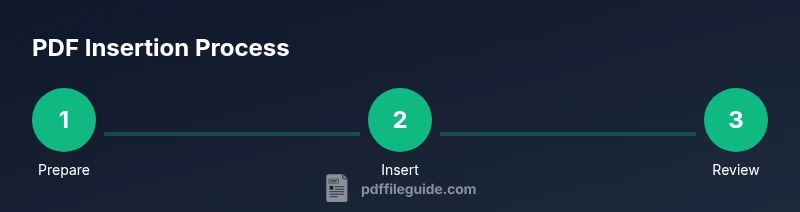
Steps
Estimated time: 20-25 minutes
- 1
Prepare your files
Open both the Word document and the PDF. Check the PDF's page count and image clarity to ensure it will display well when inserted. If you plan to embed multiple PDFs, organize them in a dedicated folder.
Tip: Keep a clean workspace to avoid misplacing files. - 2
Choose insertion method
Decide whether to embed as an object, insert as an image, or link to the PDF. Embedding preserves a copy within the Word file; linking reduces file size but depends on the file path remaining valid.
Tip: Consider distribution needs: if sharing offline, embed; if collaborative with many updates, link. - 3
Embed the PDF as an object
In Word, go to Insert > Object > Create from File, then browse to the PDF. Check 'Display as icon' if you want a clickable icon instead of a page preview.
Tip: If the preview is blank, update field or reopen Word. - 4
Insert as a static image
Export the first page of the PDF as an image (PNG/JPG) and insert it as a picture. This is ideal for static previews in reports.
Tip: Export at 300 ppi for clear rendering. - 5
Resize and position
Click the inserted object or image and drag corners to resize proportionally. Use the Layout Options to ensure text wraps correctly.
Tip: Avoid stretching; maintain aspect ratio. - 6
Add accessibility notes
If you embed, include alternative text and a brief description so screen readers can convey context.
Tip: Add a concise alt text: 'PDF preview of project plan'. - 7
Test across environments
Save the document and reopen in another Word version or computer to ensure the PDF displays correctly.
Tip: Preview in Print Layout to confirm sizing. - 8
Save and share
Save a copy with a descriptive name. If you embedded an entire PDF, consider zipping the container for email distribution.
Tip: Check file size limits before sending.
Questions & Answers
What is the difference between embedding a PDF and linking to it in Word?
Embedding copies the PDF into the Word file, ensuring portability. Linking keeps the PDF outside Word, reducing file size but requiring the PDF to stay in its original path.
Embedding copies the file inside Word; linking uses the external PDF and can break if the path changes.
Can I edit the PDF inside Word after insertion?
Word does not edit PDFs directly. You must edit the source PDF in a PDF editor and reinsert or use a screenshot/image once you convert.
Word doesn't edit PDFs directly; edit the PDF elsewhere and reinsert or use an image.
Will embedded PDFs appear the same across Word versions?
Most modern Word versions preserve the embedded PDF's appearance, but some older versions may render previews differently.
Most Word versions keep the look, but there can be small differences across versions.
Is inserting as an image better for accessibility?
Inserting as an image delivers a visual. For accessibility, include alt text describing the PDF’s content.
Images are readable by screen readers if you add alt text describing the PDF.
What about large PDFs; how do I manage file size?
For large PDFs, consider linking or inserting only a thumbnail and a link to the full document to keep Word file size manageable.
Link the PDF or use a thumbnail with a link to reduce size.
Watch Video
Key Takeaways
- Choose the insertion method that matches your sharing needs
- Embed for portability, link for smaller files
- Always test on different devices
- Add accessible descriptions for screen readers
- Maintain consistent layout across the document