How to PDF Format in Word: A Step-by-Step Guide
Learn how to format or convert a Word document to PDF, preserving layout, hyperlinks, fonts, and accessibility. This comprehensive guide from PDF File Guide covers step-by-step methods for Word on Windows and Mac, plus tips and troubleshooting.


You can convert a Word document to PDF by using Save As or Export in Word, then selecting PDF as the output format and adjusting options like document structure, fonts, and hyperlinks. This guide walks you through the process for Windows and Mac, with tips to preserve layout and accessibility. Ensure you have Word installed and a way to test the PDF before sharing, and consult PDF File Guide for version-specific tips.
Why PDF Format from Word Matters
PDFs are a universal format that preserves layout, fonts, and hyperlinks across devices and operating systems. When you share documents like reports, résumés, or manuals, exporting from Word to PDF minimizes the risk of formatting drift and ensures consistency for recipients. A properly exported PDF also supports accessibility features such as tagged structure and readable text, which broadens who can use the document. According to PDF File Guide, mastering reliable export methods reduces back-and-forth with collaborators and keeps brand presentation consistent across teams. PDF exports are especially valuable for archiving, long-term preservation, and ensuring the file remains viewable without the original Word source. This section helps you understand why exporting to PDF can improve your workflow. PDF File Guide analysis shows that small formatting quirks in Word are less likely to appear after export when you follow best practices.
Before You Export: Prepare Your Document
Preparation is the key to a clean PDF export. Start by confirming page size and margins align with your final output, ensuring that images and tables fit neatly on the page. Use built-in Word styles (Heading 1, Heading 2, etc.) so the document structure transfers correctly to the PDF, which helps with navigation and accessibility. Check all hyperlinks to verify they point to the correct destinations, and trim unnecessary white space around images that might cause layout shifts. If your document includes fonts outside the standard set, stick to widely supported fonts or embed fonts during export to avoid font substitution in other viewers. This pre-export hygiene reduces last-minute surprises and saves time downstream.
Step-by-Step: Save as PDF (Windows) – Part 1
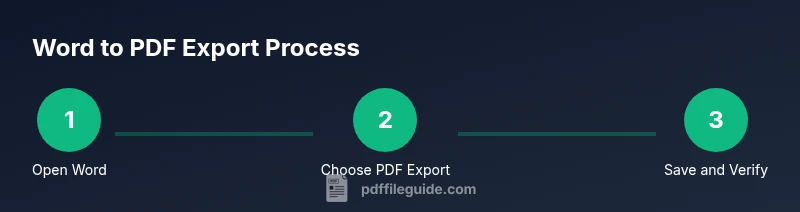
- Open your Word document and review the content for accuracy and layout. 2. Go to File > Save As or File > Export, depending on your Word version. 3. Choose the location where you want to save the PDF and select PDF from the “Save as type” or “Format” menu. 4. Click Options to tailor what gets exported, such as page range, whether to export comments, and whether to include document structure tags for accessibility.
Tip: Use Save As to preserve the original Word file if you need to make edits later. This approach is reliable across most Word installations.
Step-by-Step: Save as PDF (Windows) – Part 2
- Click Save and then open the resulting PDF in a viewer to verify content fidelity. 6. Check a few hyperlinks to ensure they resolve correctly and that any embedded images retained their quality. 7. If you notice issues, return to Word, adjust the document, and export again. This extra step can prevent distribution of a flawed file. According to PDF File Guide, taking a moment to validate the PDF reduces revision cycles and keeps sharing smooth.
Step-by-Step: Save as PDF (Mac) – Differences You Should Know
- In Word for Mac, the export path is typically File > Save As or File > Export. 2. Select PDF as the file format and access export options. 3. For optimal results, enable the option to include document structure tags if accessibility is important. 4. Save the file and test it in a PDF viewer to confirm links and layout are intact. Word on macOS often handles fonts and images a bit differently from Windows, so a quick check is prudent.
Fast Export Tips: Using Export vs Save As
• Export preserves structure tags and accessibility metadata more consistently in some Word versions. • Save As can be simpler and faster when you only need a quick copy, but you may need to adjust options manually. • If you rely on a PDF printer, you can use the print-to-PDF route, which is a workaround when export options are limited. PDF File Guide notes that choosing the right path reduces post-export fixes and improves cross-platform sharing.
Accessibility: Tagging and Font Embedding
To improve accessibility, enable document structure tagging during export. This helps screen readers navigate headings, lists, and tables. If your document uses non-standard fonts, embedding fonts can ensure visual fidelity on devices that lack those fonts, though it can increase file size slightly. In some cases, you may prefer to rasterize complex graphics to avoid font rendering issues, but this can reduce accessibility and searchability. Balance fidelity with accessibility by testing the final PDF with assistive technology.
Validation and Troubleshooting
After export, validate the PDF by checking hyperlinks, reading order, and font rendering. If a link doesn’t work or images appear blank, revisit the Word document and adjust the source content before exporting again. If you see unexpected page breaks or misaligned tables, review section breaks, margins, and image anchoring in Word. When problems persist, try exporting with fewer images or a simplified layout. PDF File Guide suggests keeping a small test document to verify export settings before applying them to large files.
Final Checklist for a Smooth Share
• Verify page size, margins, and orientation match your intended output. • Confirm hyperlinks work and images render properly. • Ensure accessibility options are enabled if the document will be read by assistive tech. • Use a test viewer to preview the final PDF on different devices. • Save a backup of the original Word file in case you need to revise later. Following these steps helps you deliver consistent, accessible PDFs that preserve your branding.
Quick Wins for Cross-Version Consistency
Different Word versions and operating systems can affect PDF export results. Keep fonts to common families, avoid overly complex layouts, and consider compressing images to balance quality with file size. If you need to share widely, test the PDF on both Windows and macOS with a representative audience or a colleague. PDF File Guide emphasizes that predictable exports minimize revision cycles and preserve professional presentation across environments.
Tools & Materials
- Microsoft Word (Windows or Mac)(Any modern version that supports PDF export (Word 2010+ recommended))
- A computer with stable software(Ensure you have admin rights to install updates if needed)
- PDF viewer(Test the exported PDF in a reader to verify fidelity)
- Optional PDF printer(Use if export options are limited or for advanced printing workflows)
- Backup copy of the Word document(Best practice before exporting to prevent data loss)
Steps
Estimated time: 15-25 minutes
- 1
Open and review the Word document
Open the file in Word and perform a quick content and layout check. Look for orphaned headings, broken links, or image placements that may shift in the PDF. This minimizes surprises after export.
Tip: Save a backup copy before exporting. - 2
Choose the export path
Navigate to File > Save As or File > Export, depending on your Word version, to start the PDF export workflow. Decide whether you want a quick Save As or a more feature-rich Export.
Tip: If unsure, start with Save As for a straightforward export. - 3
Set PDF options
In the options dialog, pick the page range, include document structure tags for accessibility, and decide whether to embed fonts. These settings influence accessibility and fidelity.
Tip: Enable structure tagging for assistive tech compatibility. - 4
Export and save
Choose a destination folder and save the PDF. Open the file to verify that pages, links, and images match the Word document.
Tip: Test multiple pages and a few hyperlinks to ensure reliability. - 5
Validate on another device
Open the PDF on a different computer or in a mobile viewer to confirm layout and fonts render correctly across devices.
Tip: Check critical sections like tables and captions on mobile displays. - 6
Tackle common issues
If export fails or elements shift, simplify the layout, reduce image complexity, or try a different export path (e.g., use Print to PDF as a fallback).
Tip: Keep a minimal test document to isolate export problems quickly.
Questions & Answers
Can I export from Word for Mac?
Yes. Word for Mac includes a PDF export option found under File > Export. You can choose standard or minimum size, and enable structure tagging for accessibility.
Yes, you can export to PDF from Word on Mac with accessibility tagging options.
Which Word versions support PDF export?
Most modern Word versions include built-in PDF export. If you’re using an older edition, consider updating or using an alternative export method.
Most recent Word versions support exporting to PDF.
How can I keep hyperlinks in the PDF?
Export with the standard PDF option and verify links after export. Avoid edits that remove hyperlink fields and test them in a PDF viewer.
Ensure links stay clickable after export by testing them in a PDF viewer.
Do I need Adobe Acrobat to export to PDF from Word?
No. Word provides built-in PDF export. Acrobat can optimize PDFs if you have it, but it isn’t required for the export itself.
Adobe Acrobat isn’t required for Word-to-PDF exports.
Why is my PDF size larger than expected?
PDF size depends on image resolution and font embedding. Adjust export options to balance quality and file size.
File size varies with images and fonts; you can control it during export.
Watch Video
Key Takeaways
- Export from Word using Save As or Export.
- Check layout, fonts, and hyperlinks after export.
- Enable accessibility tagging for inclusive PDFs.
- Test the PDF on multiple devices before distribution.
- Word versions may produce slightly different results; validate across platforms.