How to Get PDF into Word: A Step-by-Step Conversion Guide
Learn how to convert a PDF into an editable Word document using built-in features and reliable workflows. This guide covers best practices, common pitfalls, and tips for editors and professionals. Whether you work with reports, manuals, or client briefs, this workflow helps preserve structure and meaning.


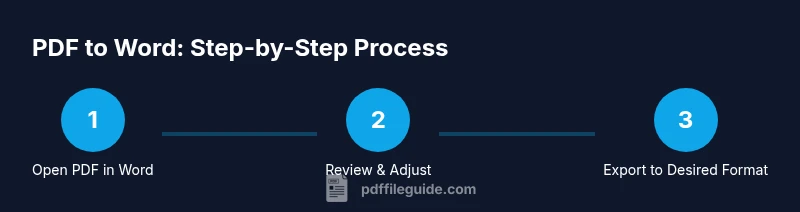
To get a PDF into Word, use Word’s built-in conversion: open Word, select File > Open, and choose the PDF. Word converts the file into an editable document. Review and adjust formatting, then save as a Word file or export back to PDF. This method works best for text-heavy PDFs; for complex layouts or scans, consider alternative tools.
Why PDF to Word conversion matters for editors and professionals
For many professionals, PDFs are a stable, shareable format. However, when you need to edit or repurpose content, getting the text into Word is essential. The ability to convert a PDF into an editable Word document saves time, preserves citations, and enables you to reorganize sections without retyping from scratch. According to PDF File Guide, converting PDFs to Word helps editors repurpose content quickly and maintain source references, while keeping the original structure in view. This is especially valuable when you work with long reports, manuals, or client briefs where changes happen frequently. In practice, you’ll typically prefer this approach for text-heavy PDFs rather than image-heavy or highly formatted documents, but it’s a good starting point for most workflows.
How Word handles the conversion (built-in features)
Microsoft Word includes a built‑in PDF importer that attempts to translate a PDF into a Word layout. In most recent versions (Word 2013 and later), opening a PDF pulls the content into a new Word document where you can edit text, reorder sections, and adjust headings. The conversion focuses on text and basic formatting; images, complex tables, and multi-column layouts may appear with some alignment changes. Expect font substitutions if the original fonts aren’t available on your device. While the result is often usable for quick edits, you’ll likely need to tidy spacing, anchors, and page breaks after the import. If your PDF is highly graphic, consider alternate methods for the best fidelity.
Step-by-step core method: Open the PDF in Word (high-level workflow)
To start, launch Word and use File > Open to locate your PDF. Word will display a converted document in a new window, ready for editing. Review the text for any OCR errors or formatting quirks, and enable Show Formatting to spot inconsistent styles. You should plan to adjust font sizes, line breaks, and paragraph spacing to regain the original rhythm. After you are satisfied with the layout, save the file as a Word document to preserve edits, or export to PDF if you need to share the editable version back in PDF form. This method leverages Word’s built-in conversion features with minimal extra tools, making it a strong first option for most users.
Alternative methods: online converters and dedicated software
Besides Word’s built-in importer, you can use reputable PDF-to-Word converters online or desktop apps. Online services can handle batch conversions or preserve more complex layouts, especially when PDFs contain many images, tables, or footnotes. Desktop software such as Acrobat or third-party editors often provide more granular control over what to import and how to map fonts and styles. When choosing a method, weigh convenience against privacy: avoid uploading sensitive documents to untrusted sites, and prefer offline workflows for confidential files. If you test a few tools, you’ll identify the options that deliver the best balance between accuracy and effort.
Formatting pitfalls to watch for during conversion
Even under ideal conditions, you may notice formatting drift after conversion. Headings can shift, bullet lists may lose nesting, and tables can lose column alignment. Images often move, captions may detach, and page breaks can become awkward line wraps. The fix is usually iterative: apply Word's built-in Styles, reinsert missing headers, and adjust table properties (autofit, cell margins). When preparing the PDF, consider flattening complex graphics or converting sections as images if exact layout matters for that portion. These steps help maintain a consistent reading experience in the final document.
Working with scanned PDFs and OCR options
If your PDF is a scan or contains raster images rather than selectable text, Word’s basic importer may produce garbled text. In these cases you’ll need OCR (optical character recognition) to extract readable text. Word alone has limited OCR capabilities; for best results, run the PDF through a dedicated OCR tool or Acrobat before importing, or use an offline desktop converter with built-in OCR. After OCR, repeat the import process in Word and review the document for accuracy, as OCR can introduce misreads for numbers, punctuation, and diacritics.
After conversion: editing, organizing, and optimization
Once the PDF content is in Word, focus on structuring the document. Apply consistent heading levels, update styles to reflect your branding, and use the navigation pane to reorganize sections. Replace images with high-resolution versions if needed, and check captions. If you plan to export back to PDF, test the PDF generation with a sample page to ensure that interactive elements, fonts, and margins appear as intended. Finally, run a quick accessibility check to confirm that the converted document remains usable for readers of all abilities.
Security, privacy, and best practices for PDF-to-Word workflows
Be mindful of privacy when using online converters: avoid sending sensitive personal or client data to unknown services. Prefer offline workflows when handling confidential PDFs, and keep backups of the original and edited documents. Document your workflow so teammates can reproduce the results, and maintain version history to track edits. The PDF File Guide team recommends testing conversions on representative sample pages before committing to a full document, and always review the final Word file against the original to verify fidelity.
Tools & Materials
- Microsoft Word (2013 or later, including Word for Microsoft 365)(Ensure you have a recent version that supports PDF import)
- Source PDF file(The PDF you want to convert)
- Backup copy of the PDF and the Word document(Before converting, save backups)
- Reputable online PDF-to-Word converter (optional)(Use trusted providers with clear privacy policies)
- Fonts used in the PDF installed on your system (optional)(Affects fidelity of font rendering)
Steps
Estimated time: 25-45 minutes
- 1
Open Word and locate the PDF
Launch Word and go to File > Open. Browse to your PDF and select it. Word will start the conversion and display the content in a new document for editing.
Tip: If prompted about import options, choose to enable editing and preserve the layout as much as possible. - 2
Review the converted document for accuracy
Scan the entire document for obvious OCR errors, misreads, and formatting glitches. Use Show Formatting to identify inconsistent styles.
Tip: Mark changes with Track Changes or use Find/Replace for common issues like wrong punctuation. - 3
Tweak basic formatting
Adjust headings, paragraphs, and lists using Word Styles to re-establish a clean structure. Reflow paragraphs that look cramped or overly spaced.
Tip: Set a consistent font and line spacing to improve readability. - 4
Reinsert or adjust images and tables
If images shifted, reposition them with the correct wrap setting. Rebuild any tables that lost alignment or borders during import.
Tip: Use Table Properties to set fixed column widths where needed. - 5
Save as a Word document
Use File > Save As to create a dedicated Word version for ongoing edits.
Tip: Name the file clearly to distinguish it from the original PDF source. - 6
Export back to PDF if required
If you need a final, shareable PDF, export via File > Save As and choose PDF. Check the exported file for font and layout fidelity.
Tip: Test a sample page to ensure formatting remains intact. - 7
Handle scanned PDFs with OCR (if needed)
If the PDF is a scan, run OCR with a trusted tool before re-importing, or use an OCR-enabled converter.
Tip: OCR accuracy improves with higher-quality scans; start with the best available image resolution. - 8
Final review and accessibility check
Do a final read-through and perform a quick accessibility check (headings, alt text for images, and proper contrast).
Tip: Maintain a version history to track improvements across edits.
Questions & Answers
Can Microsoft Word convert any PDF to an editable Word document?
Word can convert many PDFs to editable text, but results vary for complex layouts or scanned PDFs. You may need to edit formatting manually.
Word can usually convert many PDFs, but complex layouts may require extra editing.
Which Word versions support PDF import?
PDF import is available in Word 2013 and later. For best results, use the latest version.
Word 2013 and later can convert PDFs; for best results, use the latest Word.
What’s the difference between opening a PDF in Word vs. online tools?
Opening in Word keeps data local and reduces privacy risks, but some complex layouts may require additional editing. Online tools can offer more formatting fidelity but raise privacy concerns.
Word keeps data local; online tools may be more faithful for complex layouts but pose privacy considerations.
How can I preserve formatting when converting a PDF with many images?
Expect some drift in formatting. Reinsert images, adjust captions, and use Styles for consistent formatting. Complex image-heavy PDFs may require a hybrid workflow.
Formatting may drift; reinsert images and use Styles to fix layout.
Is there a way to convert only parts of a PDF to Word?
Word imports whole PDFs, but you can copy and paste sections into a new Word document if needed. For partial conversion, consider extracting pages or sections manually.
You can copy and paste sections to extract parts, or use page extraction.
Watch Video
Key Takeaways
- Word can import PDFs and convert to editable content.
- Results vary by PDF complexity and formatting.
- OCR is essential for scanned PDFs; plan for manual cleanup.
- Always review and refine after conversion.