How to Check If a PDF Is Locked: A Practical Guide
Learn step-by-step how to check if a PDF is locked, identify password protection vs. restrictions, and verify permissions using desktop apps, online tools, and OS features. Includes safety tips and best practices for professionals who edit and convert PDFs.


To check if a PDF is locked, start by trying common restricted actions like copying text, printing, or editing. If the reader blocks these actions or the app shows a Security or Restrictions panel, the file is locked. If you can access content freely, the PDF may be unlocked or not protected.
What locking means for PDFs and why it matters
PDFs can be locked in two broad ways: password protection, which restricts opening or specific actions, and document restrictions (permissions), which forbid printing, copying, or editing even if the file is viewable. Understanding which mechanism is in play helps you choose a compliant and effective path to work with the document. According to PDF File Guide, recognizing the type of protection informs your approach and avoids unintentional policy violations. In professional workflows—especially for editing, converting, or optimizing PDFs—knowing the exact protection model saves time and reduces risk when sharing or archiving files.
In this section we set the foundation: you’ll learn how protection works in practice and how to spot the telltale signs of locked content without guessing. The distinction matters because it determines what you can legally do next, whether you need a password, or whether you must obtain the document owner’s permission. When you finish this section, you’ll be able to articulate whether a PDF is simply viewable with restrictions or truly encrypted and password-protected.
How PDFs are typically locked and what it protects
Locking a PDF is usually about two things: opening the file and performing certain actions after opening. Password protection can be a user password (to open) or a permissions password (to change restrictions). Document restrictions are the specific actions blocked by the author, such as printing, copying text, or editing content. Some PDFs also implement Digital Rights Management (DRM) controls that enforce usage terms beyond basic permissions. Each mechanism has different indicators in common readers. If you see a password prompt, you’re likely dealing with an open password. If you see a “Restricted” or “Permissions” panel, the protections are about what you can do within a readable file.
From a professional standpoint, distinguishing these layers is important for compliance. If your workflow requires access, you’ll need the right password or a permissions release from the document owner. PDF File Guide highlights that even if content is visible, restricted actions can prevent you from completing tasks such as copying passages into a report or exporting pages to another format. In short, visibility does not always equal full access.
Why this matters for editors, converters, and readers
For editors and converters, knowing how PDF protections are implemented informs the right sequence of steps to take. If you are permitted to modify content, you’ll still need to confirm that the right permissions are in place before exporting, printing, or altering metadata. Review whether the file uses a user password (to open) or a permissions password (to modify restrictions). If a file is locked for editing but not for viewing, your options differ: you might be able to annotate or comment rather than alter the original content. Recognizing these nuances helps you avoid violating terms of use and reduces the risk of distributing non-compliant documents.
In practice, the best approach is to verify the type of lock first, then proceed with appropriate, legitimate steps. The PDF File Guide team emphasizes documenting the exact protections encountered so that steps taken later are traceable and auditable. This is especially important in regulated industries where compliance trails matter for audits and approvals.
Tools & Materials
- PDF viewer with security information capability(Examples: Adobe Acrobat Reader DC, Preview on macOS, Foxit Reader, or any tool that shows Document Properties/Security settings.)
- Local copy of the PDF to inspect(Having the file saved locally ensures you can test actions without network issues.)
- Web browser or online PDF checker (optional)(Useful for quick checks of restrictions, especially when a dedicated reader isn’t available.)
- Notepad or text editor (optional)(Capture error messages or restrictions text for documentation.)
- Password (if you have it)(Needed to remove restrictions after verification or to test open access.)
Steps
Estimated time: 25-40 minutes
- 1
Open the PDF in a reader
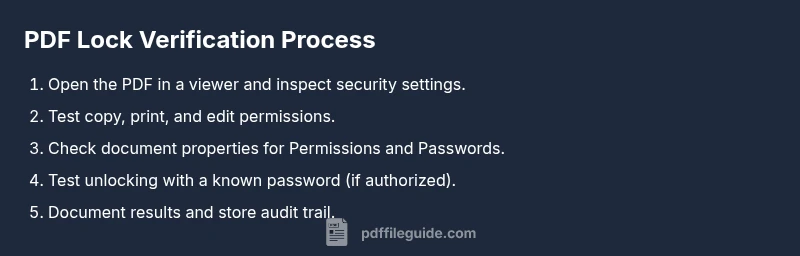
Launch a reliable PDF viewer and open the file. If the viewer presents a password prompt, you’re likely dealing with open password protection. If you can view content without entering a password, the restriction may be on actions rather than on opening. This step establishes what you can see and what you can do.
Tip: Observe the UI for a Security panel or Document Restrictions to confirm how protections are described. - 2
Attempt to copy text
Select a few words and try to copy to your clipboard. If copy is blocked, the document likely has text restrictions in place. If copying succeeds, text is accessible for reuse within the allowed scope. This step gives a quick, practical indicator of permission status.
Tip: If copy is blocked, note whether only formatting or actual text is restricted. - 3
Attempt to print a page
Try printing a test page or exporting to a printer driver. A disabled print option usually signals that printing is restricted by the document’s permissions. If print works, printing is permitted under the current protections.
Tip: Some viewers offer a print preview that can also indicate restrictions without sending a job to a printer. - 4
Check the Security/Permissions panel
Open the document properties and locate the Security or Permissions section. Here you’ll see the allowed actions (e.g., screen reader access, copy content, print) and whether a password is required to change those settings. This is the authoritative source for understanding what is restricted.
Tip: Note the exact phrasing used (e.g., “Printing: Not Allowed” vs. “Printing: Allowed”). - 5
If you have a password, test unlocking
If you possess a password, apply it to unlock the file or change the security settings to allow the required actions. This verifies whether the password controls opening, editing, or other permissions. Document the results for your records.
Tip: After unlocking, re-test critical actions like copy and print to confirm full access. - 6
Save a copy for your workflow
Save a separate copy with a descriptive name to preserve the original state. This helps you avoid accidentally altering the source file and ensures you can revert if needed. This step is especially important when you’re preparing documents for clients or compliance reviews.
Tip: Choose a filename that clearly indicates whether the file is locked or unlocked. - 7
Consider an online check (optional)
If an offline check isn’t conclusive, you can use a reputable online tool to validate restrictions. Be mindful of privacy and data sensitivity before uploading sensitive documents. Online checks complement desktop tools but do not replace authoritative local properties.
Tip: Only use trusted services for sensitive documents. - 8
Document outcomes and next steps
Record the protection type (open password, user password, or restrictions) and list the actions that are allowed. Your next steps depend on ownership rights: request a password from the author, obtain a permissions release, or consult your organization’s policy on handling secured PDFs.
Tip: Keep a concise log for audits and future reference.
Questions & Answers
What does it mean if a PDF is locked?
A locked PDF typically means the file has password protection or document restrictions that limit opening, printing, copying, or editing. Identifying which type is in place helps determine the right steps to gain legitimate access.
A locked PDF has password protection or restrictions that limit actions like printing or copying.
Can I unlock a PDF without a password?
Generally, you cannot legally remove protections without the owner’s password or permission. Attempting to bypass security can violate laws and terms of use. Always pursue legitimate access through the rightful owner.
Usually you need the owner’s password or permission to unlock legally.
What is the difference between password protection and document restrictions?
Password protection controls opening and actions via passwords. Document restrictions specify which actions are allowed even after opening, such as printing or copying. Both can coexist, but they govern different layers of access.
Password protection controls opening; restrictions govern what you can do inside the document.
How can I verify protections without affecting the file?
Use a trusted PDF reader to view the Security settings, and avoid changing anything unless you have permission. Testing should be non-destructive, using copies of the original file.
Check the Security panel on a copy to avoid impacting the original.
Which tools are recommended for checking locked PDFs?
Desktop readers with clear security panes (like Adobe Reader or Preview) are reliable for initial checks. Online tools can supplement, but prioritize privacy and data security when handling sensitive documents.
Use trusted desktop readers first; online tools are optional and should be used cautiously.
What should I do if I forgot the password?
Contact the document owner or administrator to request access. If you’re authorized, they can provide the password or a version with appropriate permissions.
Ask the owner for access or a permission-adjusted copy.
Watch Video
Key Takeaways
- Identify whether a PDF is locked by testing restricted actions.
- Differentiate between open-password protection and permissions restrictions.
- Use the document properties panel as the authoritative source of protections.
- Always test with a local copy and keep an auditable log of results.