How to Remove a PDF Password: A Legal Step-by-Step Guide
Learn safe, legal steps to remove password protection from PDFs you own, including using official tools, password recovery options, and best practices for secure handling.


To remove a PDF password you own or have permission for, you must first unlock the file with the correct password. Then use your PDF editor to remove security and save a password-free copy. If you don’t own the document or lack permission, do not remove security. Always verify authorization first.
Understanding PDF Passwords and Why They Exist
PDF passwords are part of digital security built into the PDF format. They protect content from unauthorized access (user passwords) or from edits (owner passwords). When you hear 'how to get rid of pdf password,' remember that legitimate removal is only possible if you own the document or have explicit permission from the owner. The PDF File Guide team emphasizes that removing protection without authorization can violate laws and erode trust. In practice, password protection helps prevent accidental sharing of sensitive information and keeps confidential materials within approved circles. Modern editors use strong encryption to deter easy bypass, and any legitimate removal should be conducted in a controlled, auditable way. This nuanced landscape means you should proceed with care and documentation, especially in professional settings where compliance matters.
Legal and Ethical Considerations
Password protection is a tool for controlling who can view or edit a document. Ethically, you should never bypass protections on files that you do not own or lack explicit permission to modify. Legally, unauthorized removal can breach intellectual property rights and contractual confidentiality. The PDF File Guide analysis shows that most legitimate password removals occur after confirming ownership or obtaining written authorization from the document owner. If you are handling sensitive information (e.g., client data or internal reports), document your permissions and keep a record of the change for audit trails.
Do You Own the Document? Quick Sanity Check
Before attempting any password removal, perform a quick ownership check. Ask: Do I have the right to access the content? Do I know the password, or do I have written permission to remove protections? If the answer is yes, proceed using official tools. If the answer is no, stop and obtain authorization. In regulated environments (education, healthcare, law), obtain written consent to avoid compliance issues. This upfront step saves time and reduces risk of legal trouble down the line.
Step-by-Step: Remove Password If You Know It
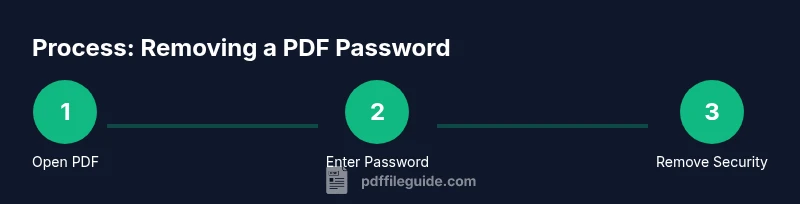
- Open the PDF in a trusted editor. 2) Enter the password to unlock the document. 3) Navigate to the security settings and select the option to remove password protection or disable encryption. 4) Save as a new file without encryption to create a password-free copy. 5) Test the new file by reopening it to ensure no password prompt appears. 6) Keep both copies securely stored and consider retiring the original encrypted version if it’s no longer needed. While following these steps, verify you are operating on a legitimate copy and that your actions are properly documented. The process is straightforward when you have proper authorization, but missteps can lead to data exposure.
Step-by-Step: Create a Password-Free Copy (If You Cannot Remove Security)
If the security settings cannot be changed (for example, due to restricted permissions or non-owner status), create a password-free version by exporting the content to a new PDF without the password. This approach preserves readability while maintaining compliance with owner restrictions. Use a tool that preserves layout fidelity and fonts to avoid garbled text. Always verify that the exported file opens without a password on another device to ensure success.
Best Practices for Managing PDF Passwords
- Use unique, strong passwords and store them in a password manager. - Keep an auditable trail of ownership and consent for any removals. - When sharing password-free copies, consider access controls and secure delivery methods. - Maintain backups of both the original (encrypted) and the new (unprotected) versions. - Periodically review who has access to password-protected PDFs in your organization to prevent leaks.
Common Pitfalls and How to Avoid Them
Common mistakes include attempting removals on documents you don’t own, not confirming permissions in writing, and relying on free or dubious tools that may inject malware. To avoid these, always use reputable editors, verify permissions, and back up the original file before attempting changes. If you’re unsure, pause and consult a supervisor or legal advisor in your organization.
Tools and Methods: In-Program Options (Adobe, Foxit, LibreOffice, and More)
Most major PDF editors offer a straightforward path to remove password protection when you have the necessary credentials. For example, Adobe Acrobat Pro typically requires opening the file with the correct password, selecting Security or Encrypt, and choosing Remove Security. Other editors follow a similar flow under different menu names (Protect, Security, or Permissions). For open-source options like LibreOffice, exporting to PDF without encryption can achieve the same result, provided you have access. Always ensure you’re using legitimate, up-to-date software from reputable sources to mitigate security risks.
Alternatives for Sharing Without Passwords
If removing the password is not possible, consider alternatives: sharing via secure collaboration platforms with proper access control, converting to a passwordless format after performing a content-only export, or distributing a copy through a controlled medium. When possible, use password-protected links with expiration times or access limitations instead of distributing encrypted files directly. These approaches maintain security while enabling compliant collaboration.
Tools & Materials
- Computer or tablet with internet access(For accessing the editor and resources)
- PDF editor with security removal capability(Examples: Adobe Acrobat Pro, Foxit PhantomPDF, LibreOffice)
- Original password or proof of ownership/authorization(Needed to verify you are allowed to modify the document)
- Backup copy of the original file(Always keep an unchanged copy in case something goes wrong)
- Legal authorization document (if applicable)(Keep on hand if you work in regulated environments)
Steps
Estimated time: 20-40 minutes
- 1
Open the PDF in a trusted editor
Launch your chosen PDF editor and load the password-protected file. Verify that you have the right to modify it by confirming ownership or written permission.
Tip: Use a secure, up-to-date device to prevent malware interference. - 2
Enter the password to unlock
Type the correct password to unlock the document. If the password is forgotten, stop and pursue authorized recovery paths rather than attempting bypass.
Tip: Double-check keyboard layout and caps lock. - 3
Remove security/disable password protection
In the editor, find the security or encrypt options and choose to remove protection. This step may be labeled as 'Remove Security' or 'No Encryption'.
Tip: Menu labels vary by tool; look for Protect, Security, or Permissions sections. - 4
Save as a password-free copy
Use Save As or Export to create a new file that contains the content without encryption.
Tip: Choose a known, secure save location to avoid misplacing the file. - 5
Test the new file
Close the original and reopen the new PDF to confirm it opens without a password prompt.
Tip: If a prompt appears, repeat the steps or revert to the encrypted version. - 6
Securely manage the originals
If the password-protected version is no longer needed, delete it securely and preserve the new copy with clear labeling.
Tip: Consider documenting the change for audits.
Questions & Answers
Is it legal to remove a PDF password if I don't own the file?
No. Removing password protection on a file you do not own or lack permission for can violate copyright and privacy laws. Always obtain written authorization before attempting removal.
Removing password protection without ownership or permission is not legal or ethical. Always verify authorization first.
What should I do if I forgot the password to a PDF I own?
If you own the file, pursue official recovery options provided by the software vendor or contact the document owner. Do not use unauthorized bypass tools. Keep records of any recovery steps taken.
If you own the file but forgot the password, use legitimate recovery options or contact the owner for access.
Can I unlock a PDF with third-party tools?
Only if you have explicit authorization. Unauthorized unlocking can violate laws and expose you to liability. Prefer built-in features of reputable editors and maintain an audit trail.
Only use third-party tools if you’re authorized; otherwise, avoid them.
Will removing a password affect the document's content?
Removing a password does not alter the textual content or layout, but always verify the final file to ensure no data loss or formatting changes occurred during the process.
Usually the content stays the same, but always verify after removal.
What should I do if I can't remove the password legally?
If removal isn’t permitted, use safe alternatives like sharing non-sensitive excerpts or providing access through controlled systems. Consult the document owner or legal counsel for compliant options.
If removal isn’t allowed, explore compliant sharing options and seek authorization.
What are safer alternatives to password sharing?
Use secure links with expiration, access controls, or service-based sharing rather than distributing encrypted files. For collaborative environments, set permissions on the hosting platform and avoid emailing password-protected files.
Prefer secure links and access controls over sending encrypted files.
Watch Video
Key Takeaways
- Confirm you have authorization before attempting removal.
- Open the document with the correct password to unlock.
- Remove security only within trusted editors, then save a copy.
- Test the new file to ensure it opens without prompts.
- Store original and new copies securely and document the change.